Create and assign additional appforms
Roles
These roles reflect the default DreamApply setup.
You can define custom roles based on your
institution's needs. Learn more →:
You can define custom roles based on your
institution's needs. Learn more →
To collect extra information in specific cases, you can create additional appforms and assign them to applications. DreamApply will merge sections of additional appforms with sections of the programme-specific appform and display a combined, unified structure to applicants.
Before you begin
- To manage appforms, your account must have the
SuperuserorCourses administratorrole or theappformspermission. - To edit programme settings, your account must have the
SuperuserorCourses administratorrole or thecourses-viewandcourses-editpermissions. - To set up automatic rules, your account must have the
Superuserrole or therulespermissions. - To edit offer type settings, your account must have the
Superuserrole or theoffer-viewandoffer-editpermissions.
Create additional appforms
In DreamApply, additional appforms are configured in the same way as programme-specific appforms but are not linked to programmes. For details, see Create programme-specific appforms.
Assign additional appforms
You can assign additional appforms to applications in the following ways:
- Automatically through rules
- Through offer types
- Through applicant categories
- Manually by Administrators
Assign appforms through automatic rules
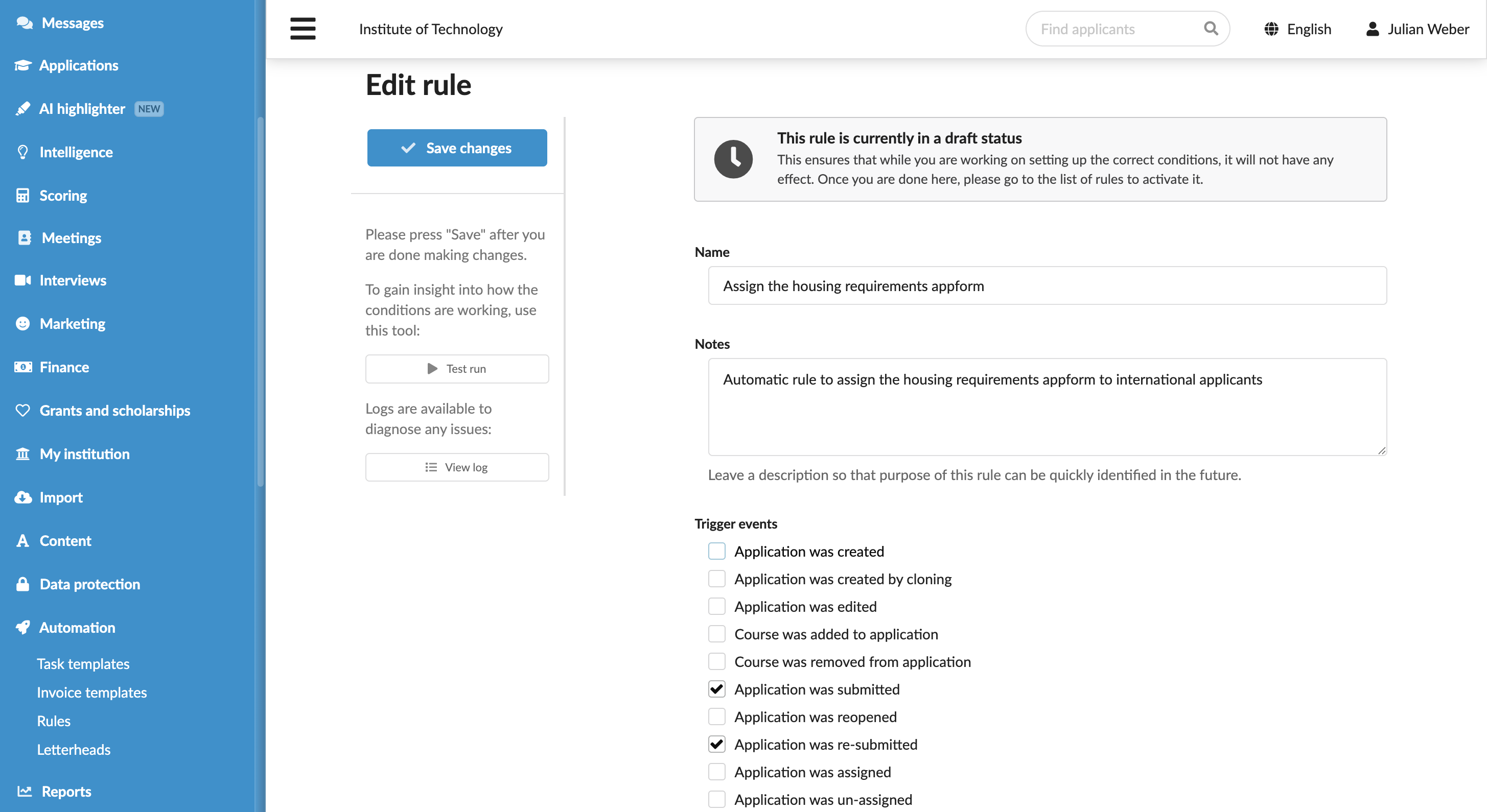
To configure an automatic rule to assign an additional appform:
- In the main menu, under Automation, select Rules.
- At the bottom of the rule list, click New rule and specify the rule name.
- In the Trigger events section, select events that must activate the rule. For example, you can choose to manage all newly created, submitted or re-opened applications.
- In the Conditions section, specify granular conditions for the rule.
- In the Action section, select the Add additional appform questions check box and choose one or more appforms.
- At the top of the form, click Save changes.
- In the rule list, set the rule status to Active.
Assign appforms through offer types
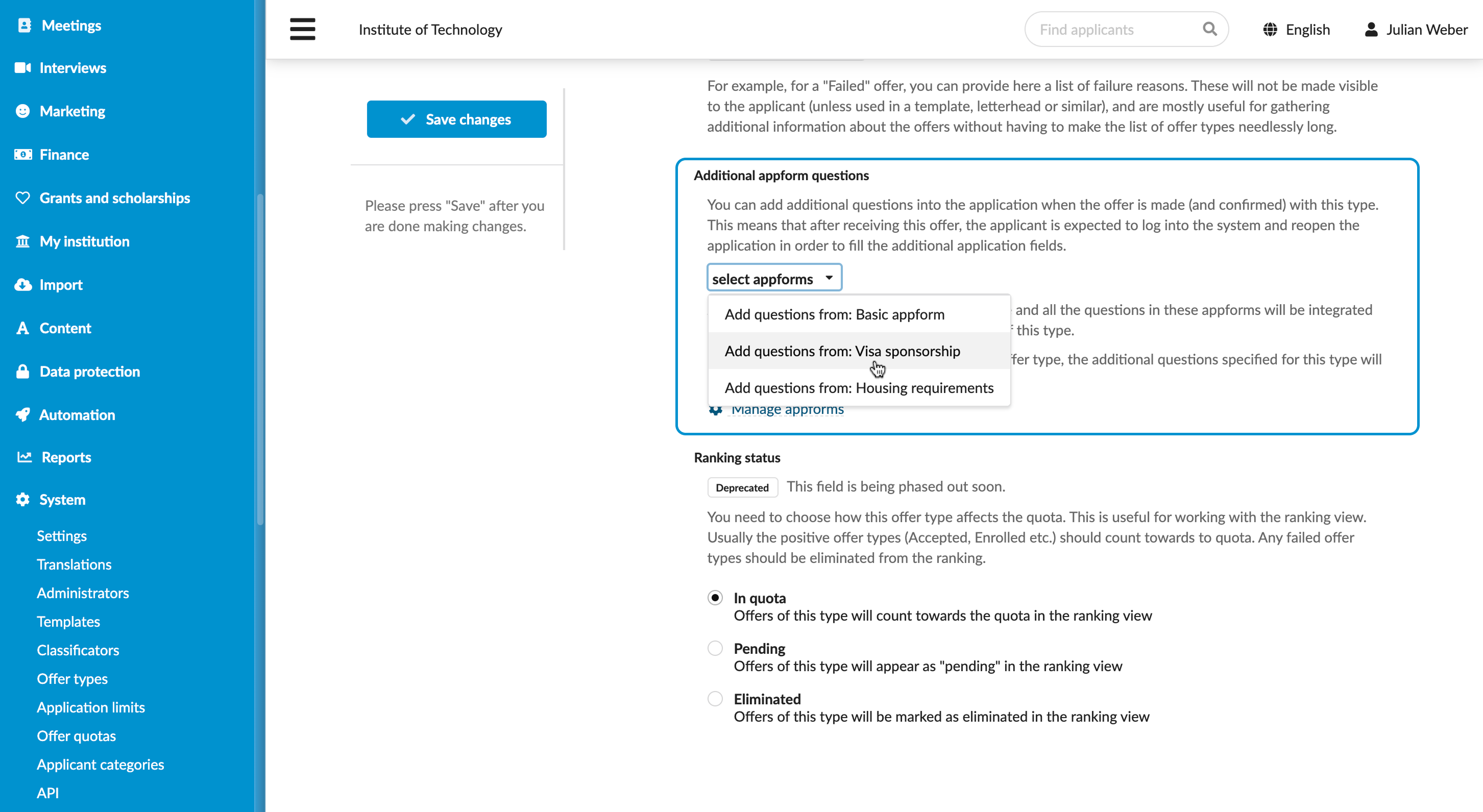
To assign an additional appform through offer types:
- In the main menu, under System, select Offer types.
- Select to create or edit a specific offer type.
- In the Additional appform questions section, choose an appform to be assigned when the offer type is set.
- At the top of the form, click Save changes.
Assign appforms through applicant categories
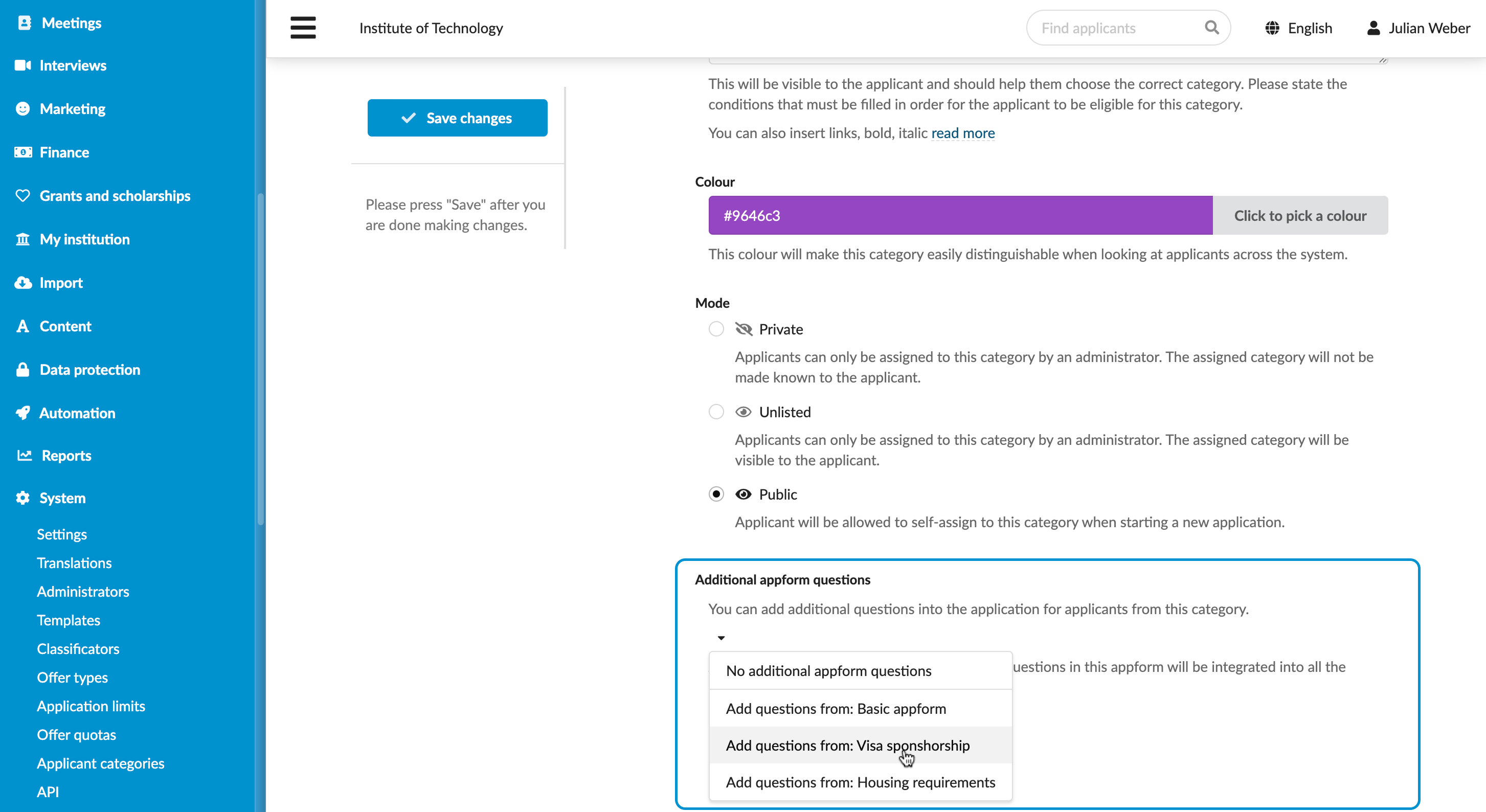
To assign an additional appform for applicants belonging to a specific category:
- In the main menu, under System, select Applicant categories.
- Select to create or edit a specific category.
- In the Additional appform questions section, choose an appform to be assigned.
- At the top of the form, click Save changes.
Manually assign appforms
To manually assign an appform:
- In the main menu, under Applications, select Browse.
- In the application card, click View.
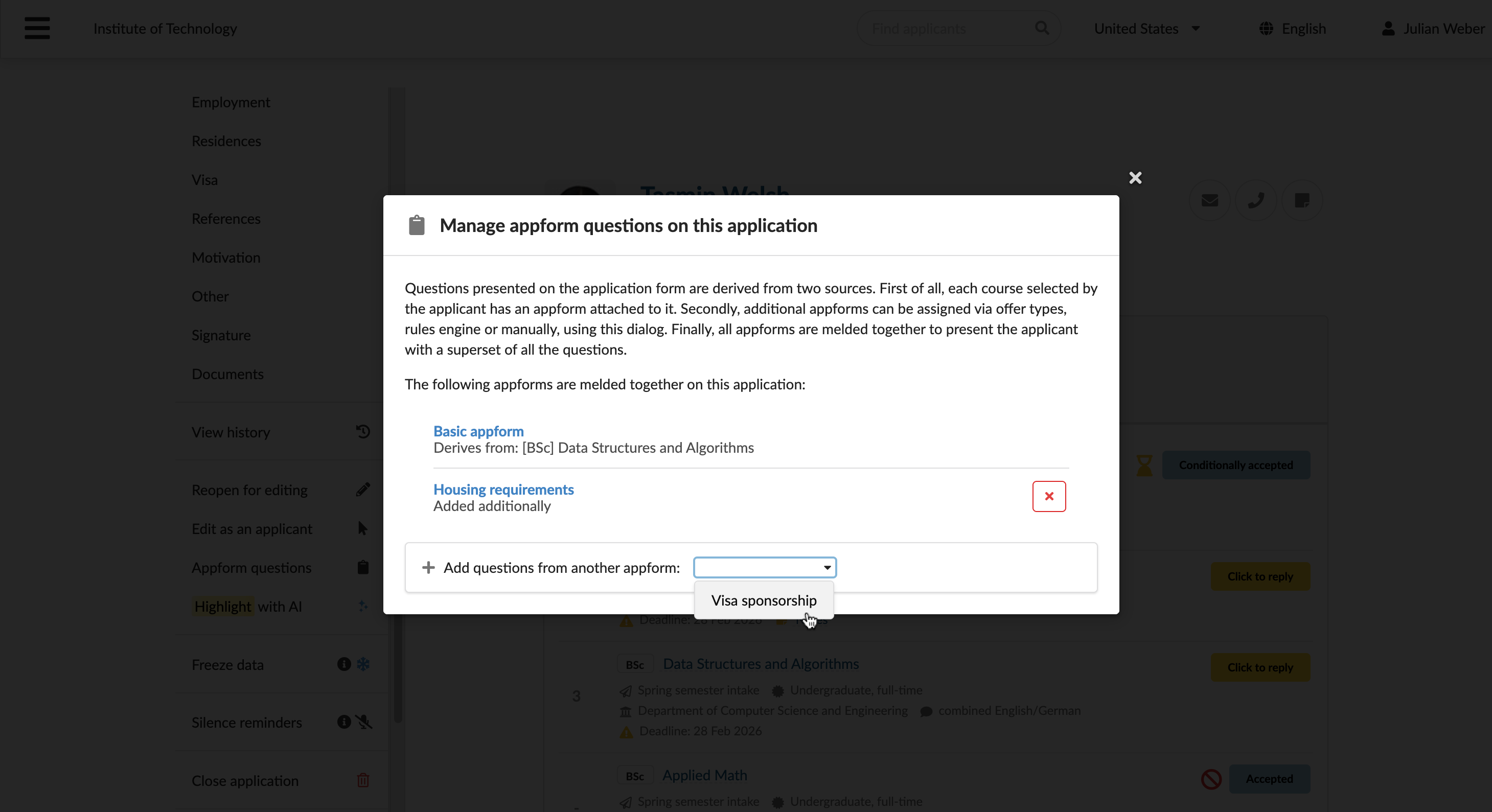
- In the left menu, select Appform questions and choose which additional appform you want to assign.