Define applicant categories
Roles
These roles reflect the default DreamApply setup.
You can define custom roles based on your
institution's needs. Learn more →:
You can define custom roles based on your
institution's needs. Learn more →
To support different admission paths for various groups of applicants, you can use applicant categories. Applicant categories help customize the application process based on factors like the applicant’s residency or background.
DreamApply includes the following predefined categories:
- Domestic
- International
- Alumni
Institutions can customize this list by adding or removing categories as needed.
How applicant categories are used
Applicant categories can be used to manage the following areas:
- Intake eligibility: You can configure intakes to be available only to specific categories. Applicants who do not belong to an eligible category will not see programmes linked to those intakes.
- Appform customization: You can create different question sets and assign additional appforms to specific categories.
- Automatic rules: You can define rules that trigger based on applicant categories.
- Record filtering: Administrators can filter applications and other records by category to simplify processing and reporting.
Category visibility modes
Visibility modes control how categories are assigned and whether applicants can see and select them.
- Public: Applicants can select these categories themselves.
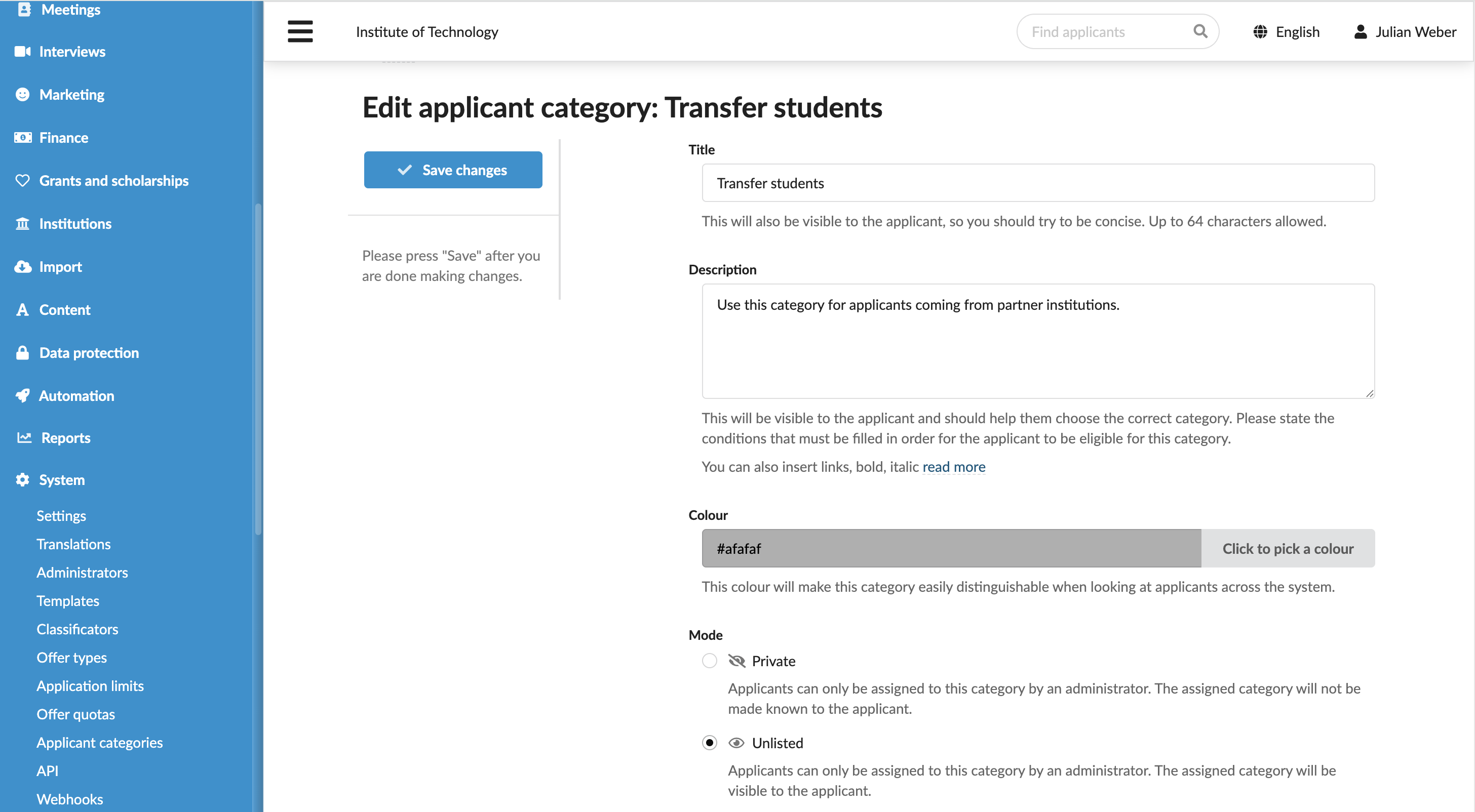
- Private: These categories are not visible to applicants. Only Administrators can assign private categories. Use this mode for internal processing, for example, for special admissions programmes.
- Unlisted: Administrators can assign these categories, and they become visible to applicants. Use this mode when applicants should see their category but cannot change it, for example, for exchange programmes applicants.
Before you begin
To define applicant categories, your account must have the Superuser role or the categories permission.
Add categories
To add applicant categories:
- In the main menu, under System, select Applicant categories.
- At the bottom of the category list, click Add a new applicant category.
- Specify the category title, description, color and mode. If necessary, select an additional appform to be assigned to applicants within the category.
Select categories (applicants)
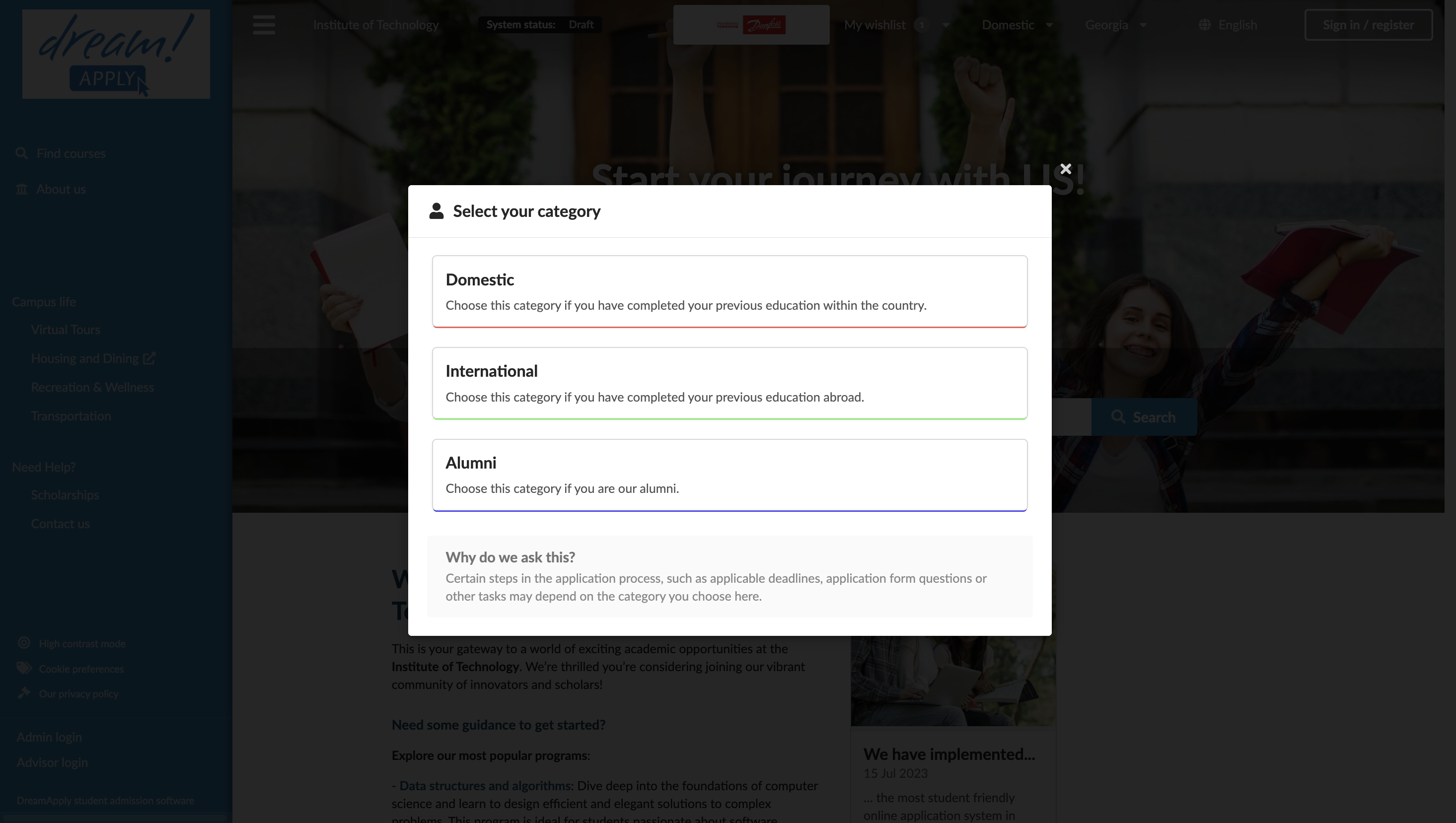
Applicants are required to select a public category before they add a programme to their application. This ensures that DreamApply can correctly apply eligibility rules and workflows.
Applicants can select or review their category at any time using the top menu of the DreamApply portal.
Assign categories (Administrators)
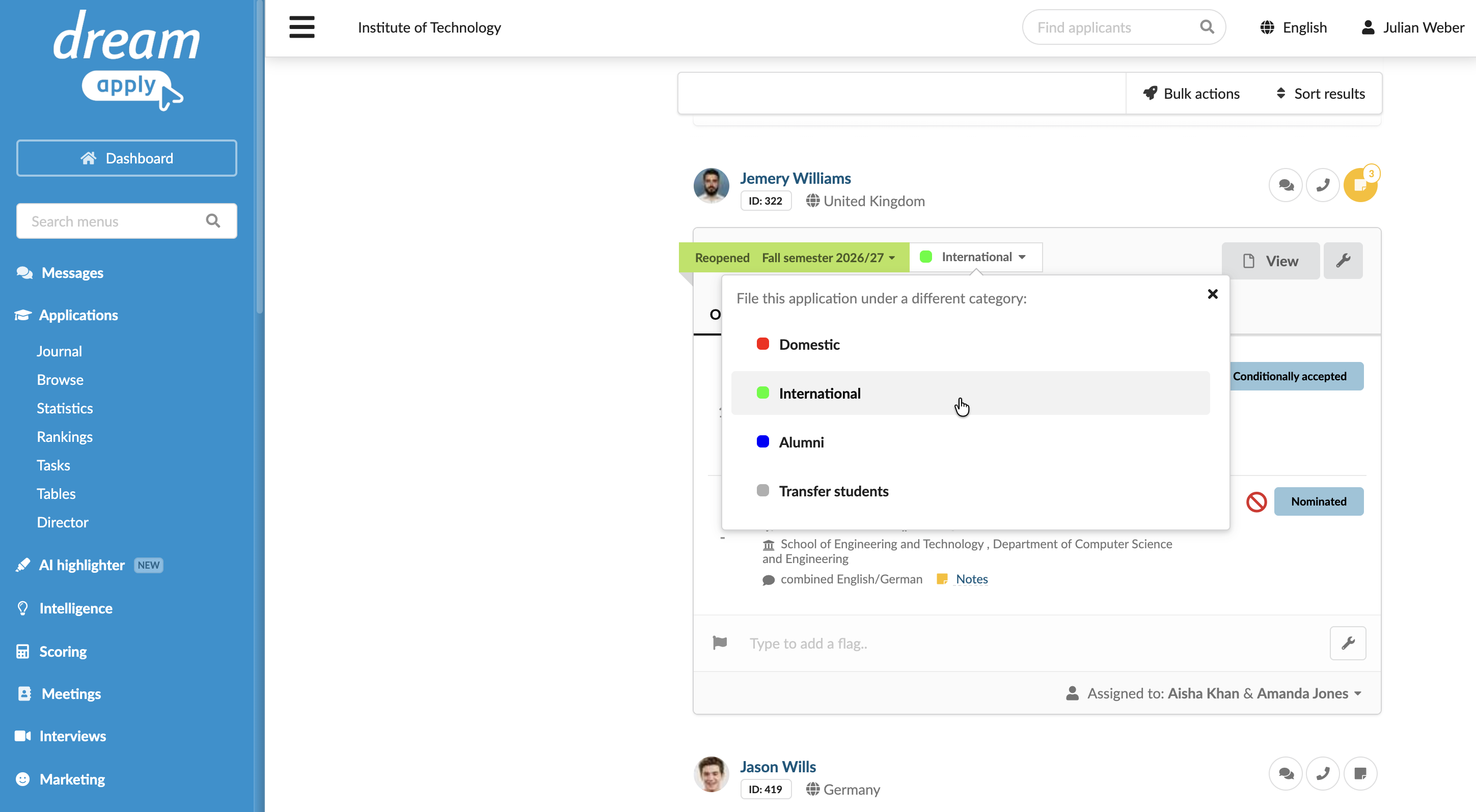
Administrators can assign private and unlisted categories to applicants or change their public categories as needed. Categories are assigned at the application level. That is, if an applicant has several applications, their categories can differ between the applications.
- In the main menu, under Applications, select Browse.
- In the application card, click the category list and select the category to assign.