Define support measures
Roles
These roles reflect the default DreamApply setup.
You can define custom roles based on your
institution's needs. Learn more →:
You can define custom roles based on your
institution's needs. Learn more →
Some applicants may require additional support to fully participate in the admission process. These include, for example, applicants with disabilities or applicants who have special needs. DreamApply lets institutions define support measures they can provide, assign them to applicants and later generate reports. This feature helps institutions improve accessibility in admissions and provide equal opportunities for all applicants.
Support measures can address different kinds of applicant needs. DreamApply organizes them into the following categories:
- Time-related measures: Extra time, supervised breaks or flexible scheduling
- Environment-related measures: Allocation of a separate room or specialized setting
- Materials: Adapted content like high-contrast print or braille, sign language interpretation or human reader
- Tools and equipments: Devices and services such as screen readers or noise-cancelling headphones
- Other: Other kinds of support institutions can provide
Before you begin
- To define support measures, your account must have the
Superuserrole or theinstancepermission. - To assign support measures, your account must have the
SuperuserorAdmissions administratorrole or theapplicants-viewandapplicants-editpermissions.
Add support measures
To define support measures:
- In the main menu, under Applications, select Browse.
- In the applications list, click an applicant’s name to open the applicant card.
- To the right of applicant metadata, click the wheelchair icon.
- At the bottom of the list, click Manage this list.
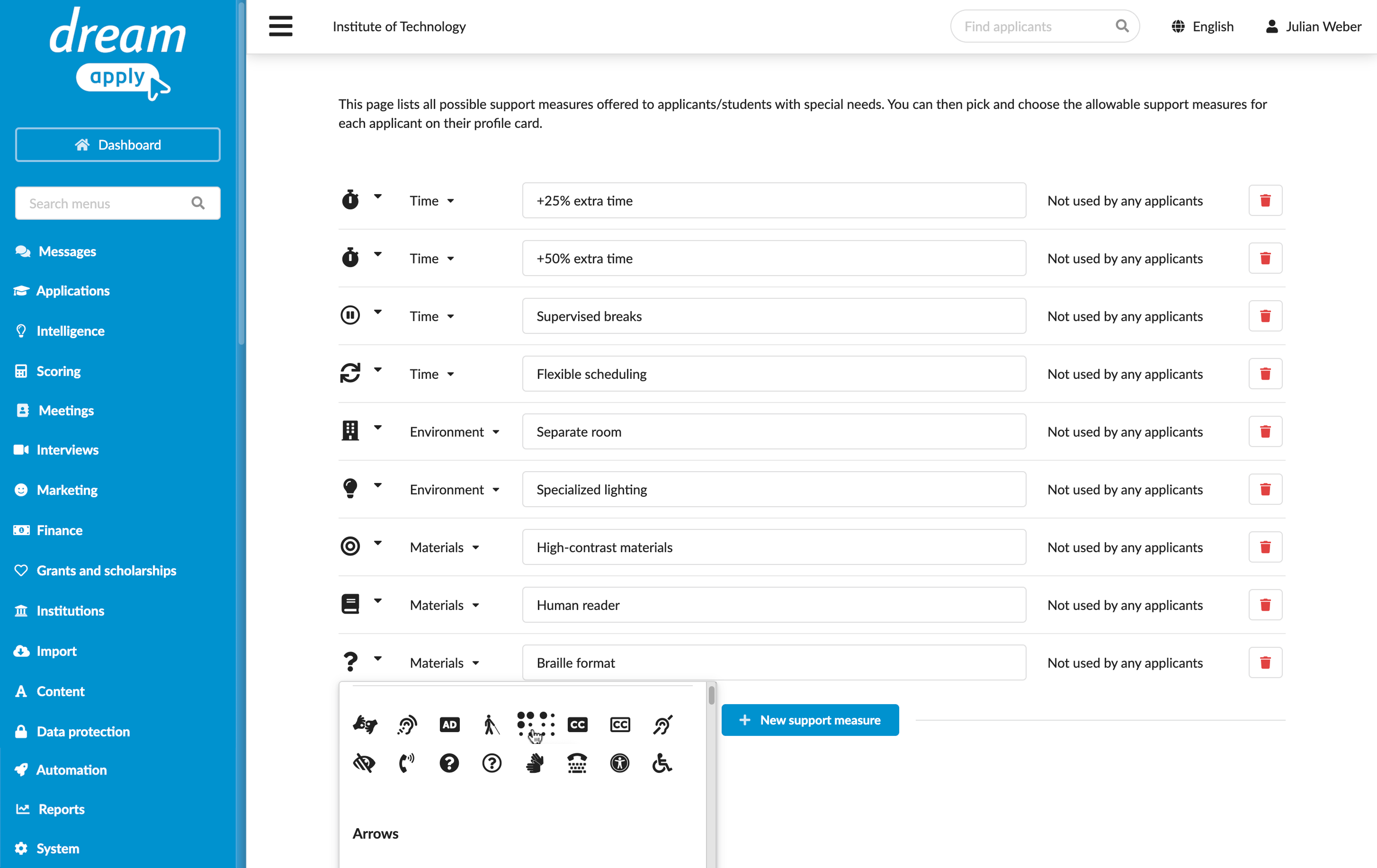
- At the bottom of the measure list, click New support measure.
- Select an icon to identify the measure and specify the measure type and name.
Assign support measures to applicants
You can assign support measures and specify what special needs applicants have using their applicant cards.
- In the main menu, under Applications, select Browse.
- In the applications list, click the applicant’s name to open the applicant card.
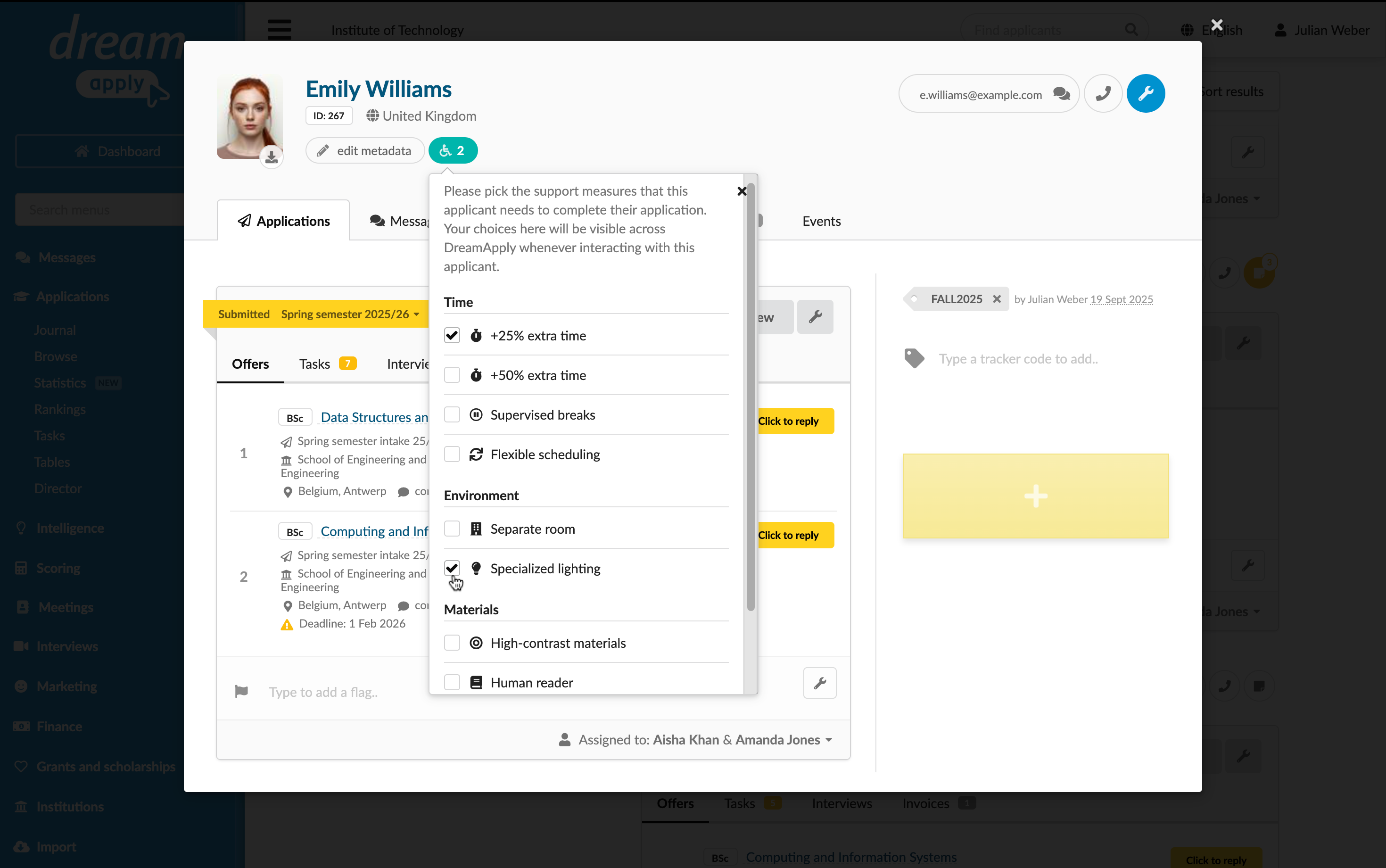
- To the right of applicant metadata, click the wheelchair icon and select the support measures you want to provide.
Report and filter
To quickly see how many applicants require specific support measures and adjustments, use the support measure list, filters and tables.
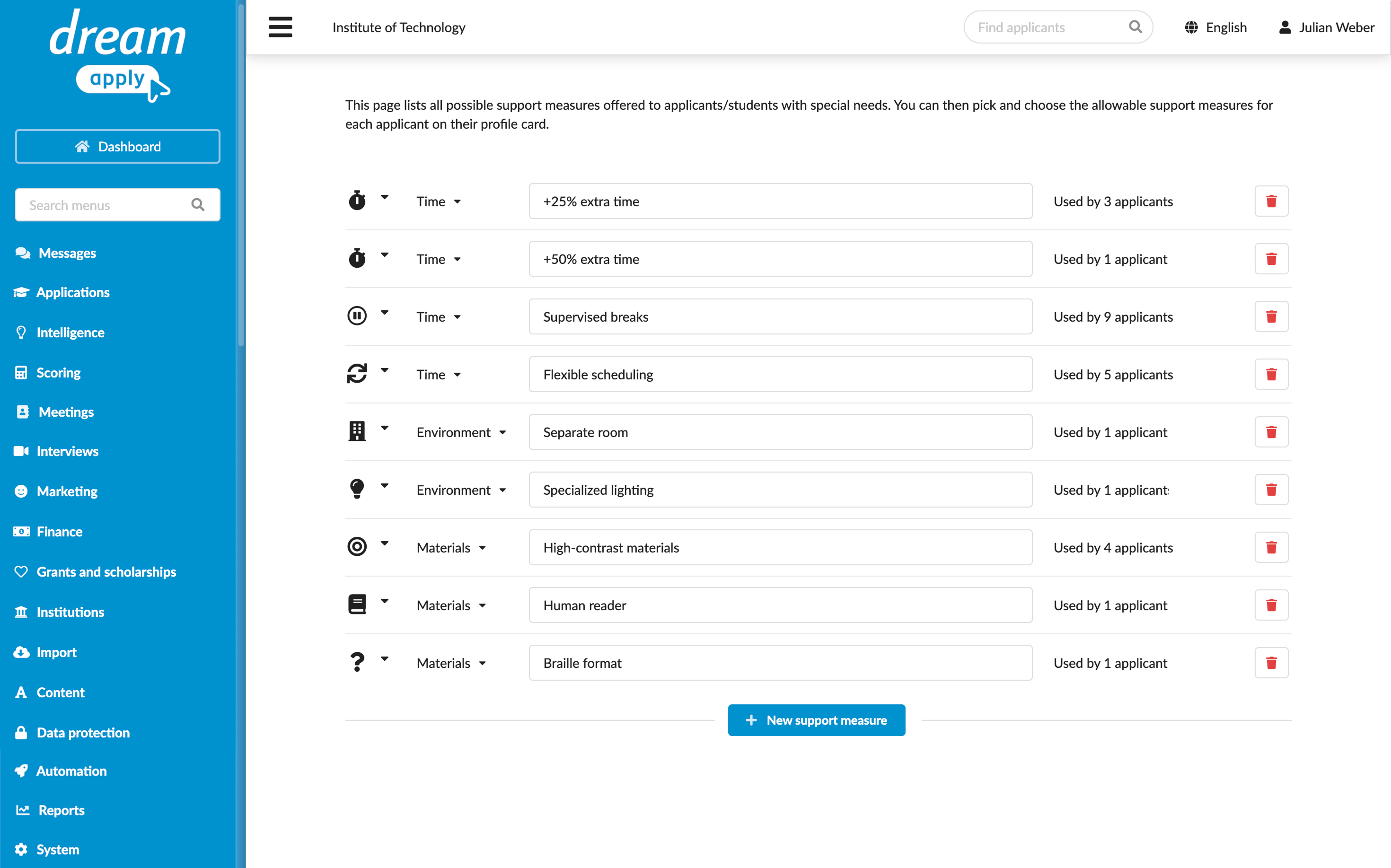
To see the number of applicants assigned to each support measure, in the main menu, under System, select Support measures.
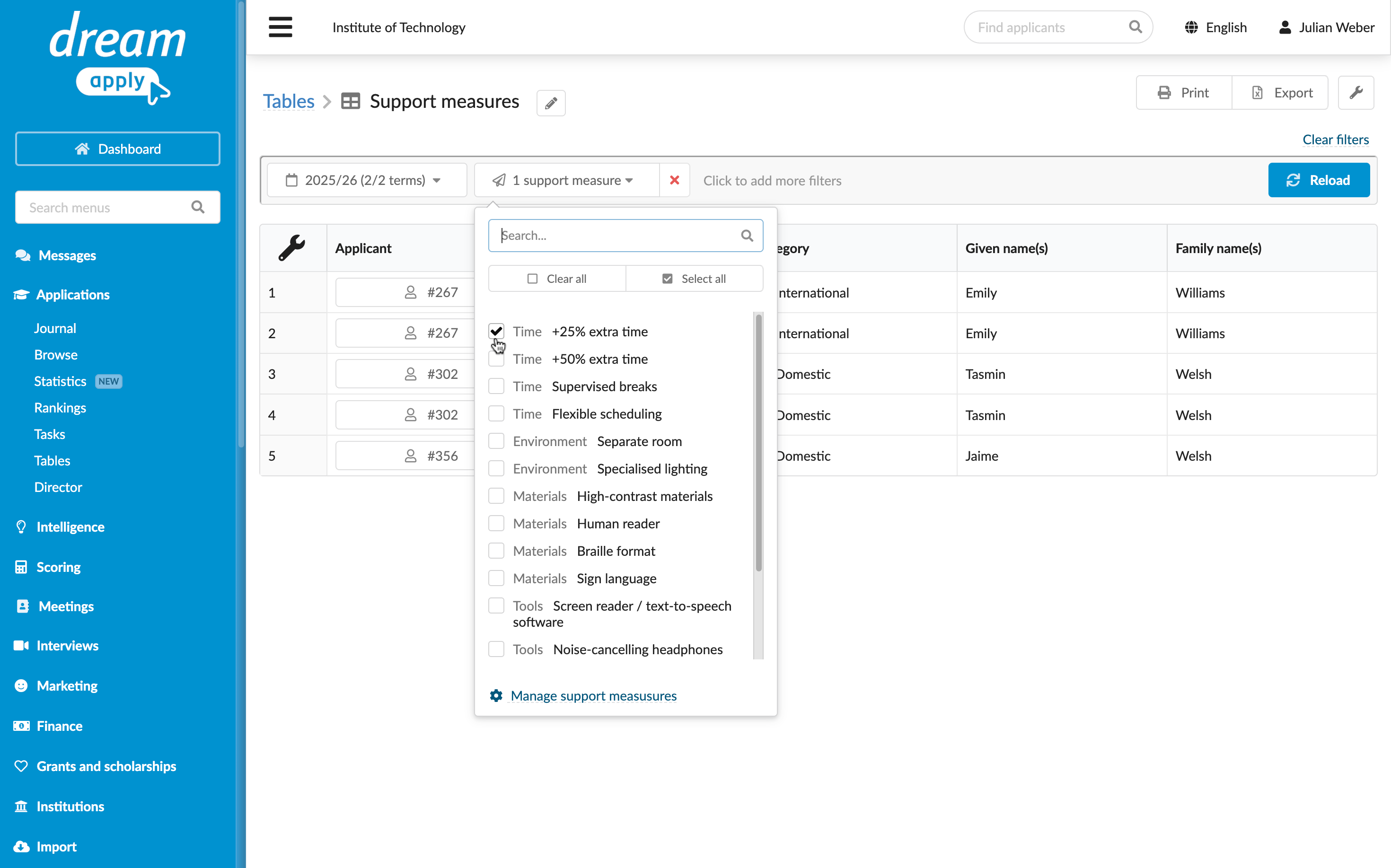
To see a list of applicants using specific support measures, use the Support measures filter under the Applicant category in filters.
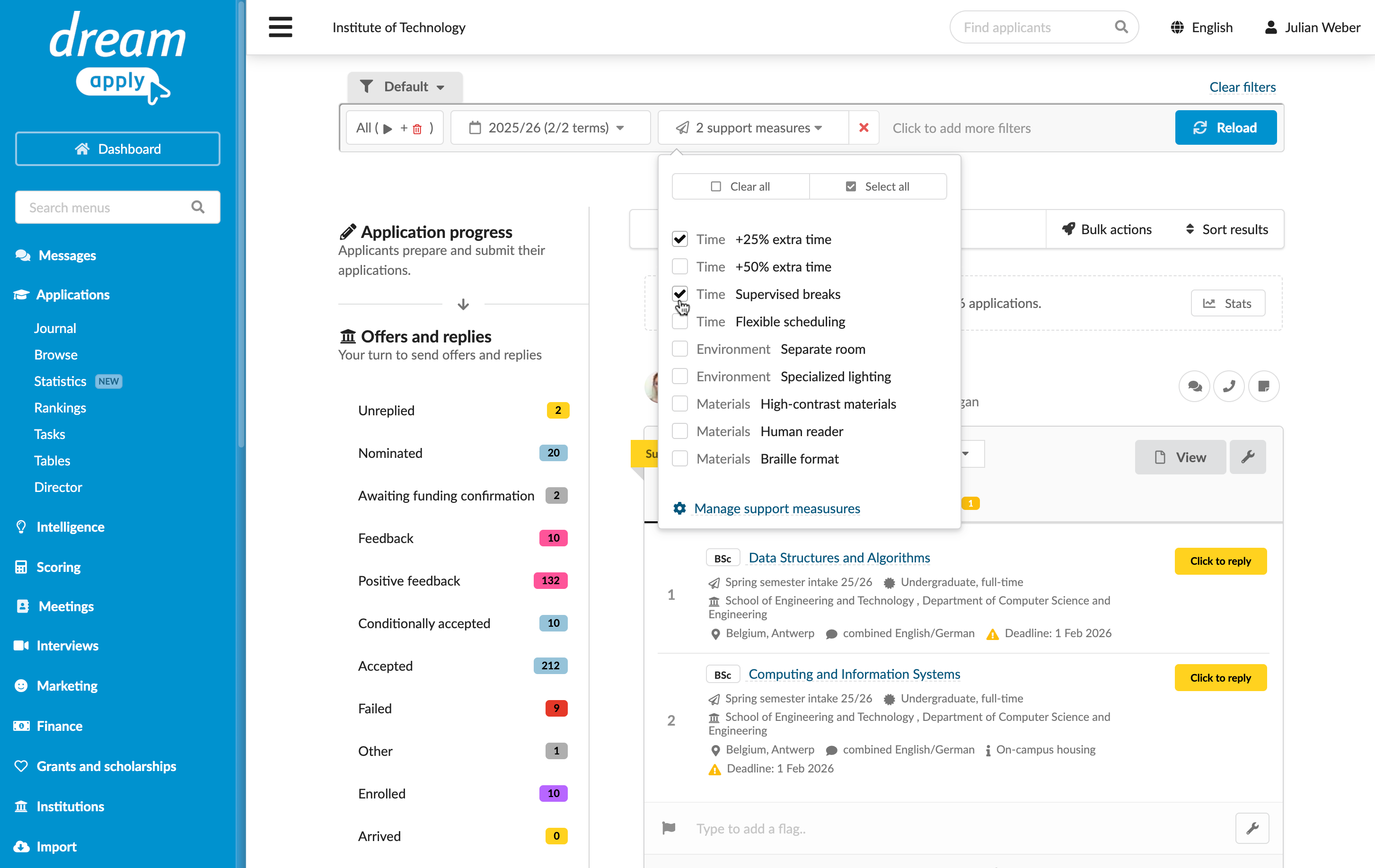
To see and export a list of applicants using specific support measures, use tables. Under Applications, select Tables, create a new table and apply the Support measures filter under the Applicant category.