Assign tasks
Roles
These roles reflect the default DreamApply setup.
You can define custom roles based on your
institution's needs. Learn more →:
You can define custom roles based on your
institution's needs. Learn more →
You can assign tasks in the following ways:
Before you begin
- To assign tasks through programmes, your account must have the
Superuserrole or thetask-classespermission. - To set up automatic rules, your account must have the
Superuserrole or therulespermissions.
Assign tasks through programmes
You can select to assign tasks through programmes if you want to communicate programme-specific requirements to applicants.
To associate a task with programmes:
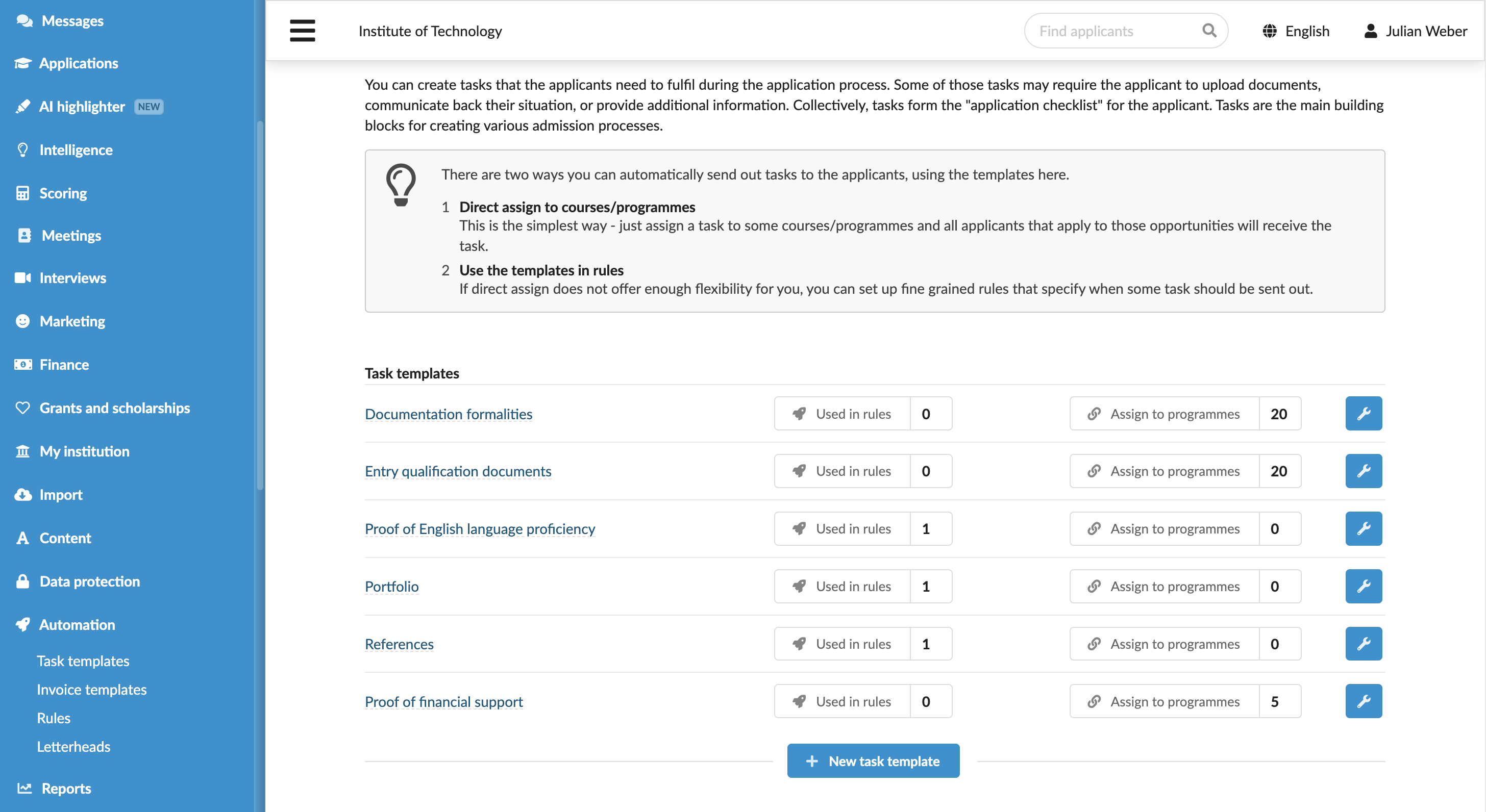
- In the main menu, under Automation, select Task templates.
- Next to the task template, click Assign to programmes and select the programmes with which the task must be associated.
Assign tasks using rules
You can use rules to assign tasks to applications when specific conditions are met.
Use automatic rules
You can use automatic rules to assign tasks immediately after a trigger event, for example, when an application is created or submitted.
To assign tasks using automatic rules:
- In the main menu, under Automation, select Task templates.
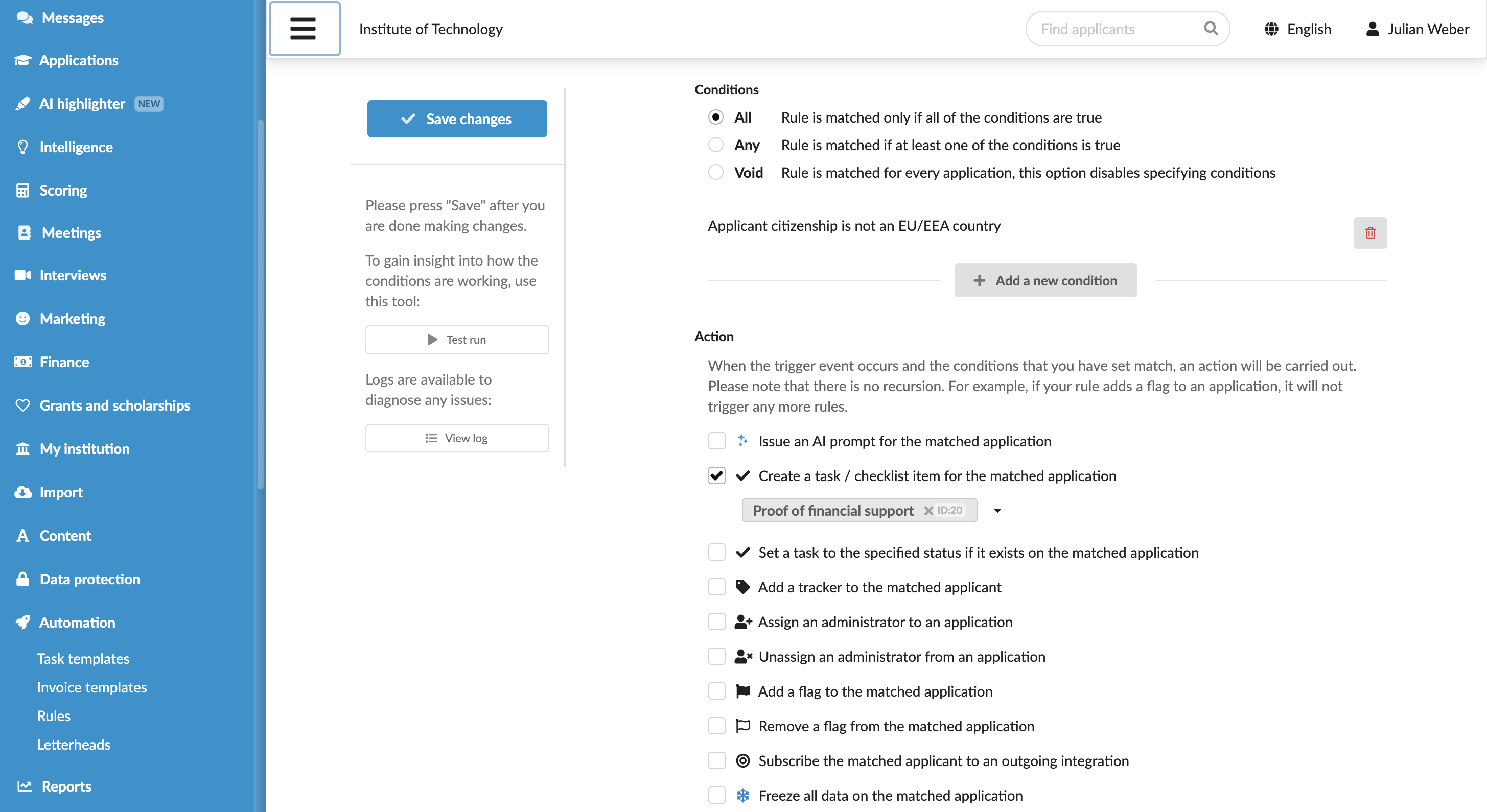
- Next to the task template, click Used in rules and click New rule.
- In the Trigger events section, select events that must activate the rule.
- In the Conditions section, specify granular conditions for the rule.
- In the Action section, select the Create a task/checklist item for the matched application check box and choose an appropriate task.
- At the top of the form, click Save changes.
- In the list of rules, set the rule status to Active.
Manually run rules
You can configure rules and manually apply them to a specific group of applications. This option is useful for processing existing applications in bulk or re-running rule logic.
You can use this method to assign tasks to a specific application or to all applications from a specific applicant using the Application > List (CSV) or Applicant > List (CSV) filters.
To apply rules to applications:
- In the main menu, under Applications, select Browse.
- Use filters to select the applications you want to update.
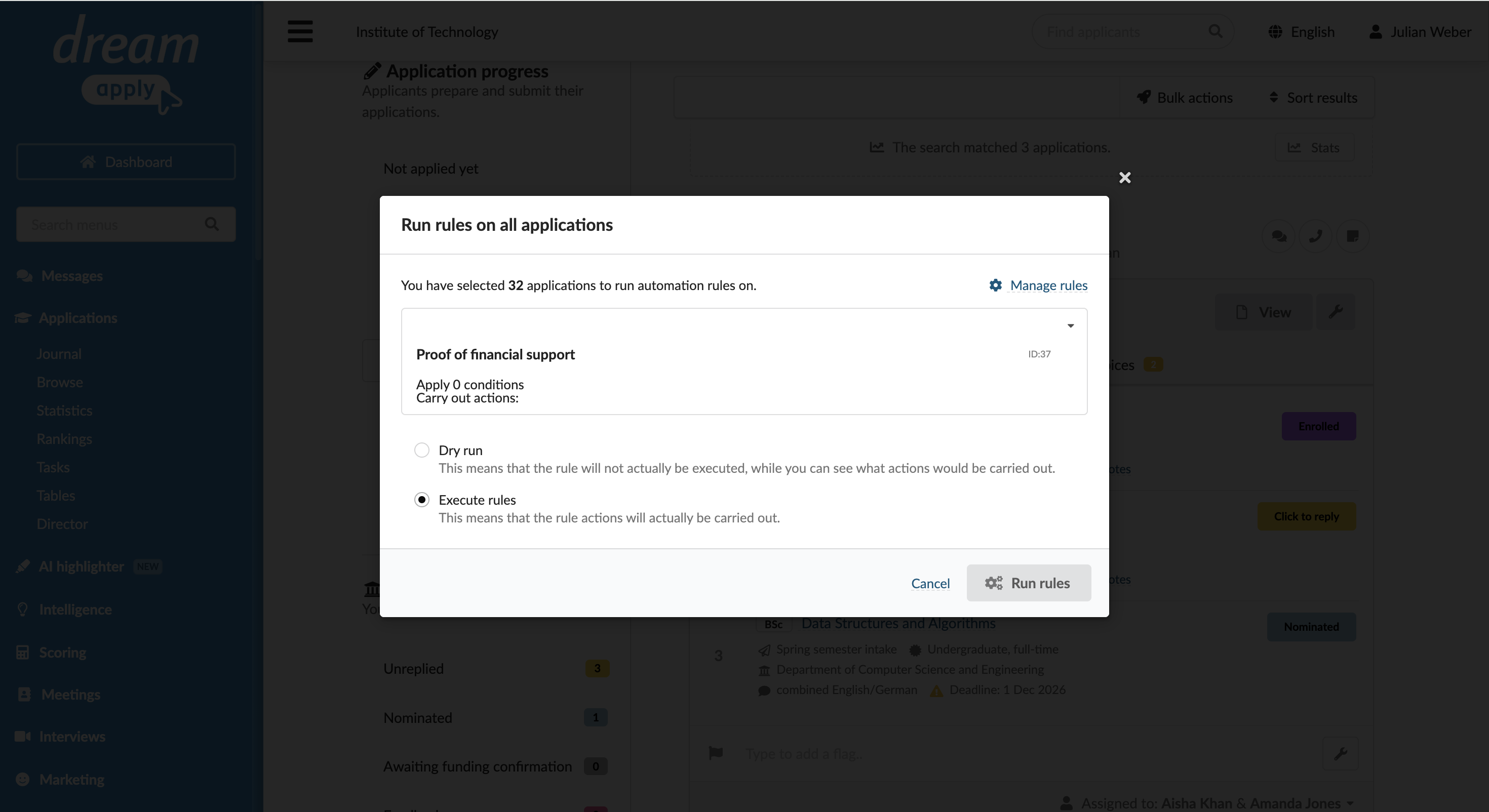
- From the Bulk actions list, select Run rules.
- Select the rule you want to use, then select Execute rules and click Run rules.
Assign tasks via the DreamApply API
You can programmatically assign tasks to applications using the DreamApply API. This method is useful for integrations with third-party systems and external workflows.
To assign a task, send a POST /api/applications/ID/tasks request to the necessary application.