Configure task templates
Roles
These roles reflect the default DreamApply setup.
You can define custom roles based on your
institution's needs. Learn more →:
You can define custom roles based on your
institution's needs. Learn more →
Tasks assigned to applicants are generated from task templates. A task template aggregates basic task settings, including task statuses, deadlines, email notification and document attachment options.
Each task template includes several statuses that represent the applicant’s progress. Task statuses help track task completion and provide clarity for both applicants and the admission team. You can tailor the set of statuses within each template to fit the specific workflow of that task.
Before you begin
To create and edit task templates, your account must have the Superuser role or the task-classes permission.
Create task templates
To create a task template:
- In the main menu, under Automation, select Task templates.
- At the bottom of the task template list, click New task template and specify the template title.
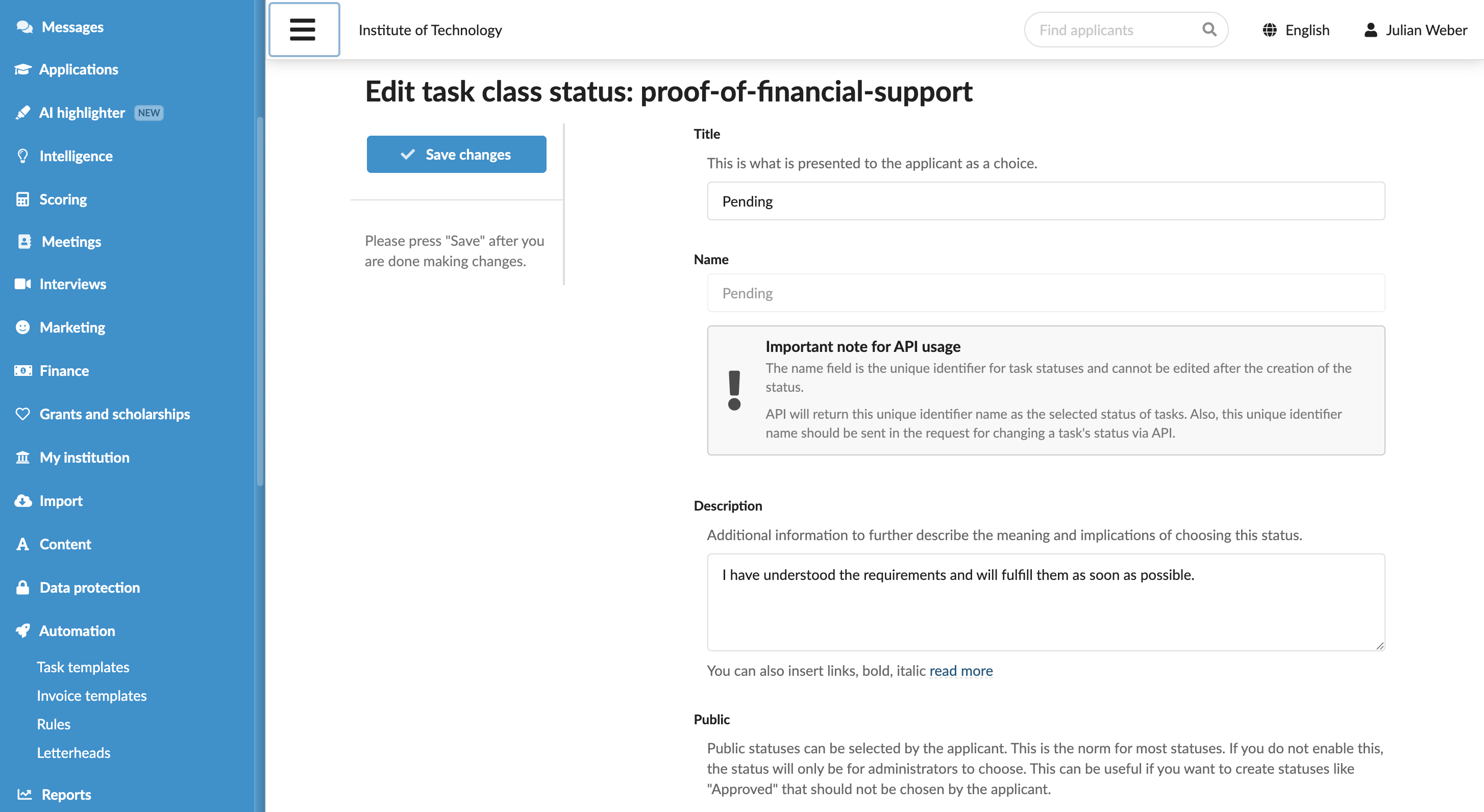
- In the Content field, specify the task instructions. The instructions will be displayed to an applicant in the task card.
- To additionally notify an applicant about the task via email, enable the Send by email upon creation option.
- To freeze the task together with an application, enable the Make the task freezable option.
- If necessary, allow an applicant to leave comments and upload documents to the task.
- Define the task deadlines.
- In the Statuses section, define the task statuses.
- At the top of the form, click Save changes.
Define task statuses
To define statuses for a task template:
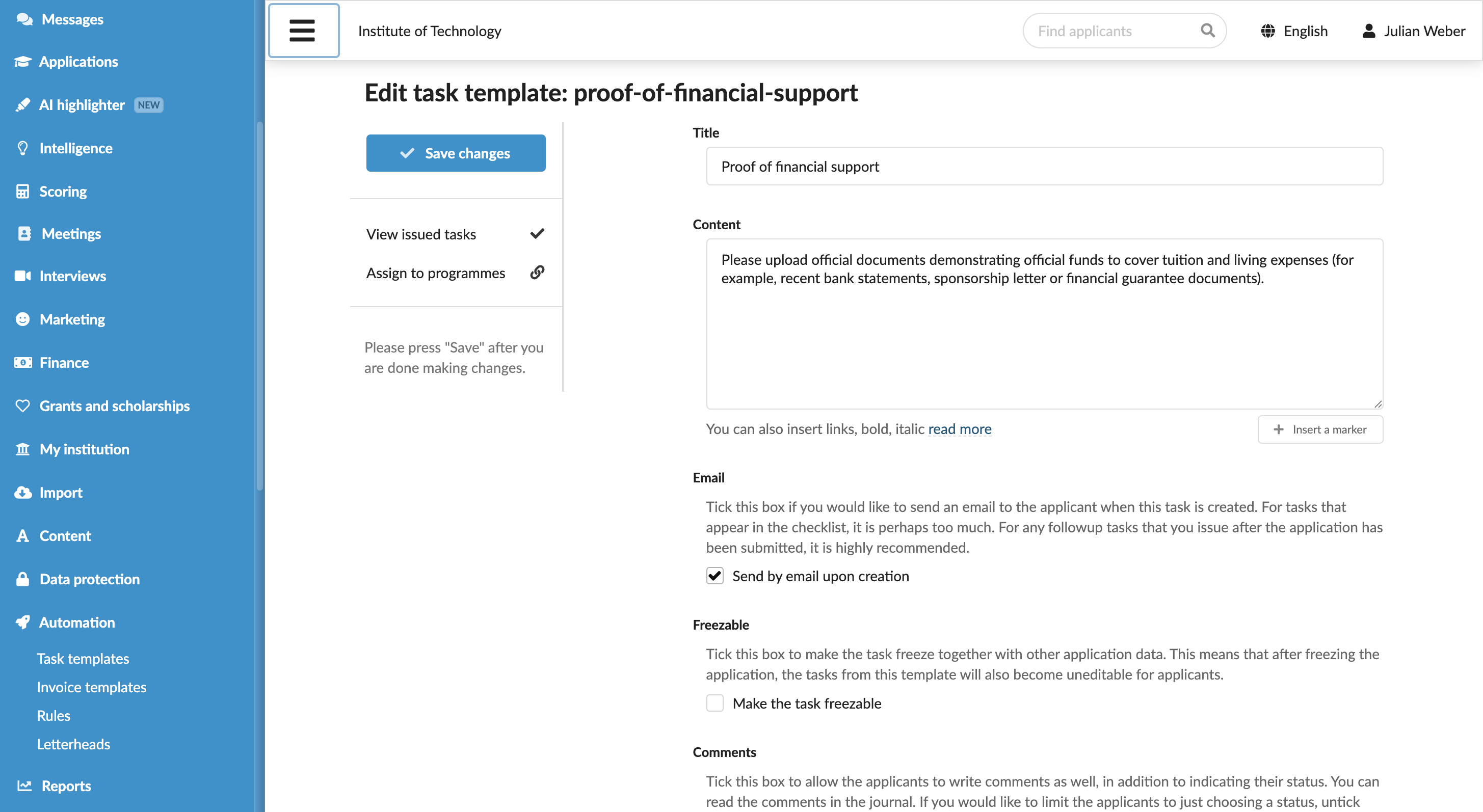
In the task settings, in the Statuses section, click New status and specify the status name.
The status name you initially define cannot be modified later as it serves as a unique identifier in the system. You can update the status title displayed to applicants and Administrators, but the original status name will be used for interactions with DreamApply via the DreamApply API.
In the Description field, specify the status description. The description will be displayed to applicants below the task status in the task card.
Specify the task settings such as access level, status, effect and documents. In the Reminder section, configure the reminder settings and specify a custom text of the notification if needed.
At the top of the form, click Save changes.