Delete tasks
Roles
These roles reflect the default DreamApply setup.
You can define custom roles based on your
institution's needs. Learn more →:
You can define custom roles based on your
institution's needs. Learn more →
In some cases, applicants may receive irrelevant tasks. This can happen, for example, if an applicant removes a programme that required a task or if programme requirements change after a task is assigned. In these cases, you can:
Before you begin
To send tasks to trash and delete tasks, your account must have the Superuser or Admissions administrator role or the applications-view and tasks permissions.
Send tasks to trash
You can send a task to trash when it is no longer relevant to the applicant, but you still need to keep it for traceability and internal records.
When you send a task to trash, DreamApply applies the following changes:
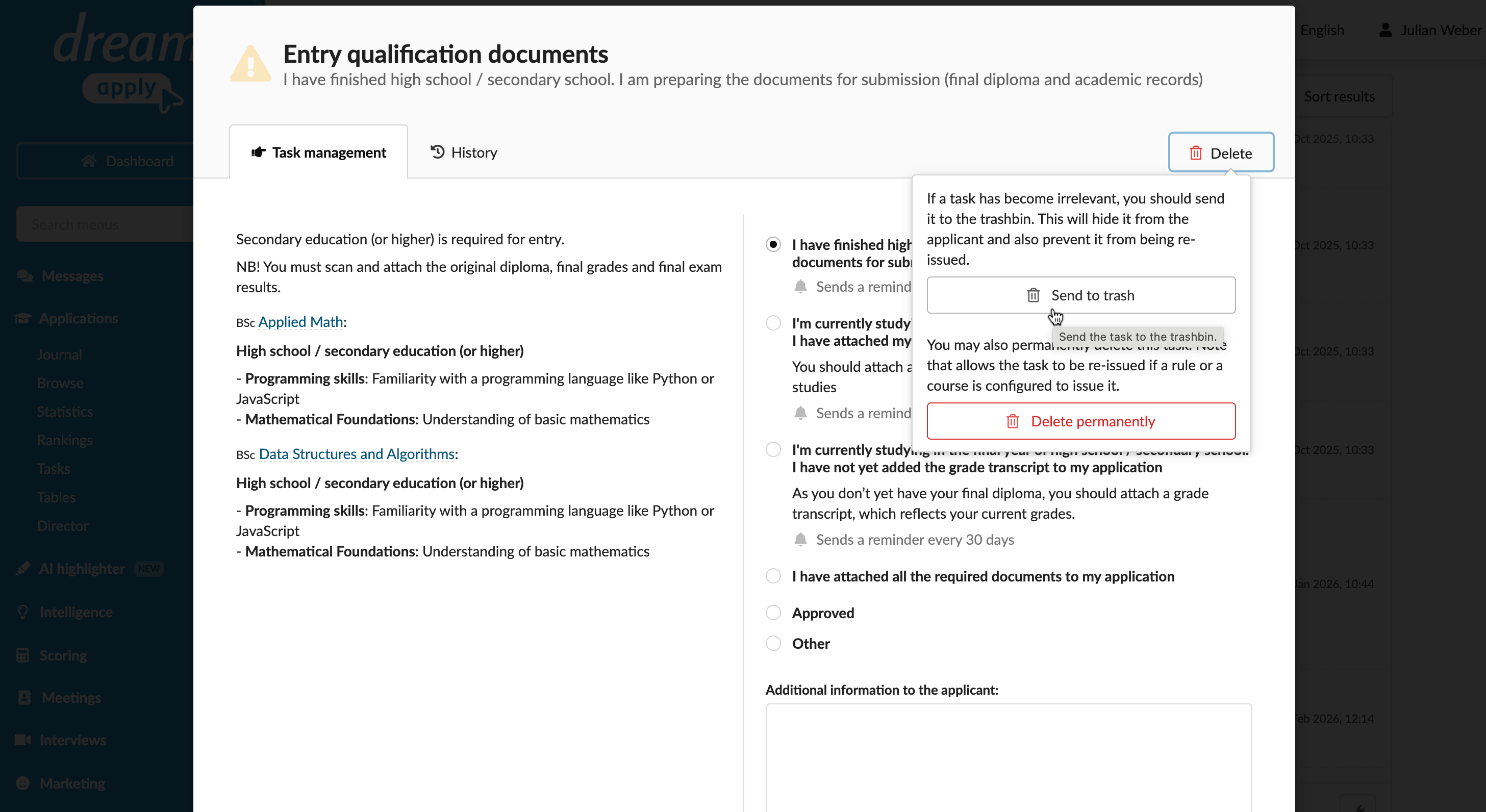
- The task is removed from the applicant’s checklist but remains linked to the application. Administrators can view it by clicking the Show trashed tasks button on the Tasks tab of the application card.
- Existing documents attached to the task remain in the Documents section of the application. You cannot attach new documents to a trashed task.
- DreamApply does not re-assign a trashed task, even if the original programme conditions or rules are met again.
To send a task to trash:
- In the main menu, under Applications, select Browse.
- In the application card, click the Tasks tab.
- Click the task you want to send to trash.
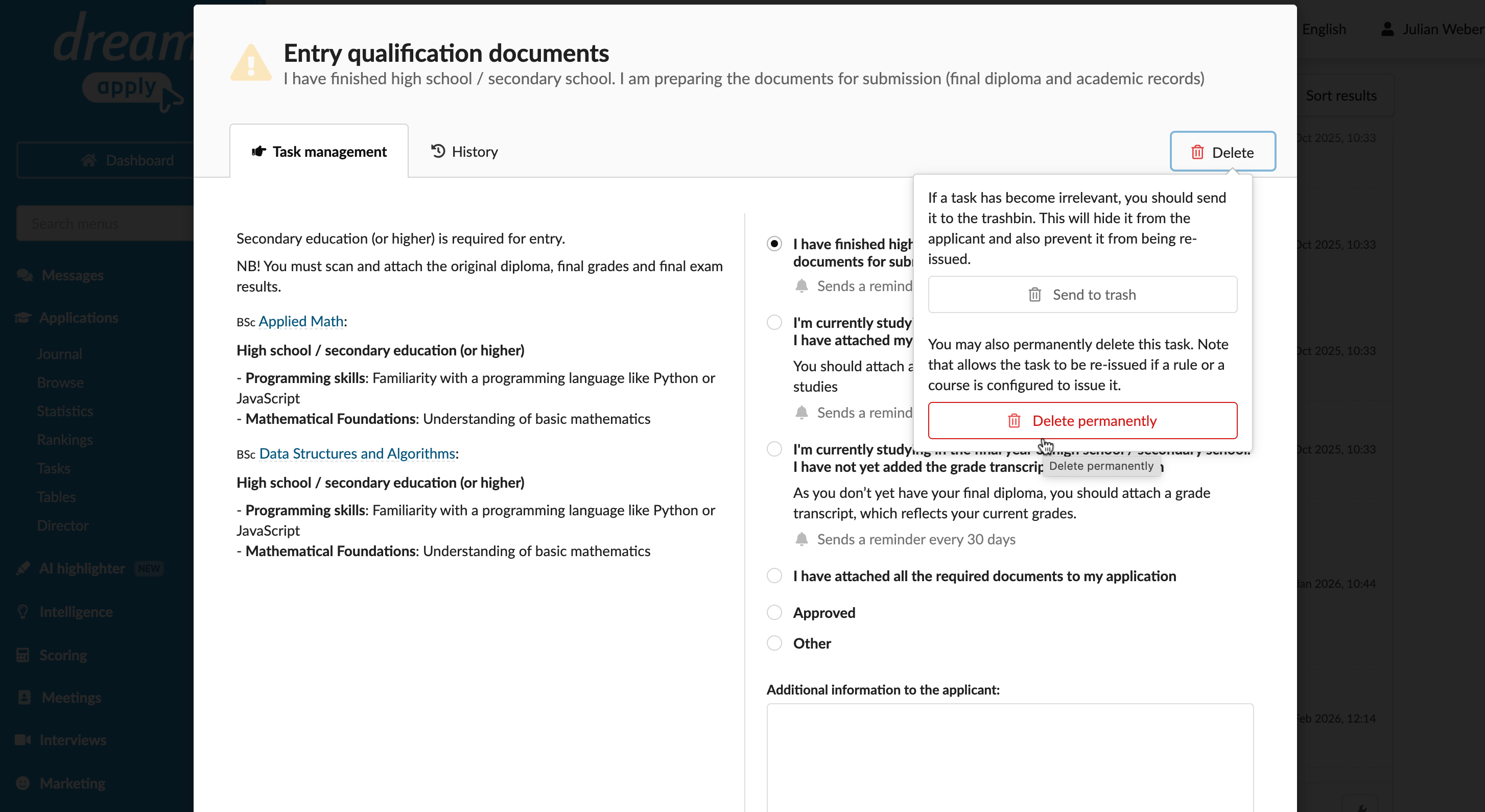
- At the top of the task card, click Delete > Send to trash.
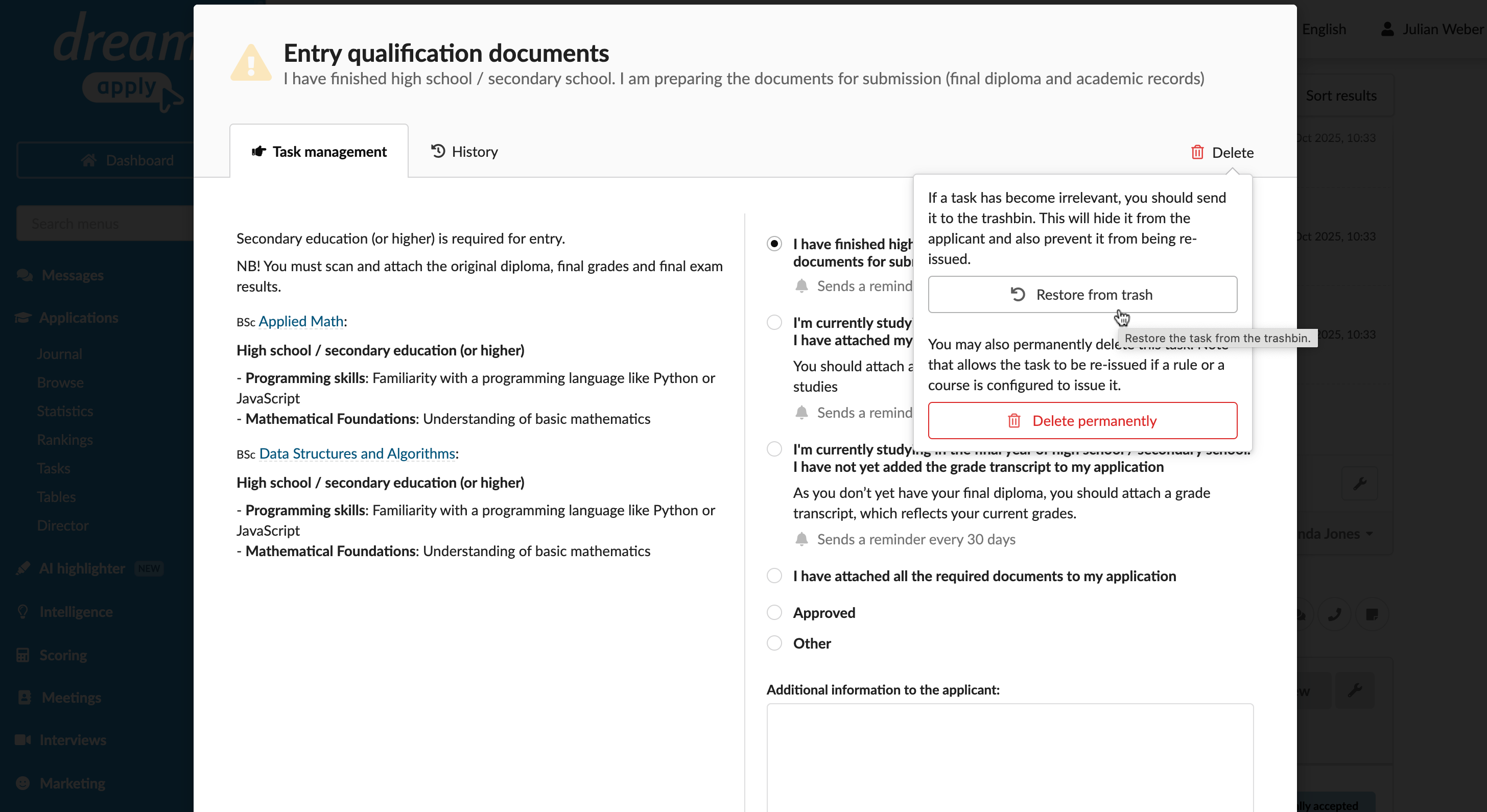
To restore a task to the applicant’s checklist, open the task and click Delete > Restore from trash.
Delete tasks
You can permanently delete a task. When a task is deleted, DreamApply removes it from the applicant’s checklist and unlinks it from the application.
After a task is deleted, it follows standard assignment logic. If the original programme conditions or rules are met again, the task is automatically reassigned and becomes visible to the applicant.
To delete a task:
- In the main menu, under Applications, select Browse.
- In the application card, click the Tasks tab.
- Click the task you want to delete.
- If any documents are attached to the task, delete them first.
- At the top of the task card, click Delete > Delete permanently.