Integrate tasks with third-party systems
Roles
These roles reflect the default DreamApply setup.
You can define custom roles based on your
institution's needs. Learn more →:
You can define custom roles based on your
institution's needs. Learn more →
You can create task templates that allow applicants to interact with external systems and services. These interactions can range from simple actions like visiting a website or downloading a file from external storage, to more complex processes such as digitally signing documents or completing financial transactions on other platforms.
How tasks with external actions work
To create a task template with an external action, you need to add a button to the template settings that triggers the action. When an applicant clicks the button, DreamApply will redirect them to the specified URL.
For basic tasks, a simple redirect is usually sufficient. For advanced tasks that require higher security, DreamApply uses a secure token-based mechanism to verify requests and protect sensitive data.
The token-based workflow follows these steps:
In the task template settings, the institution specifies a URL to which applicants must be redirected when the task button is clicked. The URL can include a token variable —
token=$token— to pass task details to the third-party system.The institution generates an asymmetric key pair in DreamApply employing the JWT RS256 algorithm. These keys are used to digitally sign task details for integrity and authenticity. The private key remains secure in DreamApply, while the public key is made available for your use.
When an applicant clicks the task button, DreamApply generates a JSON Web Token (JWT) containing the task details and replaces the
$tokenvariable with it. The JWT includes the following information:JWTJSON{ "jti": "67aefbfa019419c3191953dd", // A unique nonce for each token. Should be stored in a revocation list to refuse the same token twice. "aud": "your-university.com", // The hostname part of the URL provided above. "iss": "dream-apply.shard0001", // Fixed value that identifies the issuer of the token "iat": 1739521018, // The timestamp of when the token was issued. "exp": 1739521023, // This value is normally "iat" + 5 seconds. Care must be taken to not accept the token after expiry. "sub": "257", "applicant-id": 257, // Identifies the applicant in question. "application-id": 291, // Identifies the application in question. You can use this to query additional data from the DreamApply API. // Identifies the task in question. A common use case is to edit the task status at the end of the process. "task-id": 1300, // Identifies the task in question. A common use case is to edit the task status at the end of the process. "task-class-id": 15, // Identifies the task template ("class"), possibly useful to differentiate between actions from different tasks. "task-status-id": 123 // Identifies the currently selected task status. }DreamApply digitally signs the JWT using the private key.
The applicant is redirected to the specified URL with the JWT. The third-party system extracts the JWT from the URL and verifies it using the public key provided by DreamApply. Once verified, it can use the passed task details to interact with the system using the DreamApply API, for example, to report the task status or trigger an additional workflow.
Before you begin
To create task templates with external actions, your account must have the Superuser role or the task-classes permission.
Create task templates with external actions
To create a task template with an external action:
- In the main menu, under Automation, select Task templates.
- Select to edit an existing task template or create a new one.
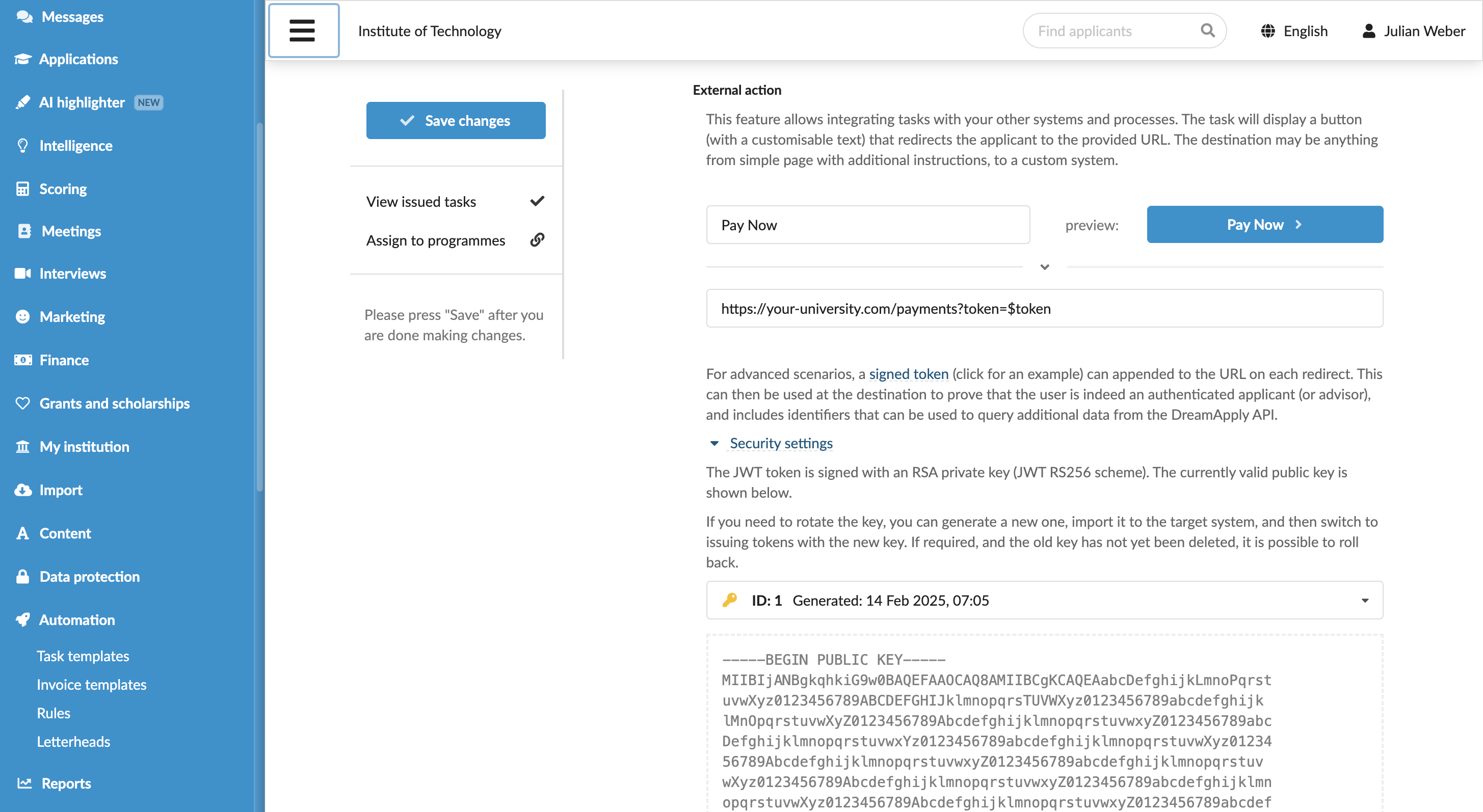
- In the External action section, customize the label for the action button.
- In the field below, specify the URL to which applicants must be redirected.
- For token-based workflows, append
?token=$tokento the URL. - Use the field below to generate a new asymmetric key pair. Copy and save the public key, as you will need it to verify the DreamApply JWTs.
- At the top of the form, click Save changes.