View task progress
Roles
These roles reflect the default DreamApply setup.
You can define custom roles based on your
institution's needs. Learn more →:
You can define custom roles based on your
institution's needs. Learn more →
You can monitor the task progress using the following tools:
Before you begin
- To use the Tasks view, your account must have the
Superuser,Admissions administrator,Academic supervisor,Academic consultantorMarketing administratorrole or theapplications-viewpermission. - To subscribe to journal events, your account must have the
SuperuserorAdmissions administratorrole or thejournal-viewandjournal-editpermissions.
Use the Tasks view
To monitor the progress of tasks assigned to applicants, use the Applications > Tasks view. This view provides a high-level summary of task completion across all applicants in both a graph and a table.
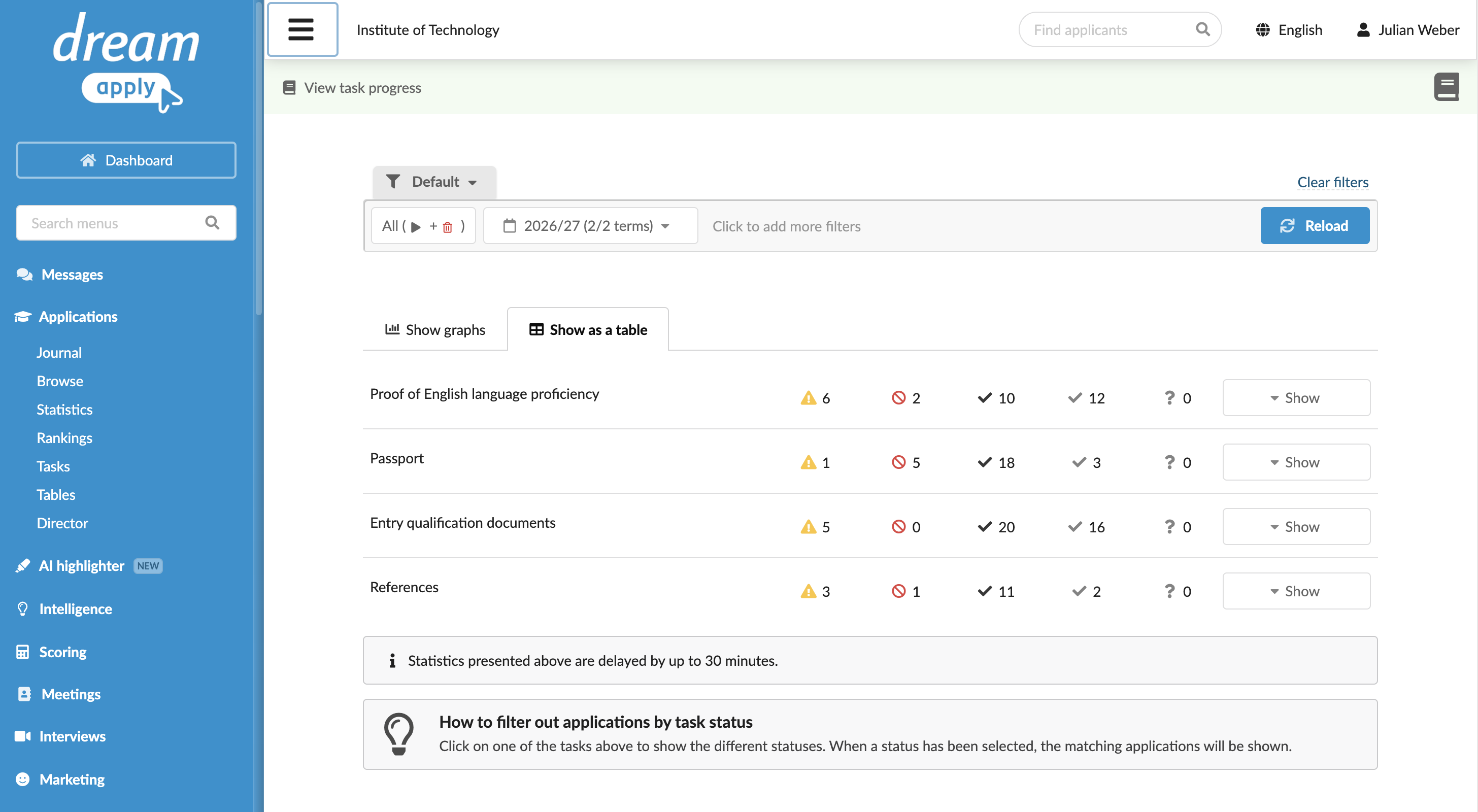
The Tasks view shows the total number of applicants for each task status. Use the following actions to manage tasks:
- View applicants: To see a list of applicants associated with a specific status, click the number icon next to the status name.
- Change task status: In the application card, click the Tasks tab, open the task and set the new status. For example, you may need to change the task status to manually move a task to a non-public status, such as Approved.
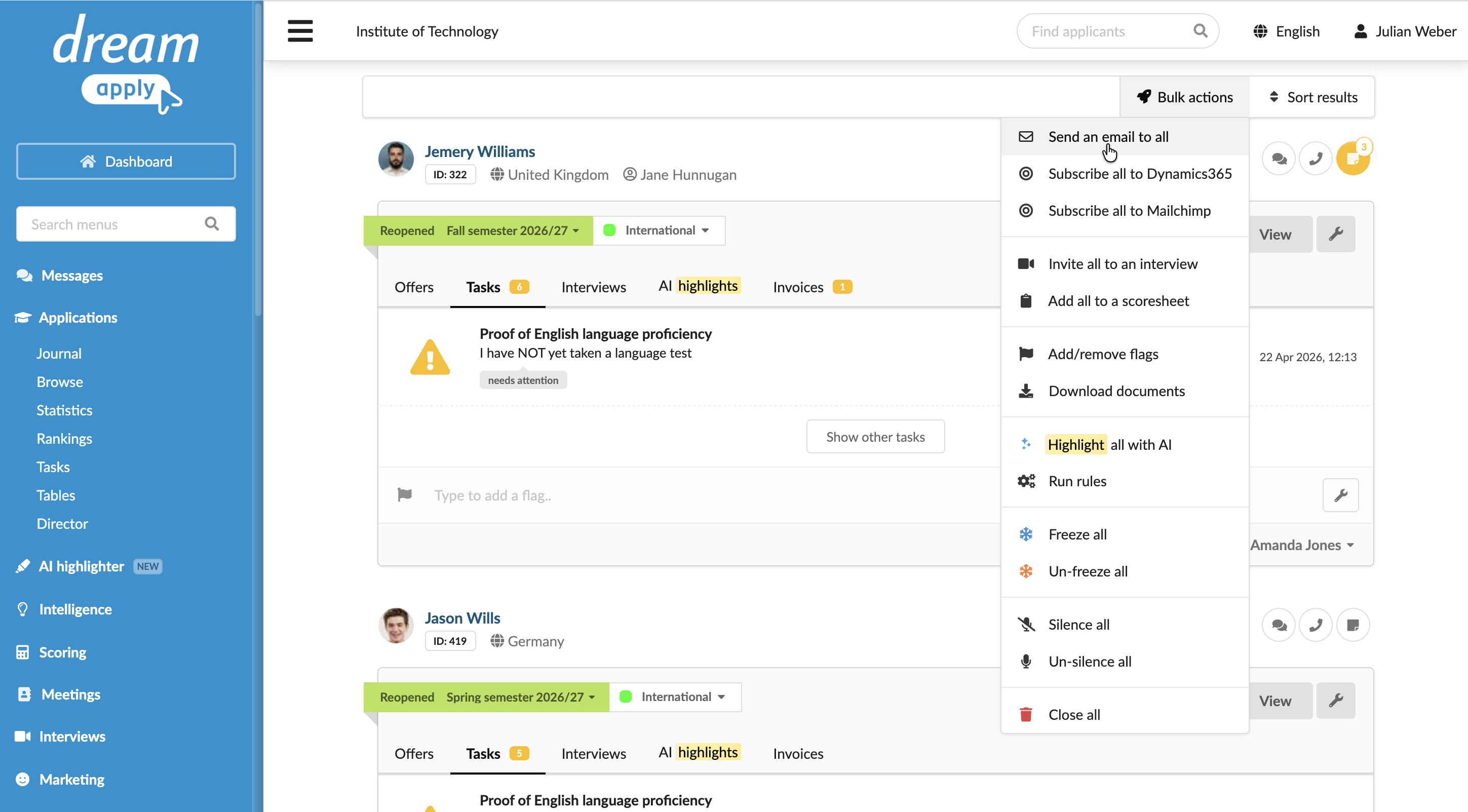
- Perform bulk actions: Use the Bulk actions list to perform actions over the list of applicants with a specific task status, for example, send an email or invite to an interview.
Use the Journal events
DreamApply records the following task management events in the journal:
- Task was created
- Task was deleted
- Task was sent to trash
- Task was restored from trash
- Task was saved
- Task was resolved
- Task was commented
- Document was uploaded to a task
- Document was removed from a task
To track these events, subscribe to them using the Tasks and Documents event groups.