Filters
Roles
These roles reflect the default DreamApply setup.
You can define custom roles based on your
institution's needs. Learn more →:
You can define custom roles based on your
institution's needs. Learn more →
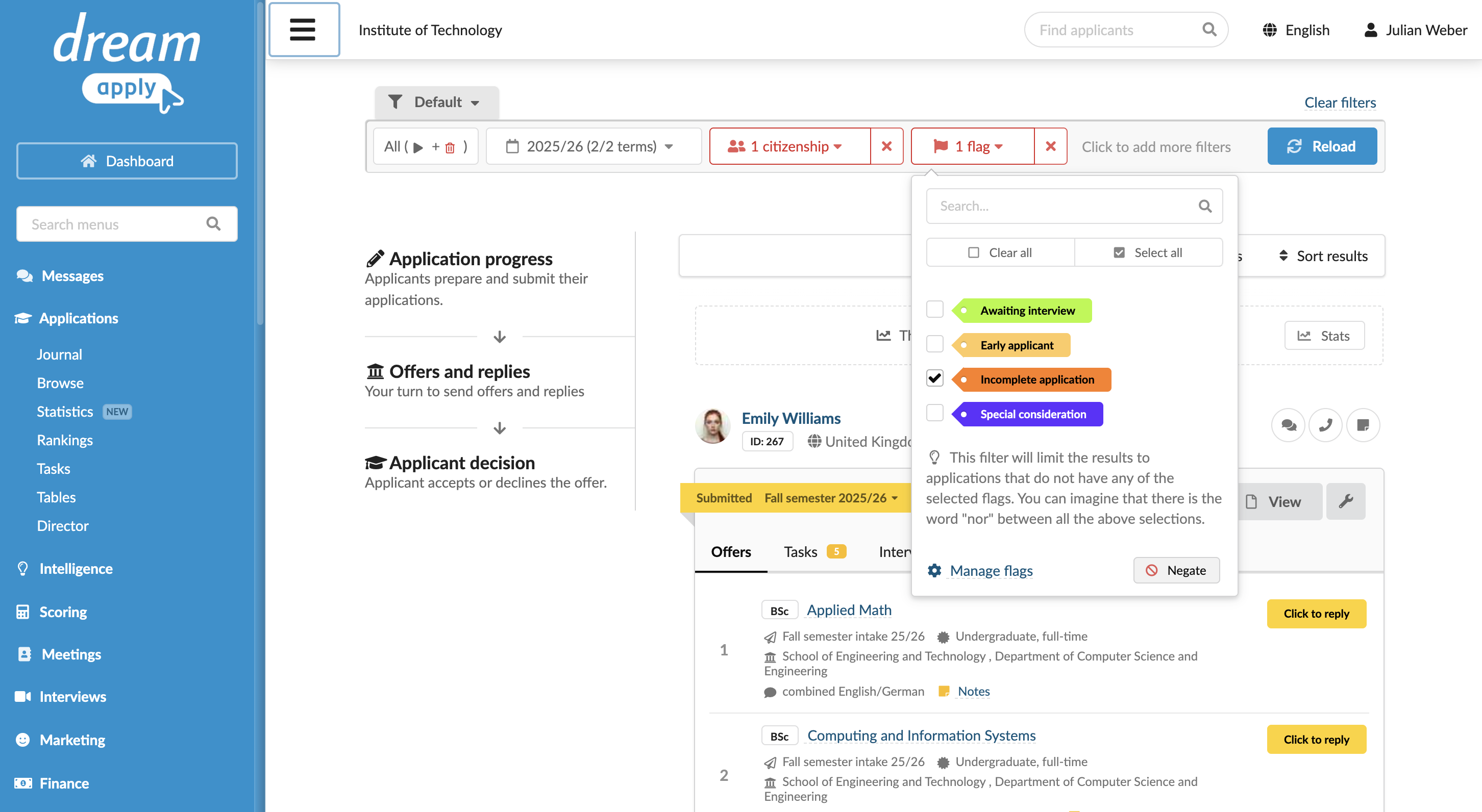
To narrow down the list of application records, you can use filters in DreamApply. Filters allow you to focus on specific admission data without the need to manually search through large datasets.
Filters adapt to the context of each view, for example:
- In the Browse view, you can filter data using criteria related to applications, applicants, offers, interviews and more.
- In the Invoices view, you can filter data using applicant- and invoice-related criteria.
When you apply filters in one view, they remain active across other views in DreamApply, as long as those views support the same filtering criteria. This provides a unified and consistent experience across the system.
Select the record type
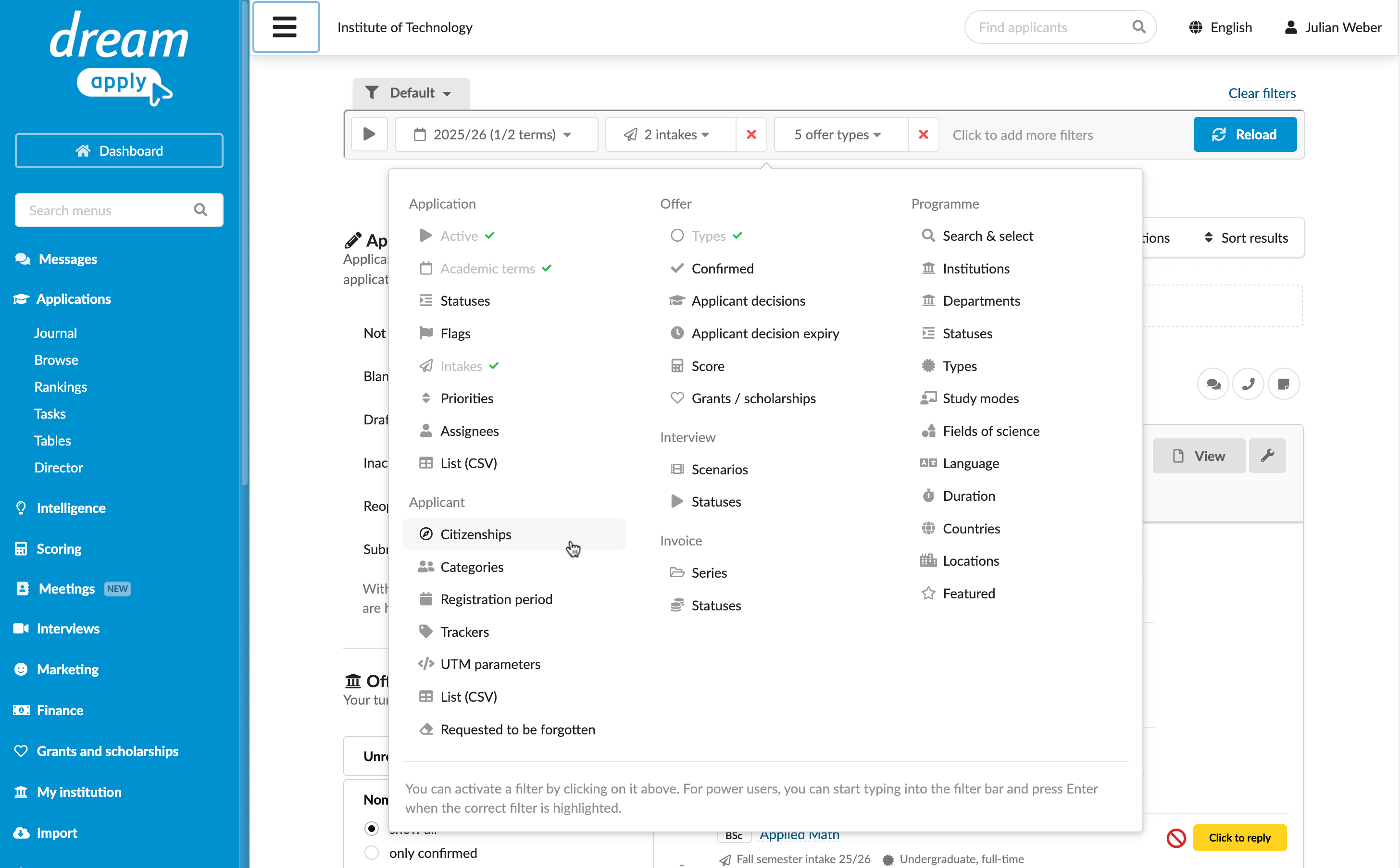
To focus only on active application records, you can exclude closed and withdrawn applications from the results. Alternatively, you can apply filters to all applications or only inactive applications.
To include or exclude specific record types, to the left of the filter bar, click the run button and select the desired record type.
Save filter segments
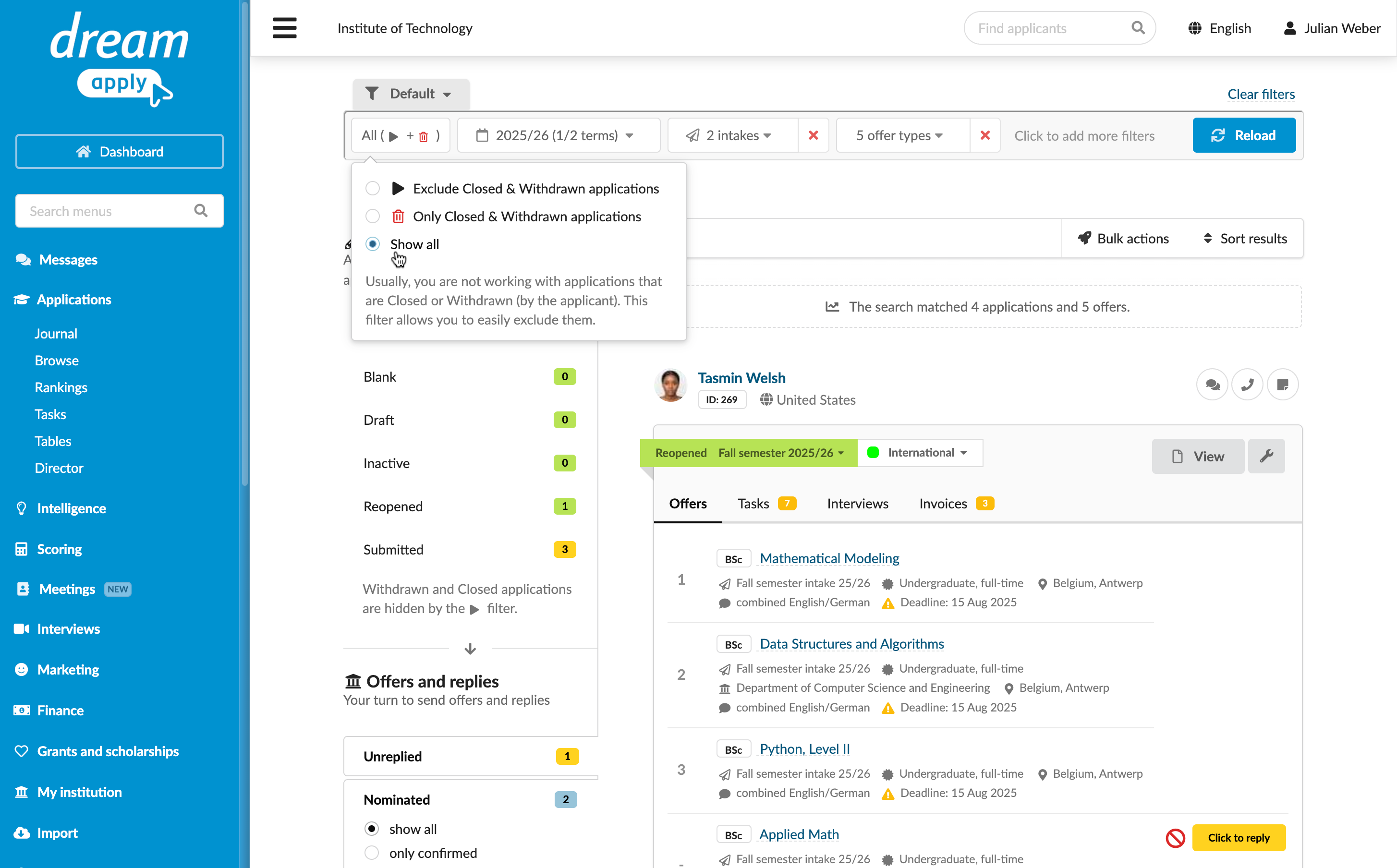
You can create filter segments — custom sets of filter criteria, save and re-use them across the system. Filter segments streamline repetitive filtering tasks and help standardize data analysis and review. Once you create a filter segment, it becomes available in all views.
Filter segments are Administrator-specific and are not shared with other Administrators working with DreamApply. Each Administrator has access only to their own saved segments.
To create a filter segment:
- In the filter bar, set up the necessary filter criteria.
- At the top of the filter bar, click the Default tab and select to create a new segment.
Negate filters
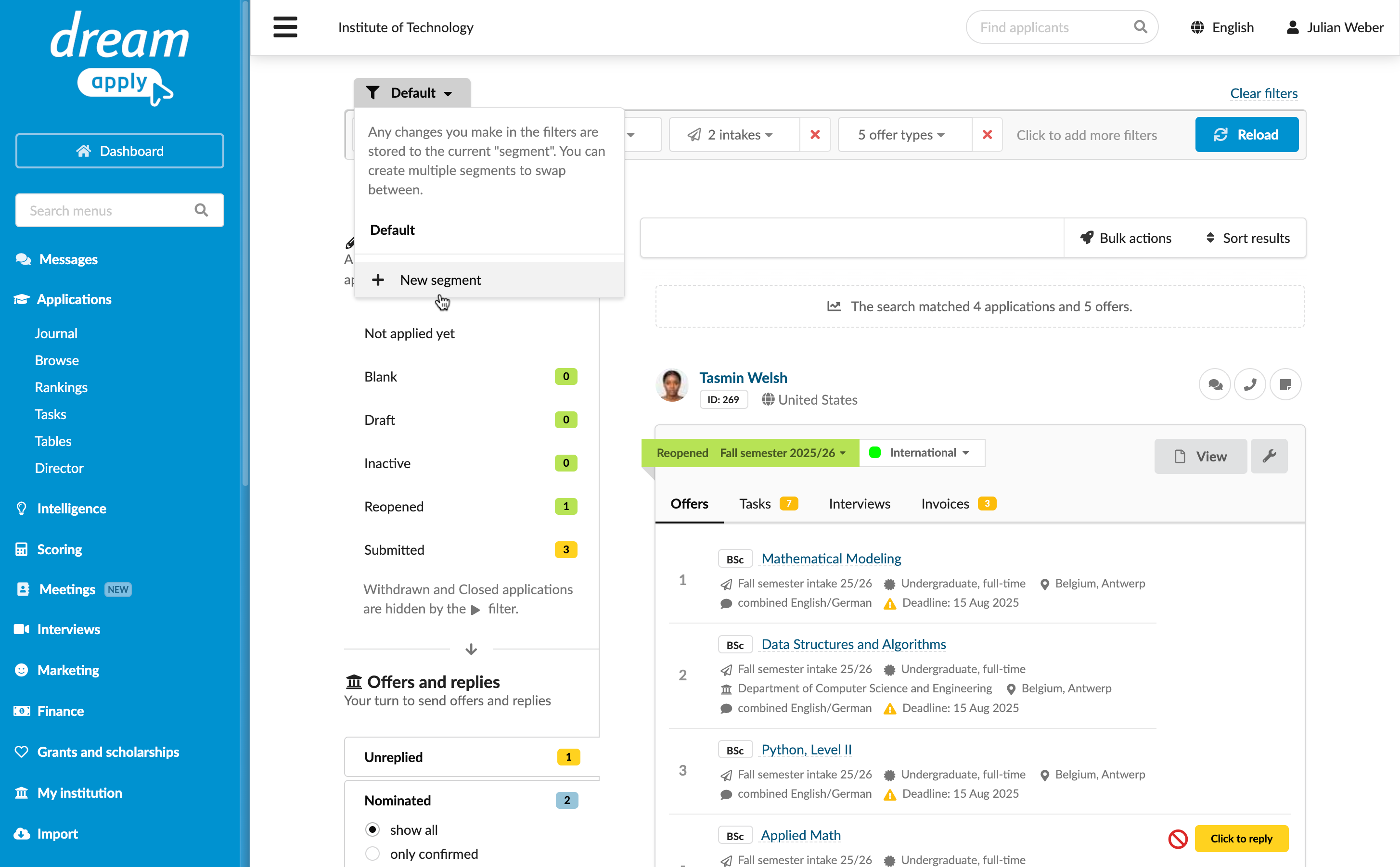
The Negate option in filters allows you to reverse the logic of a set filter. This option can be helpful when you want to find exceptions, uncover missing information or exclude specific record groups.
Typically, when you apply a filter, DreamApply shows records that match the selected criterion. When you enable the Negate option, you instruct DreamApply to show records that do not match this criterion instead. In other words, you add a NOT condition to your filter.
You can negate a single filter criterion, several values of the same criterion or combined criteria.
Filters that specify no items — such as No flags or No trackers — cannot be negated.
The table and examples below show how regular filters change when you enable Negate.
| Type of filter | Regular filter | Negated filter | Explanation |
|---|---|---|---|
| Single criterion | Criterion1 | not (Criterion1) | Shows records that do not match the set criterion. |
| Several values for the same criterion | (Criterion1 OR Criterion2) | not (Criterion Value1) AND not (Criterion Value2) | Shows records that do not match any of the set values. |
| Combined criteria | (Criterion1) AND (Criterion2) AND ... (CriterionN) | not (Criterion 1) OR not (Criterion 2) OR not ... (CriterionN) | Shows records that fail to meet at least one of the set criteria. |
Example 1: Negate a single criterion
Use this example to see how the Negate option works when applied to a single filter criterion.
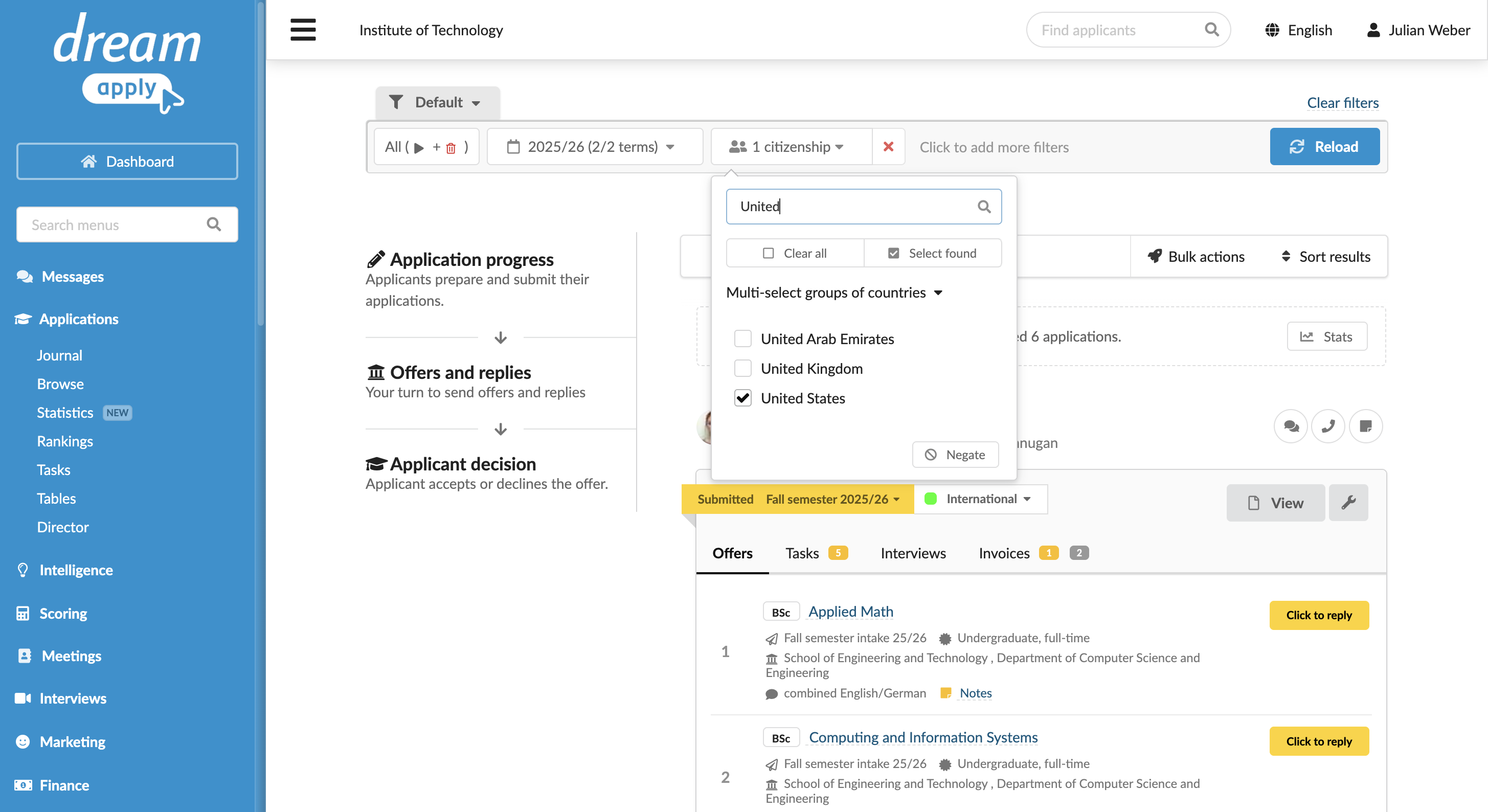
Assume you want to get a list of applications submitted by United States citizens.
To do this, set the following filter:
- Filter criterion: Applicant > Citizenship =
United States - Negate: Disabled
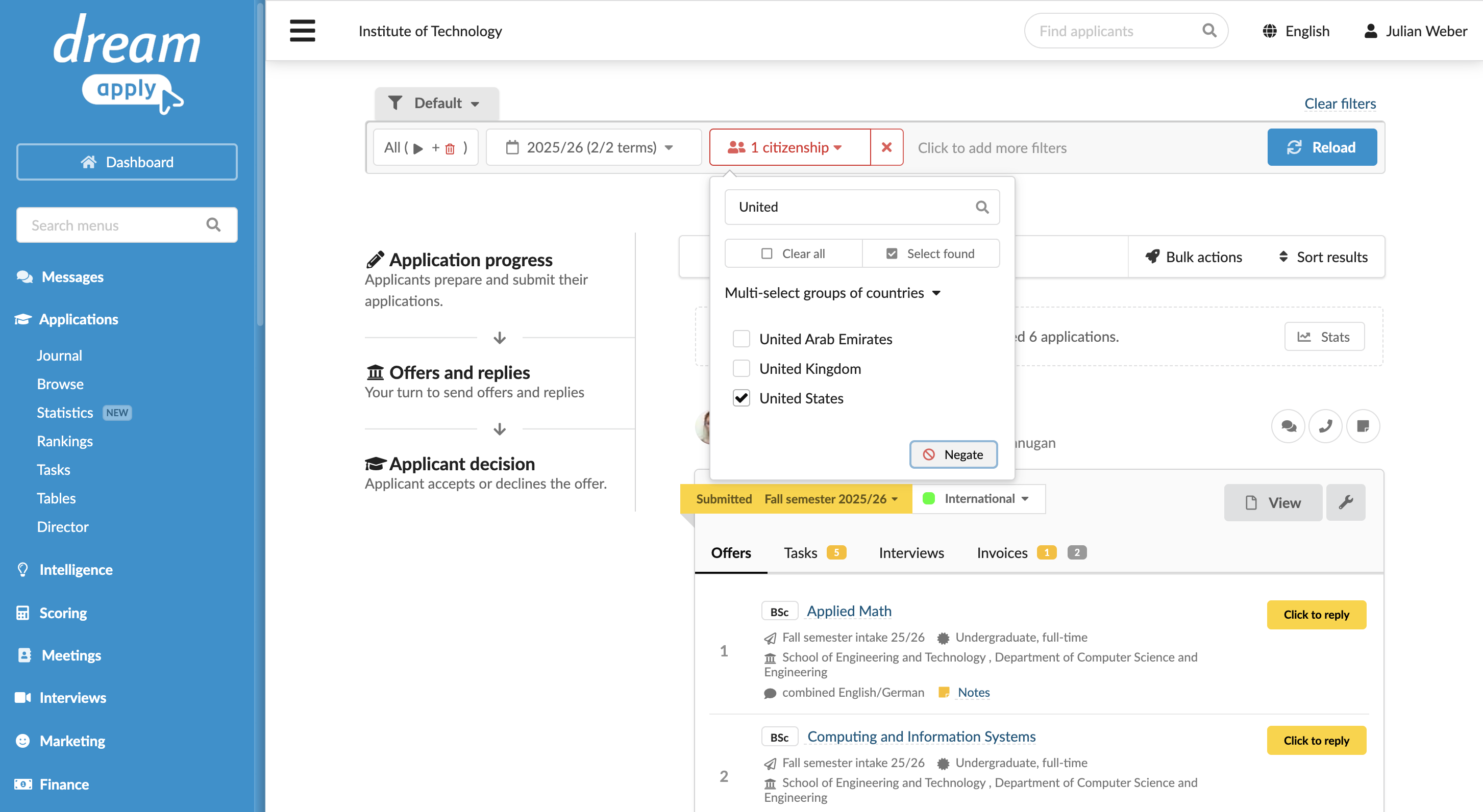
Assume you want to get a list of applications submitted by non-United States citizens.
To do this, set the following filter:
- Filter criterion: Applicant > Citizenship =
United States - Negate: Enabled
Example 2: Negate several values of the same criterion
Use this example to see how the Negate option affects a filter that includes several values of the same criterion.
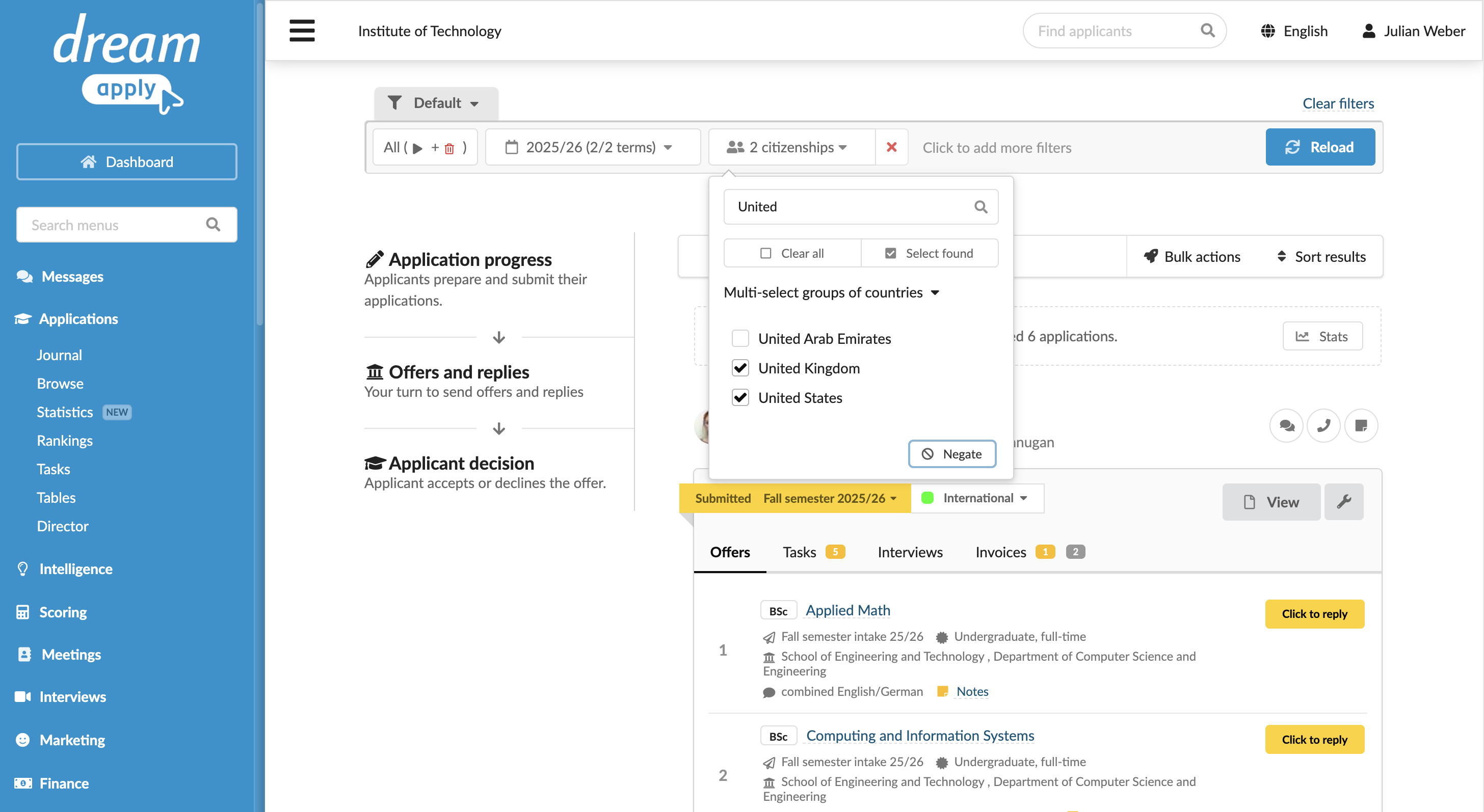
Assume you want to get a list of applications from applicants who are citizens of either the United States or United Kingdom.
To do this, set the following filter:
- Filter criterion: Applicant > Citizenship =
United StatesorUnited Kingdom - Negate: Disabled
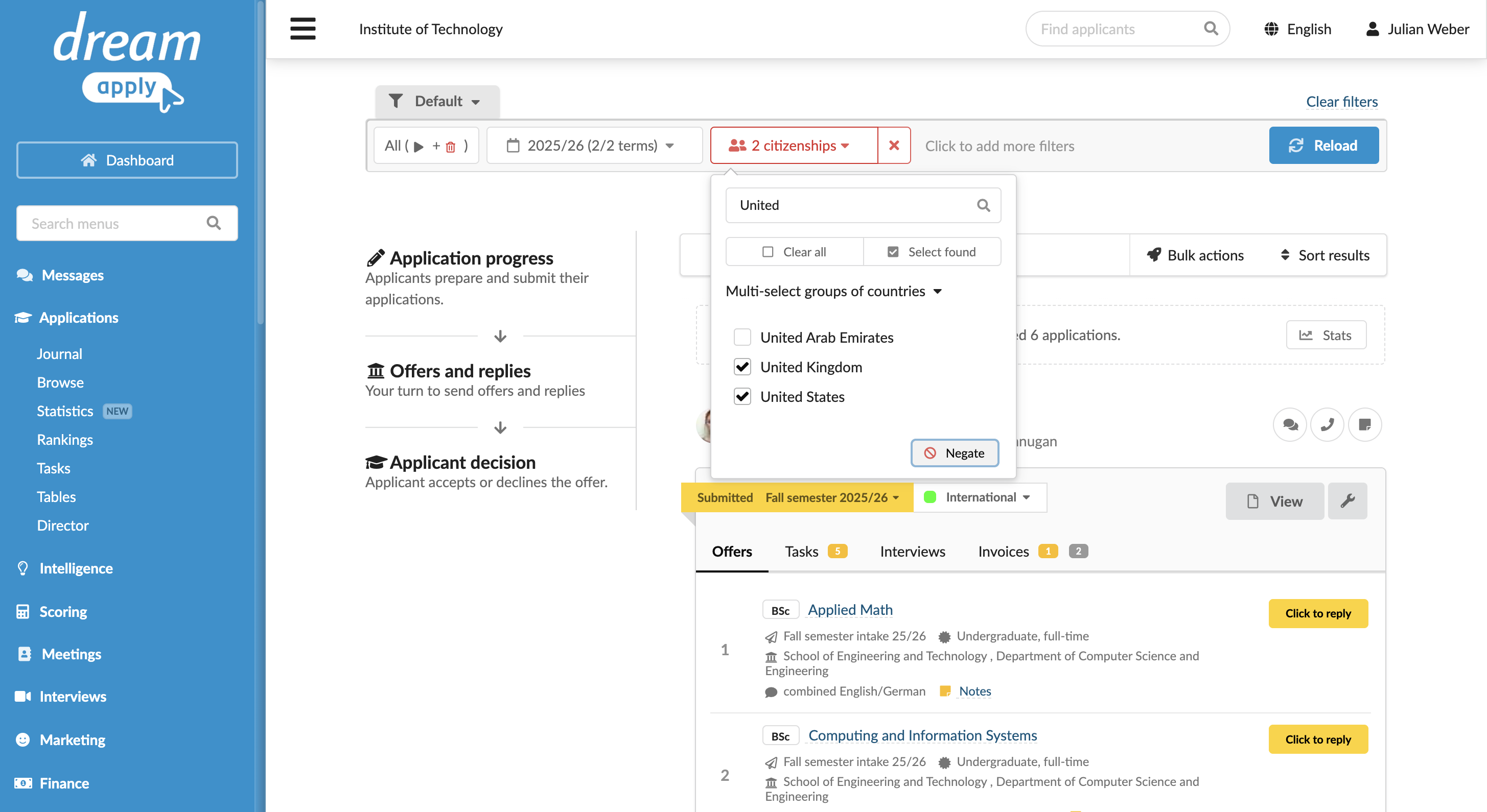
Assume you want to get a list of applications submitted by applicants with any other citizenship.
To do this, set the following filter:
- Filter criterion: Applicant > Citizenship =
United StatesorUnited Kingdom - Negate: Enabled
Example 3: Negate combined criteria
Use this example to see how the Negate option works when a filter includes multiple criteria.
Assume you want to get a list of applications submitted by United States citizens with the Incomplete application flag set.
To do this, set the following filter:
- Filter criterion 1: Applicant > Citizenship =
United States - Filter criterion 2: Application > Flag =
Incomplete application - Negate: Disabled
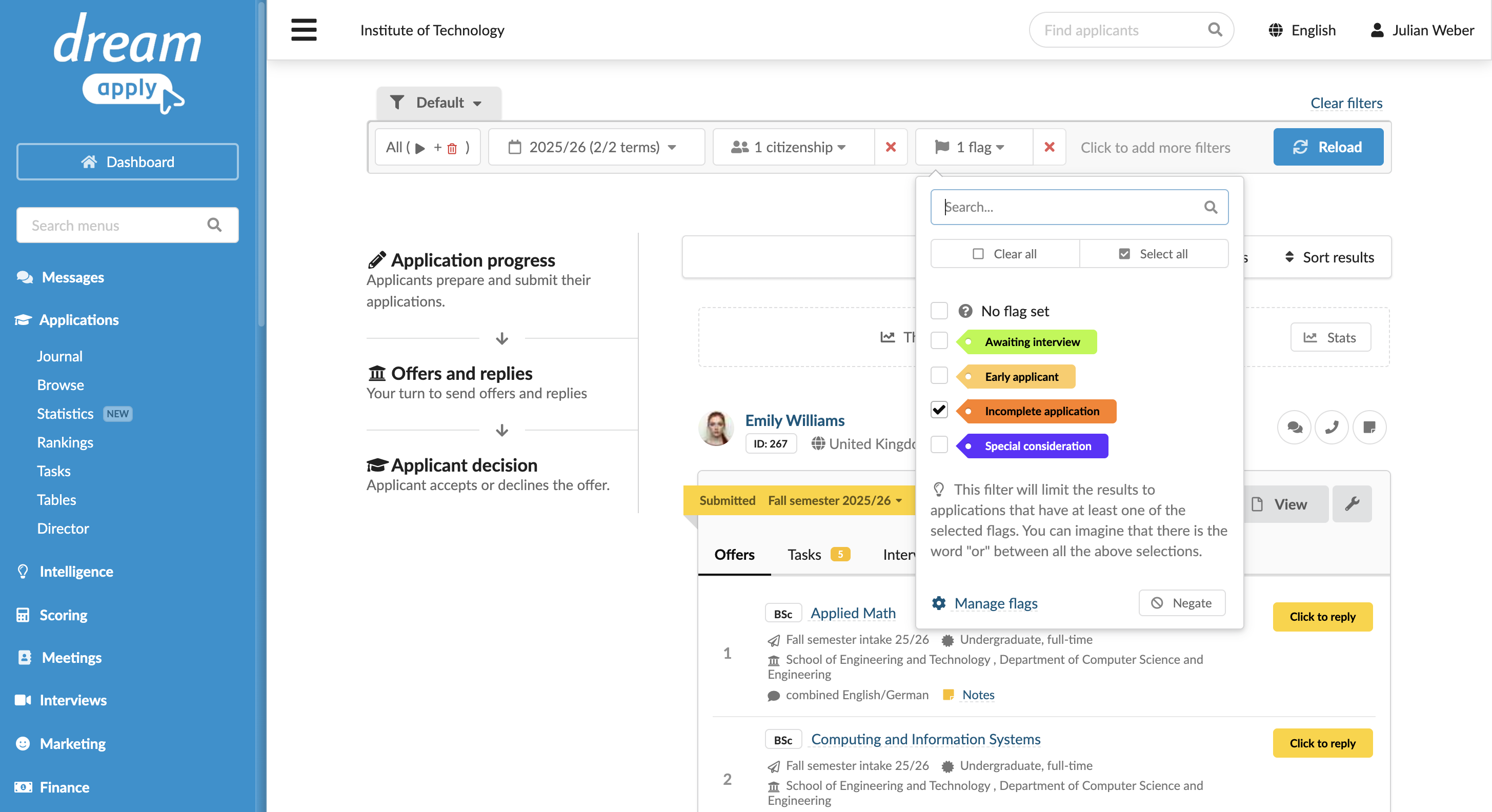
Assume you want to get a list of applications where either applicants are not United States citizens or the Incomplete application flag is not set.
To do this, set the following filter:
- Filter criterion 1: Applicant > Citizenship =
United States - Filter criterion 2: Application > Flag =
Incomplete application - Negate: Enabled for both filter criteria