Application freezing
Roles
These roles reflect the default DreamApply setup.
You can define custom roles based on your
institution's needs. Learn more →:
You can define custom roles based on your
institution's needs. Learn more →
In DreamApply, Administrators can freeze application data at key stages of the admission process. Application freezing locks previously entered details but still allows applicants to add new or missing information. This helps institutions maintain clear, consistent records and reduces the risk of errors during the review process.
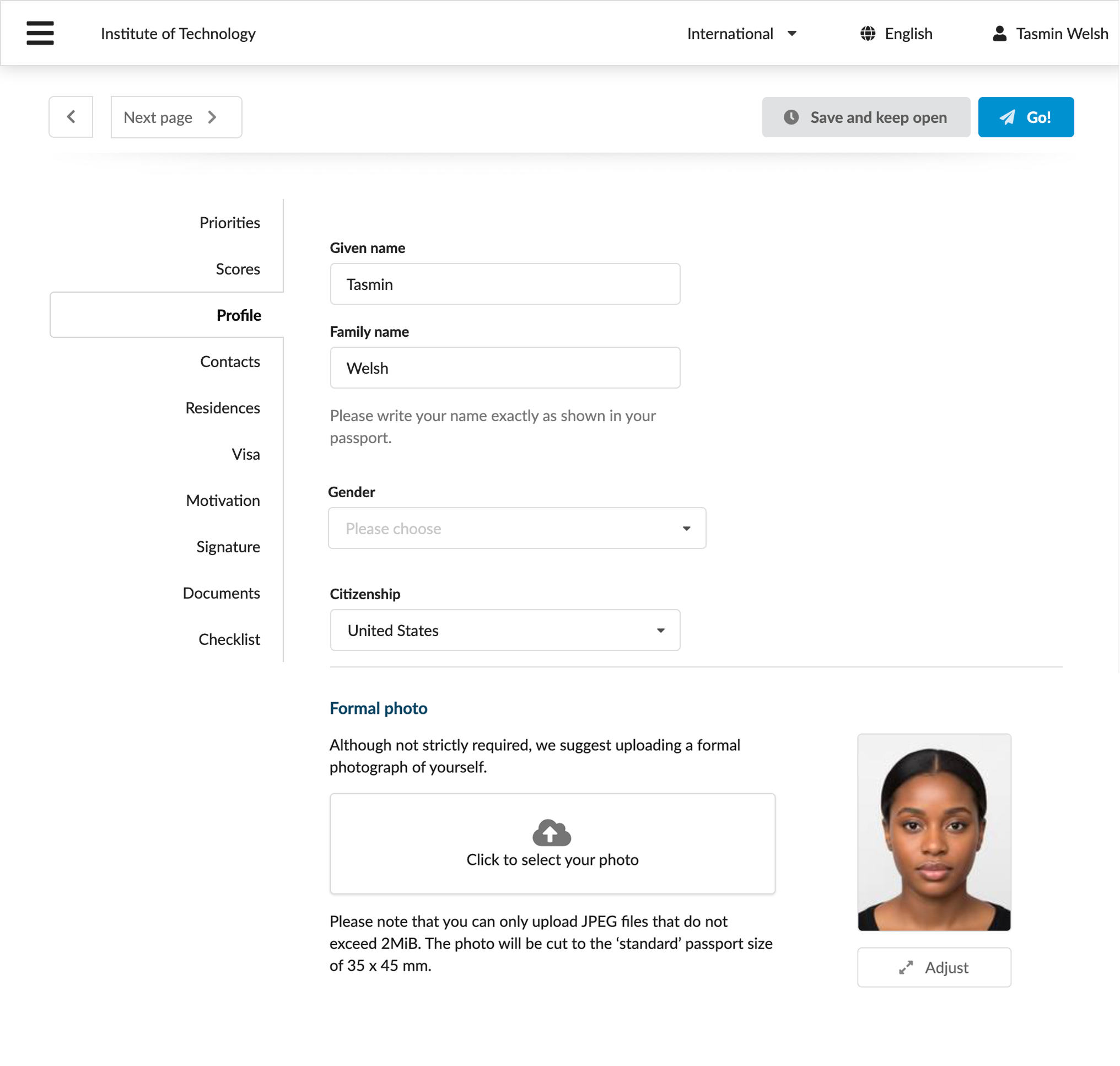
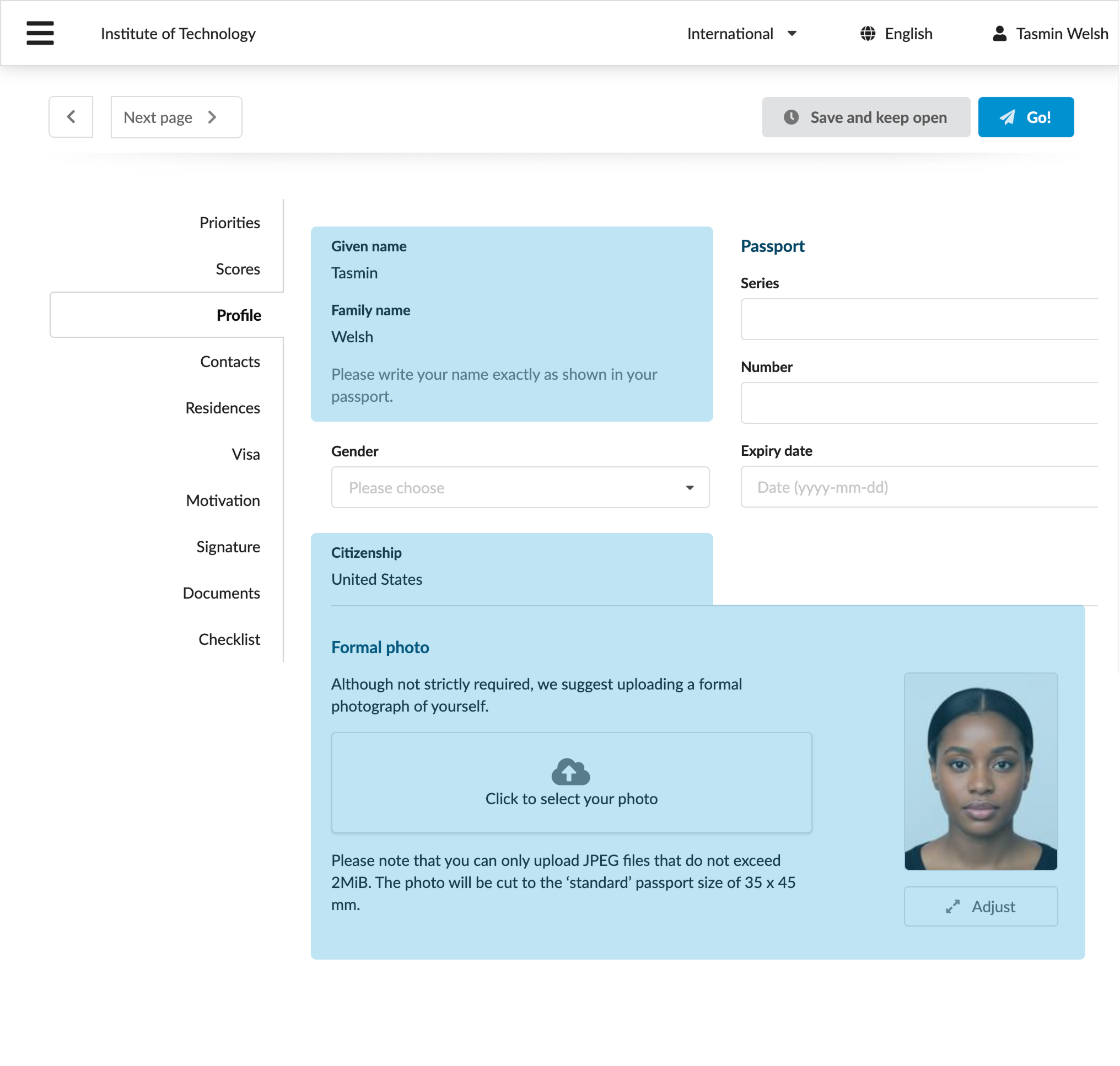
How application freezing works
When applications are frozen, applicants can no longer edit the information they have already submitted. DreamApply locks the existing data on the application edit page and informs applicants that editing is limited.
Applicants cannot:
- Edit information in the fields they have previously completed
- Remove existing priorities or change their order
- Edit scores they have already entered
- Remove documents they have already submitted
At the same time, applicants can:
- Complete empty fields and provide additional information in newly enabled sections and fields, for example, new appforms assigned to applications
- Add new priorities (but not change the order of these priorities)
- Add new score rows and enter scores into them
- Upload new documents and edit existing ones, for example, rotate them
Applicants can edit new data added to frozen applications at any time. To prevent further changes, Administrators must re-freeze applications.
Before you begin
- To set up automatic rules, your account must have the
Superuserrole or therulespermissions. - To edit offer type settings, your account must have the
Superuserrole or theoffer-viewandoffer-editpermissions. - To manually freeze applications, your account must have the
SuperuserorAdmissions administratorrole or theapplications-freezepermission. - To subscribe to journal events, your account must have the
SuperuserorAdmissions administratorrole or thejournal-viewandjournal-editpermissions.
Freeze applications
In DreamApply, applications can be frozen in the following ways:
To allow applicants to edit their applications again, Administrators can set up automatic rules to unfreeze them or do it manually.
Freeze applications through rules
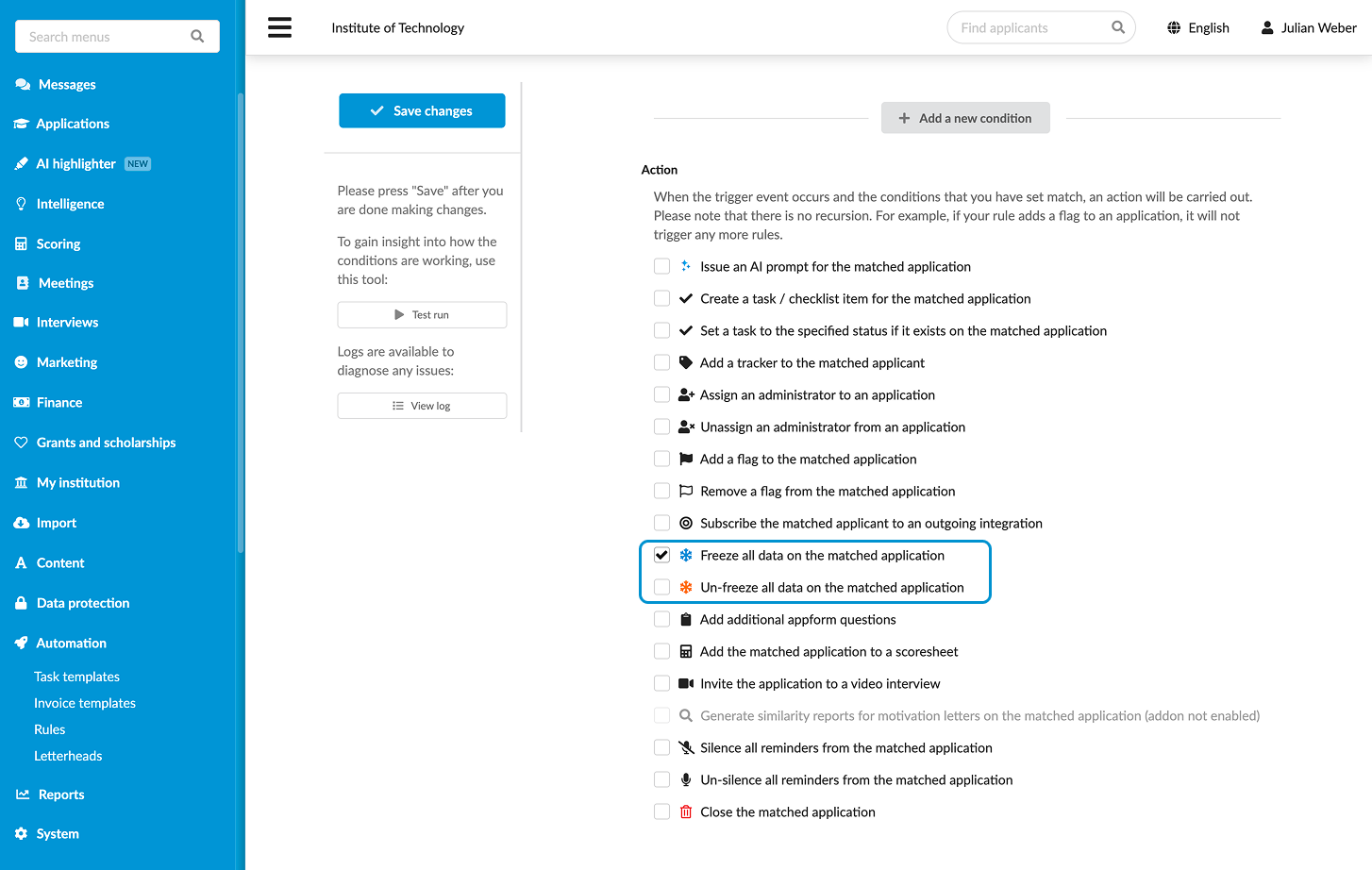
You can set up automatic rules to freeze applications when specific conditions are met, for example, applicants submit and re-submit their applications.
- In the main menu, under Automation, select Rules.
- At the bottom of the rule list, click New rule and specify the rule name.
- In the Trigger events section, select events that must activate the rule.
- In the Conditions section, specify granular conditions for the rule.
- In the Action section, select the Freeze all data on the matched application check box.
- At the top of the form, click Save changes.
- In the rule list, set the rule status to Active.
Freeze applications through offer types
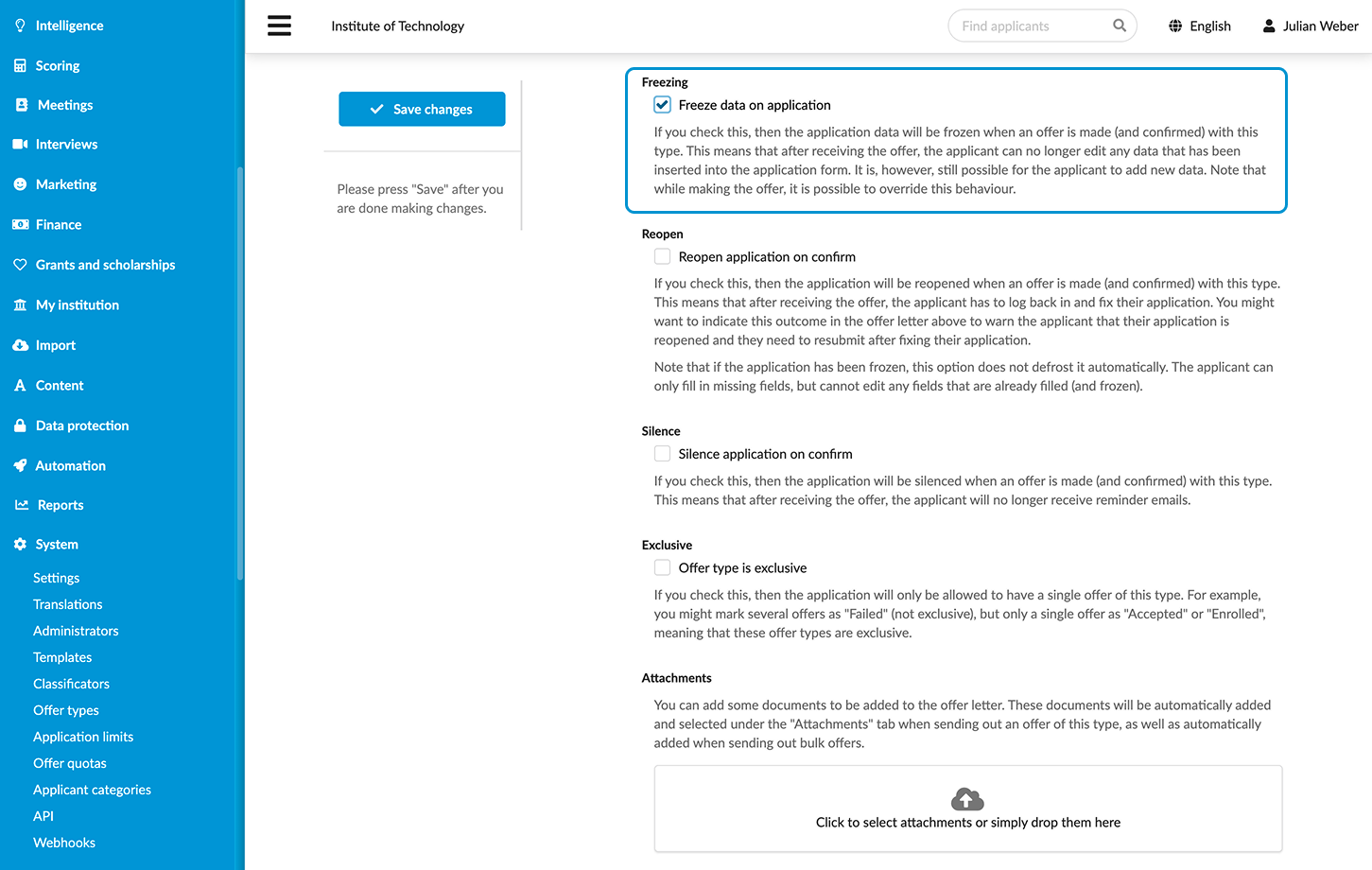
You can set up DreamApply to freeze applications when they reach a certain milestone in the admission process and a specific offer type is set.
- In the main menu, under System, select Offer types.
- Select to create or edit a specific offer type.
- In the Freezing section, choose to freeze data on applications for which the offer type is set.
- At the top of the form, click Save changes.
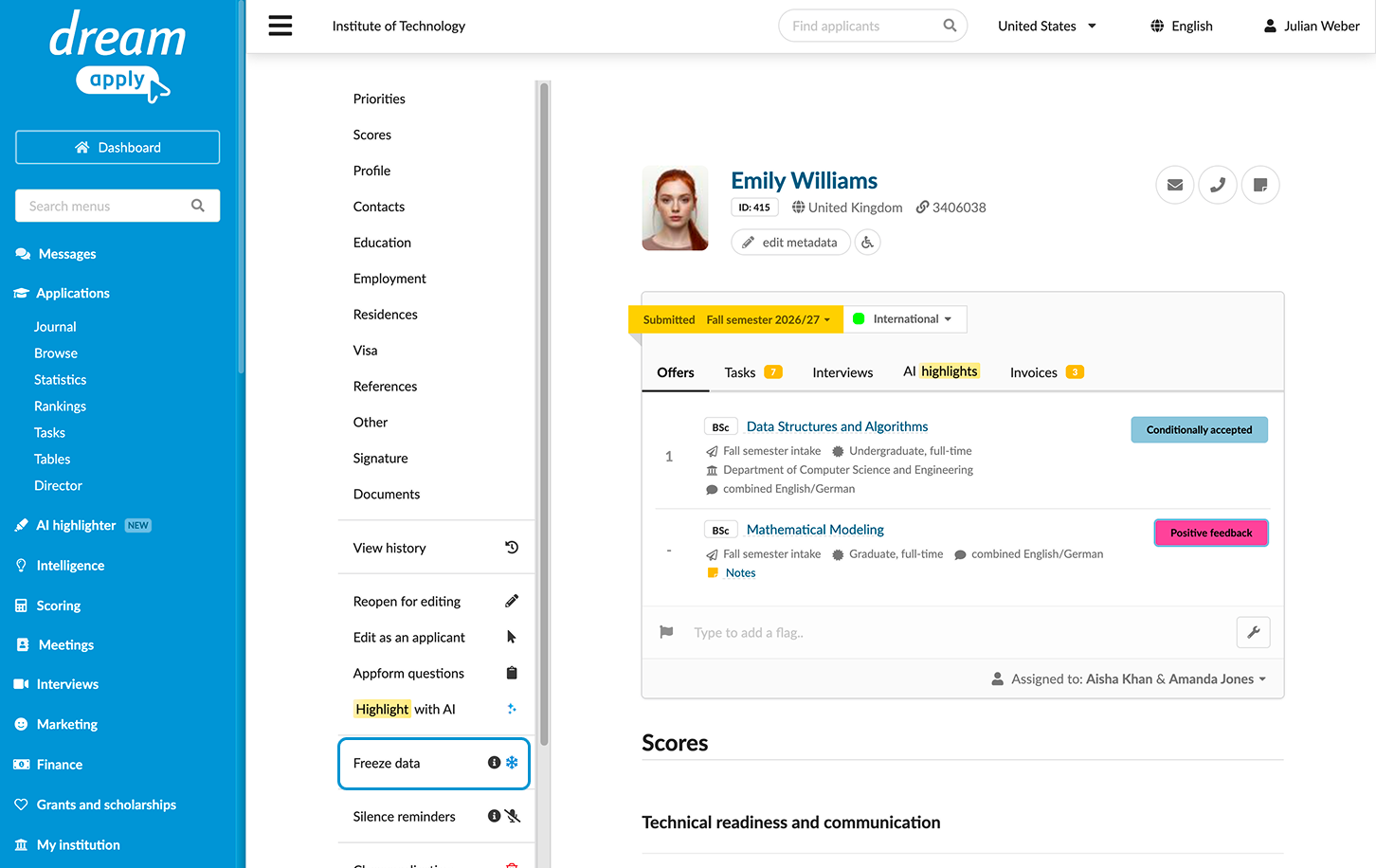
Manually freeze applications
You can manually freeze individual applications when needed.
- In the main menu, under Applications, select Browse.
- In the application card, click View.
- In the left menu, select Freeze data.
Freeze applications in bulk
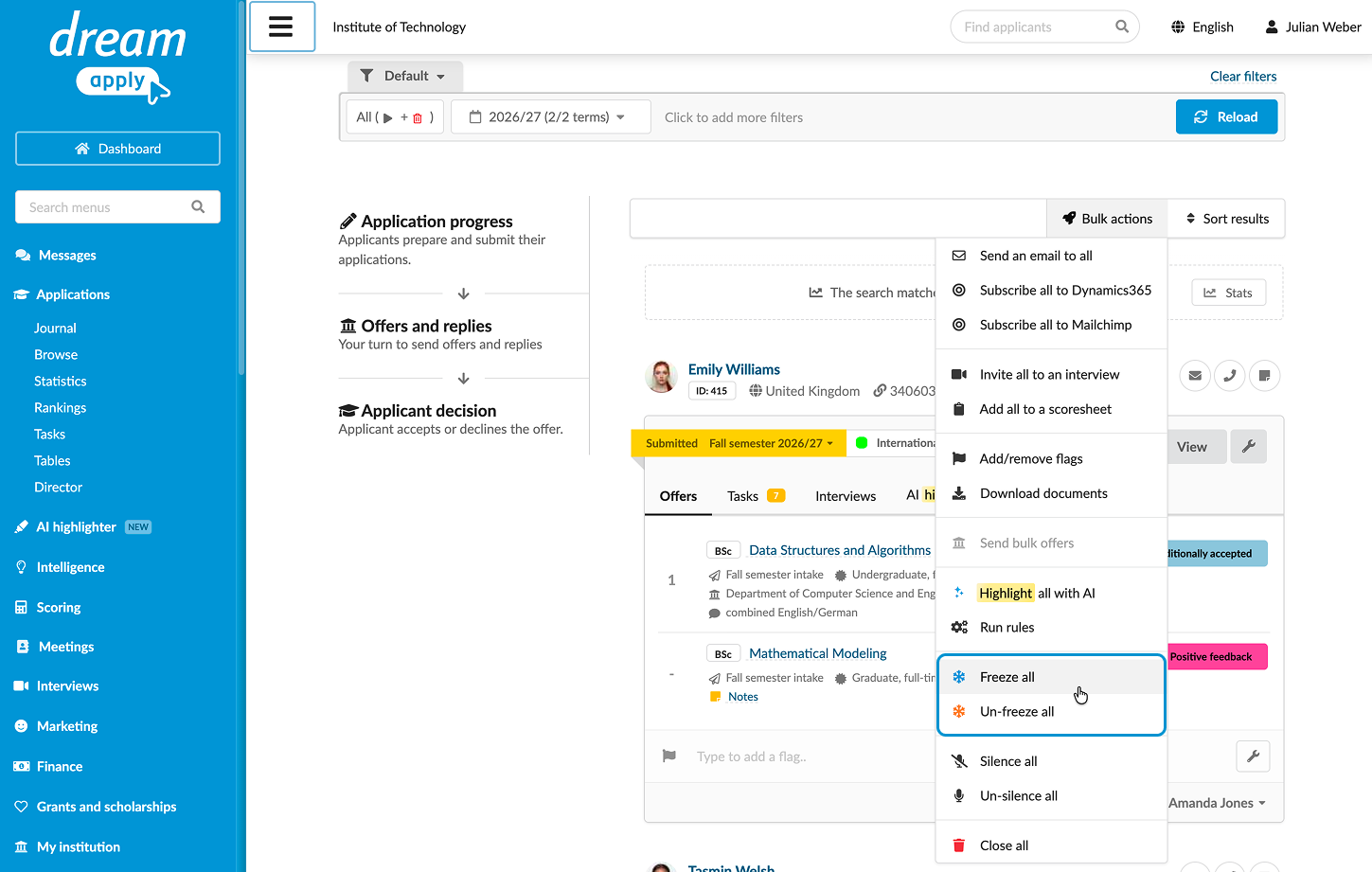
You can select a group of applications and freeze their data in bulk.
- In the main menu, under Applications, select Browse.
- Use filters at the top to select a group of applications that match specific criteria.
- From the Bulk actions list, select Freeze all.
Freeze tasks
In addition to freezing application data, you can also freeze tasks assigned to applications. This option can be helpful if a task collects data that should not change at a particular admission stage, for example, document uploads, portfolios or references.
A freezable task becomes read-only as soon as its parent application is frozen. An applicant cannot edit the task until the application is defrosted.
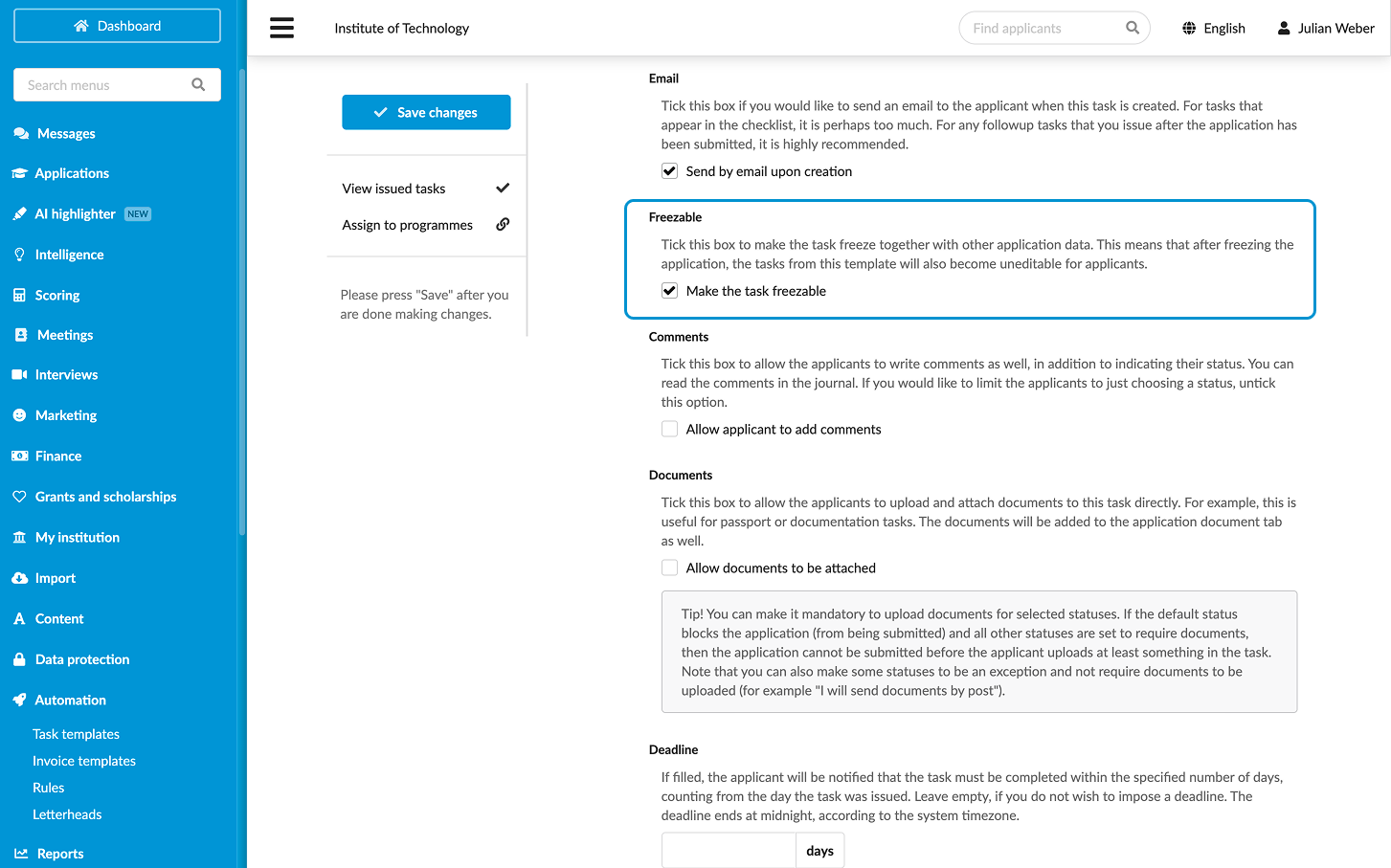
To make a task freezable:
- In the main menu, under Automation, select Task templates.
- Select to create or edit a specific task template.
- In the Freezable section, select the Make the task freezable check box.
- At the top of the form, click Save changes.
Use the Journal events
DreamApply records the following events in the journal when applications are frozen:
- Application was frozen
- Application was de-frosted
To track these events, subscribe to them using the Application management event group.