Promote tables
Roles
These roles reflect the default DreamApply setup.
You can define custom roles based on your
institution's needs. Learn more →:
You can define custom roles based on your
institution's needs. Learn more →
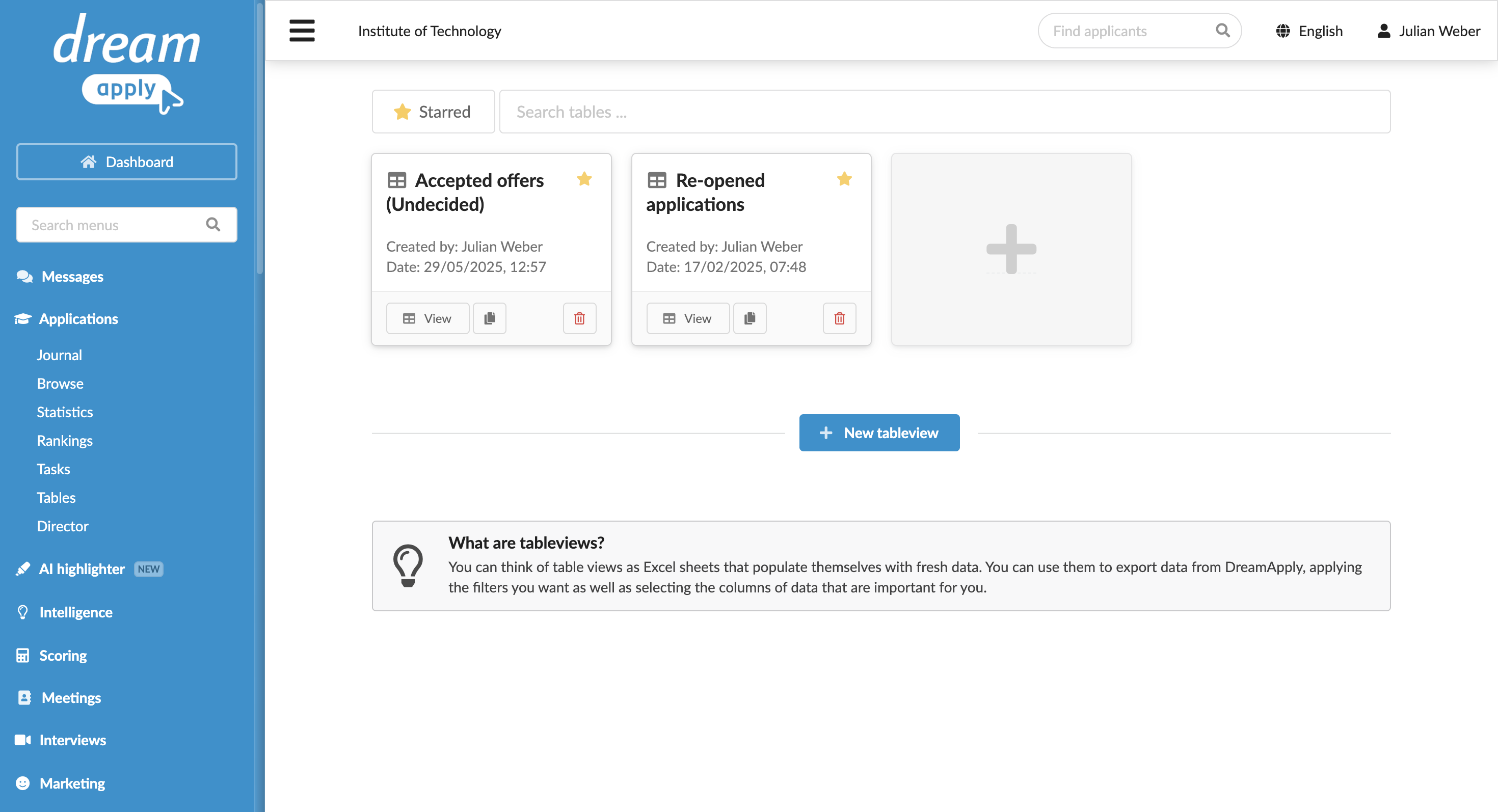
To promote high-priority tables, you can star them in DreamApply. When a table is starred, it appears first in the tables view for all Administrators who have access to the table. You can also use the Starred filter to quickly locate these tables.
Before you begin
To promote tables, your account must have the Superuser, Admissions administrator or Academic supervisor role or the applications-view permission.
Star tables
To star a table:
- In the main menu, under Applications, select Tables.
- Click the star icon next to the tables to promote.