Application withdrawal
Roles
These roles reflect the default DreamApply setup.
You can define custom roles based on your
institution's needs. Learn more →:
You can define custom roles based on your
institution's needs. Learn more →
Applicants can withdraw applications at any time. This may be needed if an applicant decides to stop the admission process or submitted an application by mistake.
How application withdrawal works
To withdraw an application, applicants can use the Withdraw application option in the application card. An application can be withdrawn unless it has one of the following statuses:
- Closed
- Expired
When an application is withdrawn, DreamApply changes its status to Withdrawn. All withdrawn applications are displayed in the Browse view, under Application progress > Withdrawn.
The following limitations apply to withdrawn applications:
- Application changes: Applicants cannot edit, resubmit or continue with a withdrawn application.
- Academic term limitations: If an applicant withdraws an application for a specific term, they cannot submit another application for that same term.
- Offer handling: DreamApply automatically marks all offers linked to the application as Declined (applicant decision).
- Tasks and reminders: DreamApply silences all reminders (except notifications related to invoices) and does not trigger tasks related to the application.
- Application ranking: Withdrawn applications are displayed in the Rankings view, but their offer statuses are marked as Declined (applicant decision).
Applicants have 15 minutes to revert a withdrawal. After 15 minutes, only Administrators can revert the application.
Before you begin
- To set up automatic rules, your account must have the
Superuserrole or therulespermissions. - To revert applications, your account must have the
SuperuserorAdmissions administratorrole or theapplications-revertpermission. - To subscribe to journal events, your account must have the
SuperuserorAdmissions administratorrole or thejournal-viewandjournal-editpermissions.
Configure automatic rules
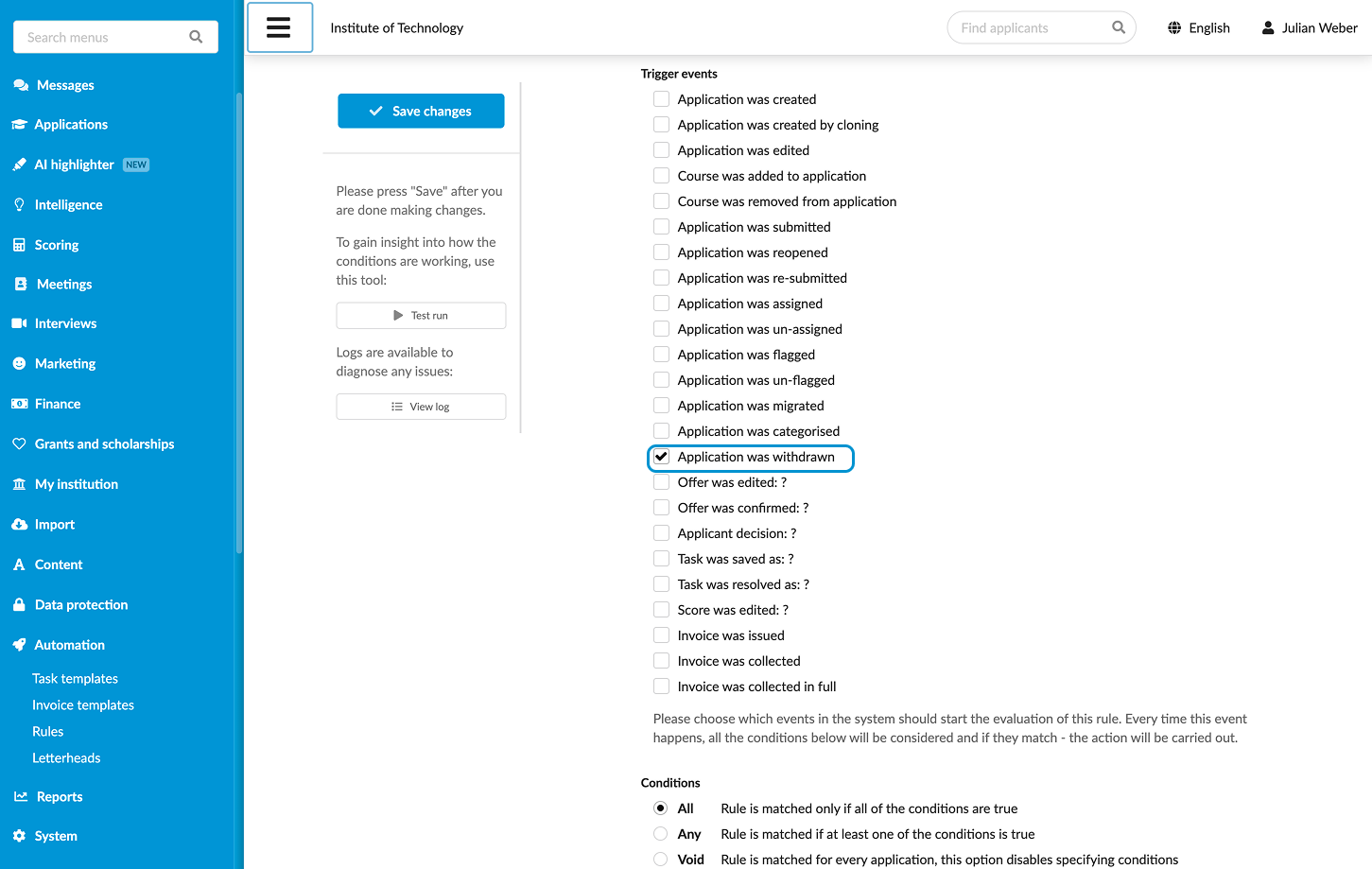
DreamApply provides the Application was withdrawn trigger event in rules. You can use it to set up workflows and automate actions that should happen after an application is withdrawn.
- In the main menu, under Automation, select Rules.
- At the bottom of the rule list, click New rule and specify the rule name.
- In the Trigger events section, select the Application was withdrawn check box.
- Configure other rule settings and at the top of the form, click Save changes.
- In the rule list, set the rule status to Active.
Revert application withdrawal
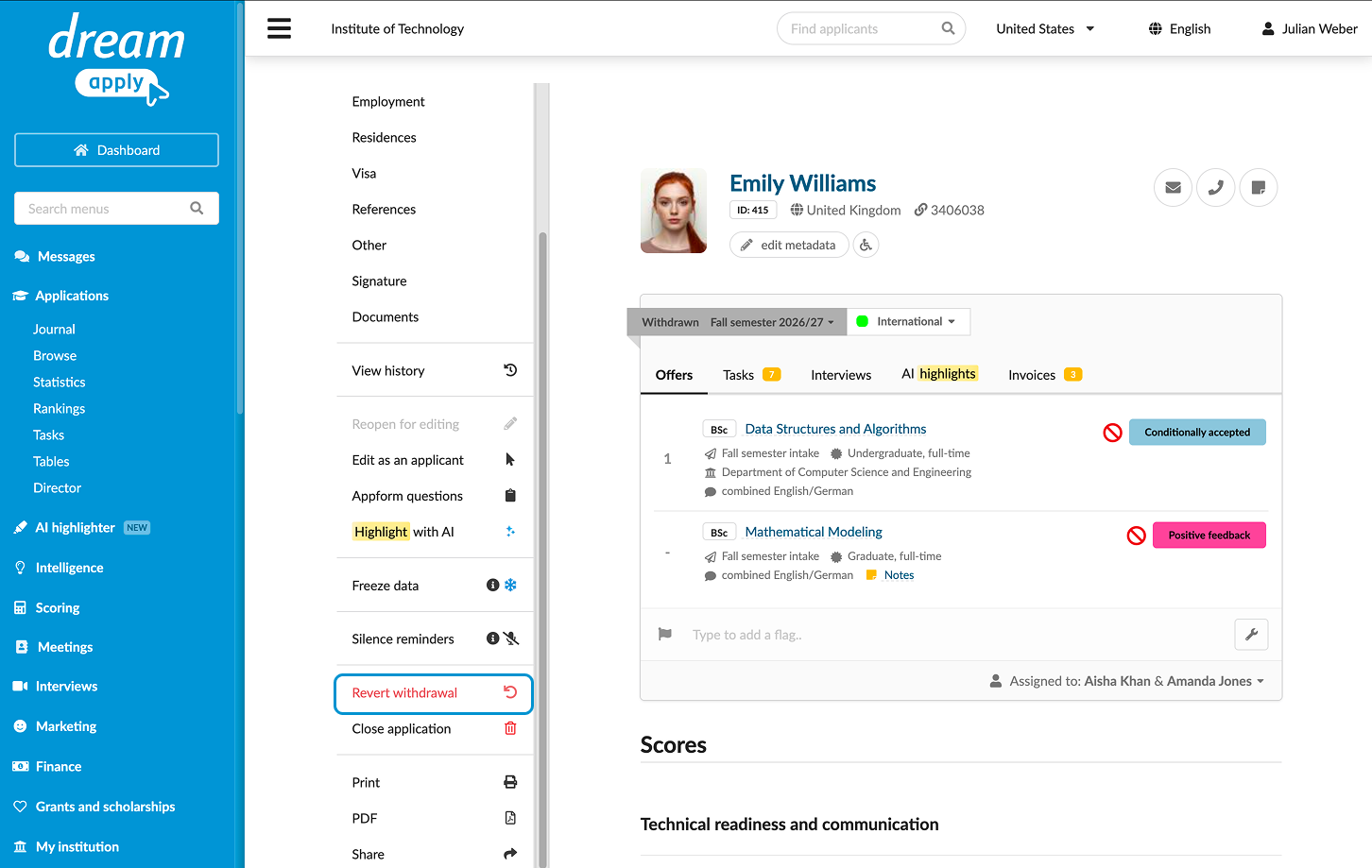
Administrators can revert a withdrawal if it was performed by mistake.
- In the main menu, under Applications, select Browse.
- In the application card, click View.
- In the left menu, select Revert withdrawal.
Use the Journal events
DreamApply records the following events in the journal when applications are withdrawn:
- Application was withdrawn
- Application was reverted
To track these events, subscribe to them using the Application management event group.