Update the portal menu
Roles
These roles reflect the default DreamApply setup.
You can define custom roles based on your
institution's needs. Learn more →:
You can define custom roles based on your
institution's needs. Learn more →
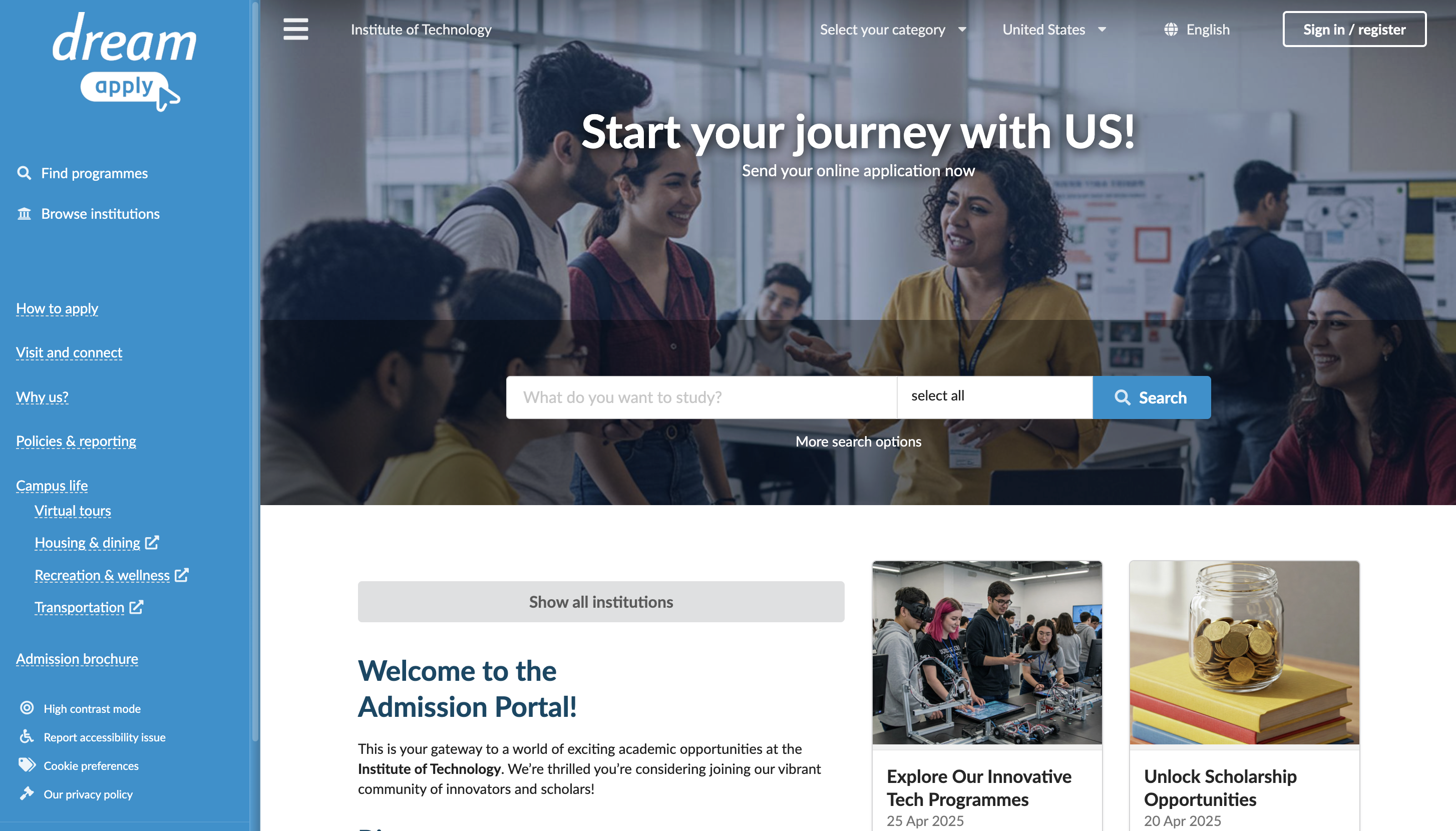
The main menu in the DreamApply portal initially includes links to features and tools provided by DreamApply. You can add your own items to the menu to offer additional resources and enhance the portal usability.
Custom menu items appear in the left menu of the portal, under the DreamApply menu items. They can include:
- Pages with important information
- Links to external resources
- Downloadable documents
Before you begin
To customize the menu, your account must have the Superuser, Marketing administrator or Content administrator role or the contents permission.
Customize the portal menu
To add items to the main menu:
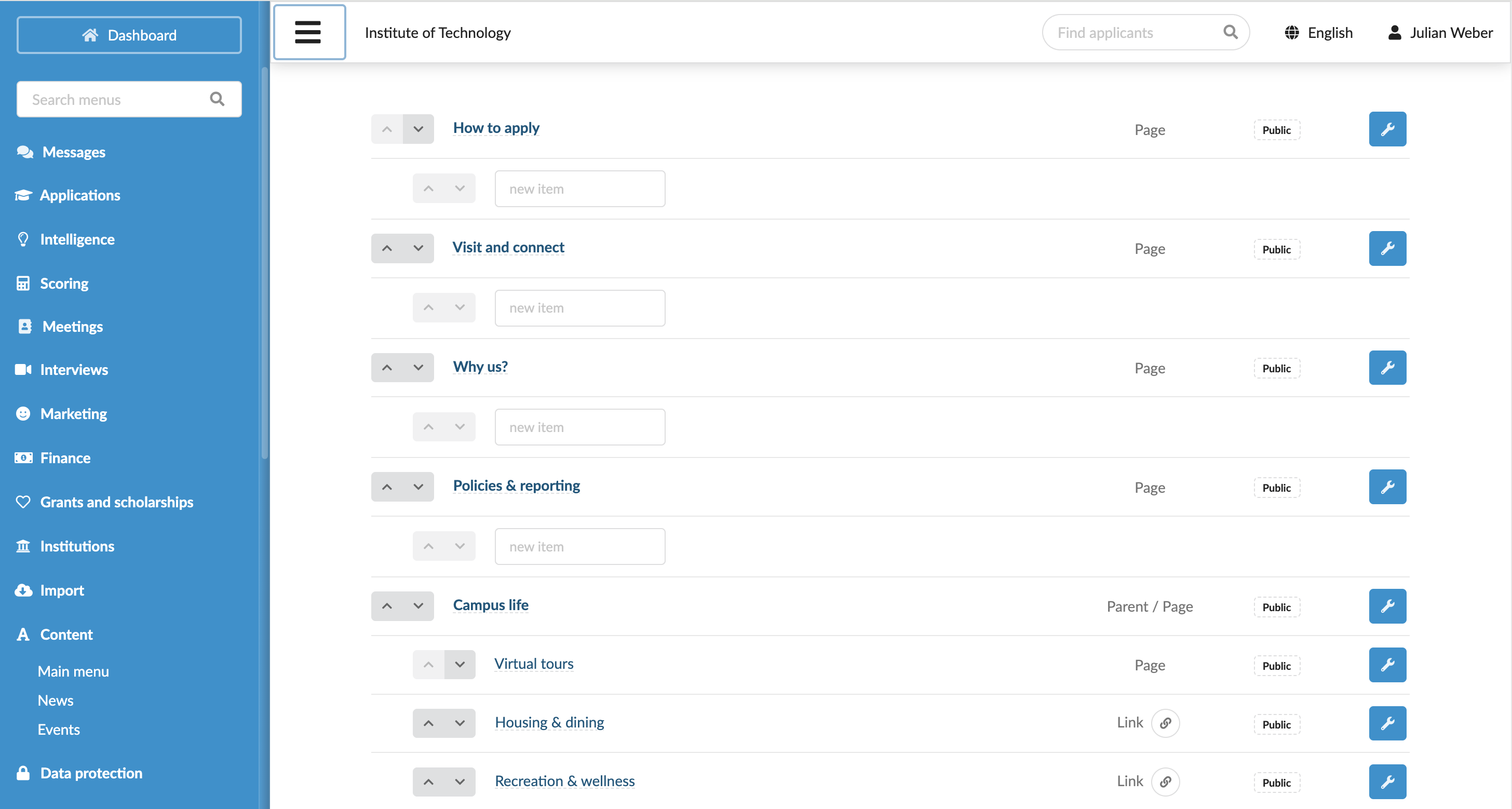
In the main menu, under Content, select Main menu.
Define the menu structure by adding new sections and subsections.
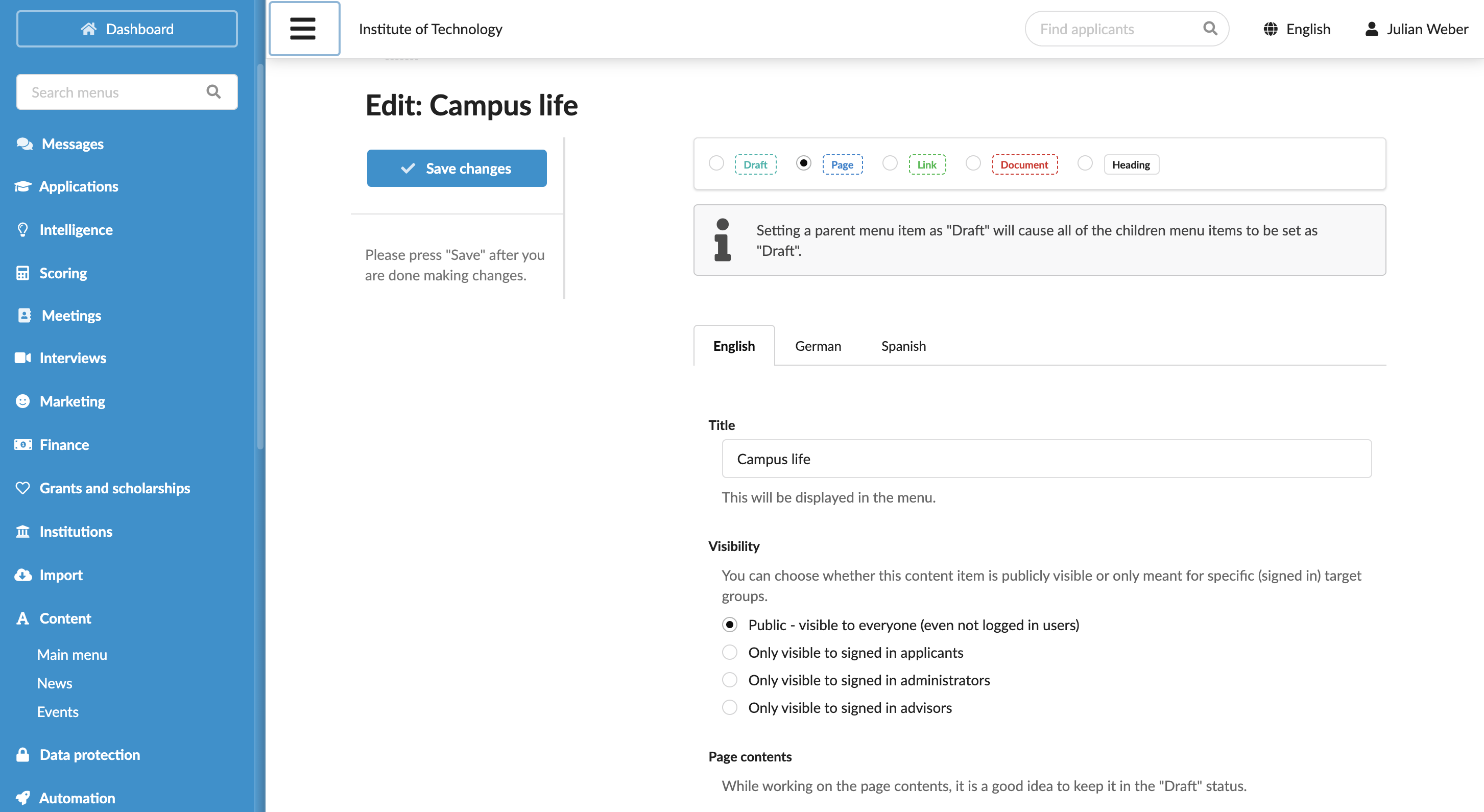
Edit each item to specify its type, visibility settings and content. If you select the page type and multi-language support is enabled for your instance, add the page content in different languages to reach a global audience.