Configure outgoing email settings
Roles
These roles reflect the default DreamApply setup.
You can define custom roles based on your
institution's needs. Learn more →:
You can define custom roles based on your
institution's needs. Learn more →
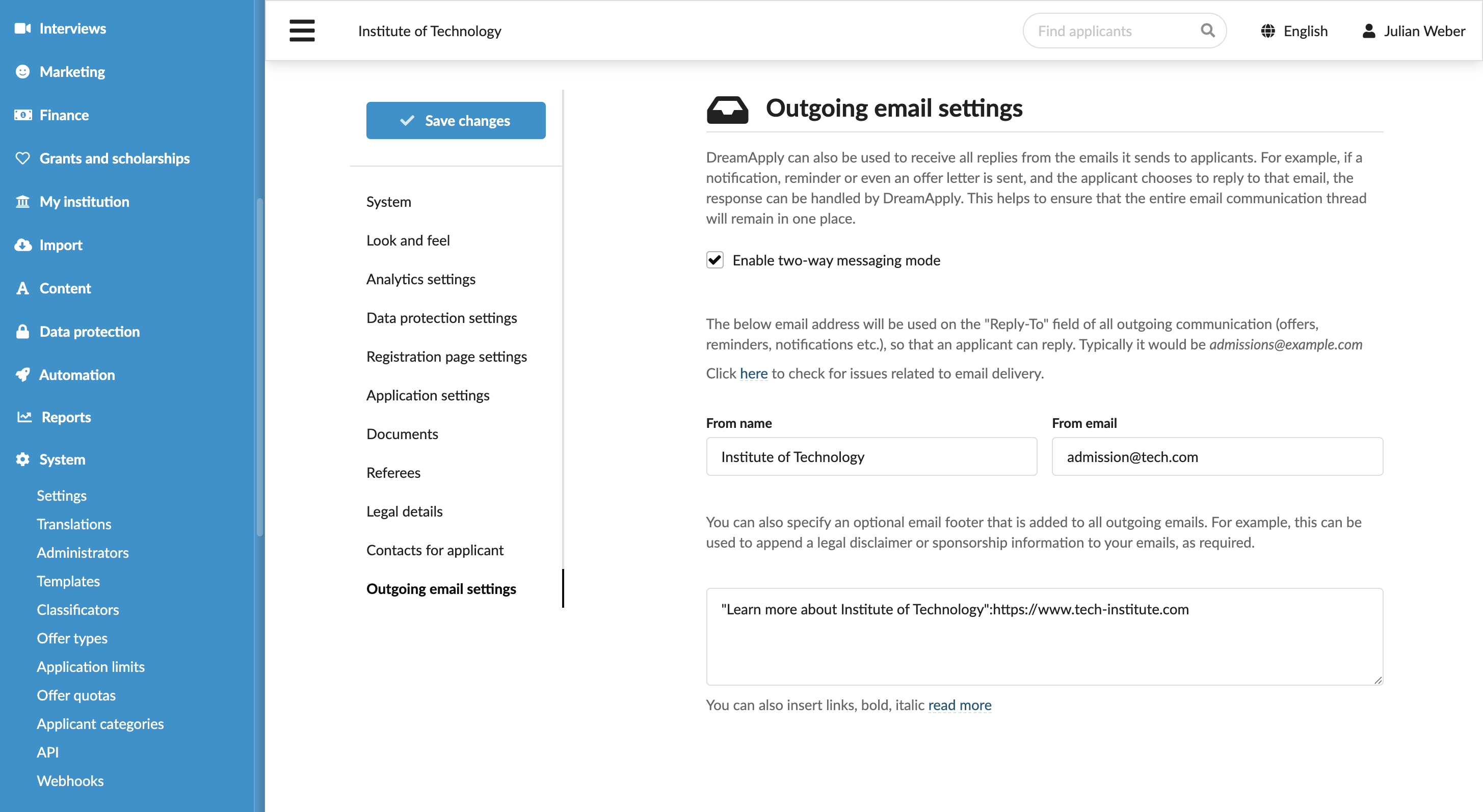
You can configure the following outgoing email settings in DreamApply:
Messaging mode: Select to use the regular or two-way messaging mode
Sender details:
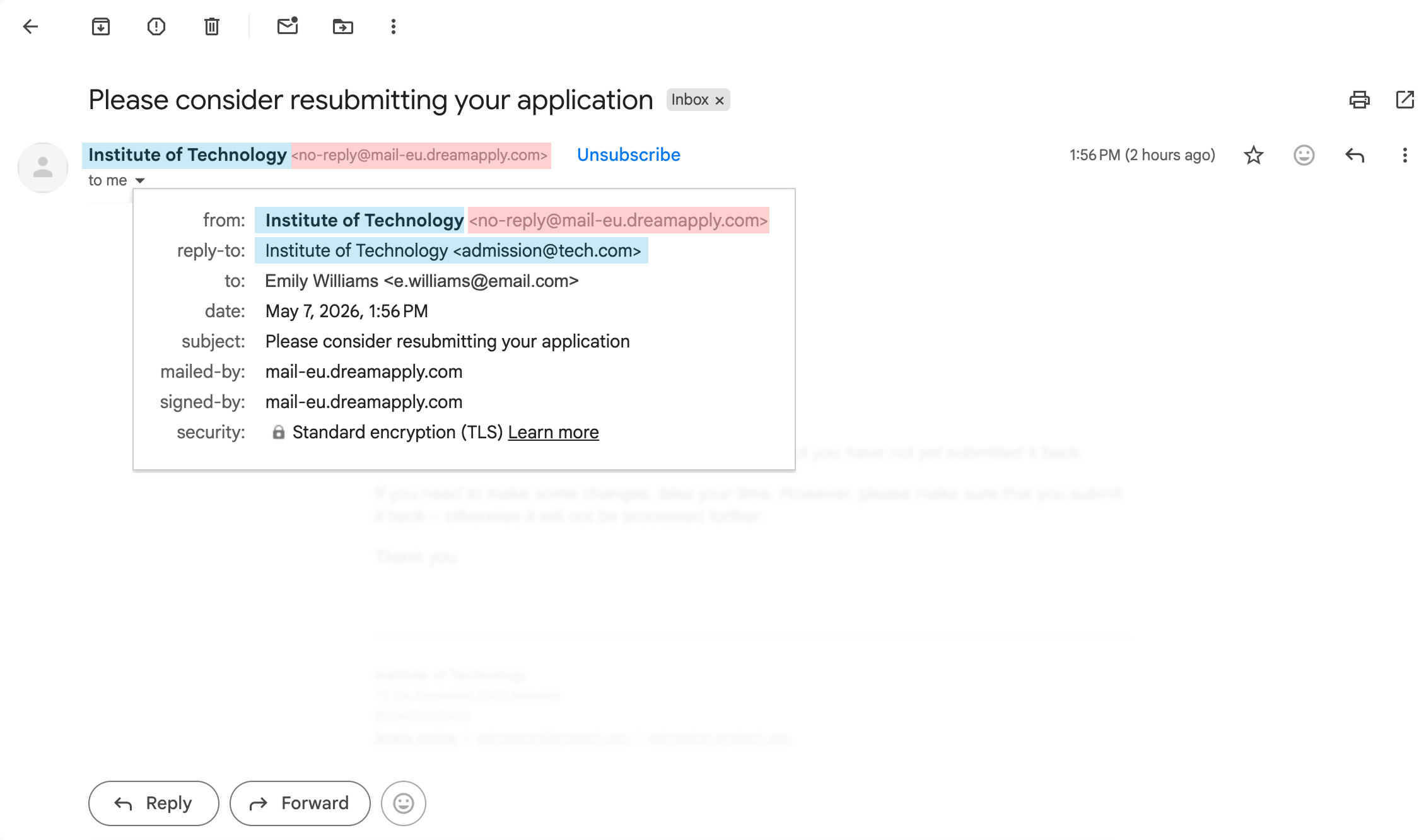
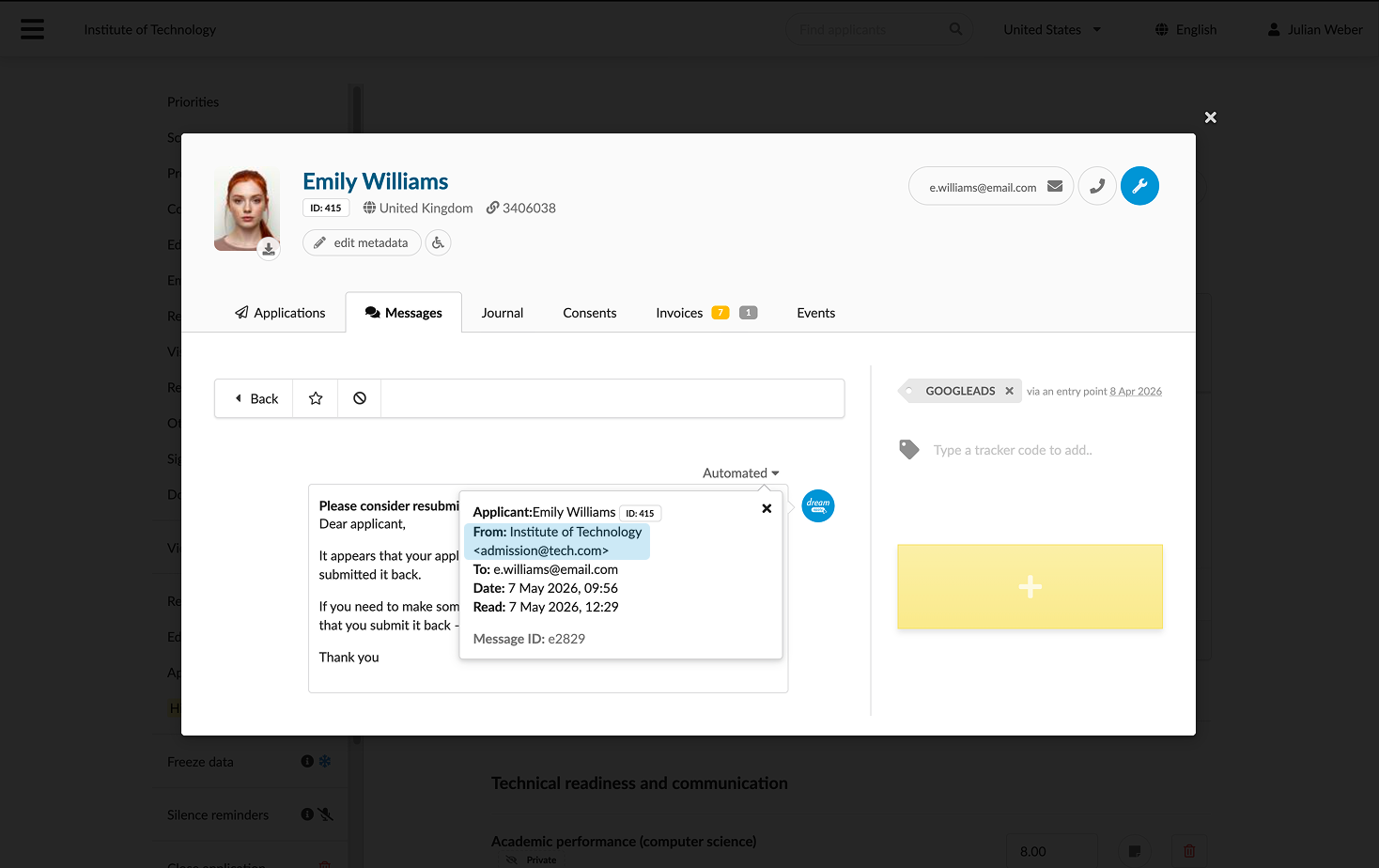
- From name: The display name shown to the recipient as the sender.
- From email: The email address specified in the Reply-to field. If an applicant replies to the email, the reply will be sent to this address.
Before you begin
To define email settings, your account must have the Superuser role or the instance permission.
Configure email settings
To configure outgoing email settings in DreamApply:
In the main menu, under System, select Settings.
In the Outgoing email settings section, configure the settings:
To allow parties to communicate using the DreamApply portal, select the Enable two-way messaging check box.
In the From name and From address fields, specify the sender name and address to be used in the Reply-to field of outgoing emails.
In the box below, configure the email footer. You can use the Textile markup to format and structure the text.
At the top of the form, click Save changes.