Silence reminders
Roles
These roles reflect the default DreamApply setup.
You can define custom roles based on your
institution's needs. Learn more →:
You can define custom roles based on your
institution's needs. Learn more →
Applicants and administrators can silence reminders for specific applications when notifications are no longer relevant or require attention later. Silencing reminders stops notifications until they are manually re-enabled or until the selected silence period expires.
DreamApply applies the following rules when silencing reminders:
- Eligible reminders: Only reminders configured as “silenceable” are affected. For details, see the summary table for reminders.
- On-request reminders: Messages that are not tied to the application or are sent on request are not silenced.
- Automatic reset: If an applicant starts a new application in a future admission cycle, reminders are automatically re-enabled for that application.
Reminders can be silenced in the following ways:
When an application is withdrawn, DreamApply automatically stops all reminders, except notifications related to invoices. For details, see Application withdrawal.
Before you begin
- To silence reminders, your account must have the
SuperuserorAdmissions administratorrole or theapplications-silencepermission. - To subscribe to journal events, your account must have the
SuperuserorAdmissions administratorrole or thejournal-viewandjournal-editpermissions. - To edit offer type settings, your account must have the
Superuserrole or theoffer-viewandoffer-editpermissions.
Unsubscribe from emails (applicants)
Applicants can silence reminders in the following ways:
- Unsubscribe from emails through their email client
- Use the profile settings in the DreamApply portal
For details, see Unsubscribe from emails.
Silence reminders (Administrators)
Administrators can silence reminders on behalf of applicants for individual applications or for a group of applications.
To silence reminders for a specific application:
- In the main menu, under Applications, select Browse.
- In the application card, click View.
- In the left menu, click Silence reminders and select the duration.
- To re-enable notifications, in the left menu, select Unsilence reminders.
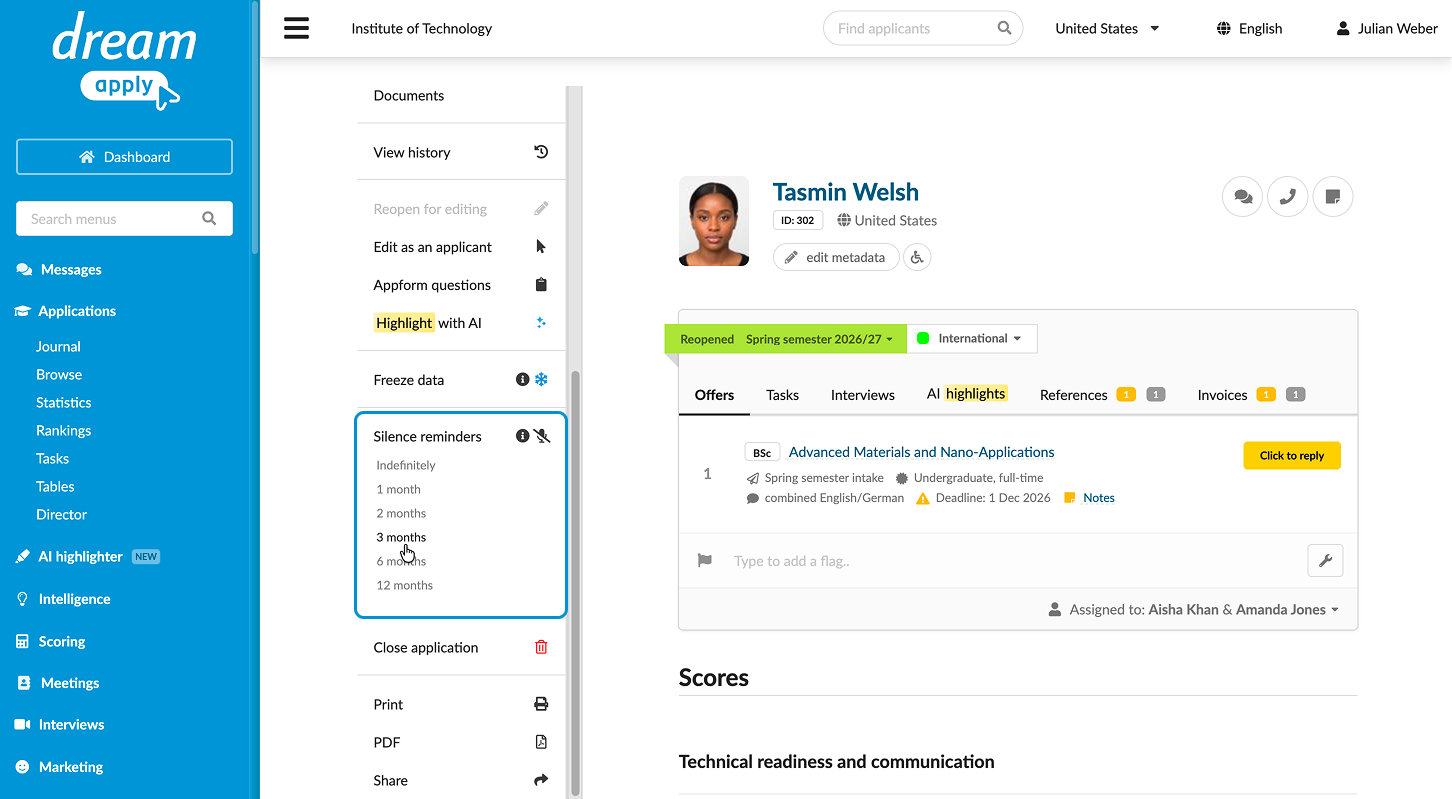
To silence reminders for a group of applications:
- In the main menu, under Applications, select Browse.
- Use filters to select the group of applications for which reminders must be silenced.
- From the Bulk actions list, select Silence all and select the duration.
- To re-enable notifications, from the Bulk actions list, select Un-silence all.
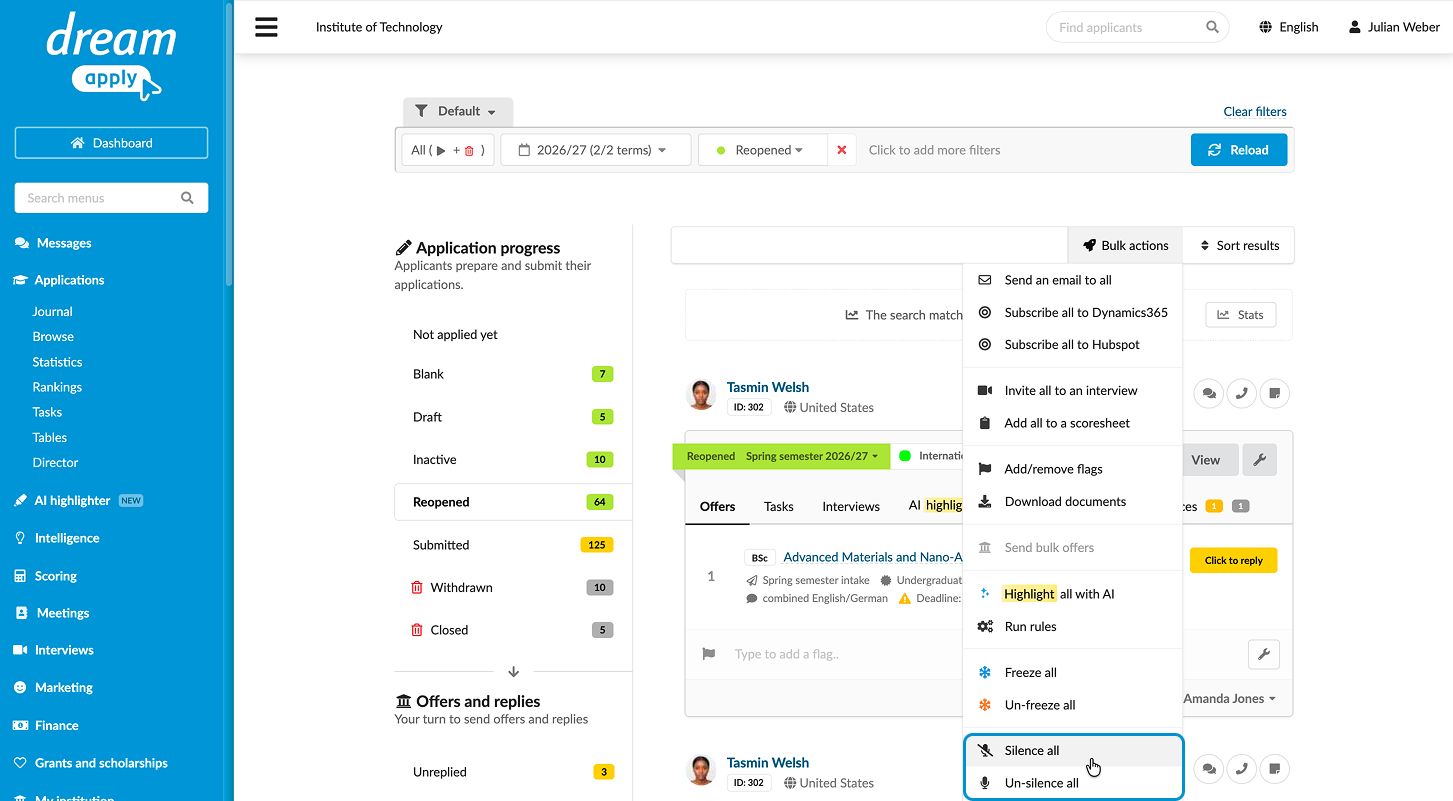
Silence reminders through offer types
You can silence reminders based on the offer type set for an application. When an application reaches a specific milestone and a specific offer type is set and confirmed, DreamApply stops sending reminders.
- In the main menu, under System, select Offer types.
- Select to create or edit a specific offer type.
- In the Silence section, select the Silence application on confirm check box.
- At the top of the form, click Save changes.
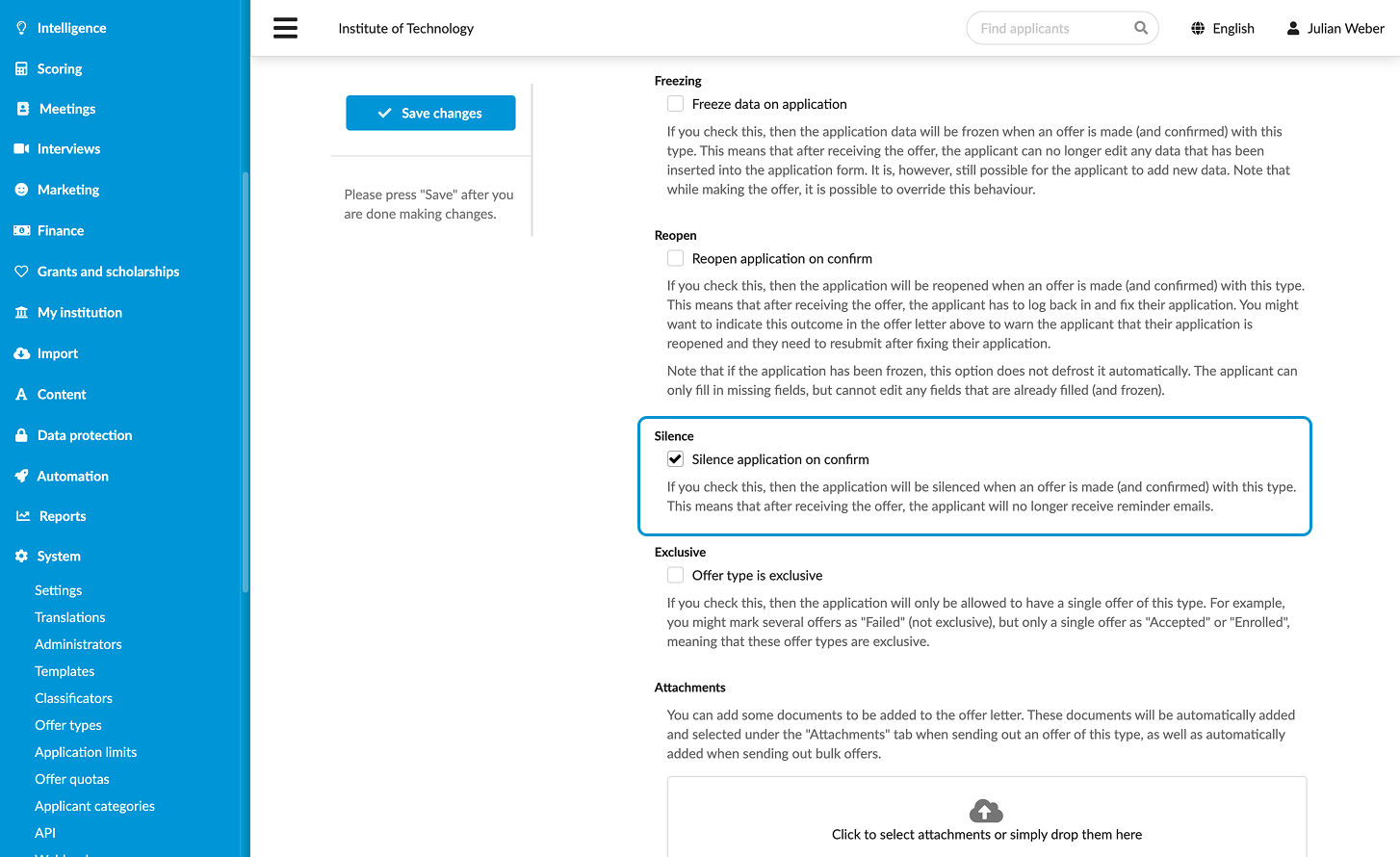
Use the Journal events
DreamApply records the following events in the journal when reminders are silenced or re-enabled:
- Application was silenced
- Application was un-silenced
To track these events, subscribe to them using the Application management event group.