Set up interview scenarios
Roles
These roles reflect the default DreamApply setup.
You can define custom roles based on your
institution's needs. Learn more →:
You can define custom roles based on your
institution's needs. Learn more →
Before inviting applicants to interviews, you need to set up interview scenarios. A scenario is a guided flow presented to applicants in a step-by-step wizard format. Scenarios allow you to create a structured assessment process: before moving to the next step, an applicant must complete the previous one.
Before you begin
To create interview scenarios, your account must have the Superuser role or the interviews-scenarios permission.
Create interview scenarios
To create an interview scenario:
- In the main menu, under Interviews, select Scenarios.
- At the bottom of the scenario list, click Add a new scenario.
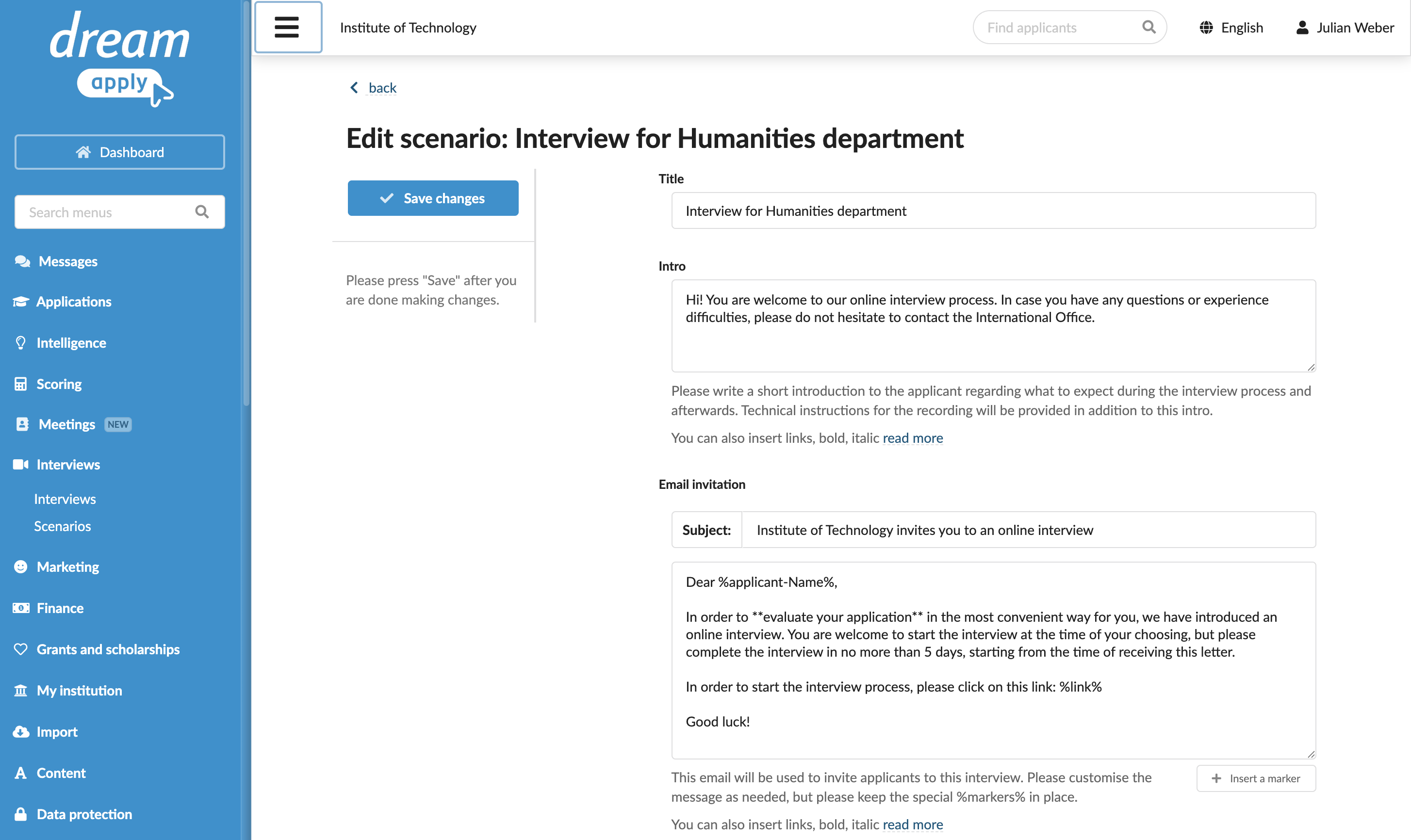
- In the Title and Intro fields, specify the interview title and description. This information will be presented to an applicant once they open the interview in the Interviews wizard.
- In the Email section, set up a notification to invite an applicant to the interview. These settings are used to notify applicants using messages in the DreamApply portal and notifications sent by email. You can use content markers to personalize the message and the Textile markup to format and structure the text.
- Specify the timing and attempts settings: deadline, reminders, maximum preparation, review and attempts times.
- In the Question pool strategy section, select how interview questions must be handled. If an applicant gets a second chance at a question, you can show the exact same question again or pull a similar question from the pool of related questions.
- In the Questions section, specify the questions for the interview. During the interview, DreamApply presents each question as a separate step of the wizard and records each answer as a separate video.
- At the top of the form, click Save changes.