Messaging modes
DreamApply offers two modes to organize communication with applicants:
- Regular messaging mode: Recommended for informational or automated communication
- Two-way messaging mode: Supports interactive conversations for continuous communication with applicants
You can enable two-way messaging in the system settings in DreamApply.
Regular messaging mode
Use the regular messaging mode if your institution plans to send informational or automated messages to applicants and further interaction is typically not required.
In this mode, applicants receive automated email messages from DreamApply directly in their email inboxes and can also view them in the Messages view of the portal. If an applicant chooses to reply using their email client, the response is sent as a standard message to the external email address specified in the Reply-to field.
Two-way messaging mode
Use this mode when you require continuous, direct communication with applicants throughout the admission process.
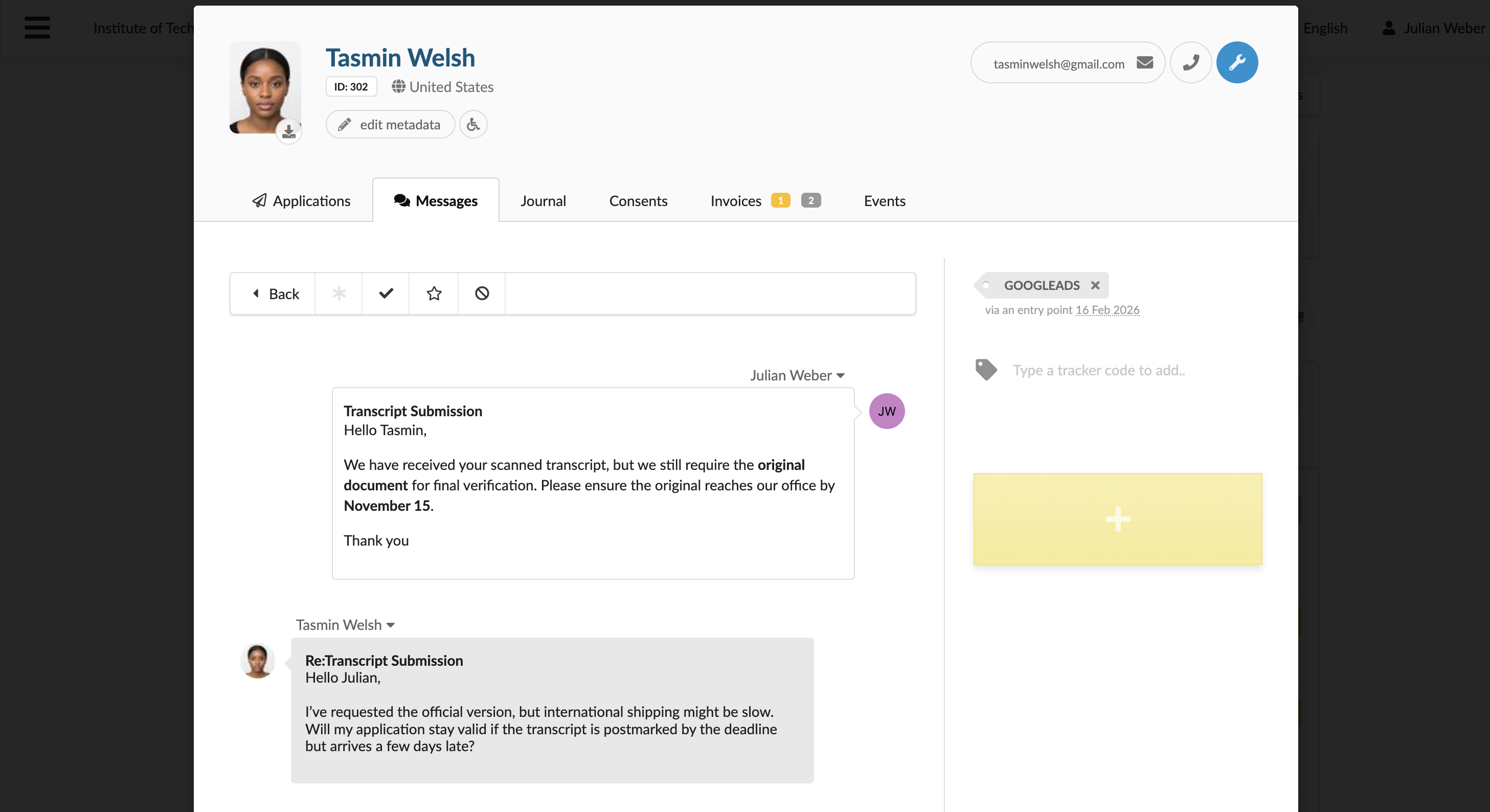
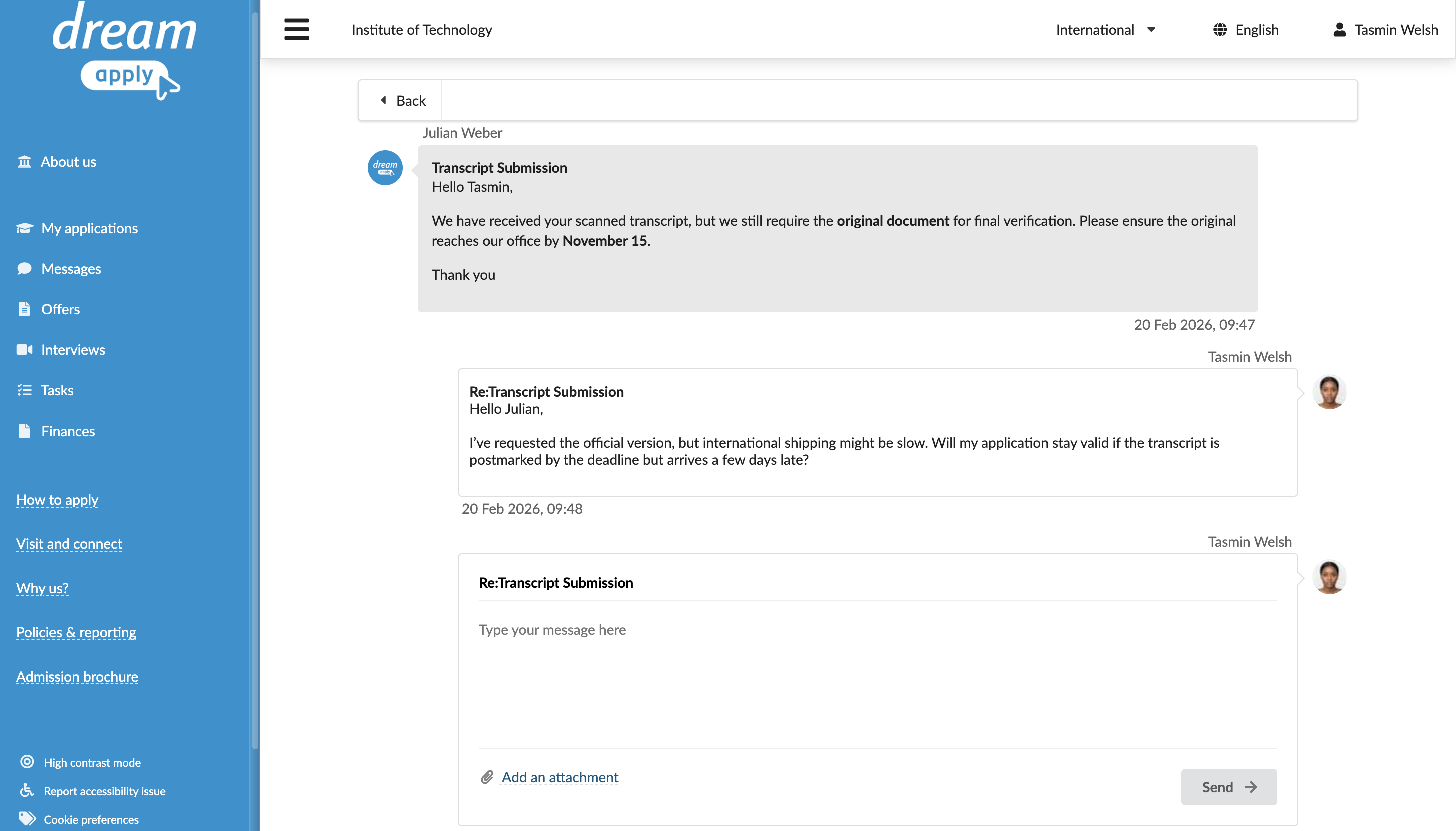
In this mode, Administrators and applicants can send messages and reply using the Messages view in the DreamApply portal. DreamApply links all replies and follow-up messages to the original message and maintains a conversational thread within the portal.
Applicants receive both automated emails and personalized messages and can reply in one of the following ways:
- Directly through their email client
- Using the Messages view in DreamApply
When DreamApply sends a message in the two-way messaging mode, it creates a one-time email address, for example: reply-here-p123-321-abcd@mail-eu.dreamapply.com. The one-time email address includes the tenant (institution) shard ID and the original email ID. When an applicant replies to the email, DreamApply uses these IDs to link the response back to the original thread and authenticate the response message.
Administrators can use the Textile markup to structure and format the message text in the Messages view. For details, see Personalized messaging.
Disabling the two-way messaging mode
When the two-way messaging mode is disabled or a specific thread is blocked, previously sent messages remain in the system. Administrators and applicants can still view them in the original threaded format in the DreamApply portal.
If an applicant received a message before the two-way messaging mode was disabled or before the thread was blocked, they can still reply to this message using their email client. DreamApply will automatically add these replies to the correct threads, and Administrators will be able to view them in the Messages view.