Personalized messaging
Roles
These roles reflect the default DreamApply setup.
You can define custom roles based on your
institution's needs. Learn more →:
You can define custom roles based on your
institution's needs. Learn more →
DreamApply allows Administrators to send direct messages to applicants. This type of communication can be helpful to clarify requirements, provide additional guidance or address specific applicant queries.
Administrators can:
Before you begin
- To enable the two-way messaging mode, your account must have the
Superuserrole or theinstancepermission. - To view messages in message threads, your account must have the
Superuser,Admissions administrator,Academic supervisor,Academic consultant,Marketing administratororAccountantor theapplicants-viewandapplications-viewpermissions. - To create threads and send messages, your account must have the
SuperuserorAdmissions administratorrole or theapplicants-view,applications-viewandapplicants-editpermission.
Enable two-way messaging
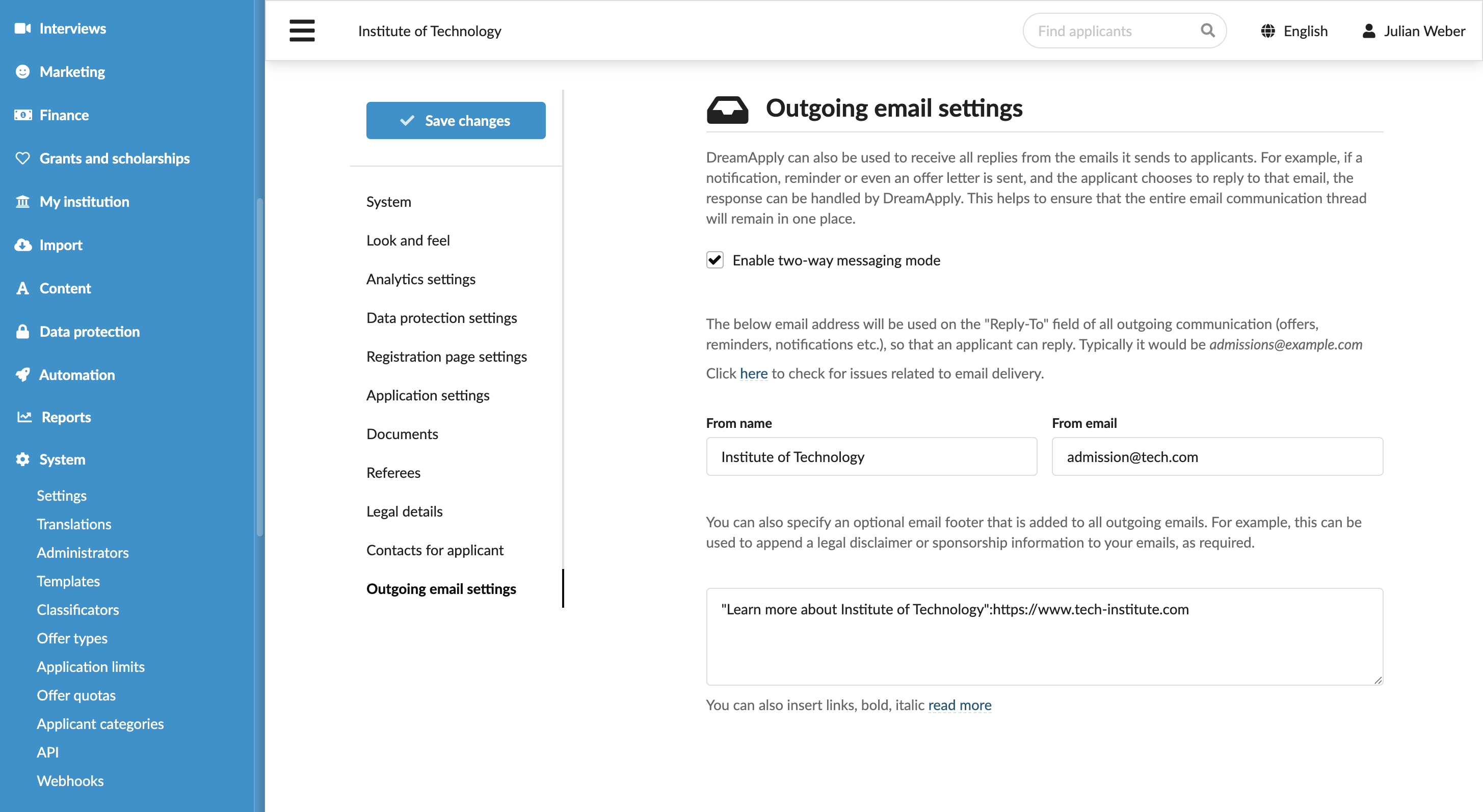
To send messages using the Messages view in DreamApply, you must first enable the two-way messaging mode. All sent and received messages are organized into threads, making it simple to track the conversation history.
To enable two-way messaging:
- In the main menu, under System, select Settings.
- In the Outgoing email settings section, select the Enable two-way messaging check box.
- At the top of the form, click Save changes.
Send a message to an applicant
You can send a message to an individual applicant if you need one-on-one communication with them.
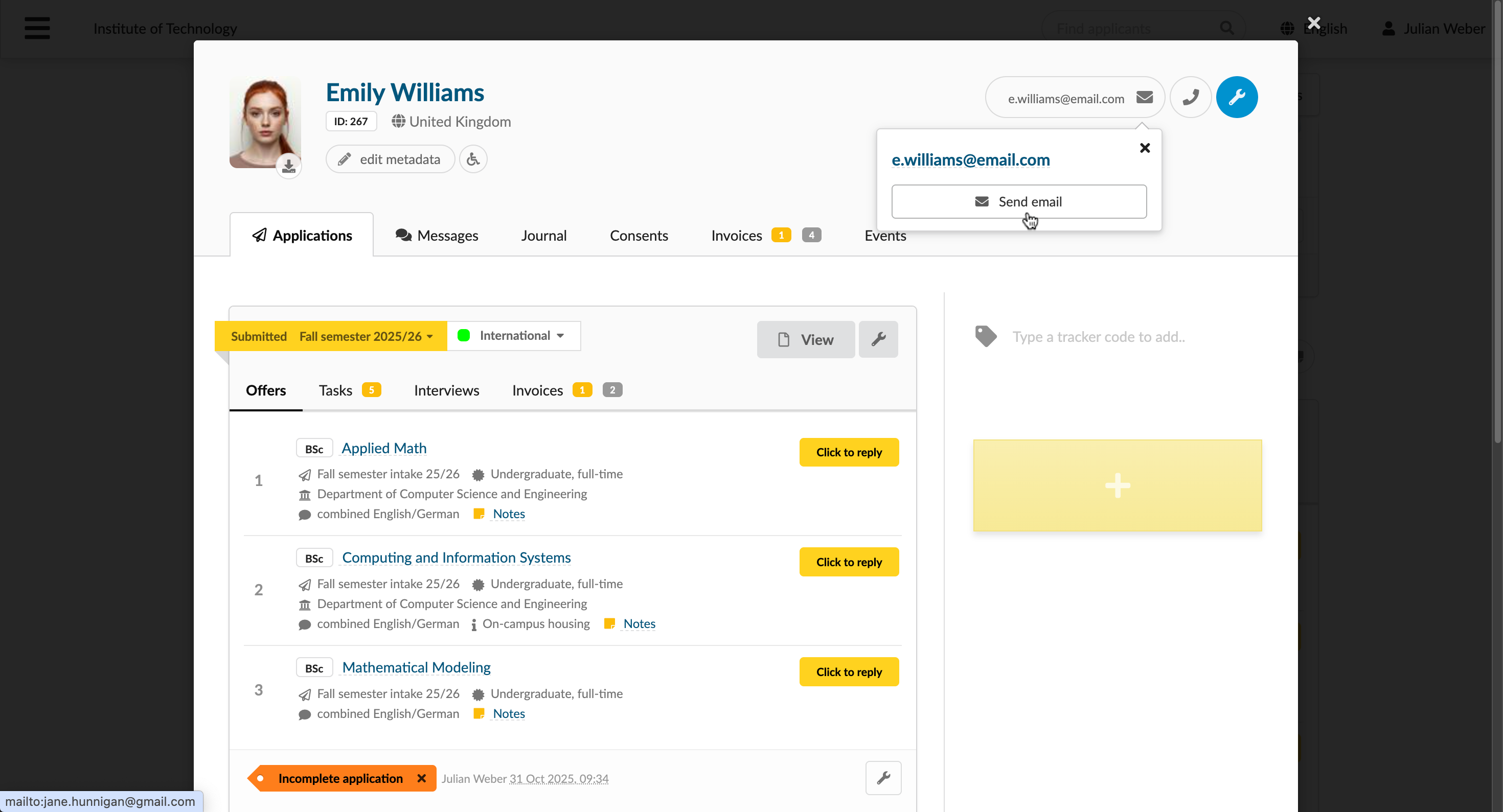
When the regular messaging mode is enabled, DreamApply sends an email message to the applicant's email inbox. A copy of the message also appears in the Messages view in the portal for reference.
To send a message to an applicant:
- In the main menu, under Applications, select Browse.
- Click an applicant's name to open the applicant card.
- In the top right corner, click the applicant's email. DreamApply will launch the default email client on your computer, and you can send a message as usual.
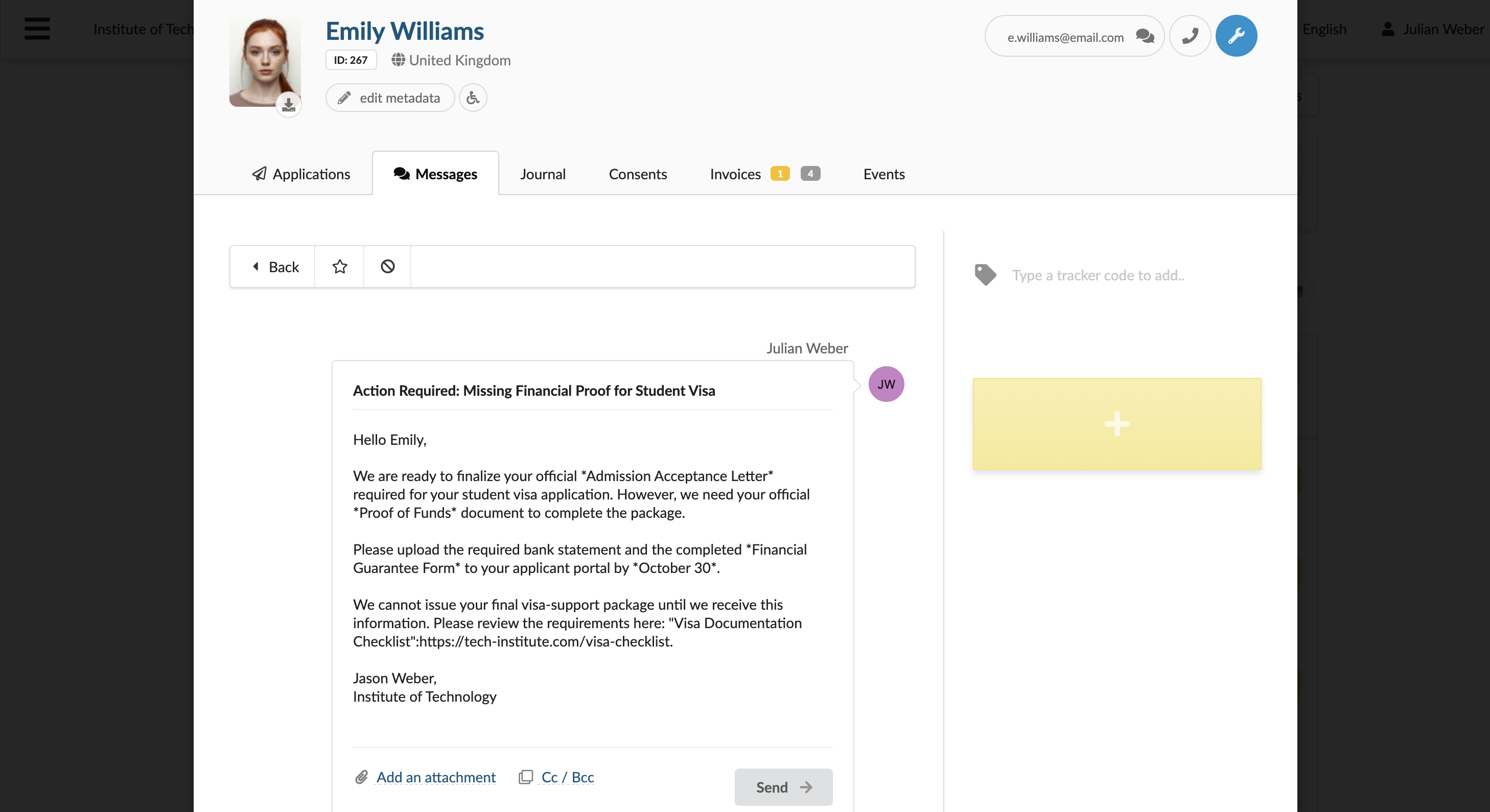
When the two-way messaging mode is enabled, DreamApply sends a message directly through the Messages view of the portal. The applicant can read and reply to the message within the portal. A copy of the message is also sent to the applicant's email inbox.
To send a message to an applicant:
- In the main menu, under Applications, select Browse.
- Click an applicant's name to open the applicant card.
- Click the Messages tab.
- On the left, click Start a new thread, compose and send a message to the applicant.
You can use the Textile markup to format and structure the message text and present information in a clear and organized way.
Send a message to applicants in bulk
You can send a message to a group of applicants to share announcements or updates in bulk.
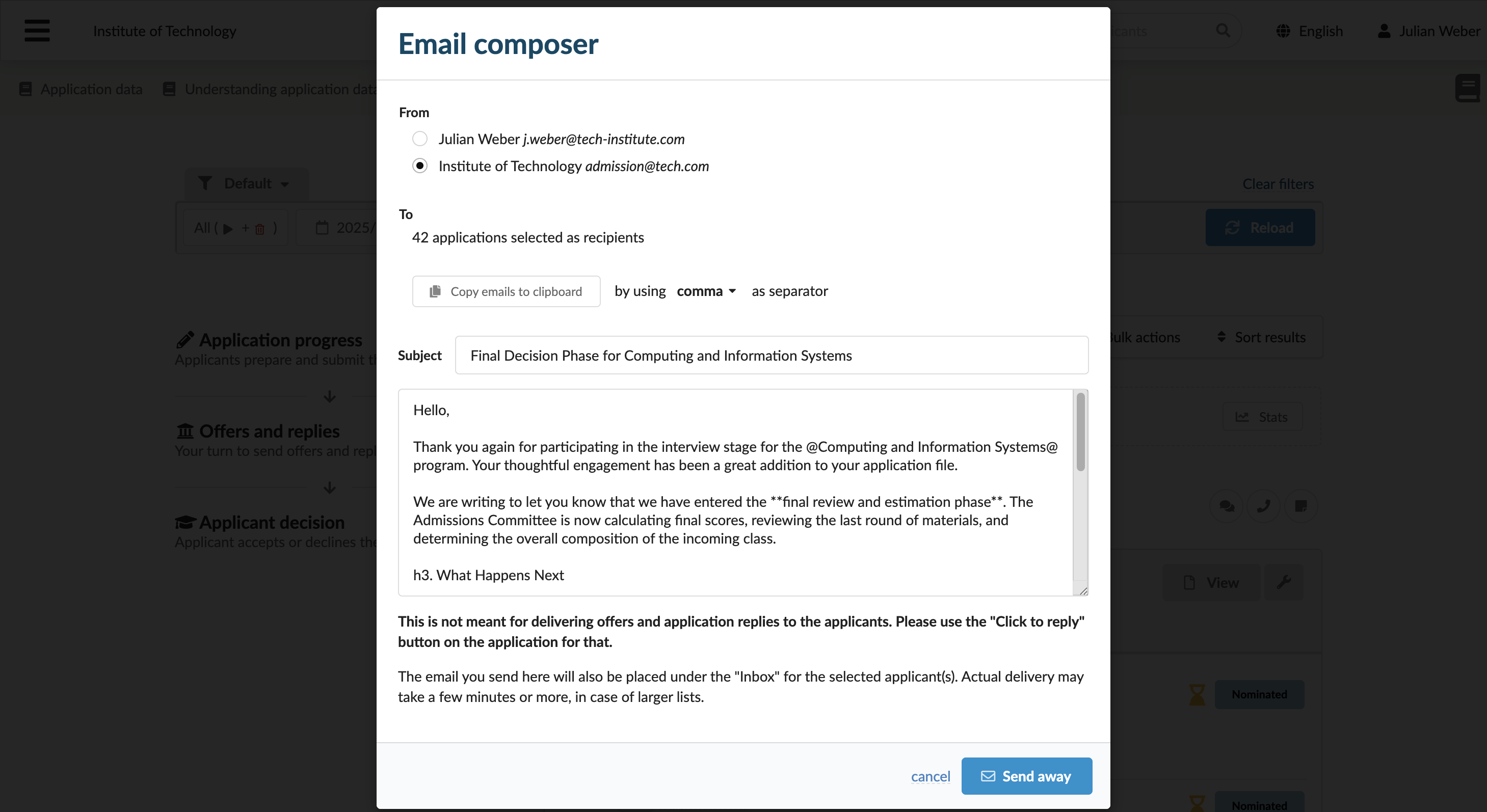
When the regular messaging mode is enabled, DreamApply sends a message as a bulk email to all selected applicants. A copy of the message also appears in the Messages view in the portal for reference.
To send a message to applicants in bulk:
- In the main menu, under Applications, select Browse.
- Use filters at the top to select a group of applicants that match specific criteria.
- From the Bulk actions list, select Send an email to all, compose an email and click Send away.
You can use the Textile markup to format and structure the message text and present information in a clear and organized way.
When the two-way messaging mode is enabled, DreamApply sends a message to each applicant's Messages view. The applicant can read and reply to the message within the portal. A copy of the message is also sent to the applicant's email inbox.
To send a message to applicants in bulk:
- In the main menu, under Applications, select Browse.
- Use filters at the top to select a group of applicants that match specific criteria.
- From the Bulk actions list, select Send an email to all, compose an email and click Send away.
You can use the Textile markup to format and structure the message text and present information in a clear and organized way.