Collect applicant consents
Roles
These roles reflect the default DreamApply setup.
You can define custom roles based on your
institution's needs. Learn more →:
You can define custom roles based on your
institution's needs. Learn more →
To meet regulatory, legal and institutional requirements, institutions can define and manage applicant consents in DreamApply. Applicant consents are used to fulfil obligations related to the processing of personal data, including:
- General Data Protection Regulation (GDPR)
- ePrivacy regulations
- National legislation
- Internal institutional rules
Applicant consents are displayed as check boxes on the registration page. They guarantee that applicants are clearly informed how their data is used and have the opportunity to accept or reject specific terms and conditions.
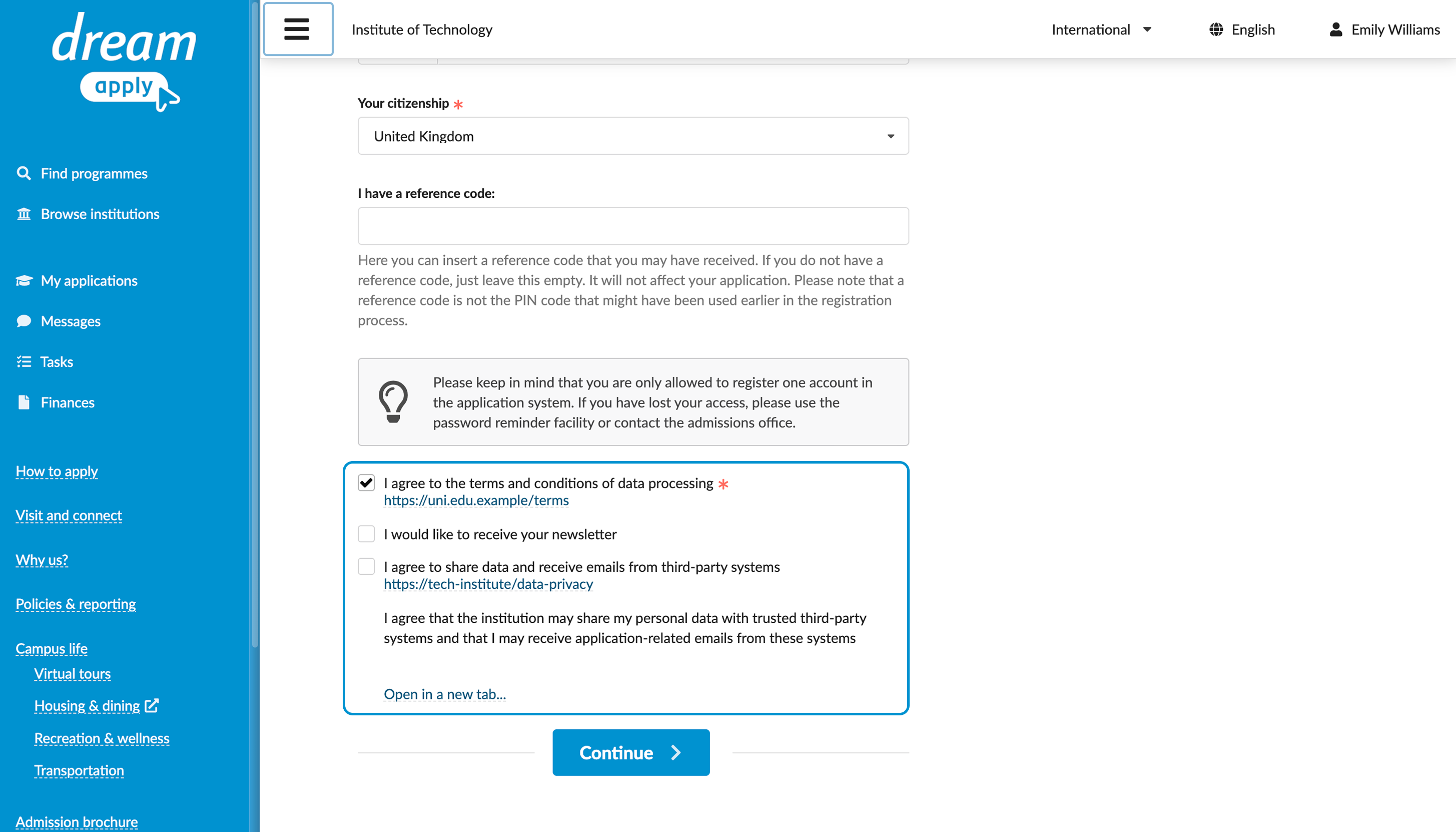
In DreamApply, institutions can define applicant consents as mandatory or voluntary:
- Mandatory consents must be accepted before applicants can complete registration.
- Voluntary consents let applicants make a choice and do not affect their ability to register. The applicant’s decision — Accepted, Rejected or Undecided — is recorded and saved in the system. Administrators can view it on the applicant card under the Consents tab.
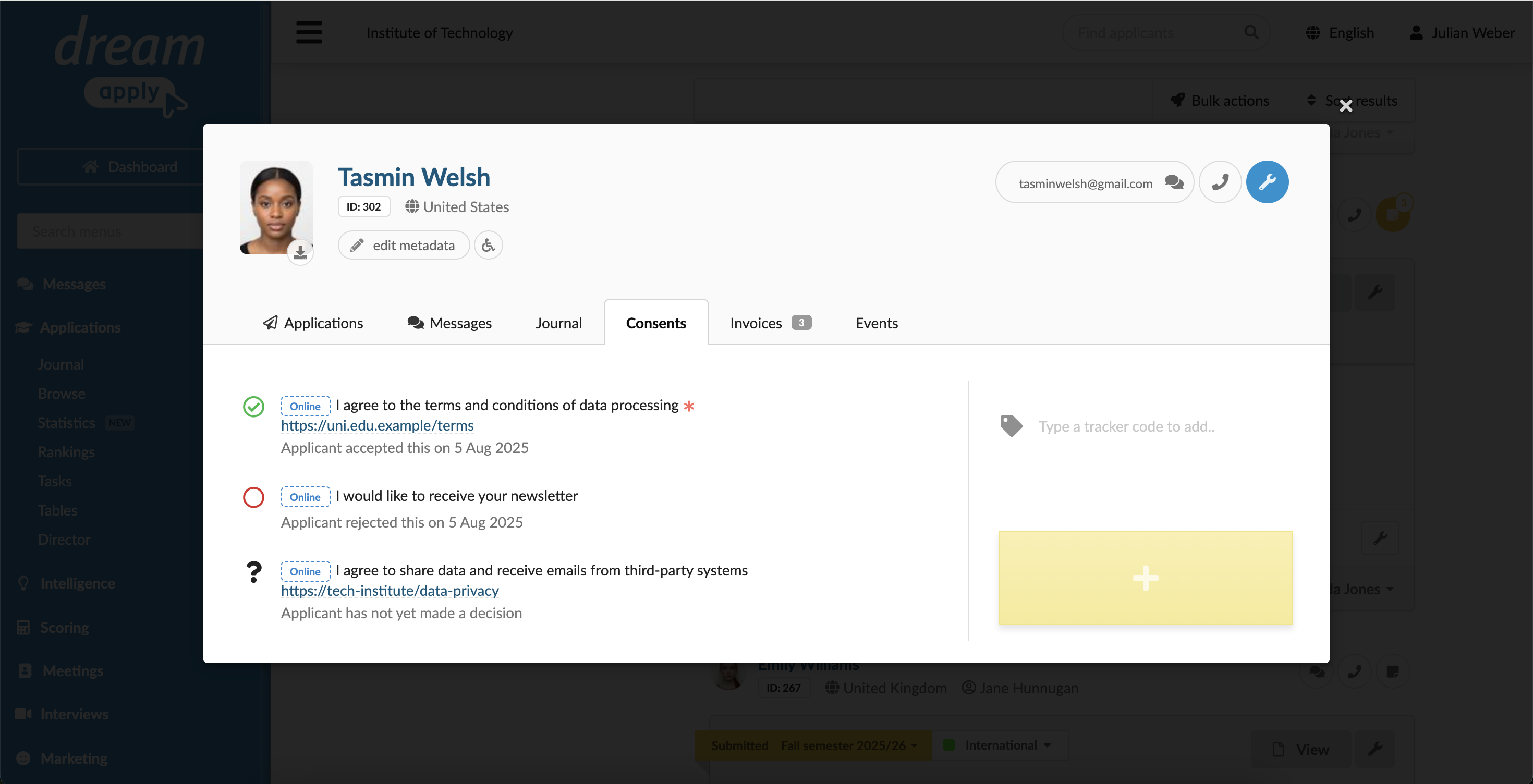
Applicant consents can be used in the system in several ways:
Before you begin
To manage consents, your account must have the Superuser role or the consents permission.
Define consents
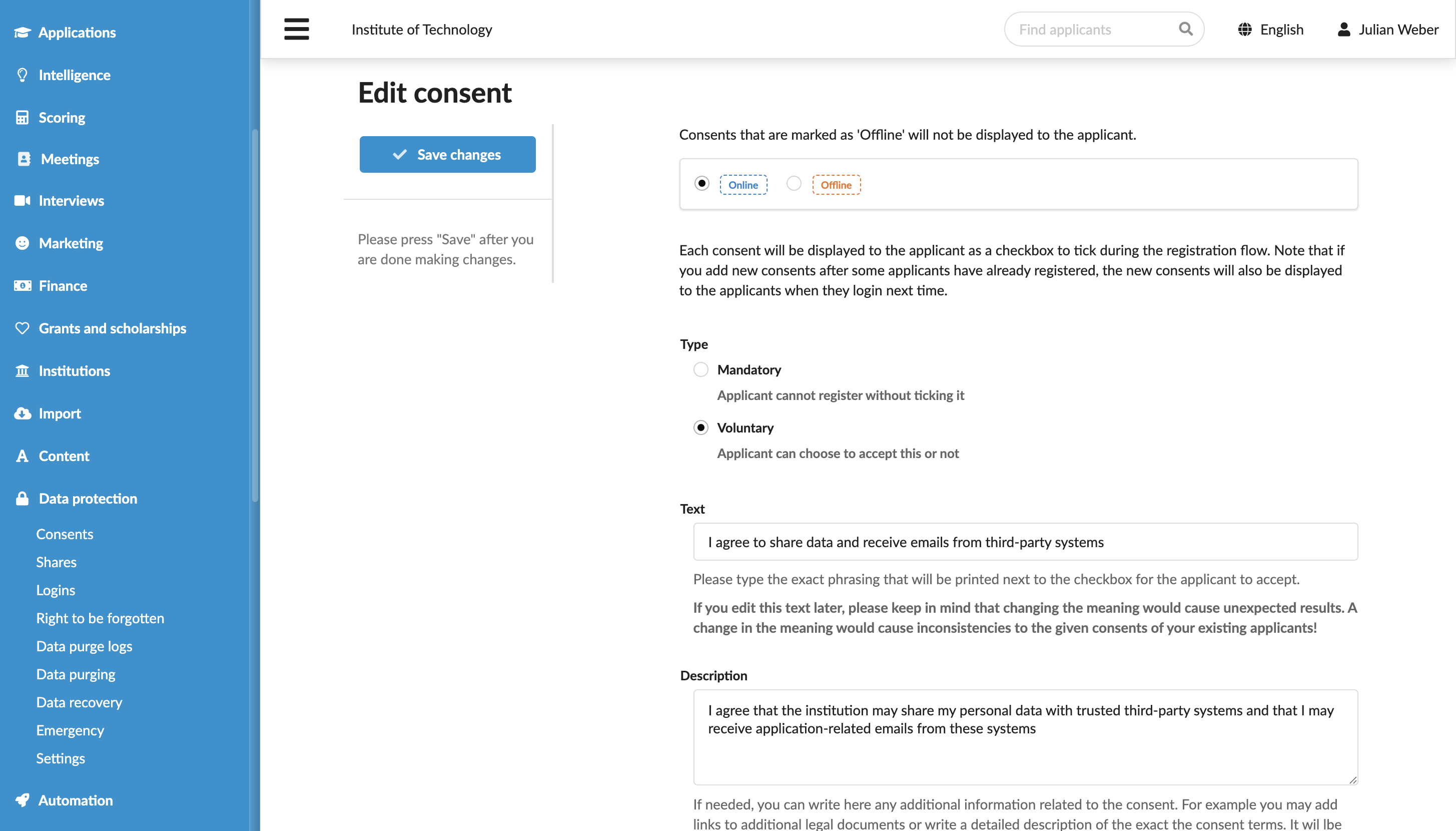
You can define applicant consents to inform applicants about specific terms and conditions and to request their agreement. Each consent is defined as an individual item that can be marked as mandatory or voluntary.
To define an applicant consent:
- In the main menu, under Data protection, select Consents.
- At the bottom of the consent list, click Add a new consent.
- Select the consent type: mandatory or voluntary.
- Specify short and detailed descriptions for the consent. If necessary, provide a link to additional resources and upload the documents that will be sent to applicants by email when they accept the consent.
- At the top of the form, set the consent status to Online and click Save changes.
Accept or reject consents (applicants)
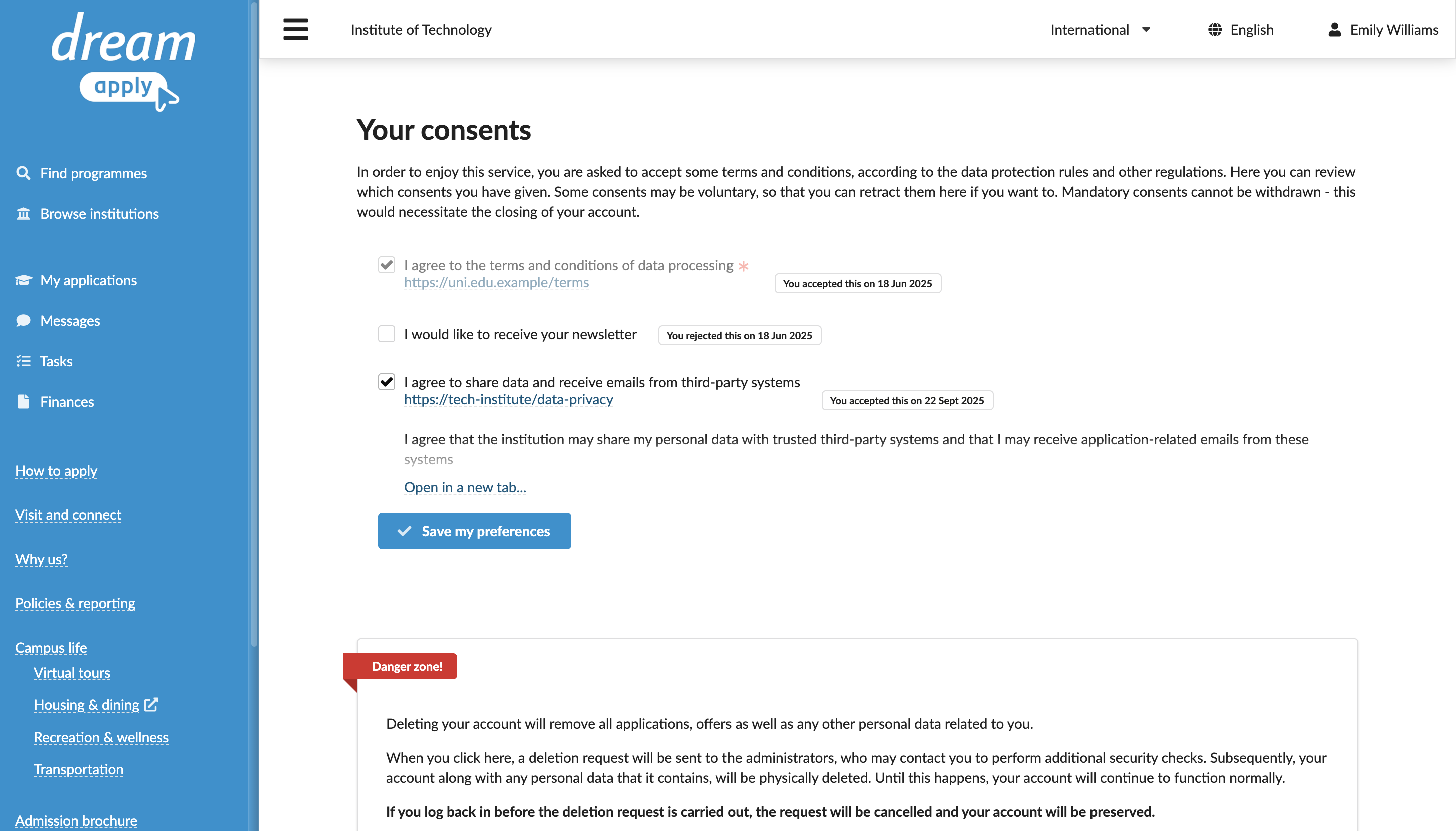
Applicants can provide their agreement to consents either during the registration process or later in their profile under the Data protection section.
If a new consent is added after an applicant has registered, it will be marked in the system as Undecided. The applicant will be prompted to review and accept or reject this consent the next time they log in.
View and download compliance reports
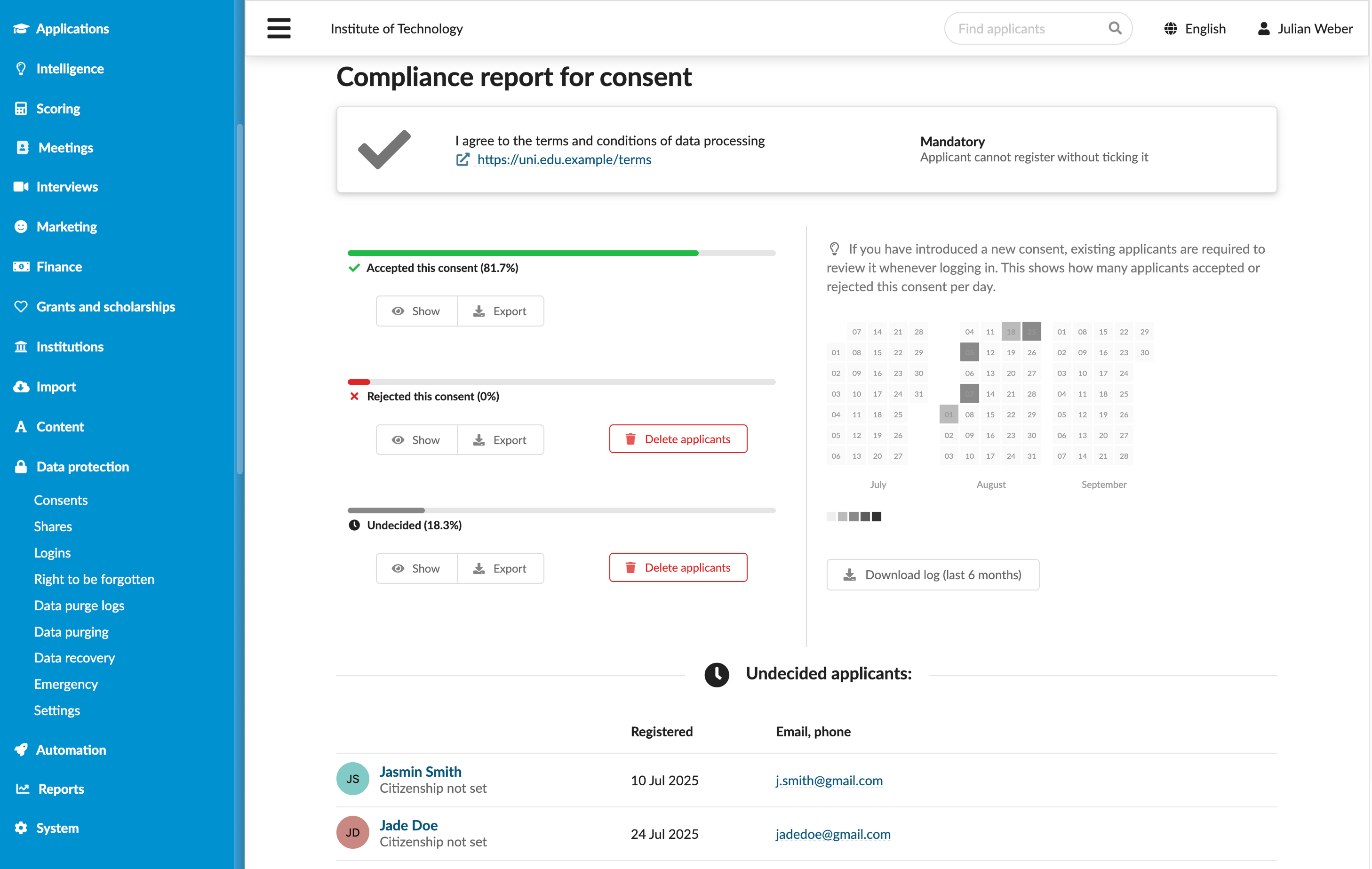
You can view and download reports that show which applicants have accepted or rejected consents. These reports can be used to support audits and demonstrate compliance with data protection rules and regulations.
To view compliance reports:
- In the main menu, under Data protection, select Consents.
- In the consent list, to the right of the consent, click Compliance.
- To download a report, use the Export button or Download log to download historical data for the last 6 months.
Manage applicant accounts
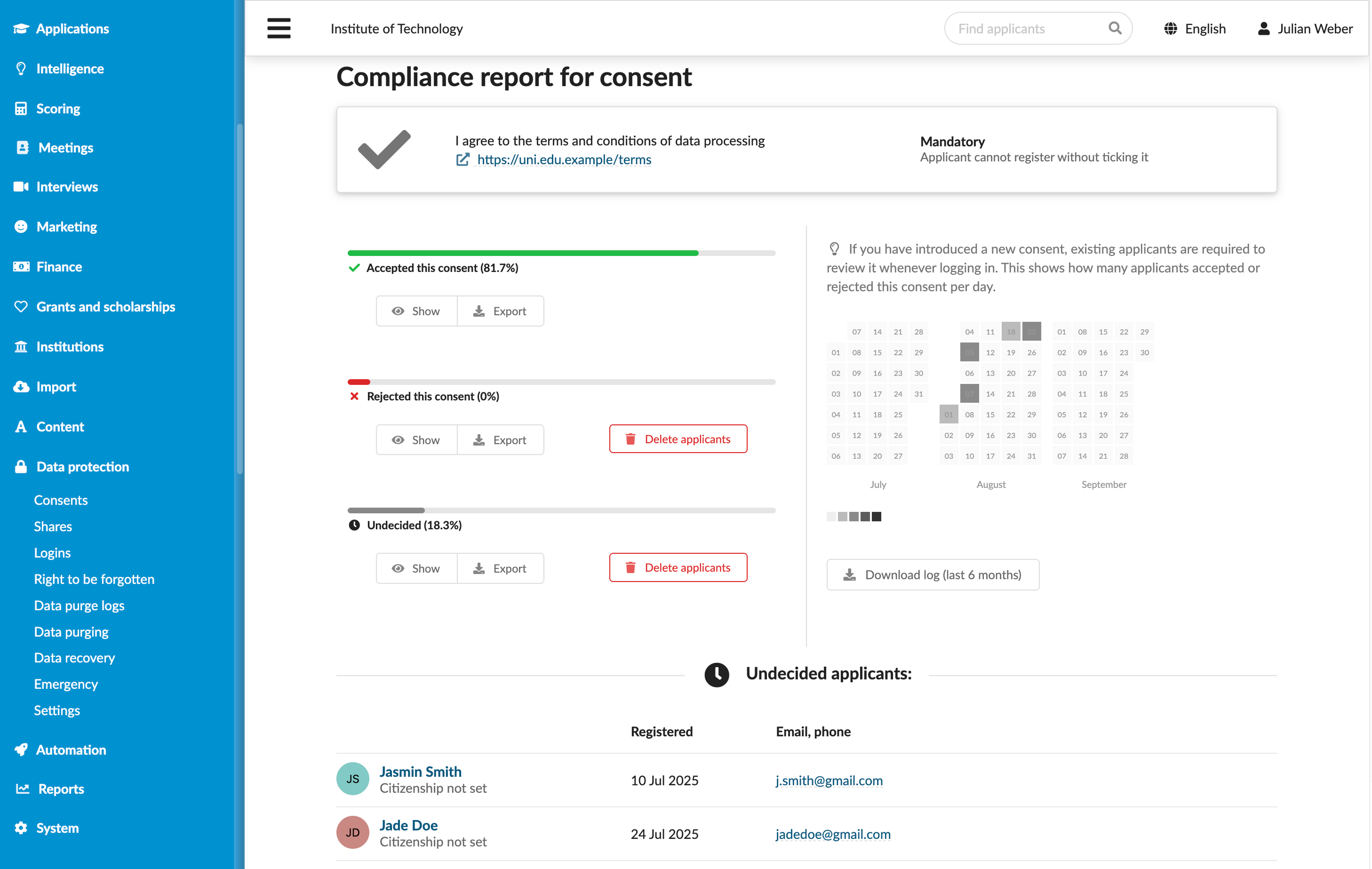
You can delete accounts of applicants who have rejected required consents or have not yet made a decision. This action may be required to maintain a clean applicant database and ensure compliance with institutional policies.
To delete applicant accounts:
- In the main menu, under Data protection, select Consents.
- In the consent list, to the right of the consent, click Compliance.
- Use the Delete applicants button to delete applicants who have rejected the consent or have not decided yet.
Use consents in rules
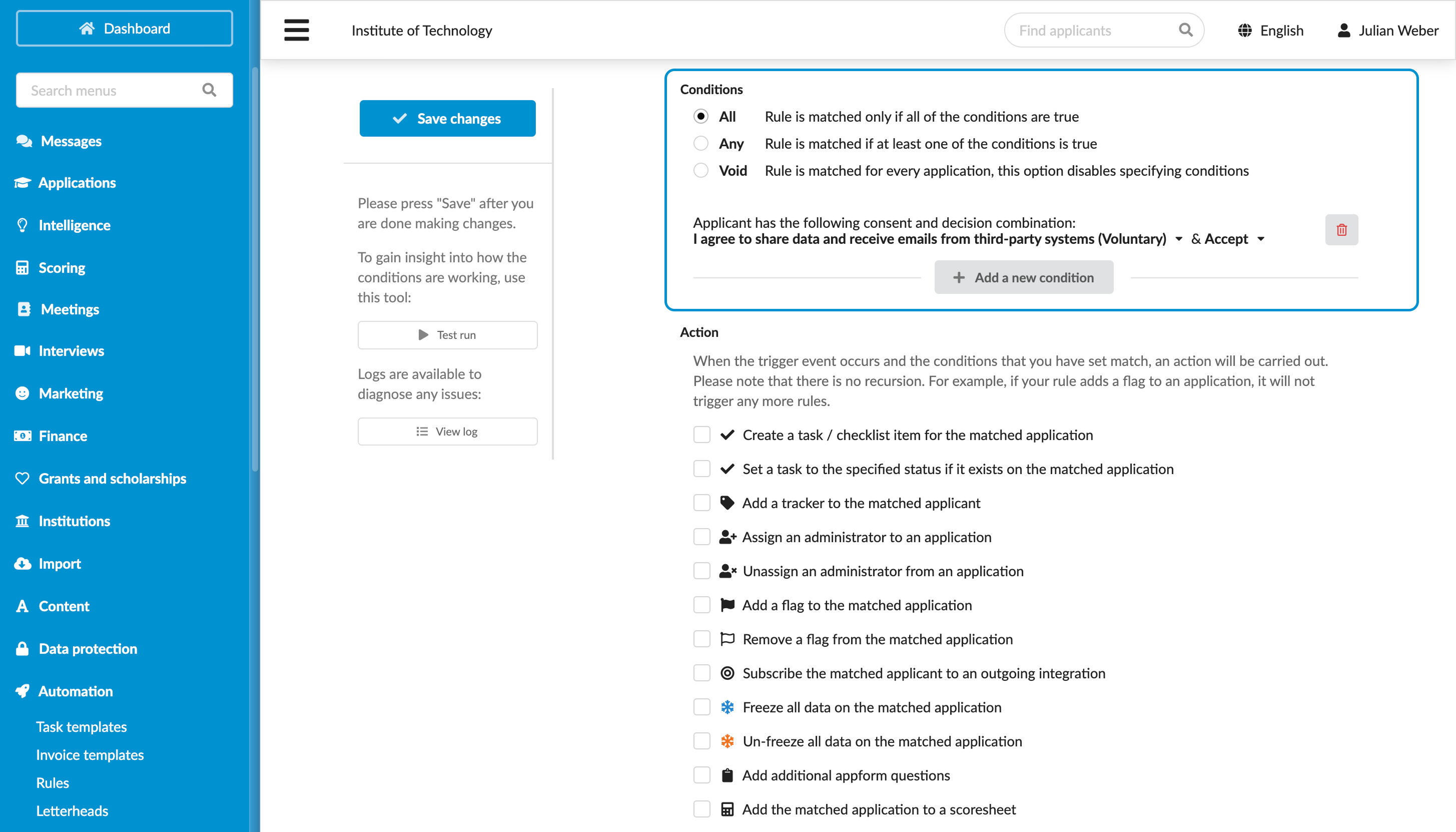
Consents can be used as conditions in rules. For example, you may choose to automatically trigger different workflows depending on whether applicants have accepted or rejected a consent.
To define a rule:
In the main menu, under Automation, select Rules.
At the bottom of the rule list, click New rule and specify the rule name.
In the Trigger events section, select events that must activate the rule.
In the Conditions section, add a new condition and use the following criteria:
- Applicant has the following consent and decision combination
- Applicant does not have the following consent and decision combination
Configure other rule settings as required, save its settings and set it to active in the rule list.
Use consents for outgoing integrations
If your institution uses outgoing integrations, you can configure them to transfer only the data of those applicants who have provided specific consents. This option guarantees that DreamApply shares data externally only when applicants have explicitly agreed.
For details, see Outgoing integrations.