Make offers
Roles
These roles reflect the default DreamApply setup.
You can define custom roles based on your
institution's needs. Learn more →:
You can define custom roles based on your
institution's needs. Learn more →
To move offers forward in the application process and communicate progress to applicants, you can set offer types for each offer in the application.
DreamApply offers two options for setting offer types:
- Manually: You can set offer types, save and send out individual offers using offer cards.
- In bulk: You can use DreamApply filtering and automation tools to identify top candidates and send out offers in bulk.
DreamApply may not display offer buttons for some priorities on the application card. This can happen if the priority has not yet been submitted. For details, see Offer workflows.
Before you begin
- To save and confirm offers, your account must have the
SuperuserorAdmissions administratorrole or theoffers-view,offers-editandoffers-cofirmpermissions. - To subscribe to journal events, your account must have the
SuperuserorAdmissions administratorrole or thejournal-viewandjournal-editpermissions.
Track and filter offers
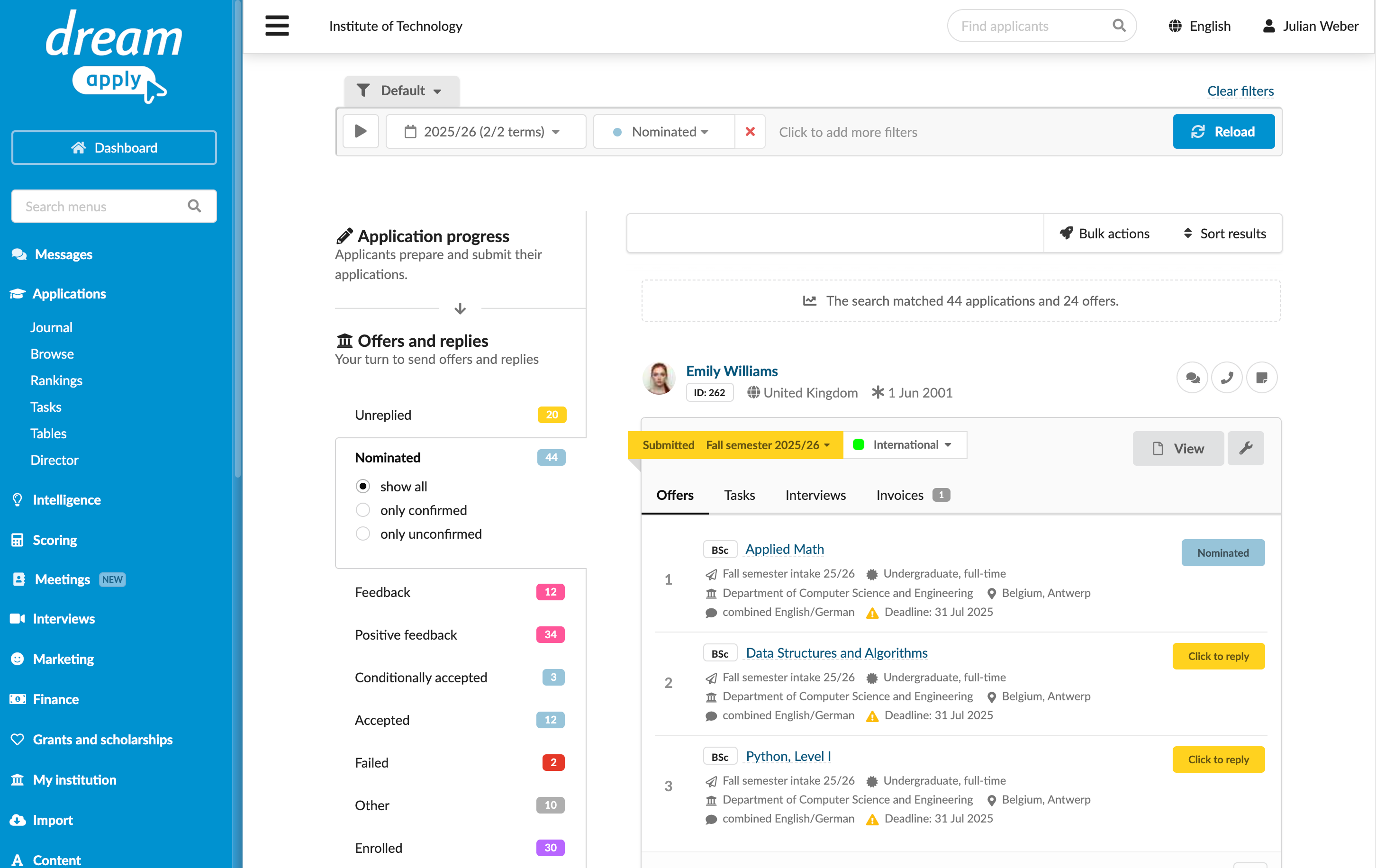
The Offers and replies pane on the left of the Browse view lists all offer types configured in the system. This pane shows how many applicants have each offer type, which helps Administrators to see distributions at once.
To narrow down the list of applications based on specific offer types or statuses, you can use filters at the top of the page.
Send out offers manually
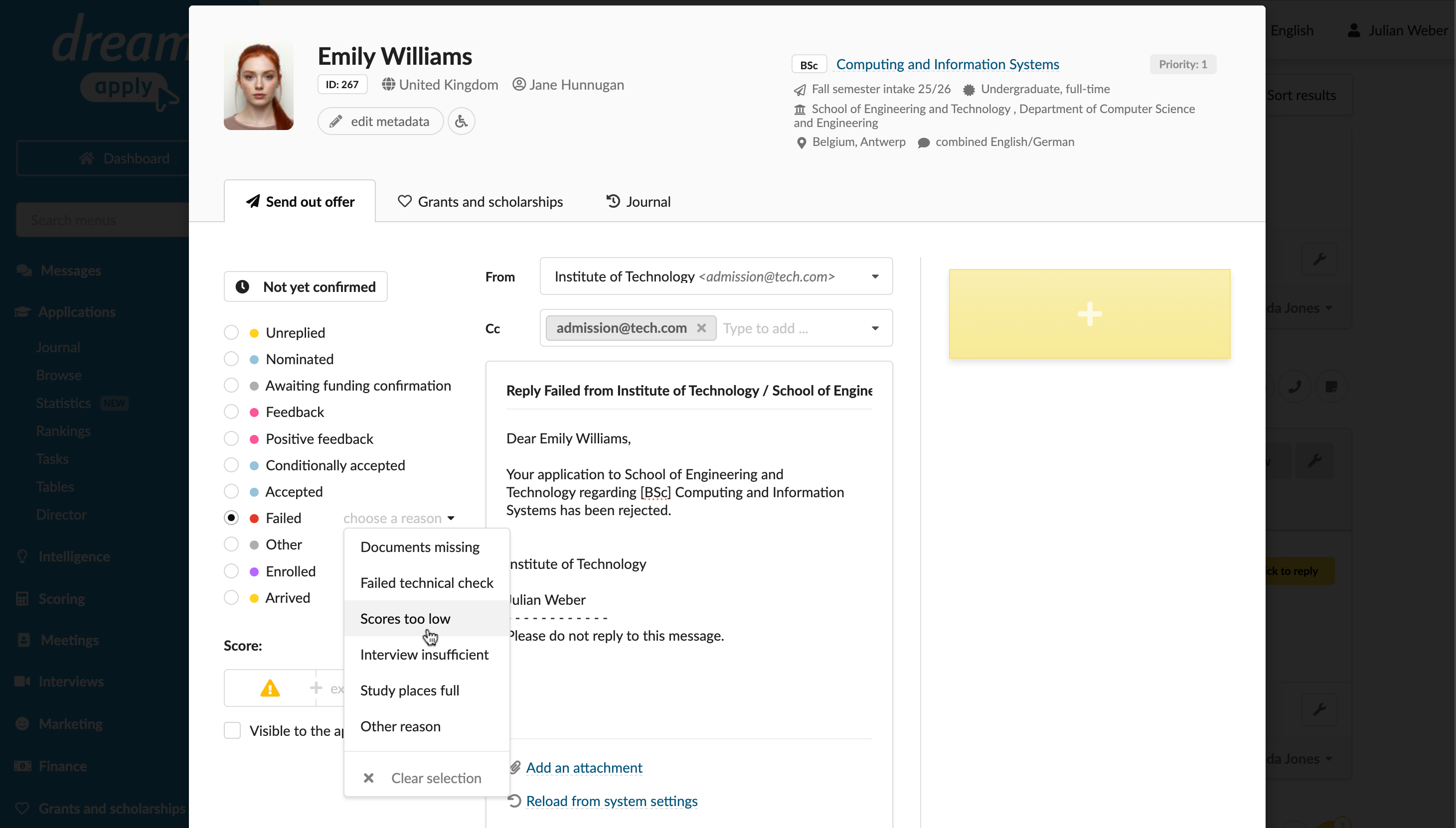
When an applicant first submits a priority, DreamApply creates an offer for it, sets the offer type to Unreplied and displays the Click to reply offer button next to this priority in the application. When you click the button, DreamApply opens the offer card where you can change the offer type, save and send out the offer.
DreamApply provides two options to handle offers:
Save: Saves the offer in the system but does not send an offer letter to an applicant.
Confirm & send out: Sends an offer letter and makes the offer type visible to an applicant. If an offer type is configured as intermediate (does not send an offer letter), the option is disabled in the offer card.
To save or send out an offer:
- In the main menu, under Applications, select Browse.
- Click the offer button on the application card.
- On the Send out offer tab, select the offer type. If offer reasons are defined for that type, select the reason from the list on the right. Administrators can view this reason on the offer card and in the ranking list below the priority description.
- If necessary, add other recipients in the CC (carbon copy) field and edit the offer letter.
- To send an official confirmation, click Add an attachment and select a letterhead template to use.
- Select to save the offer or send it out to the applicant.
Send out offers in bulk
You can use several tools to make offers to applicants in bulk:
Use the Send bulk offers tool
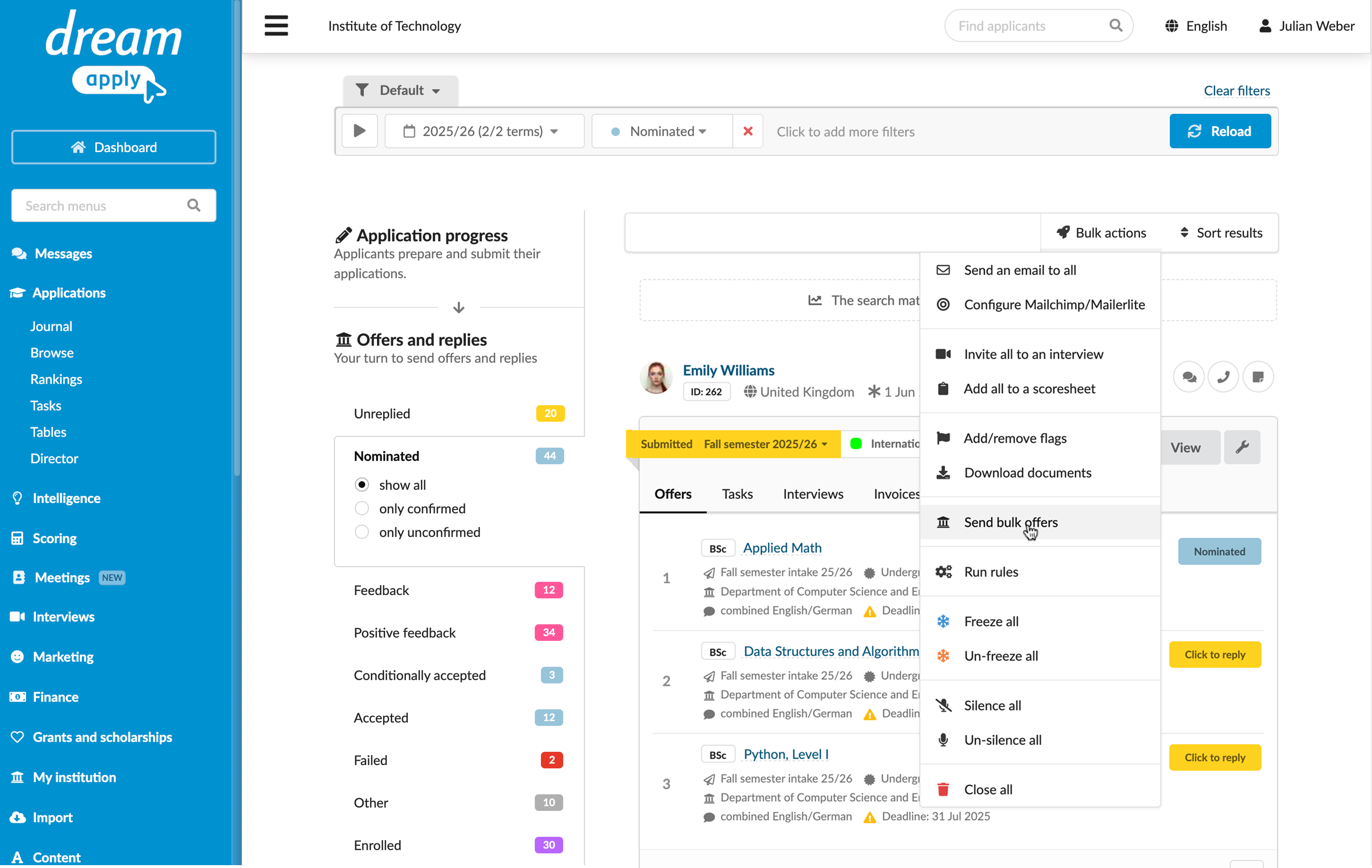
To send out offers in bulk using the Browse view:
- In the main menu, under Applications, select Browse.
- In the left pane, select the initial offer type.
- Use filters at the top to narrow down the list of applications.
- Click Bulk actions > Send bulk offers and follow the wizard to send out bulk offers.
Use the Ranking view
The Rankings view allows you to view offers sorted by their rankings, quickly identify top candidates and send out offers in bulk. You can use this tool if you want to prioritize top candidates based on the evaluation criteria set in DreamApply.
For details, see Rank applications.
Use the Import offers tool
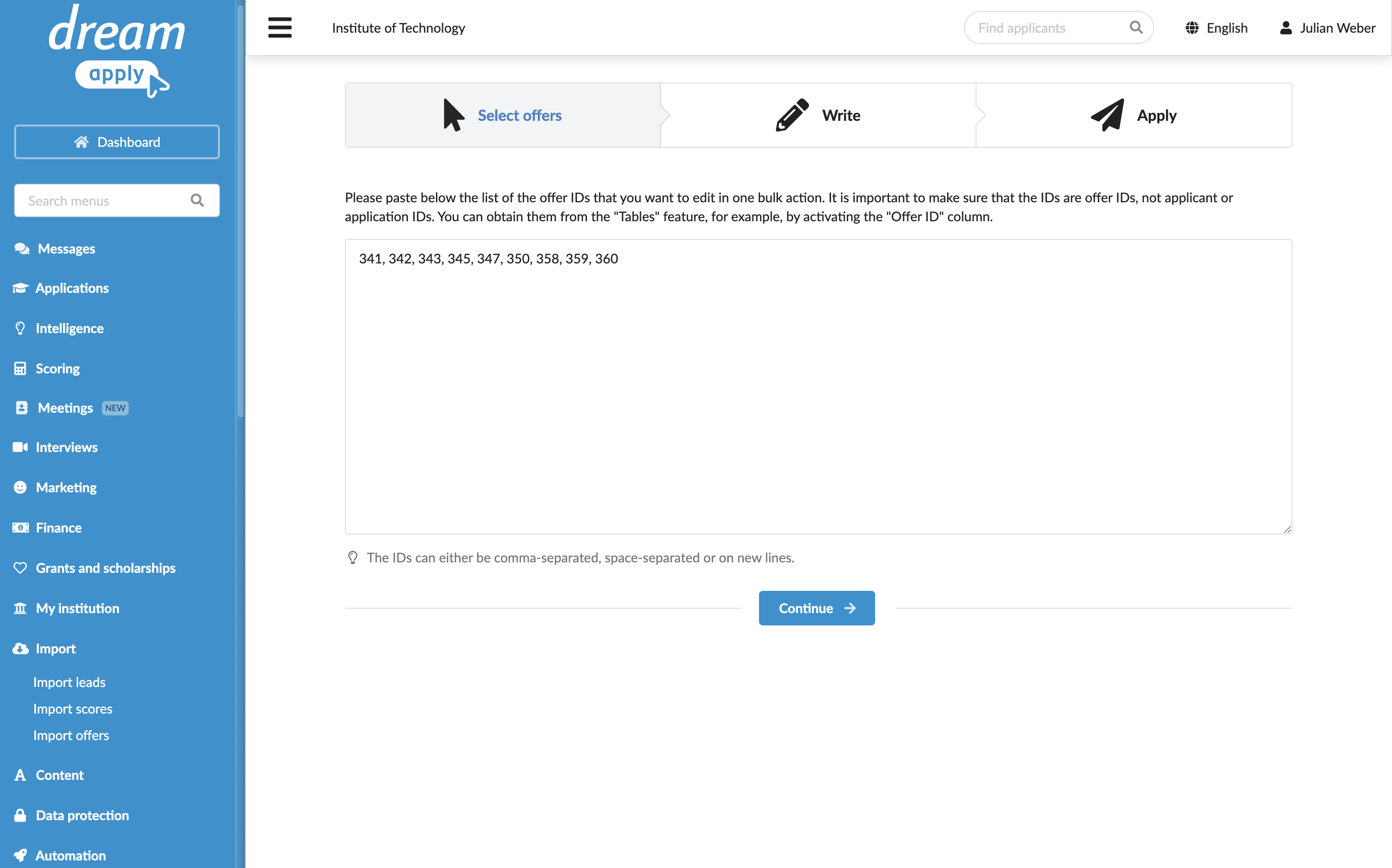
If you already have a list of offer IDs you want to process, you can use the Import offers tool to send out offers in bulk.
- Prepare a list of offer IDs. To obtain offer IDs, you can use the Tables view under Applications: create a table and select to show Offer > Offer ID as a column.
- In the main menu, under Import, select Import offers.
- In the text field, paste the list of IDs separated with a comma. Then follow the wizard to send out bulk offers.
Use the Journal events
DreamApply records the following offer events in the journal:
- Offer was edited
- Offer was confirmed
- Offer extra score was edited
To track these events, subscribe to them using the Offers and replies event group.