Manage access to offers
Roles
These roles reflect the default DreamApply setup.
You can define custom roles based on your
institution's needs. Learn more →:
You can define custom roles based on your
institution's needs. Learn more →
To let Administrators efficiently work with offers, you must assign roles and permissions to them and grant them access to specific offer types. As a result, each Administrator can focus on the offer types relevant to their role or responsibility. For example, one Administrator may review early-stage decisions, while another may be responsible for finalizing accepted offers.
Before you begin
To manage access to offers, your account must have the Superuser role or the administrators permission.
Assign roles and permissions
To work with offers, you can assign the following roles to Administrators:
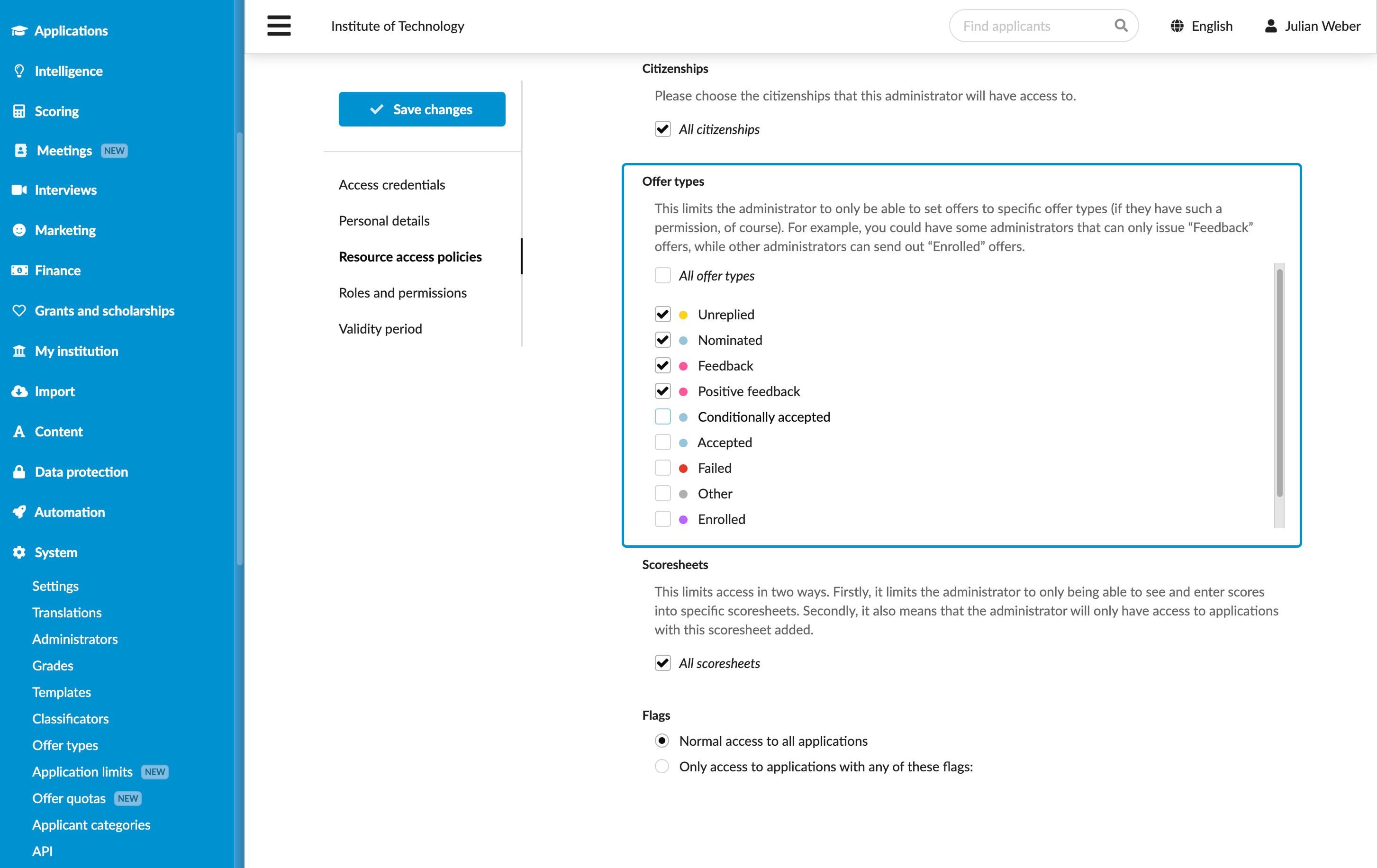
Superuser: This role can configure offer type settings, assign roles and permissions and grant access to specific offer types.Admissions administrator: This role can set offer types, save offers, confirm and send out offers to applicants.Academic supervisor: This role can set offer types and save offers, but not confirm and send out offers to applicants.
In addition to roles, DreamApply provides a set of permissions to manage offers:
offers-view: Allows Administrators to view offer types in applicationsoffers-edit: Allows Administrators to set offer types and save offersoffers-confirm: Allows Administrators to confirm and send out offers to applicantsimport-offers: Allows Administrators to make offers in bulk using offer IDsoffers-rankingAllows Administrators to access the Rankings viewoffers-scoring: Allows Administrators to add extra scores to offers in the Rankings view
To assign roles and permissions to Administrators:
- In the main menu, under System, select Administrators.
- Click New administrator or select to edit an existing Administrator account.
- In the Roles and permissions section, choose the role that must be granted to the Administrator.
- If necessary, select the Add additional permissions check box and choose the permissions that must be granted to the Administrator.
- At the top of the form, click Save changes.
You can grant permissions individually or create new roles with required permissions and assign them to Administrators. For details, see Create Administrator roles.
Grant access to offer types
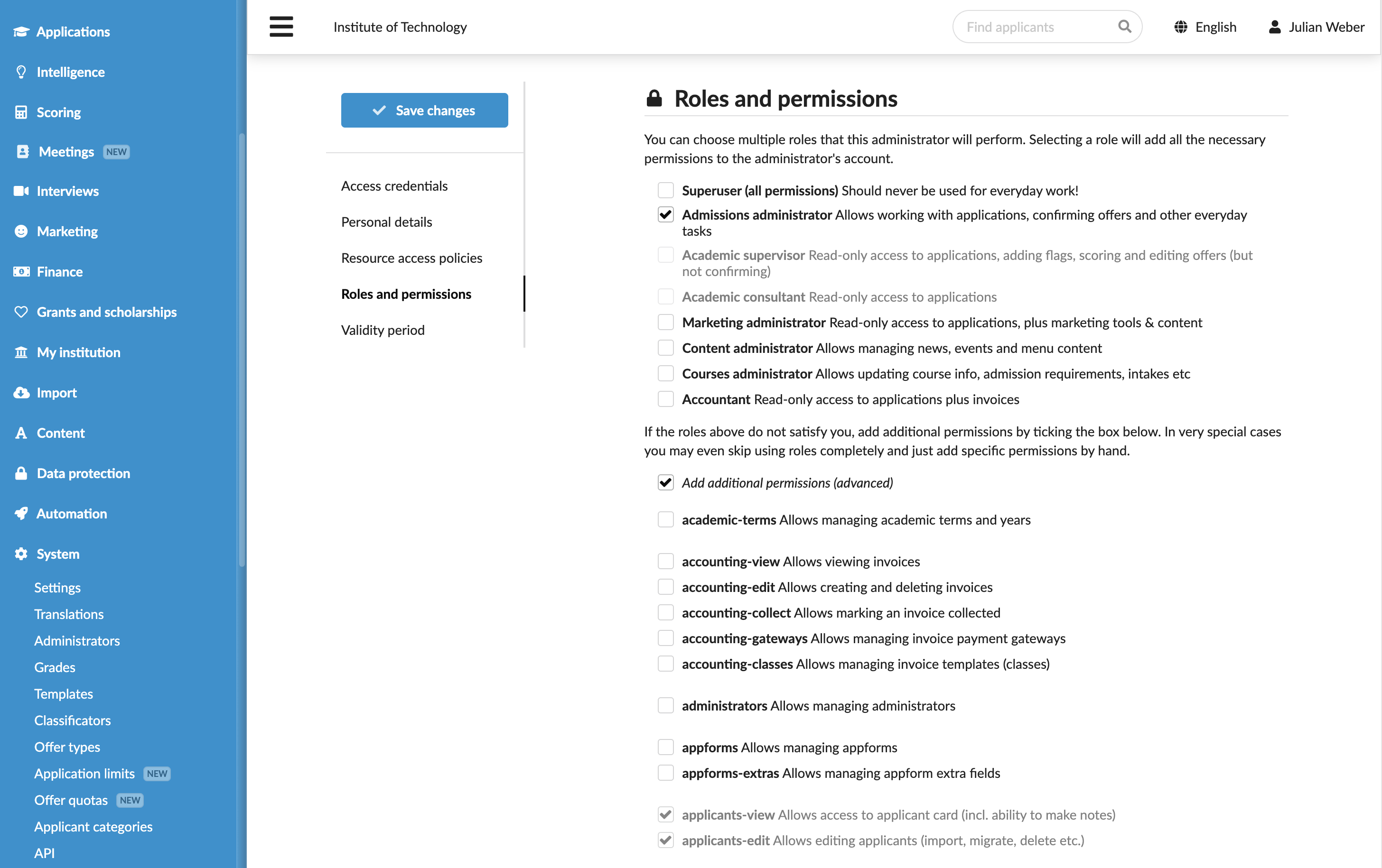
In addition to controlling what Administrators can do, you can define which types of offers they can access.
To grant access to specific offer types:
- In the main menu, under System, select Administrators.
- Click New administrator or select to edit an existing Administrator account.
- In the Resource access policies section, under Offer types, clear the All offer types check box and choose the offer types to which the Administrator must have access.
- At the top of the form, click Save changes.