Set up offer quotas
Roles
These roles reflect the default DreamApply setup.
You can define custom roles based on your
institution's needs. Learn more →:
You can define custom roles based on your
institution's needs. Learn more →
To limit the number of offers made to applicants, you can set up offer quotas.
An offer quota defines the maximum number of available places based on certain conditions. When an applicant meets the quota criteria, DreamApply automatically reserves a place within that quota. These reservations are recorded internally for Administrators and are not visible to applicants.
Each quota is linked to a specific academic term and offer type. DreamApply consistently enforces quotas, no matter how offers are made — manually by Administrators or through the auto-selection tool.
Before you begin
To manage quotas, your account must have the Superuser role.
Define quotas
To set up quotas:
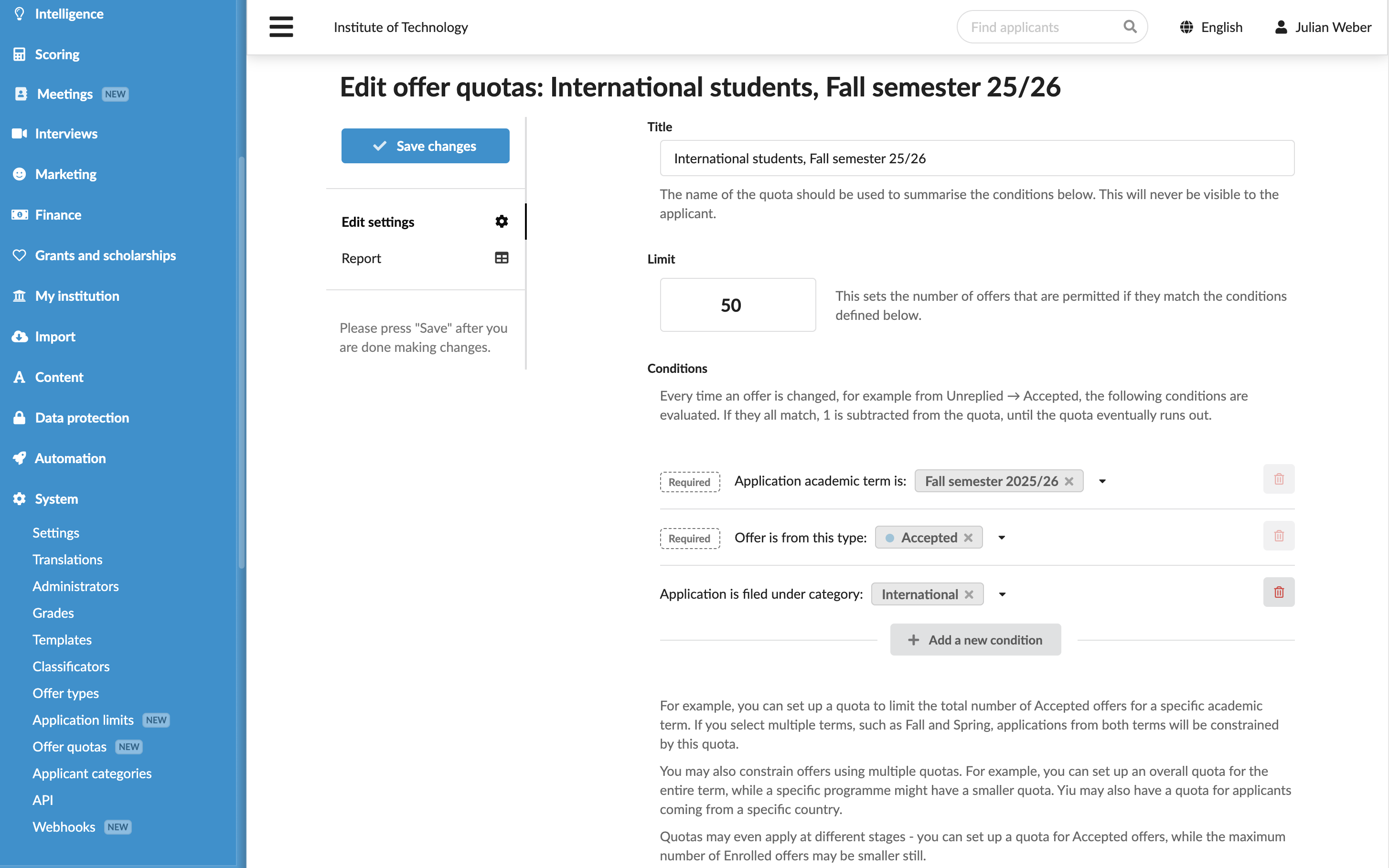
- In the main menu, under System, select Offer quotas.
- At the bottom of the quota list, click Add a new offer quota.
- Specify the quota name and define the number of places permitted by the quota.
- In the Conditions section, select the academic term and offer type to which the quota applies and specify conditions for the quota.
- At the top of the form, click Save changes.
Monitor quota allocation
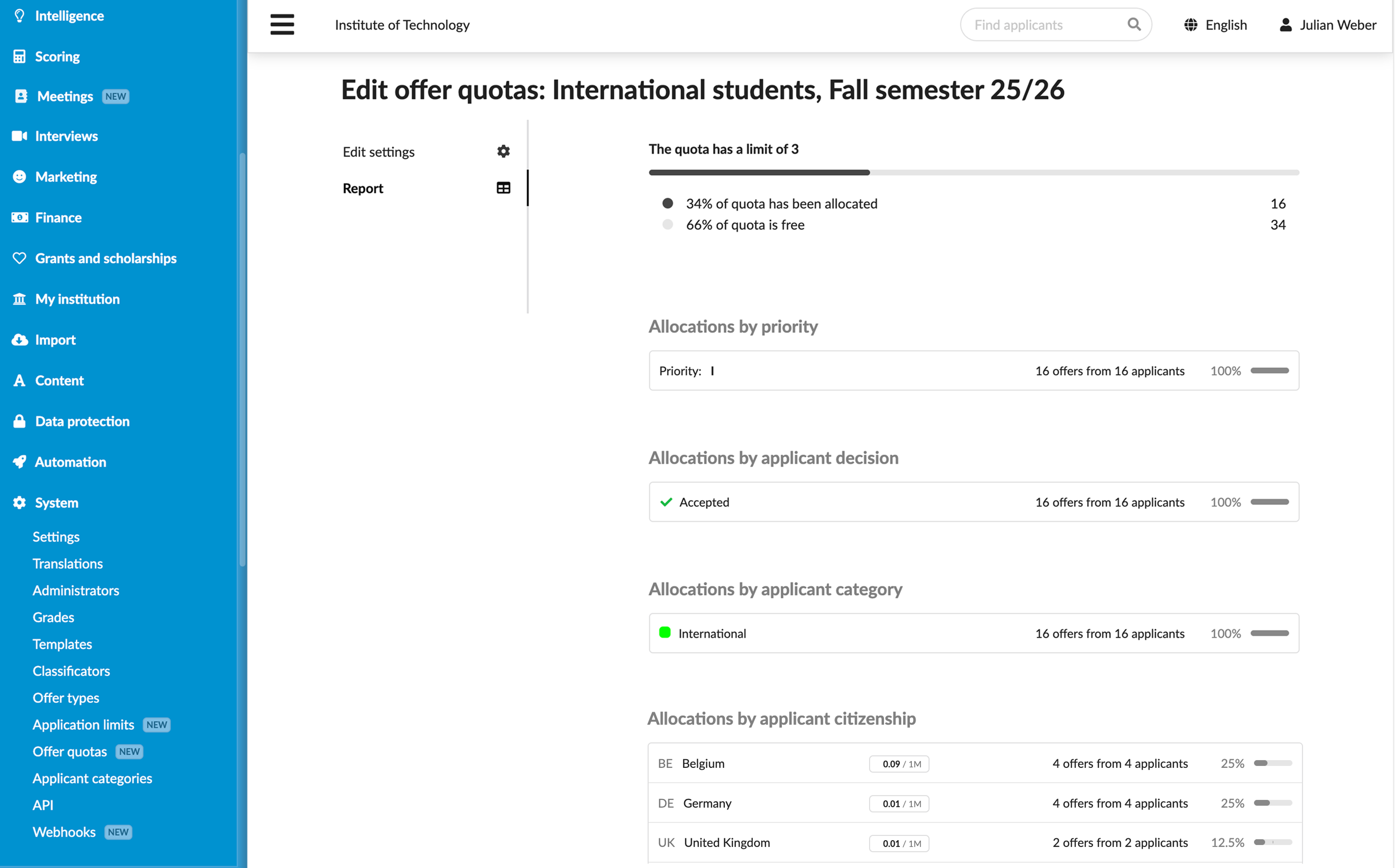
You can run quota reports to keep track of how many offers of a specific type have been made and how many places are still available within a quota, as well as to see the distribution statistics.
To run the quota report:
- In the main menu, under System, select Offer quotas.
- In the quota list, next to the quota, click Report.