Make offers in bulk
Roles
These roles reflect the default DreamApply setup.
You can define custom roles based on your
institution's needs. Learn more →:
You can define custom roles based on your
institution's needs. Learn more →
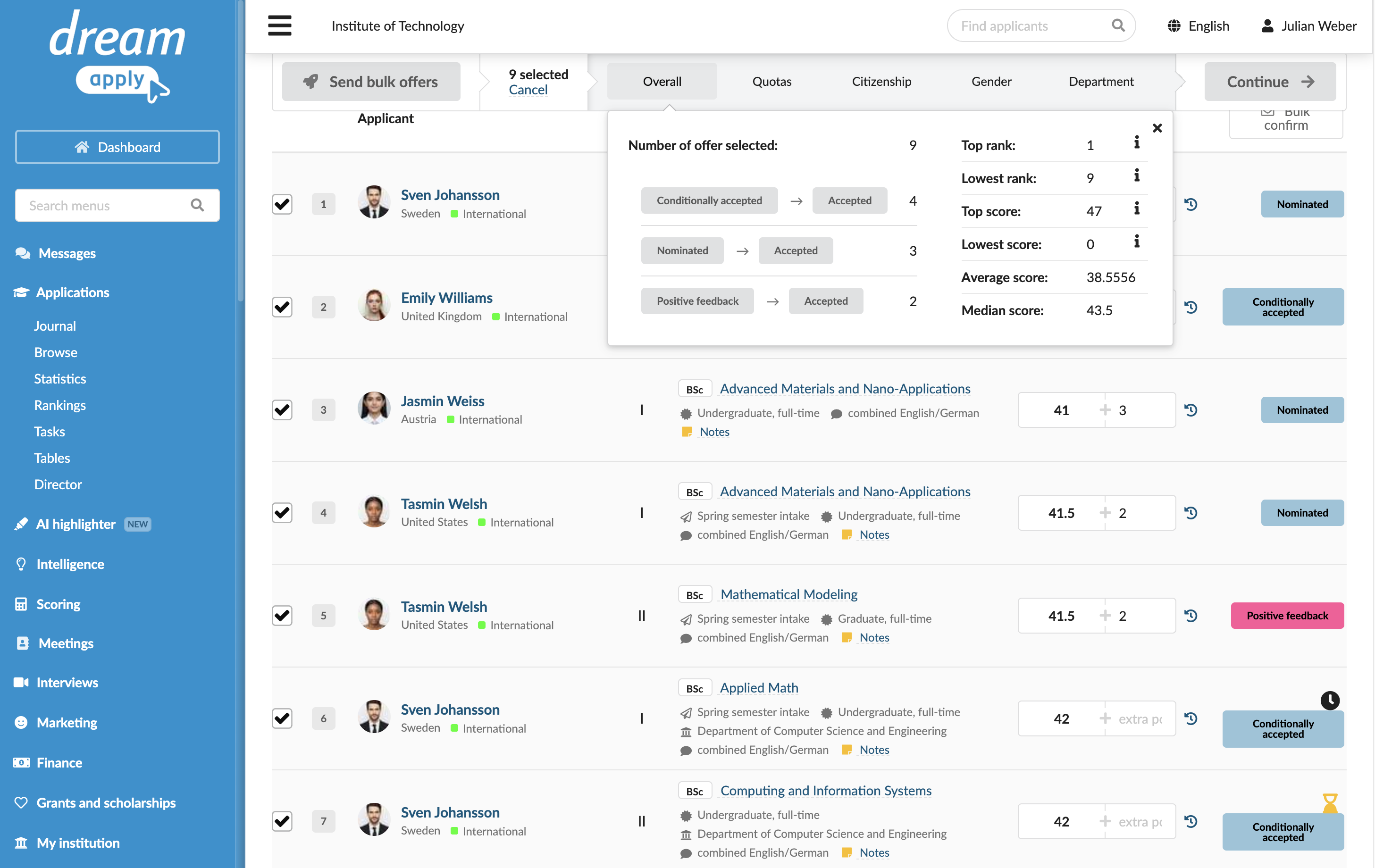
To make offers to multiple applicants at once, you can run the Send bulk offers tool in the Rankings view. This tool allows you to process both manually selected offers or offers selected automatically by DreamApply based on existing offer quotas.
Upon processing offers, you can:
- Save the results to review and finalize them later
- Immediately send out offers to selected applicants
Before you begin
- To run the Send bulk offers tool, your account must have the
SuperuserorAdmissions administratorrole or theoffers-confirmpermission. - To use auto-selection, you must configure at least one offer quota for the academic year.
Select and process offers
To select and process offers for multiple applicants:
In the main menu, under Applications, select Rankings.
Create a new ranking list or open an existing one.
Use filters to select the group of offers that should participate in the selection process.
Do one of the following:
- To quickly select a group of offers, use the visual graph at the top of the list. The graph displays offers in descending order from left to right, starting with the highest scores on the left. Click and drag across a section of the graph to select the corresponding offers in the list below. To select more than one range, press and hold the Shift key on the keyboard and then click and drag across another area on the graph.
- To manually select offers, select entries in the list, click Send bulk offers and select the offer type.
- To automatically select offers by quotas, click Send bulk offers, choose the offer type and click Select automatically.
Use the buttons on the top bar to understand the selection statistics.
Click Continue to finalize the selection: send out offers immediately or save the results. In the latter case, you can re-run the selection process at any moment later, for example, when more applications arrive or the quota settings change, and send out offers in bulk using the Bulk confirm option.