Assign applications
Roles
These roles reflect the default DreamApply setup.
You can define custom roles based on your
institution's needs. Learn more →:
You can define custom roles based on your
institution's needs. Learn more →
To help the admission team focus on the applications they need to work on, you need to assign these applications to them. Application assignment makes it easier for the admission team to filter and manage their workload during the review process.
DreamApply provides several tools to automate application assignment. You can set up rules to both assign applications for initial review and move applications through the admission pipeline. For example, you can use the Director to initially assign applications to Admissions Administrators. Additionally, you can set up automatic rules to assign applications to accountants for payment processing once the review is finished. After payments are received, applications can be re-assigned to team members responsible for visas and so on.
To configure assignment rules:
- Define the assignment mode for every Administrator involved in review
- Use the assignment tools to distribute applications among the admission team members
Before you begin
- To edit Administrator accounts, your account must have the
Superuserrole or theadministratorspermissions. - To use the Director, your account must have the
Superuserrole or thedirectorpermissions. - To set up automatic rules, your account must have the
Superuserrole or therulespermissions. - To subscribe to journal events, your account must have the
SuperuserorAdmissions administratorrole or thejournal-viewandjournal-editpermissions.
Define the assignment mode
In DreamApply, Administrators can get access to applications in the following ways:
- Direct assignment: Administrators can access applications that are directly assigned to them. This mode is highly restrictive since Administrators can only work with applications for which they have explicitly been granted access.
- Direct assignment and resource access filters: Administrators can access both directly assigned applications and applications filtered by resource access policies set up for them.
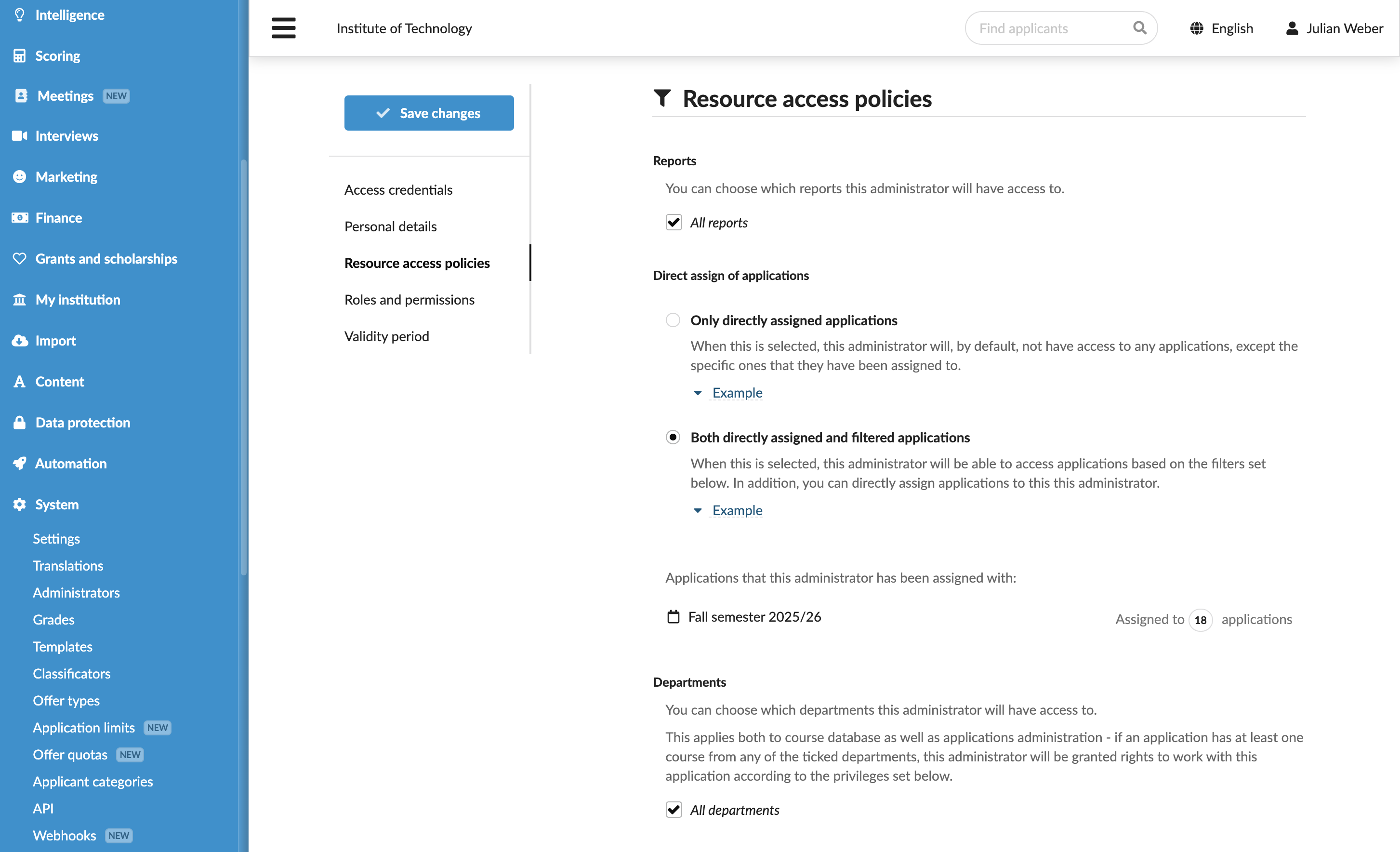
By default, Administrators have access to both directly assigned and filtered applications. To change the assignment mode and restrict access to specific resources:
- In the main menu, under System, select Administrators.
- Select to edit the Administrator account.
- In the Resource access policies section, under Direct assign of applications, select the assignment mode for the Administrator.
- Use the resource filters below to grant the necessary access level to the Administrator.
- At the top of the form, click Save changes.
Assign applications to Administrators
DreamApply offers three mechanisms to assign applications to Administrators, depending on the volume of applications and the review process complexity:
Use the Director
The Director feature uses a round-robin mechanism to automatically assign newly created or submitted applications to Administrators registered in DreamApply. To balance distribution, you can configure the chances for each Administrator to receive applications.
This method is recommended for institutions that manage consistently large applicant pools where a controlled but random distribution is required. With the Director, applications can be distributed between Administrators without bias, taking into account their current workload.
By default, the Director assigns all new incoming applications to Administrators. If an Administrator does not have access to an application based on their resource access policies, the Director automatically grants them the necessary permissions.
To restrict assignment, you can enable the Only assign accessible applications option in the Director. With this setting, the Director will only assign applications if an Administrator already possesses the required access. This configuration ensures that application distribution aligns with the resource access policies set up for each Administrator.
To use the Director:
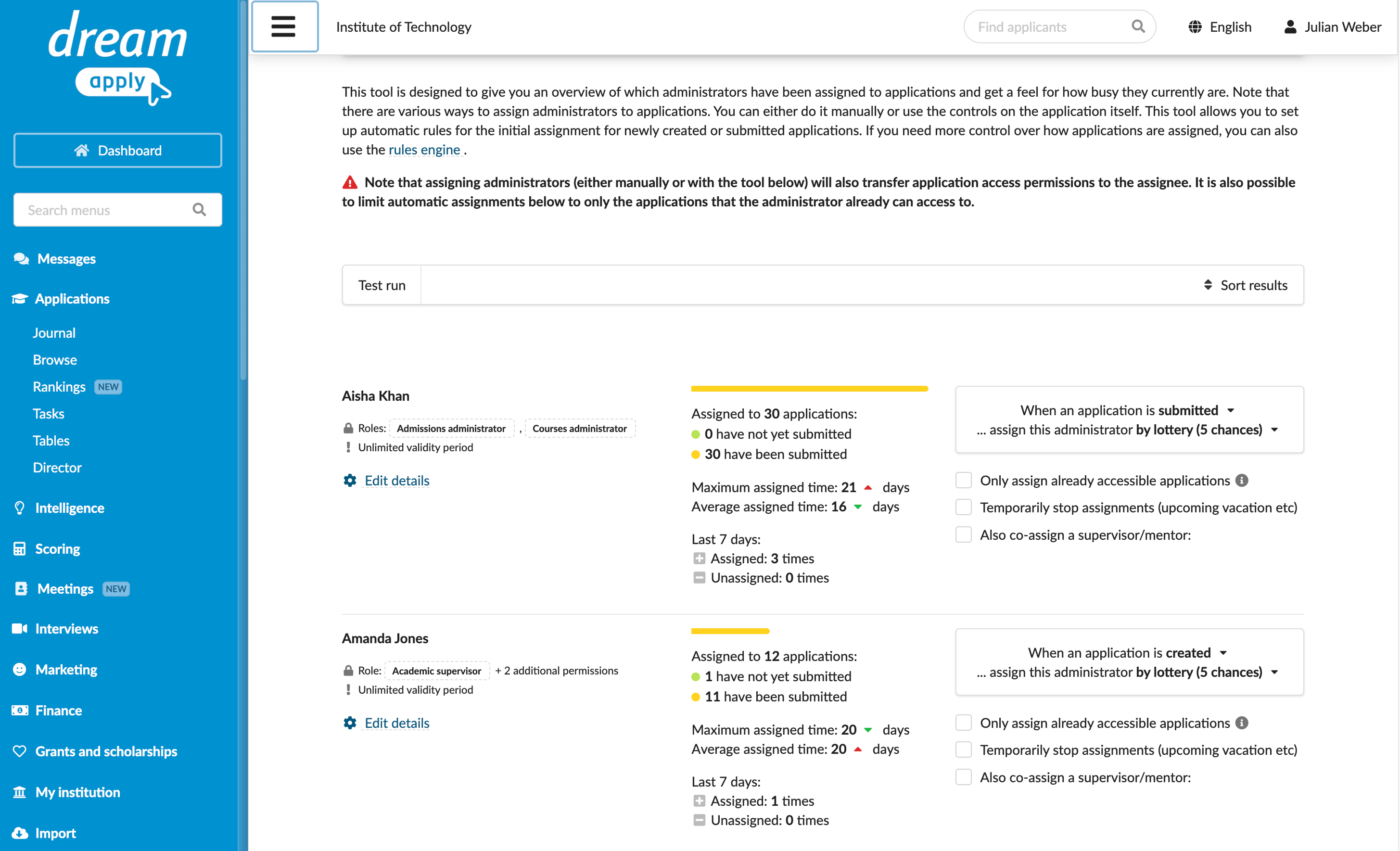
- In the main menu, under Applications, select Director.
- For each Administrator in the list, select the application status and set the lottery chances to receive applications. Use options below to manage access to applications, temporarily stop assignment and co-assign a supervisor if needed.
Configure assignment rules
With automatic rules in DreamApply, institutions can define specific conditions that determine how applications are assigned for review. Automatic rules can be based on various factors like applicant citizenship or age, application category, academic term or included priorities.
This method is recommended in situations where rule-driven assignment is efficient. For example, it may be helpful when applications require review by Administrators with a particular expertise or background.
You can also use rules to automatically unassign applications, for example, when a specific priority is removed.
To configure automatic assignment rules:
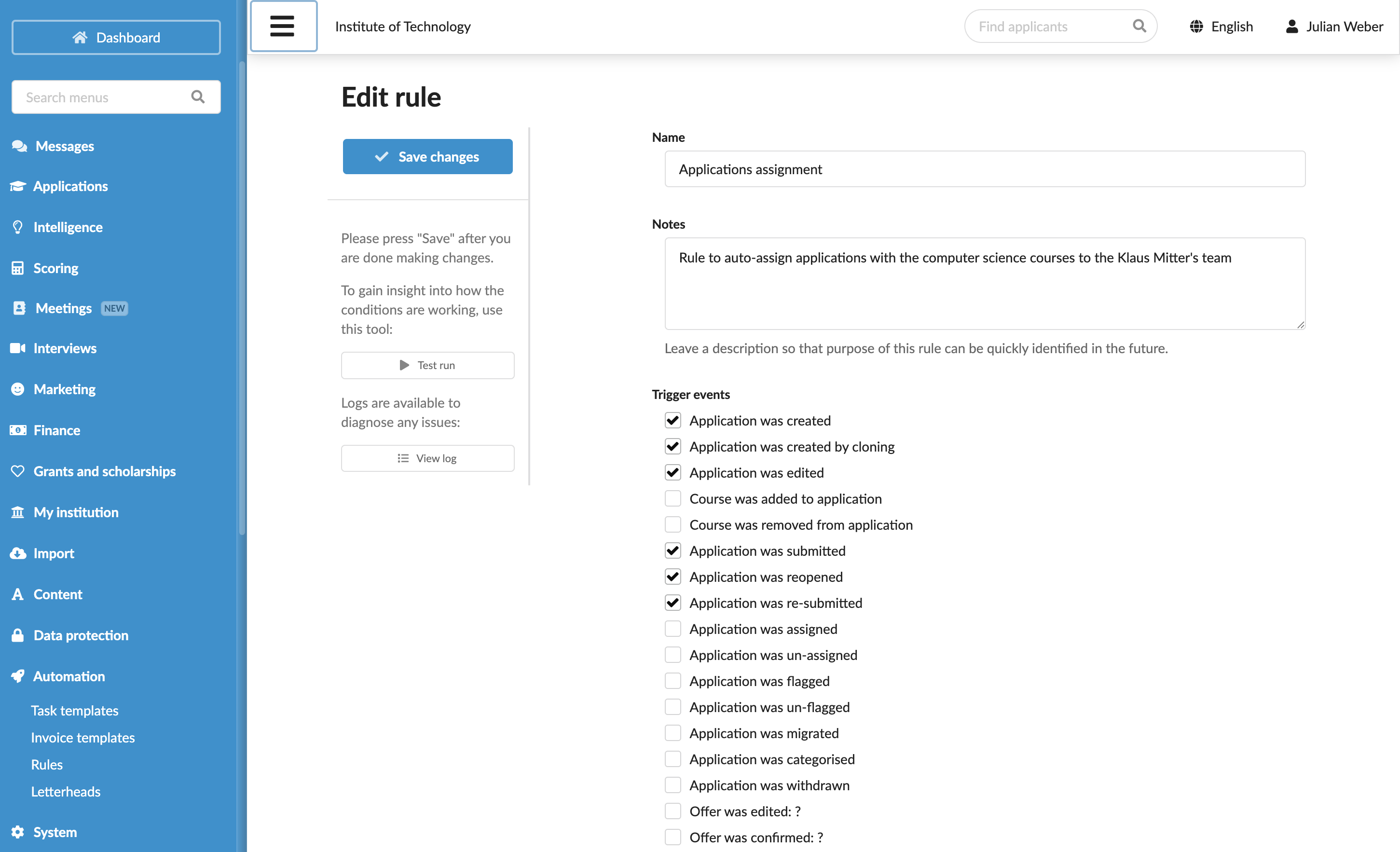
- In the main menu, under Automation, select Rules.
- At the bottom of the rules list, click New rule and specify the rule name.
- In the Trigger events section, select events that must activate the rule. For example, you can choose to manage all newly created, submitted or re-opened applications.
- In the Conditions section, specify granular conditions for the rule.
- In the Action section, select the Assign an administrator to the application check box and choose appropriate Administrators.
- At the top of the form, click Save changes.
- In the list of rules, set the rule status to Active.
Manually assign applications
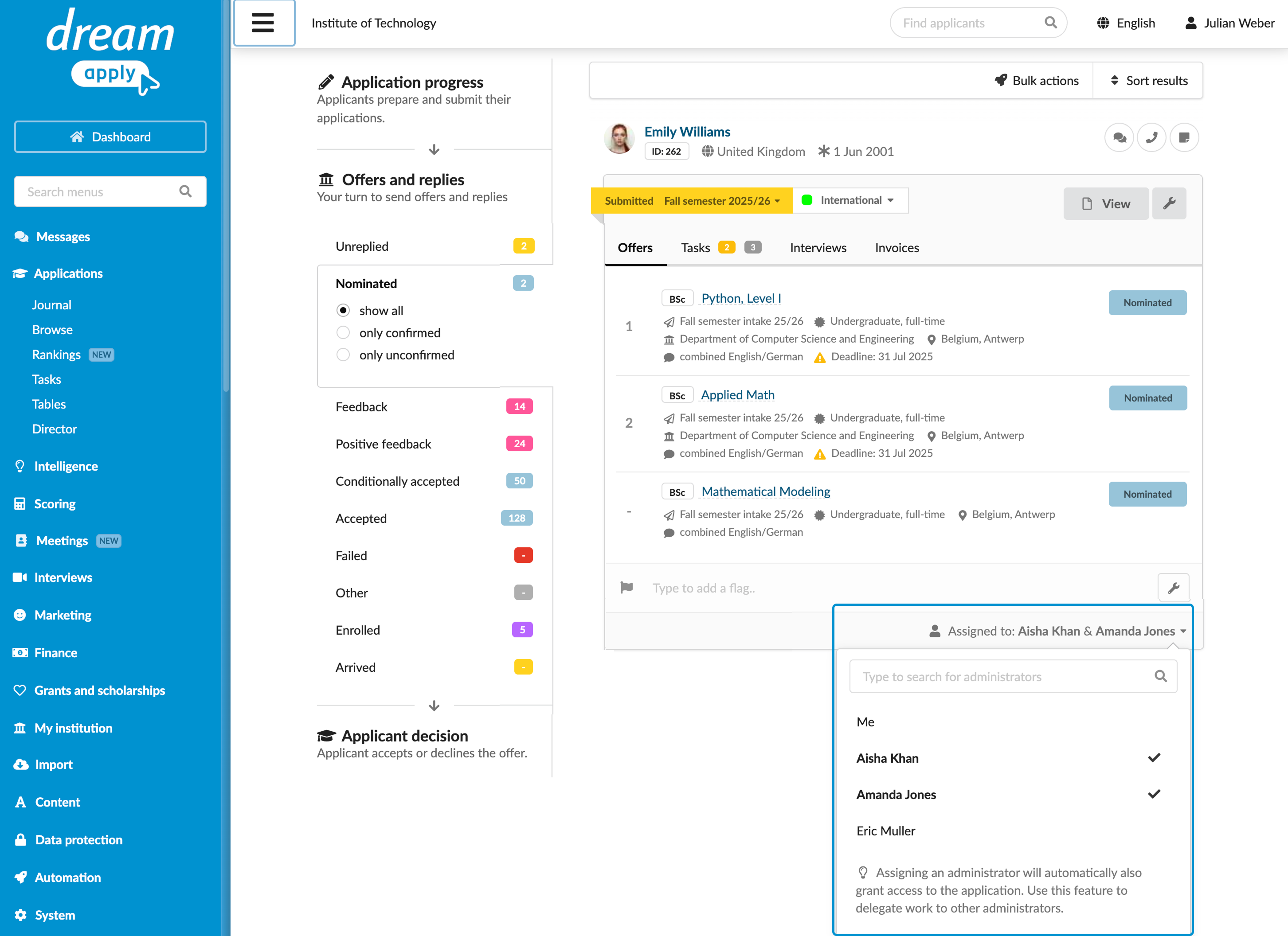
DreamApply allows institutions to manually assign applications to Administrators. This option can be helpful for smaller volumes of applications, when Administrators want to personally assign applications to themselves or delegate work to specific team members.
To manually assign applications:
- In the main menu, under Applications, select Browse.
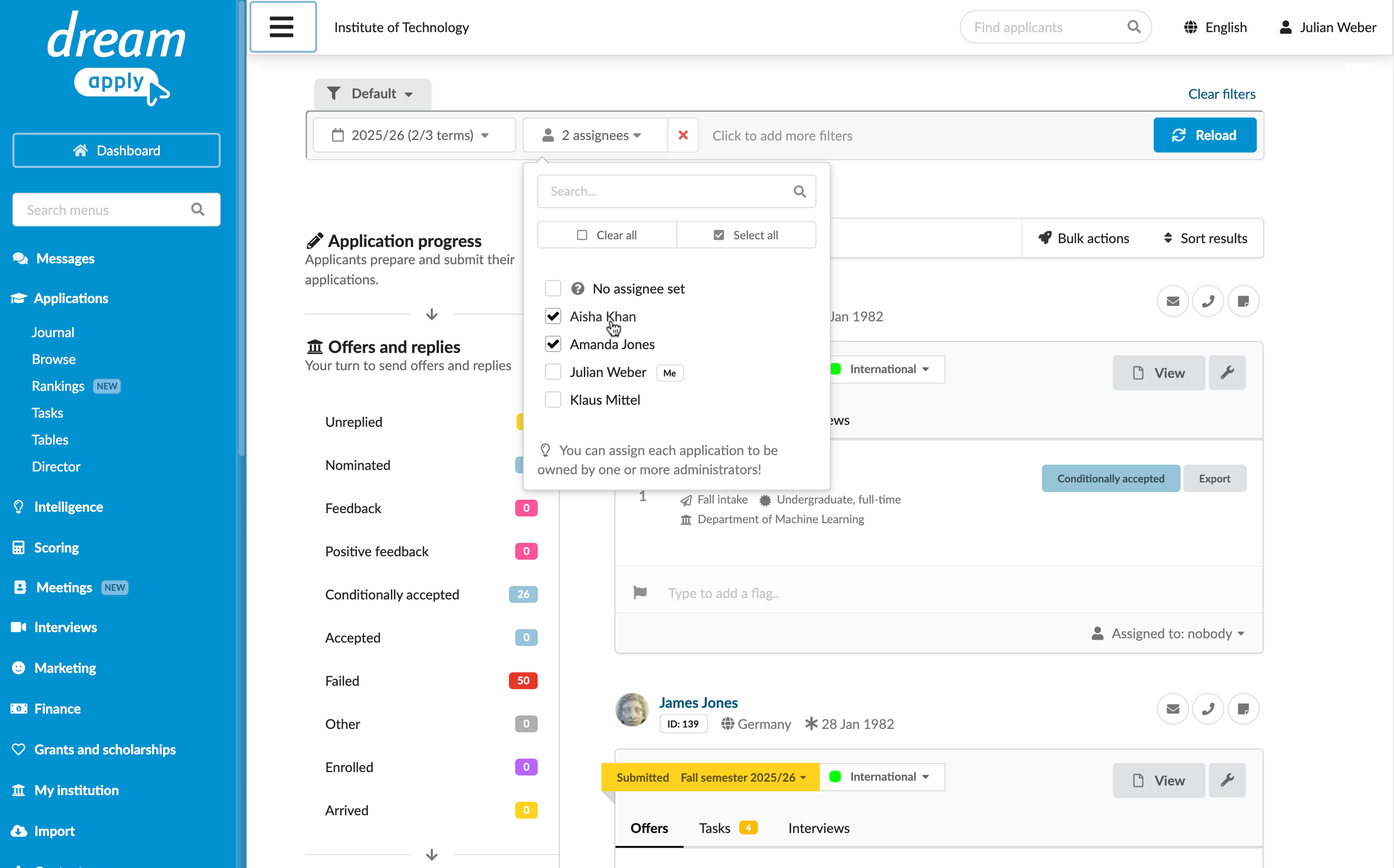
- In the left pane, set the desired filter and under the application, use the Assigned to list to select one or more Administrators.
Use the Journal events
DreamApply records the following assignment events in the journal:
- Application was assigned to an Administrator
- Application was unassigned from an Administrator
To track these events, subscribe to them using the Application assign event group.
Example 1: One Administrator per application
Assume you have three admission team members handling application reviews. You want DreamApply to distribute applications between them and guarantee that each team member has exclusive access to their assigned applications. To do this:
Create an Administrator account for each team member and assign the Admissions Administrator role to them.
For each Administrator account, set the assignment mode to Only directly assigned applications.
Use the Director to set the following rules:
- The Only assign already accessible applications option is disabled.
- All Administrators have equal lottery chances.
Now, when a new application is submitted, the Director will automatically assign it to one of the Administrators. The assigned Administrator will be the only one who can access and review that application. Once the review is finished, the Administrator can manually re-assign the application to a supervisor for further review if needed.
Example 2: Programme-based access
Assume an Admissions Administrator should review all applications for the Software Engineering programme. To do it:
- Create an Administrator account for the Administrator and assign the Admissions Administrator role to the Administrator.
- Set the assignment mode to Both directly assigned and filtered applications.
- In the Resource access policies section, use the Programmes or Departments filter to provide access to the Software Engineering programme to the Administrator.
Now, any incoming application with the Software Engineering programme will be immediately visible to that Administrator in the Browse or Journal view. If necessary, an Administrator with a higher access level may manually assign applications that may be a good fit but do not contain the Software Engineering programme to that Administrator.
If you have several Admissions Administrators with access to the Software Engineering programme and want to distribute applications evenly between them, you can use the Director. To do this, together with the settings mentioned above, enable the Only assign already accessible applications option for these Administrators in the Director.
This setup will allow the Admissions Administrators to view applications with the Software Engineering programme. At the same time, the Director will guarantee that an equal number of applications are assigned to each Admissions Administrator for review. To see their own assigned applications, Admissions Administrators can use the Assignees filter in the Browse view.