Manage flags
Roles
These roles reflect the default DreamApply setup.
You can define custom roles based on your
institution's needs. Learn more →:
You can define custom roles based on your
institution's needs. Learn more →
In addition to standard application statuses and offer types, Administrators can use flags to categorize applications. Flags allow Administrators to mark and identify applications based on specific criteria, making it simpler to process them.
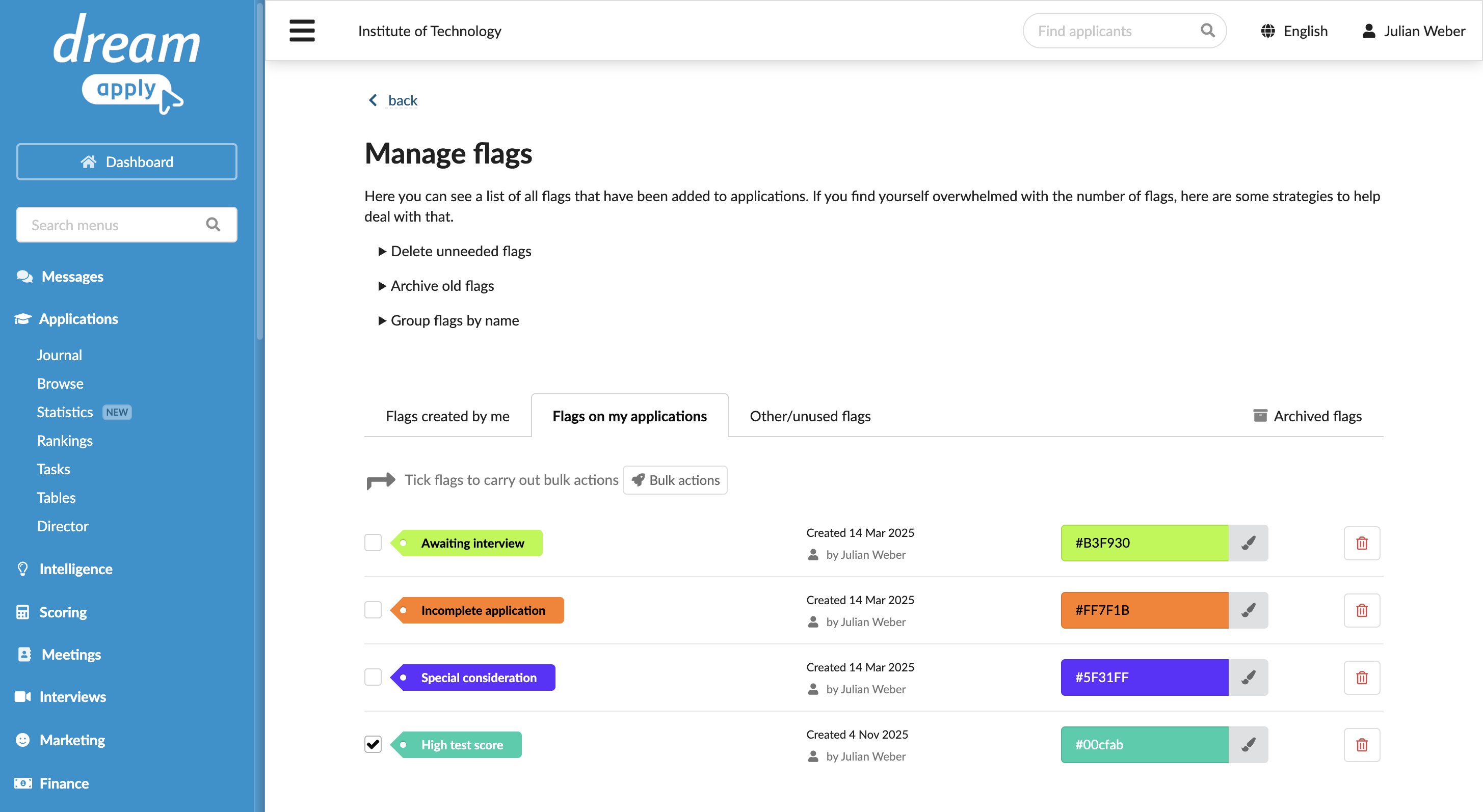
In DreamApply, flags are created and managed at the institution level. Administrators can view, assign and manage flags created by other Administrators, which allows for consistency and collaboration.
Before you begin
- To manage access to flags, your account must have the
Superuserrole or theadministratorspermission. - To manage flags, your account must have the
Superuserrole or theflagspermission. - To assign existing flags, your account must have the
Superuser,Admissions administratororAcademic supervisorrole or theapplications-flagpermission. - To subscribe to journal events, your account must have the
SuperuserorAdmissions administratorrole or thejournal-viewandjournal-editpermissions.
Assign roles and permissions
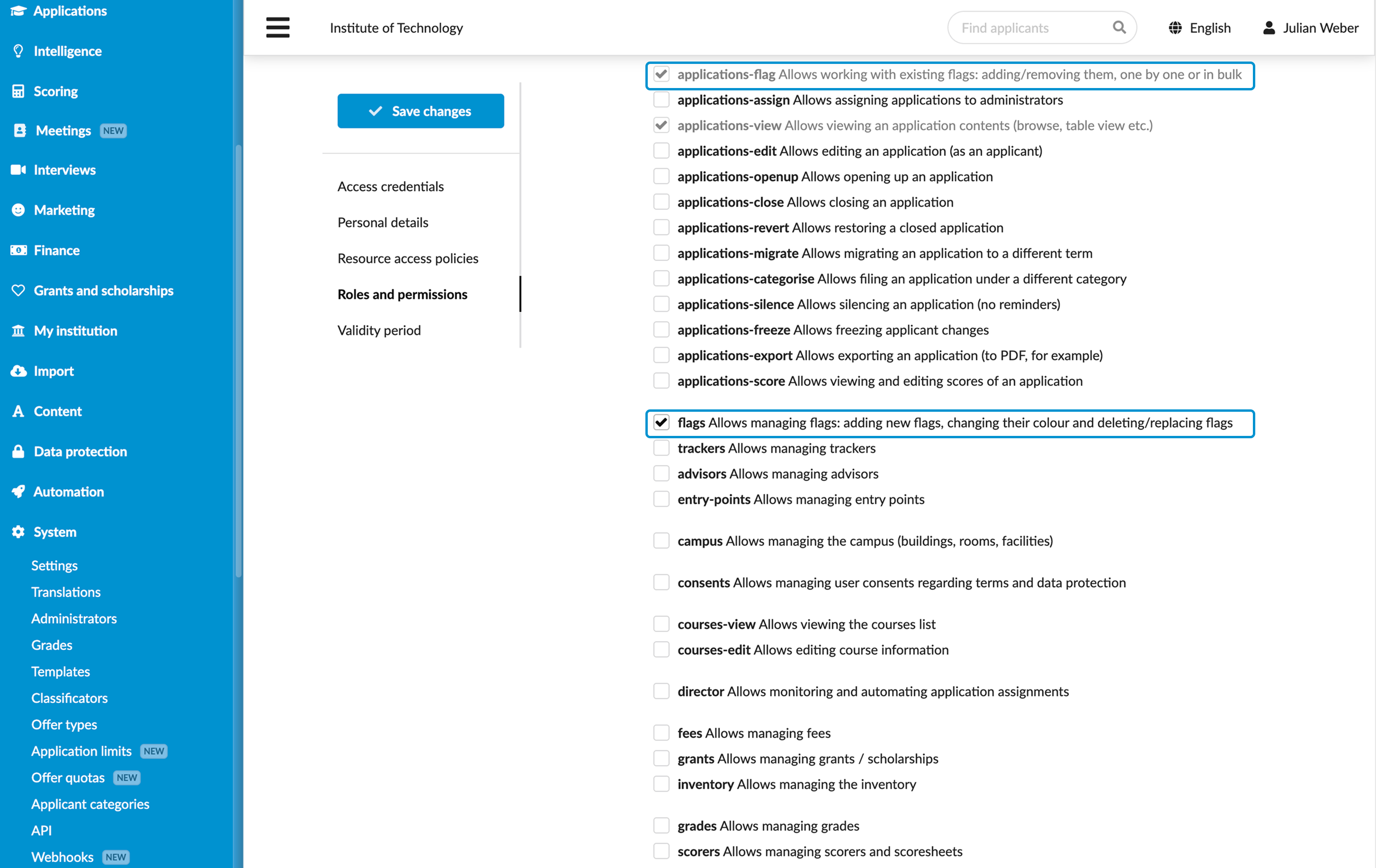
To let Administrators work with flags, you must assign roles and permissions to them and grant them access to specific flags.
Administrators require the Admissions administrator or Academic supervisor role to add or remove existing flags from applications. We recommend that you grant this role to all Administrators involved in application review.
To let Administrators create new flags and manage existing ones, you must additionally grant the flags permission to them.
To assign roles and permissions to Administrators:
- In the main menu, under System, select Administrators.
- Create a new Administrator account or select to edit an existing account.
- In the Roles and permissions section, choose the role that must be granted to the Administrator.
- If necessary, select the Add additional permissions check box and choose the permissions that must be granted to the Administrator.
- At the top of the form, click Save changes.
You can grant permissions individually or create new roles with required permissions and assign them to Administrators. For details, see Create Administrator roles.
Grant access to flags
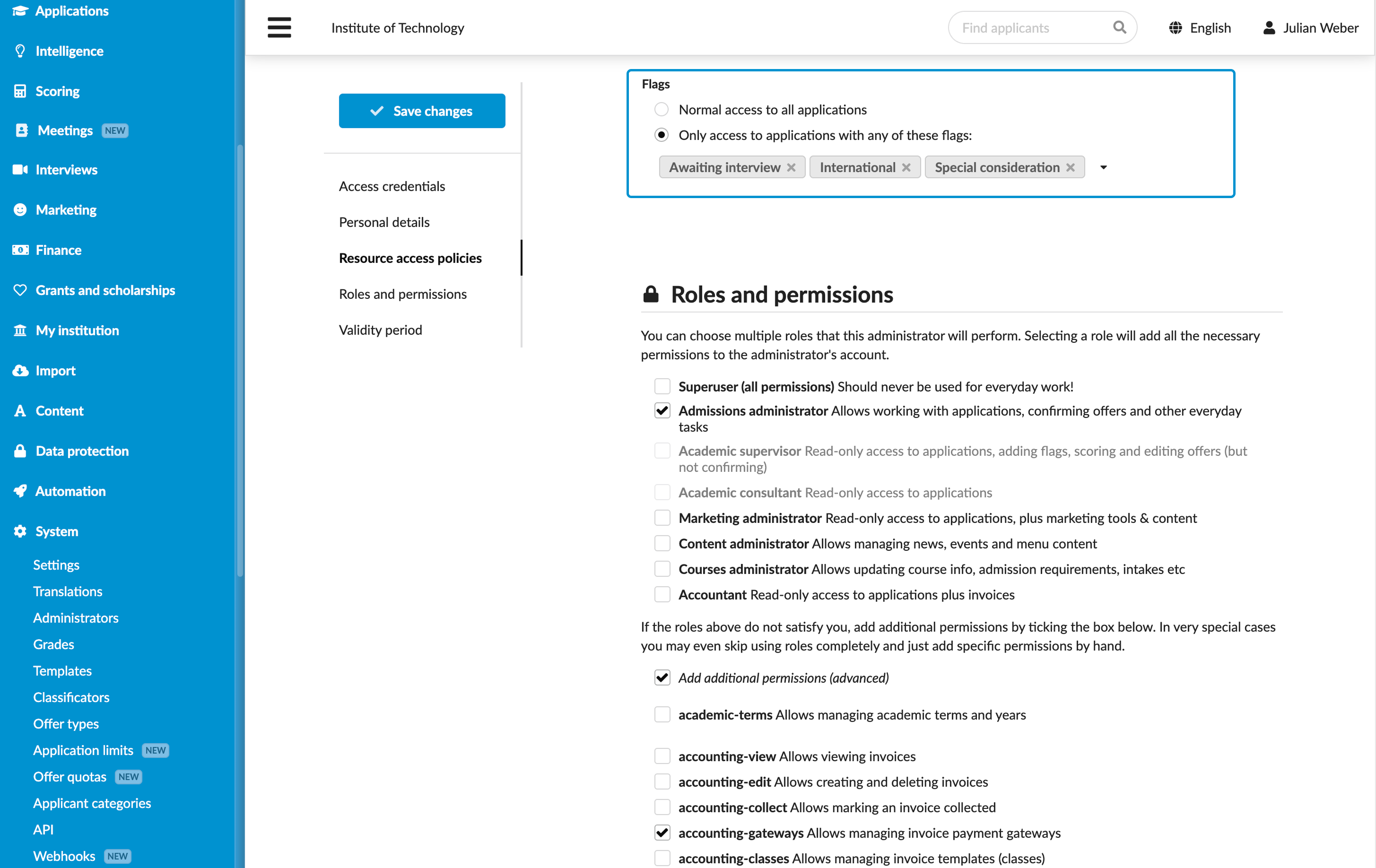
By default, Administrators have access to all flags created in DreamApply. However, their access can be restricted to specific flags. In this case, Administrators will be able to work only with those applications that have any of the flags accessible to them.
To restrict access to flags:
- In the main menu, under System, select Administrators.
- Create a new Administrator account or select to edit an existing account.
- In the Resource access policies section, under Flags, select Only access to applications with any of these flags and choose flags to which the Administrator must have access.
- At the top of the form, click Save changes.
Assign flags
DreamApply offers several ways to assign flags:
Manually assign flags
To manually assign flags to applications:
- In the main menu, under Applications, click Browse.
- In the application card, in the Type to add a flag field, type the flag name to add a new flag or select an existing one.
To manage flags, click the wrench icon on the right. You can set colors for flags, delete flags created by you and other Administrators or replace them with other flags.
Assign flags through bulk actions
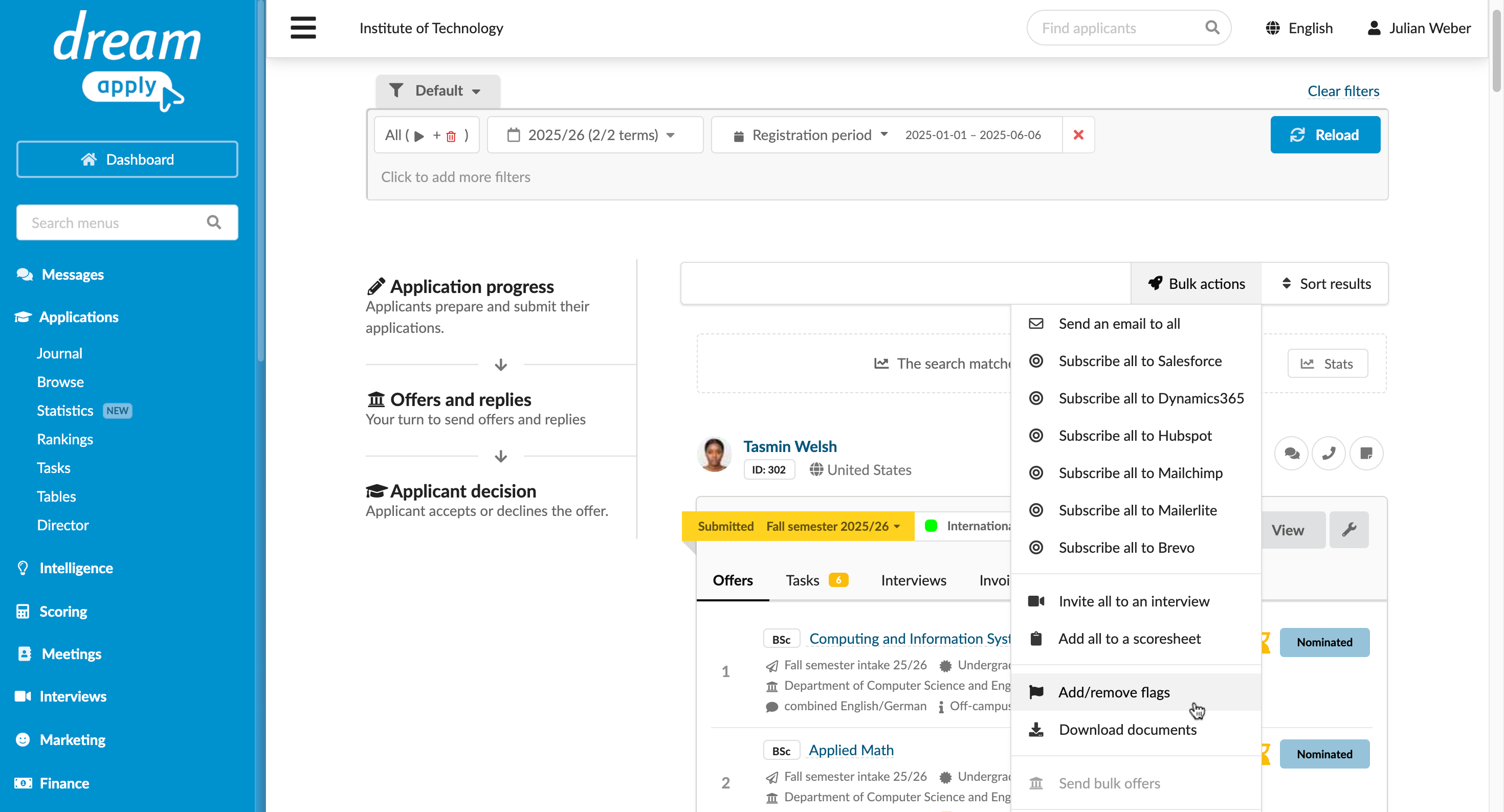
You can select a group of applications and assign flags to the entire group.
To assign a flag in bulk:
- In the main menu, under Applications, select Browse.
- Use filters at the top to select a group of applications that match specific criteria.
- From the Bulk actions list, select Add/remove flags. Type the flag name to add a new flag or select an existing one.
Assign flags through rules
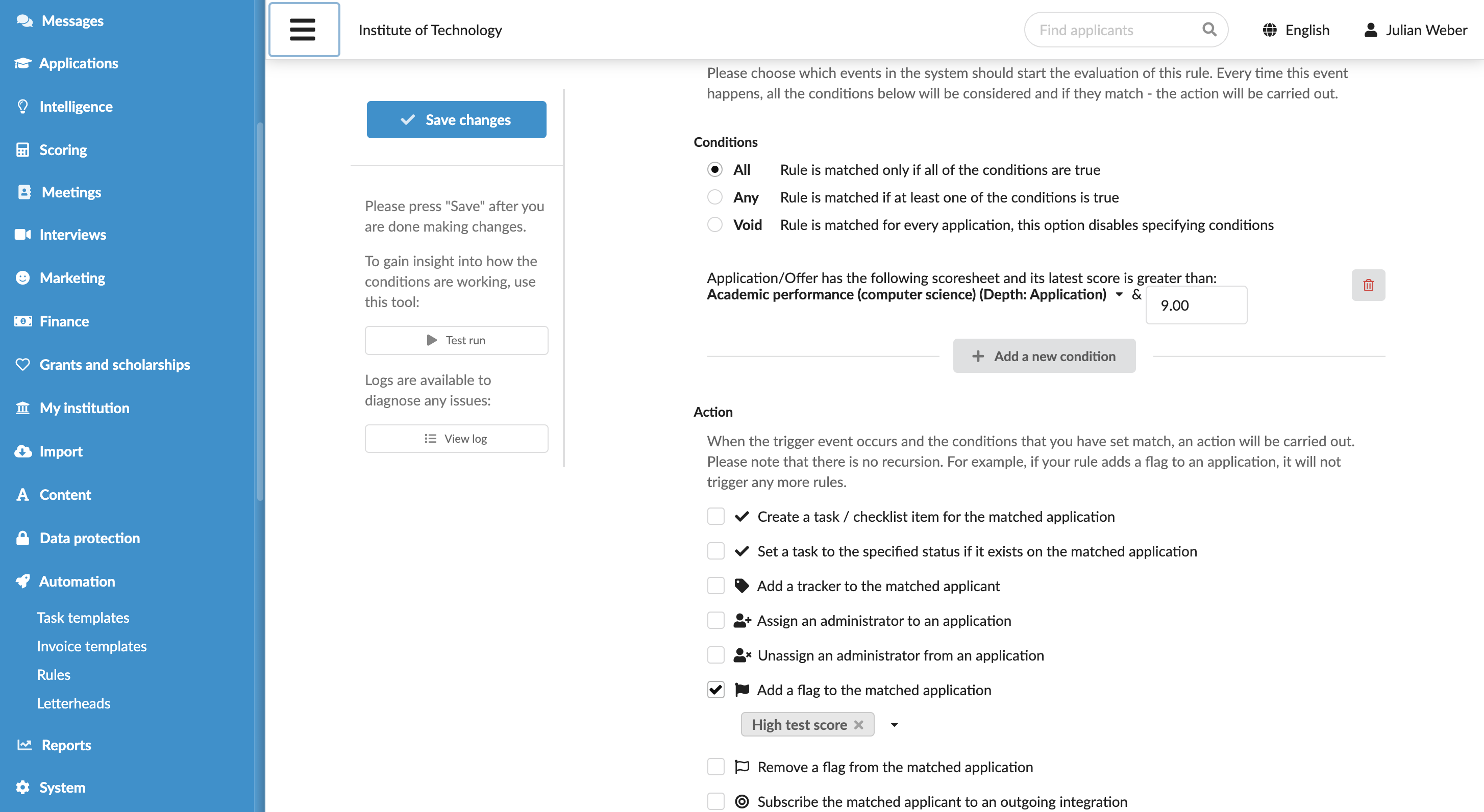
You can configure rules to automatically assign flags to applications based on specific conditions. To be assigned through rules, the flag must already exist in the system.
- In the main menu, under Automation, select Rules.
- At the bottom of the rule list, click New rule and specify the rule name.
- In the Trigger events section, select events that must activate the rule. For example, you can choose to assign flags to all newly submitted or re-submitted applications.
- In the Conditions section, specify granular conditions for the rule.
- In the Action section, select the Add a flag to the matched applicant check box and choose one or more flags to assign.
- At the top of the form, click Save changes.
- In the rule list, set the rule status to Active.
Assign flags via the DreamApply API
You can programmatically create and assign flags via the DreamApply REST API. This method is useful for integrations with third-party systems and external workflows.
- To create a new flag, send a
POST/api/applications/flagsrequest with the required flag data. - To assign a flag to an application, send a
PUT/api/applications/ID/flags/IDrequest.
Use the Journal events
DreamApply records the following flag assignment events in the journal:
- Application was flagged
- Application was un-flagged
To track these events, subscribe to them using the Application flags event group.