Define evaluation criteria
Roles
These roles reflect the default DreamApply setup.
You can define custom roles based on your
institution's needs. Learn more →:
You can define custom roles based on your
institution's needs. Learn more →
You can define evaluation criteria that determine how scores from various inputs are weighted and final scores are calculated.
Using criteria is the recommended method for managing scoresheet assignments and calculating final results. By using criteria, you can:
- Define a clear evaluation model: Outline how different scores contribute to the final result.
- Implement a programme-specific approach: Link criteria to programmes to align with their unique requirements.
- Avoid incomplete evaluations: DreamApply automatically adds applications to the relevant scoresheets required by the criteria. This ensures all necessary scores are included in the final calculation.
Before you begin
To define criteria, your account must have the Superuser role or the scorers permission.
Create an evaluation criterion
Every criterion you create can be used on its own or as part of a larger, unified criterion.
In the main menu, under Scoring, select Criteria.
At the bottom of the criteria list, click New criterion.
Define the criterion name and settings.
For a simple criterion based on a single scoresheet:
- In the Aggregation section, choose how DreamApply must calculate the final score.
- In the Inputs section, select the source scoresheet.
- To automatically add applications to scoresheets, select the Automatically add applications to all relevant scoresheets check box. If this option is not enabled, Administrators and applicants will need to manually add applications to scoresheets. For details, see Manually add applications.
- If the value needs standardization, from the Conversion list, select a conversion rule to apply.
For a criterion based on multiple inputs (scoresheets and sub-criteria):
- In the Aggregation section, choose how DreamApply must calculate the final score.
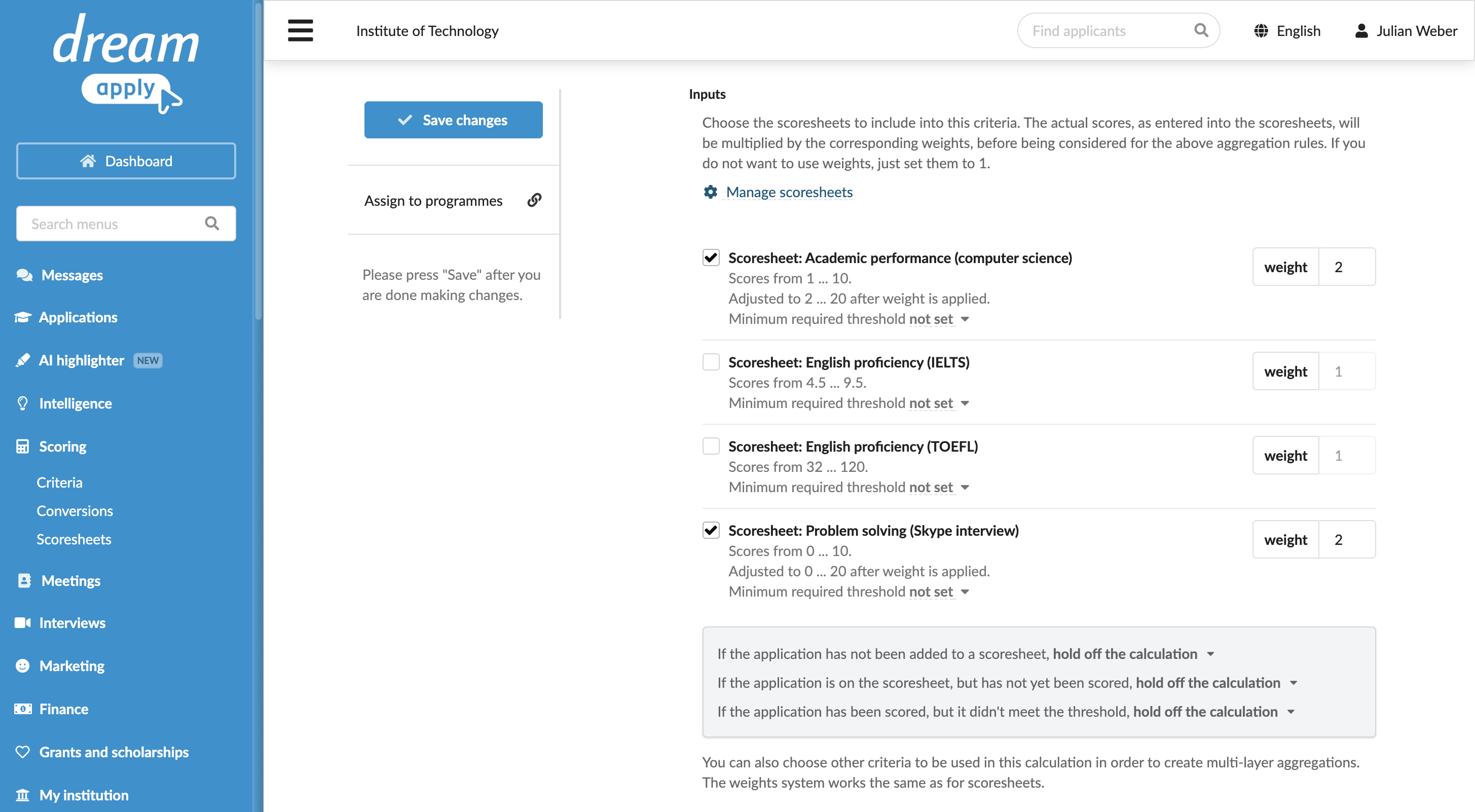
- In the Inputs section, select the source scoresheets and any sub-criteria.
- For each scoresheet and sub-criterion, assign a weight if required, set a minimum threshold and specify how DreamApply must handle missing values.
- To automatically add applications to scoresheets, select the Automatically add applications to all relevant scoresheets check box. If this option is not enabled, Administrators and applicants will need to manually add applications to scoresheets. For details, see Manually add applications.
- If the final value needs standardization, from the Conversion list, select a conversion rule to apply.
At the top of the view, click Save changes.
On the top left, click Assign to programmes and select which programmes must use this criterion.
You can link only one criterion to a programme.