How to score applicants
This example demonstrates how you can use the scoring tools in DreamApply to create a custom scoring model.
Assume we want to score applicants to a university’s computing programme. The evaluation must be based on the following key parameters:
- Prior academic results: The applicant’s high school computer science grades
- Problem solving: A Skype interview assessing logical thinking
- English proficiency: Measured by TOEFL or IELTS test scores
These parameters will be integrated into a single evaluation criterion to ensure fair and consistent assessment of each applicant’s qualifications.
To set up the scoring model and identify top applicants:
Before you begin
- Make sure your account has the
Superuserrole. In a real case, roles can be configured differently. - Make sure at least one programme is properly set up in DreamApply.
Step 1. Create scoresheets
To efficiently gather data for each applicant, we need to create scoresheets for each evaluation parameter. In this example, we will use two types of scoresheets:
- Public scoresheets: Applicants will use these scoresheets to enter their academic results in computer science and English proficiency scores.
- Private scoresheet: The admissions team will use this scoresheet to record the Skype interview scores.
To create scoresheets:
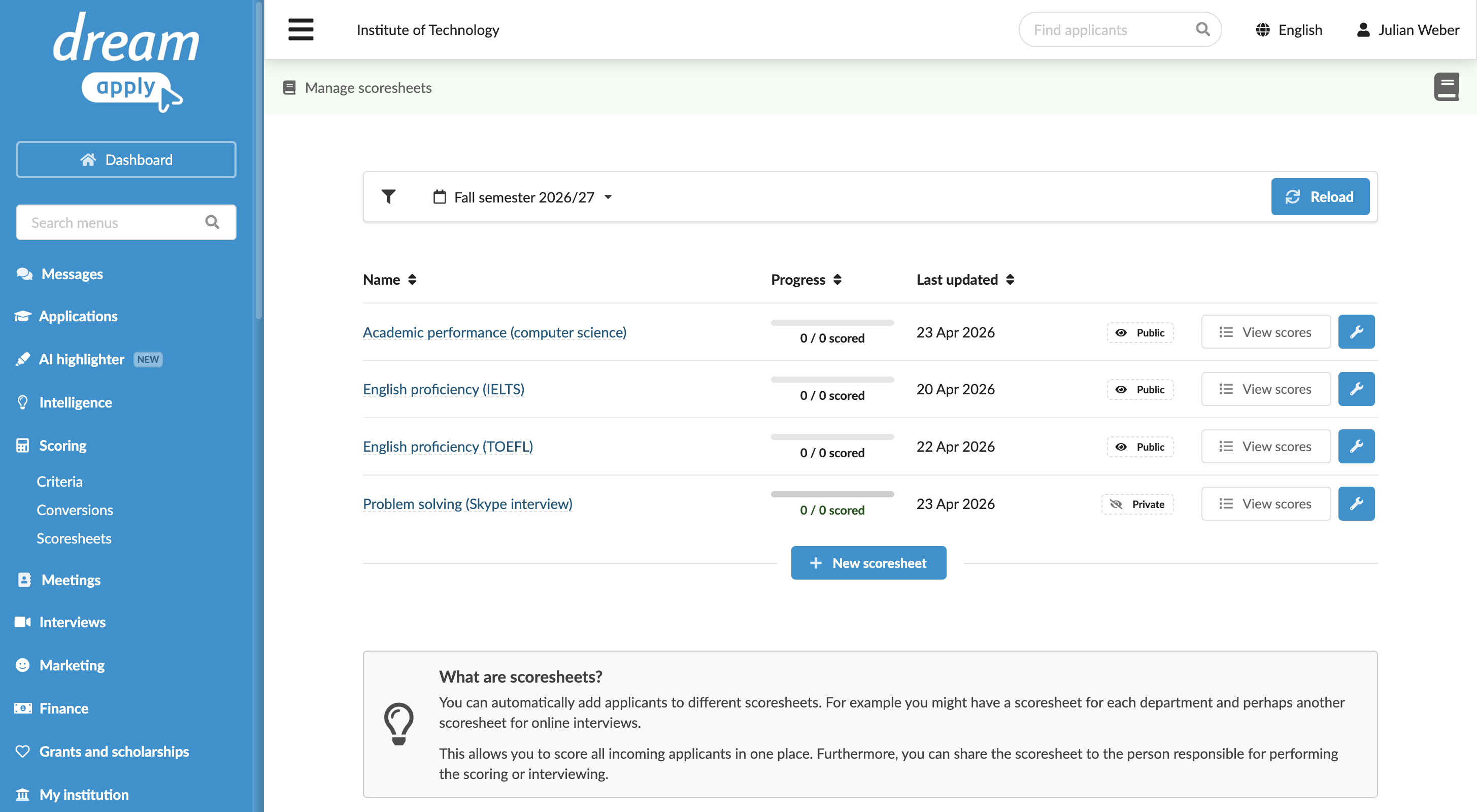
In the main menu, under Scoring, click Scoresheets.
Add 4 scoresheets with the following settings:
- Academic performance (computer science): Public, application scoring depth, numeric value (1-10 range)
- English proficiency (IELTS): Public, application scoring depth, IELTS score type
- English proficiency (TOEFL): Public, application scoring depth, TOEFL score type
- Problem solving (Skype interview): Private, application scoring depth, numeric value (1-10 range)
Step 2. Create evaluation criteria
Now, we will create an evaluation criterion for the computing programme based on the four parameters.
Because applicants can submit either TOEFL or IELTS scores, we will create a sub-criterion for each test and use a conversion rule to standardize the results.
To create a sub-criterion:
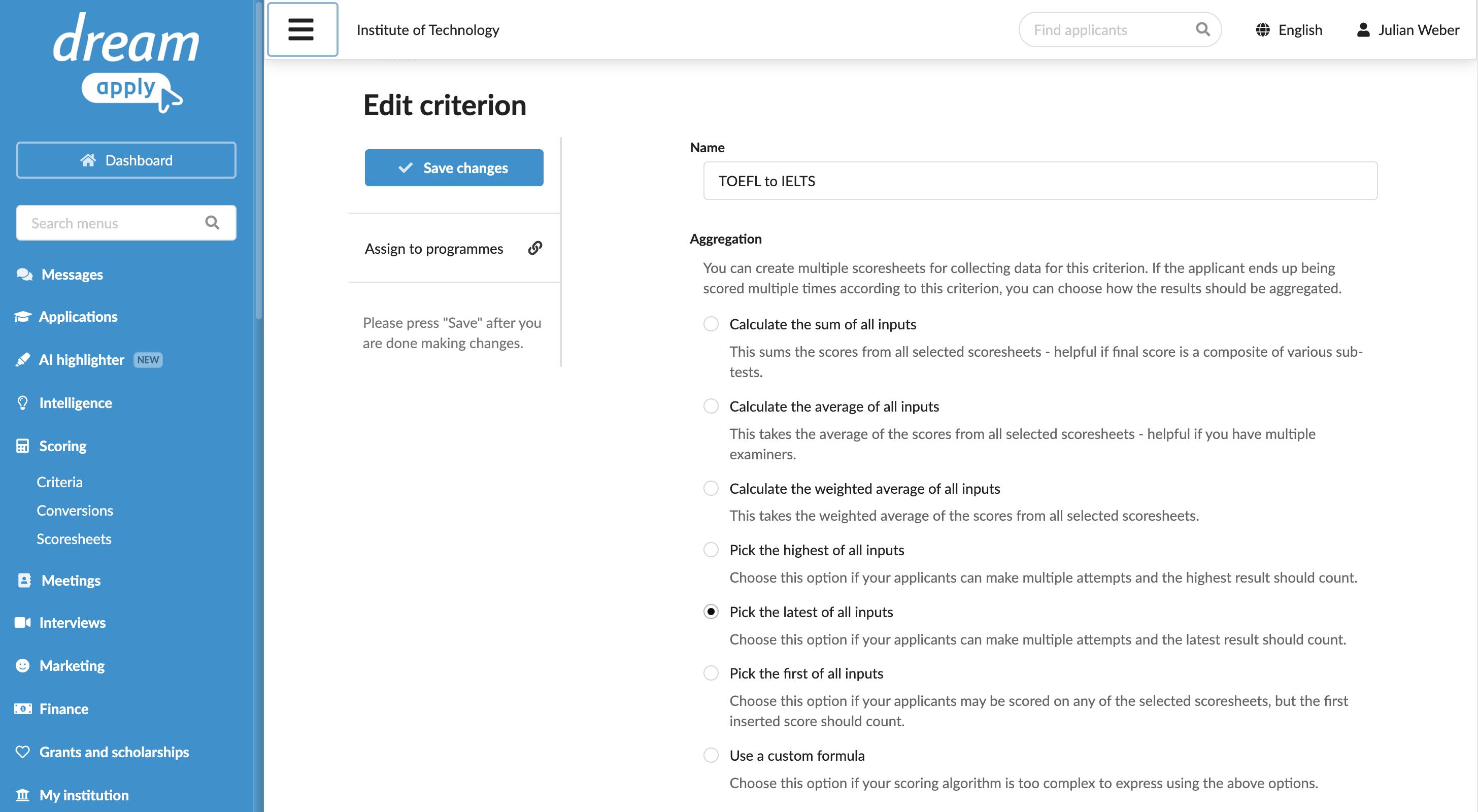
- In the main menu, under Scoring, click Criteria and select New criterion.
- Name the sub-criterion IELTS.
- In the Aggregation section, select Pick the latest of all inputs.
- In the Inputs section, select English proficiency (IELTS) scoresheet.
- Save the sub-criterion.
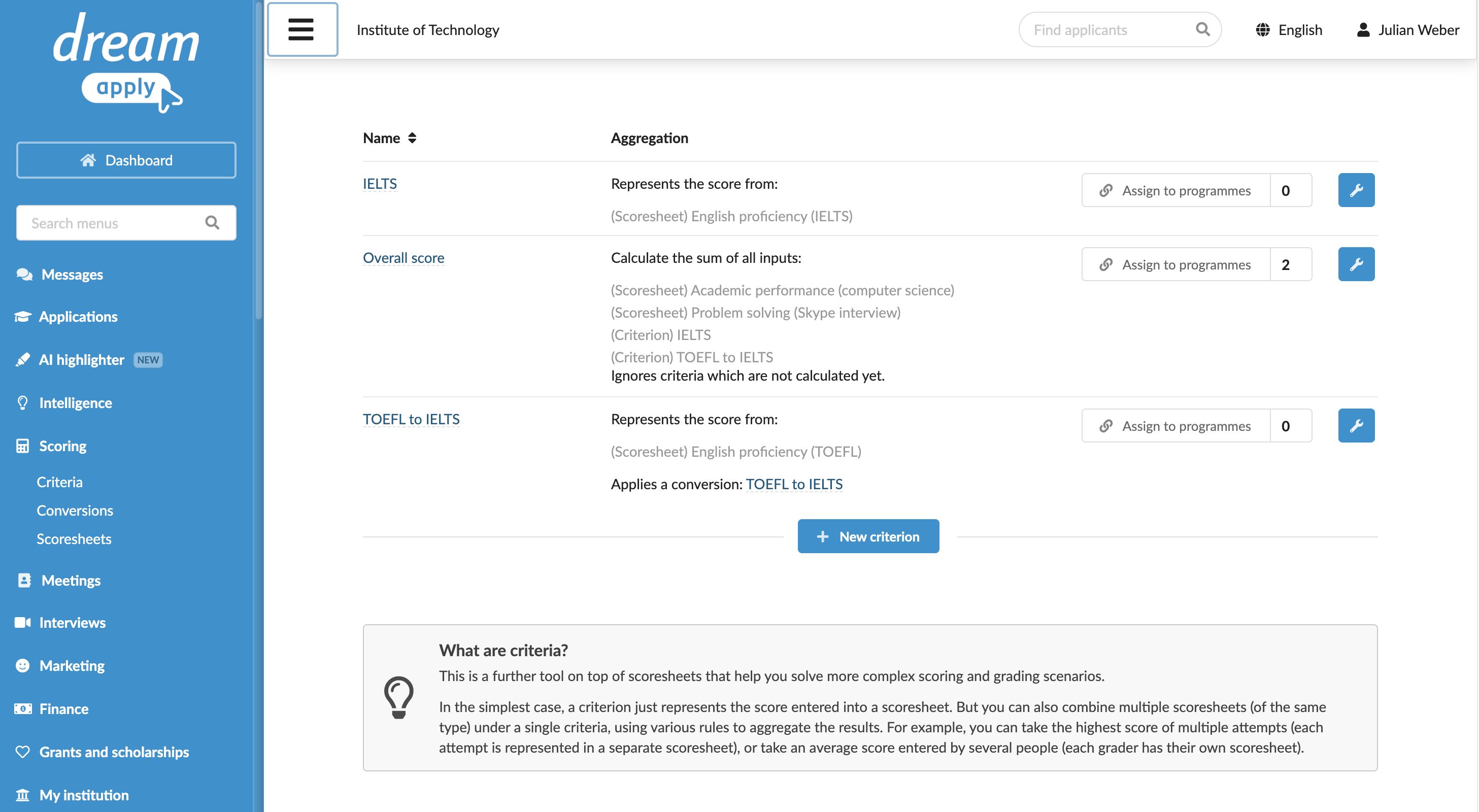
Repeat these steps to create the TOEFL to IELTS sub-criterion. For this sub-criterion, select the English proficiency (TOEFL) scoresheet and in the Conversion field, choose the TOEFL to IELTS conversion rule.
To aggregate results, create the main criterion:
- In the main menu, under Scoring, click Criteria and select New criterion.
- Name the criterion Overall score and in the Aggregation section, select to calculate the sum of all inputs.
- In the Inputs section, select the source scoresheets: Academic performance and Problem solving and the two sub-criteria: IELTS and TOEFL to IELTS.
- Below the sub-criteria section, enable the If the sub-criterion has not yet been calculated: ignore the sub-criterion option. This setting is important because applicants will submit either a TOEFL or an IELTS score. If one is missing, it must be ignored in the calculation.
- To the right of the Academic performance and Problem solving scoresheets, set the weights to 2, as these are the most important competencies for the computing programme.
- Enable the Automatically add application to all relevant scoresheets option.
- At the top of the form, click Save changes.
- On the left, click Assign programmes and select the relevant programmes.
Step 3. Enter scores
To complete the evaluation, we will simulate both the applicant and evaluator roles for entering scores.
Enter scores as an applicant
- Log in to DreamApply as an applicant.
- Choose to apply for the programme to which the evaluation criterion is assigned.
- On the Scores tab, enter the required scores.
- Submit the application.
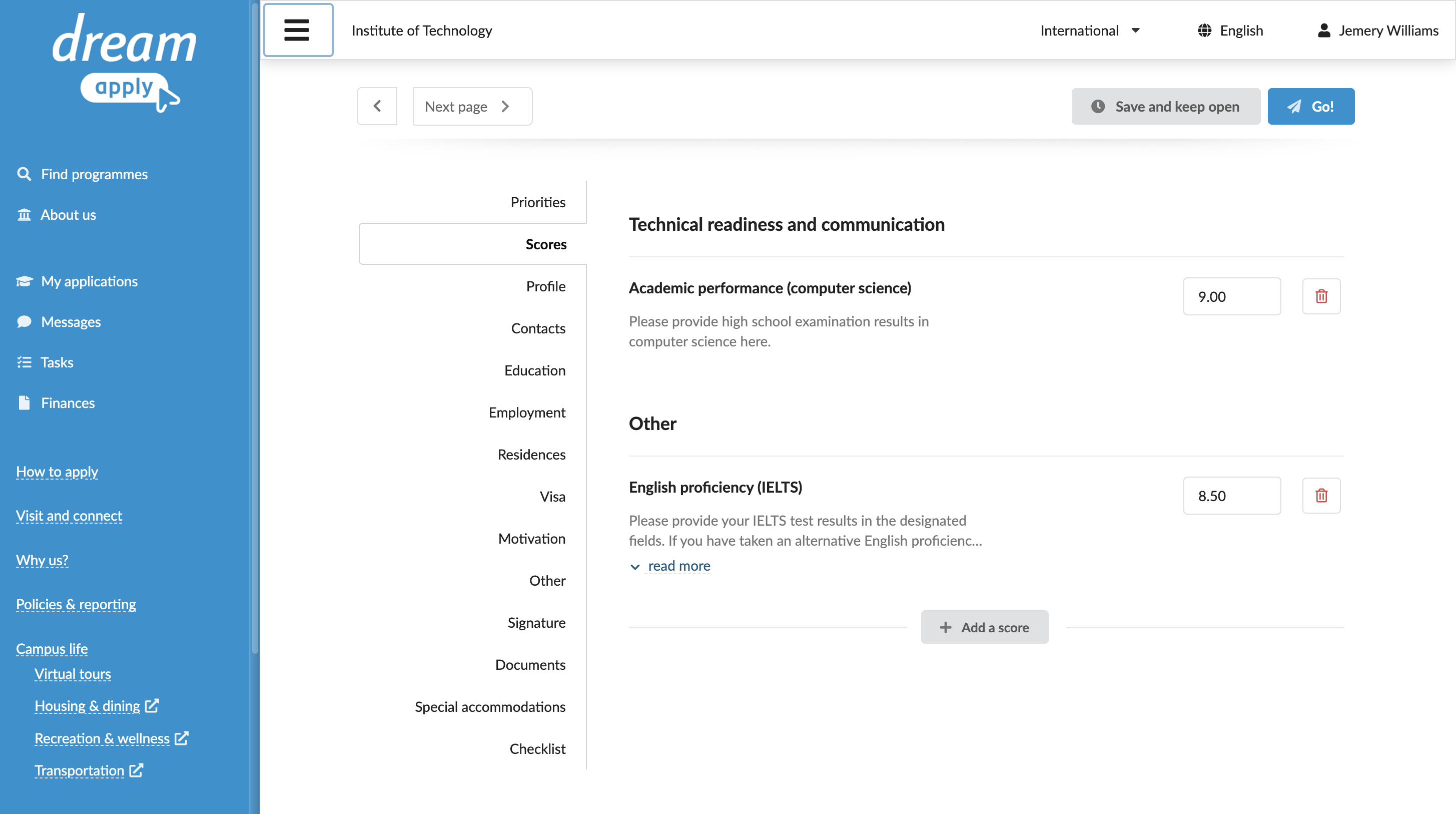
Enter scores using the scoresheet
- Log in to DreamApply as an Administrator.
- In the main menu, under Scoring, select Scoresheets.
- Select the scoresheet in the list.
- On the left, click View scores and enter the scores for applicants.
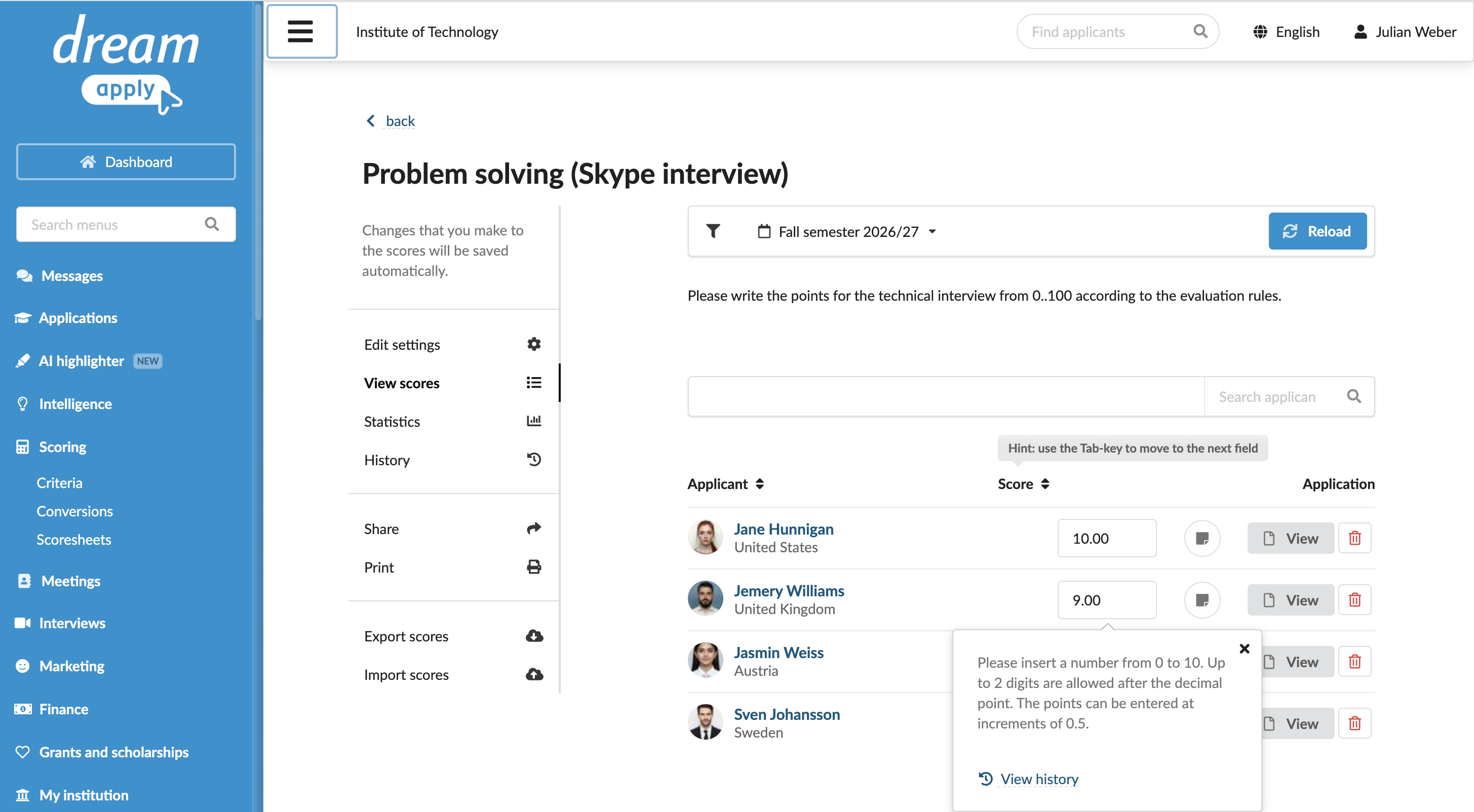
Enter scores in individual applications
- Log in to DreamApply as an Administrator.
- In the main menu, under Applications, select Browse.
- In the applicant card, click View.
- In the Scores section, enter scores.
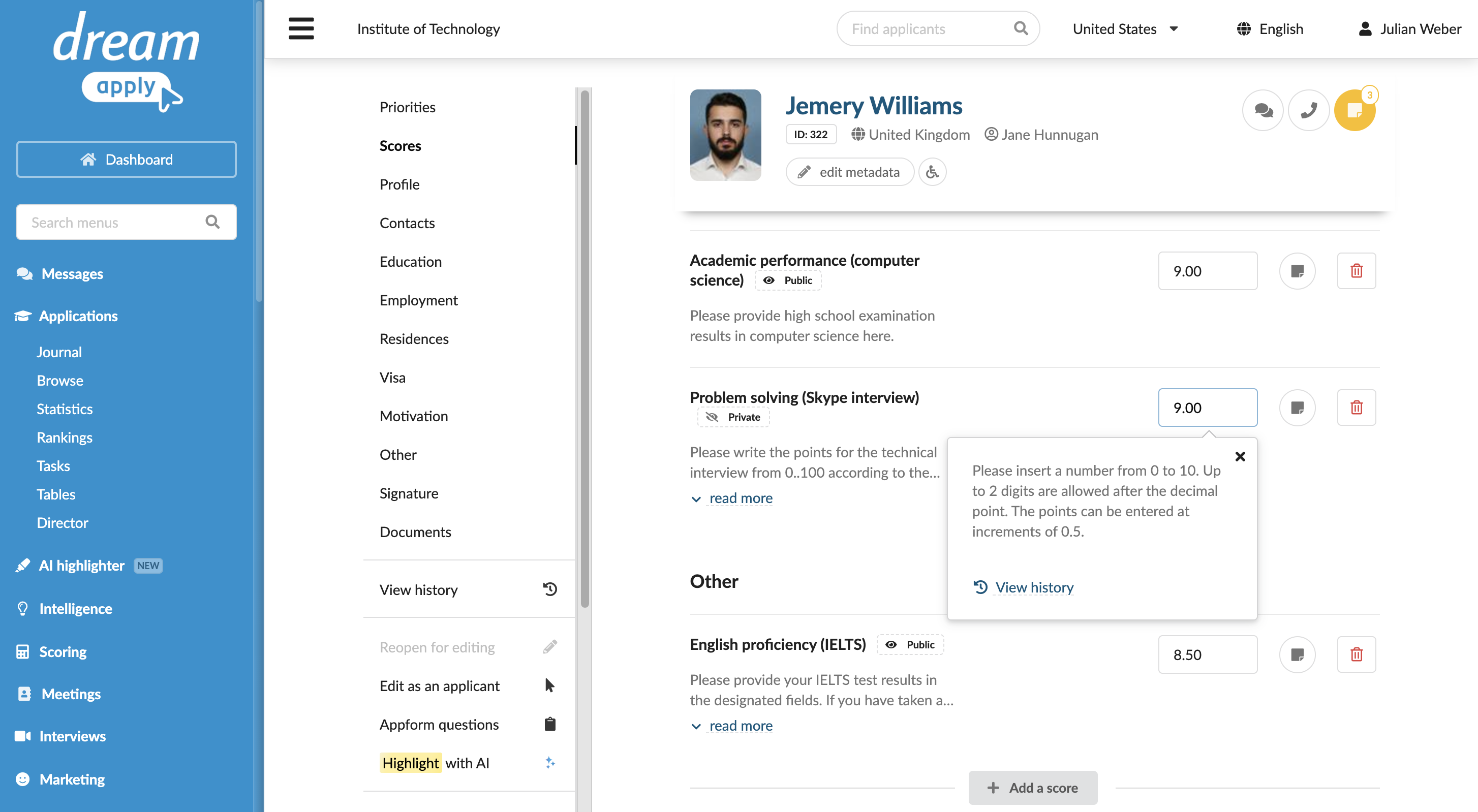
Step 4. Review rankings
To review the final score and rankings generated by DreamApply:
- In the main menu, under Applications, select Rankings.
- Use filters select the programme to which the main evaluation criterion is assigned.
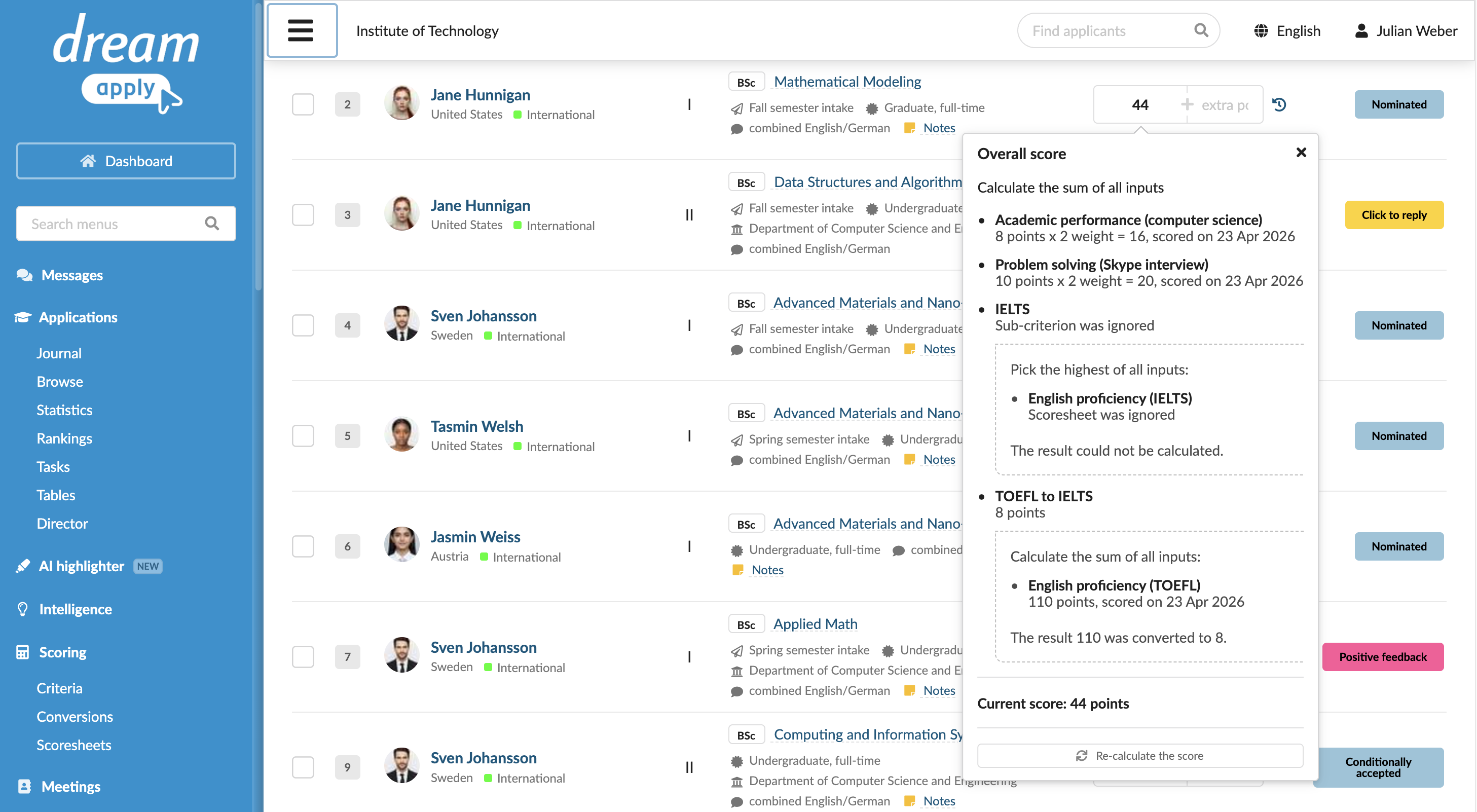
- In the applicants list, click the applicant’s score to see how the final score was calculated.