Add applications to scoresheets
Roles
These roles reflect the default DreamApply setup.
You can define custom roles based on your
institution's needs. Learn more →:
You can define custom roles based on your
institution's needs. Learn more →
To systematically assess submitted applications, you must add applications to scoresheets.
Applications can be added to scoresheets in the following ways:
Using criteria (recommended): Define specific evaluation criteria and assign them to programmes. When an applicant applies for a programme, DreamApply automatically adds their application to the relevant scoresheets that feed those criteria.
Using rules: Set up rules to automatically add applications to scoresheets based on specific requirements.
Manual adding: Administrators and applicants can manually add applications to scoresheets. This method is especially useful for unlisted scoresheets.
Before you begin
- To set up rules, your account must have the
Superuserrole or therulespermission. - To manually add applications to scoresheets, your account must have the
SuperuserorAdmissions administratorrole or theapplications-viewandapplications-scorepermissions.
Set up rules
You can set up rules to add applications to scoresheets when specific conditions are met.
Use automatic rules
You can use automatic rules to add applications immediately after a trigger event, for example, when an application is created or submitted.
To set up an automatic rule:
- In the main menu, under Automation, select Rules.
- At the bottom of the rule list, click New rule and specify the rule name.
- In the Trigger events section, select the events that must activate the rule. For example, you can choose to add applications to scoresheets when applicants submit applications, edit or reopen them.
- In the Conditions section, select Void to apply the rule to all applications or specify granular conditions.
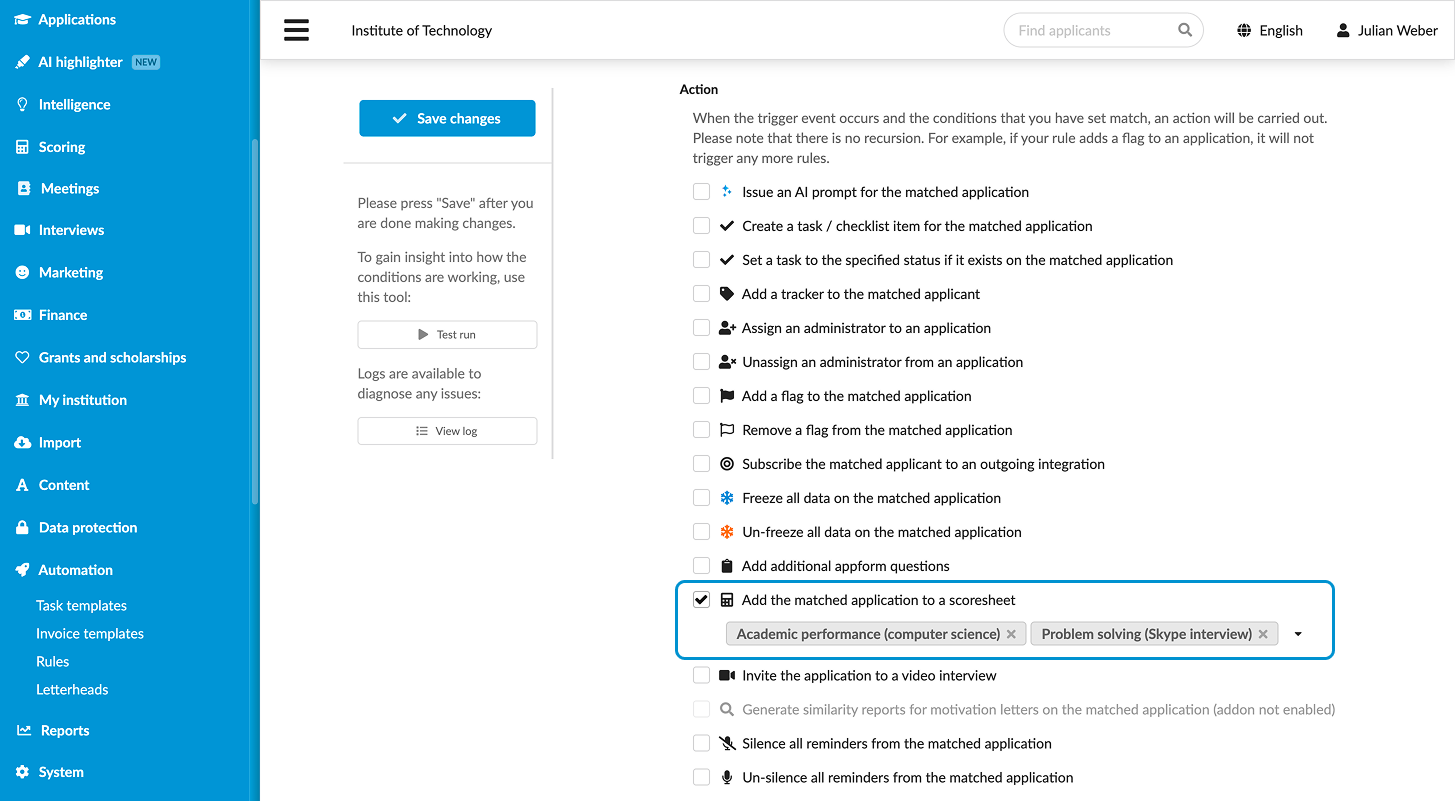
- In the Action section, select the Add the matched application to a scoresheet check box and choose scoresheets to which applications must be added.
- At the top of the form, click Save changes.
- In the rule list, set the rule status to Active.
Manually run rules
You can configure rules and manually apply them to a specific group of applications. This option is useful for processing existing applications in bulk or re-running rule logic.
To apply rules to applications:
- In the main menu, under Applications, select Browse.
- Use filters to select the group of applications you want to update.
- From the Bulk actions list, select Run rules.
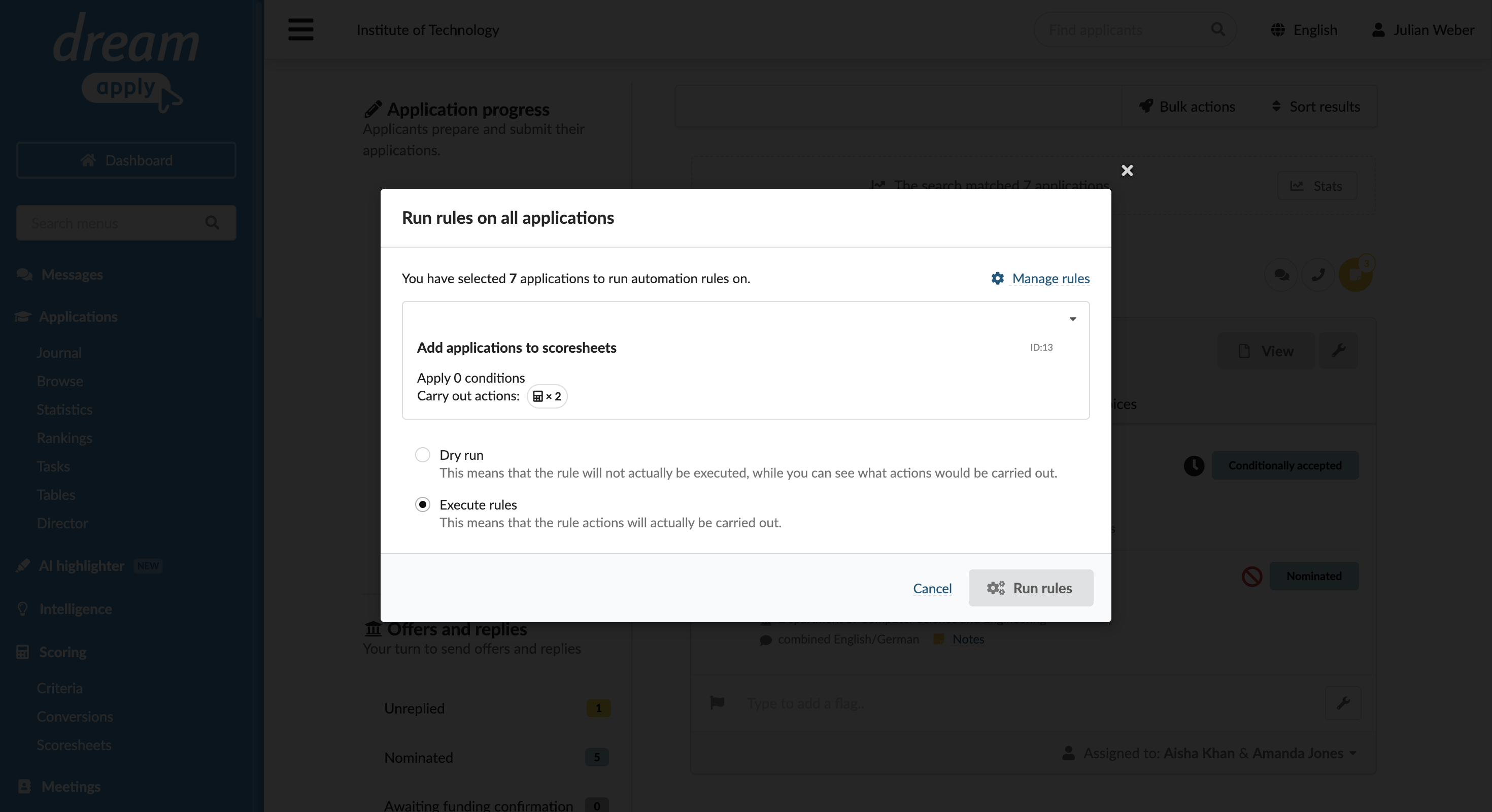
- Select the rule you want to use, then select Execute rules and click Run rules.
Manually add applications
In some cases, you may need to add applications to scoresheets manually, for example, when scores must be entered outside the standard evaluation process.
Administrators
Administrators can add applications to scoresheets in the following way:
- In the main menu, under Applications, select Browse.
- In the application card, click View.
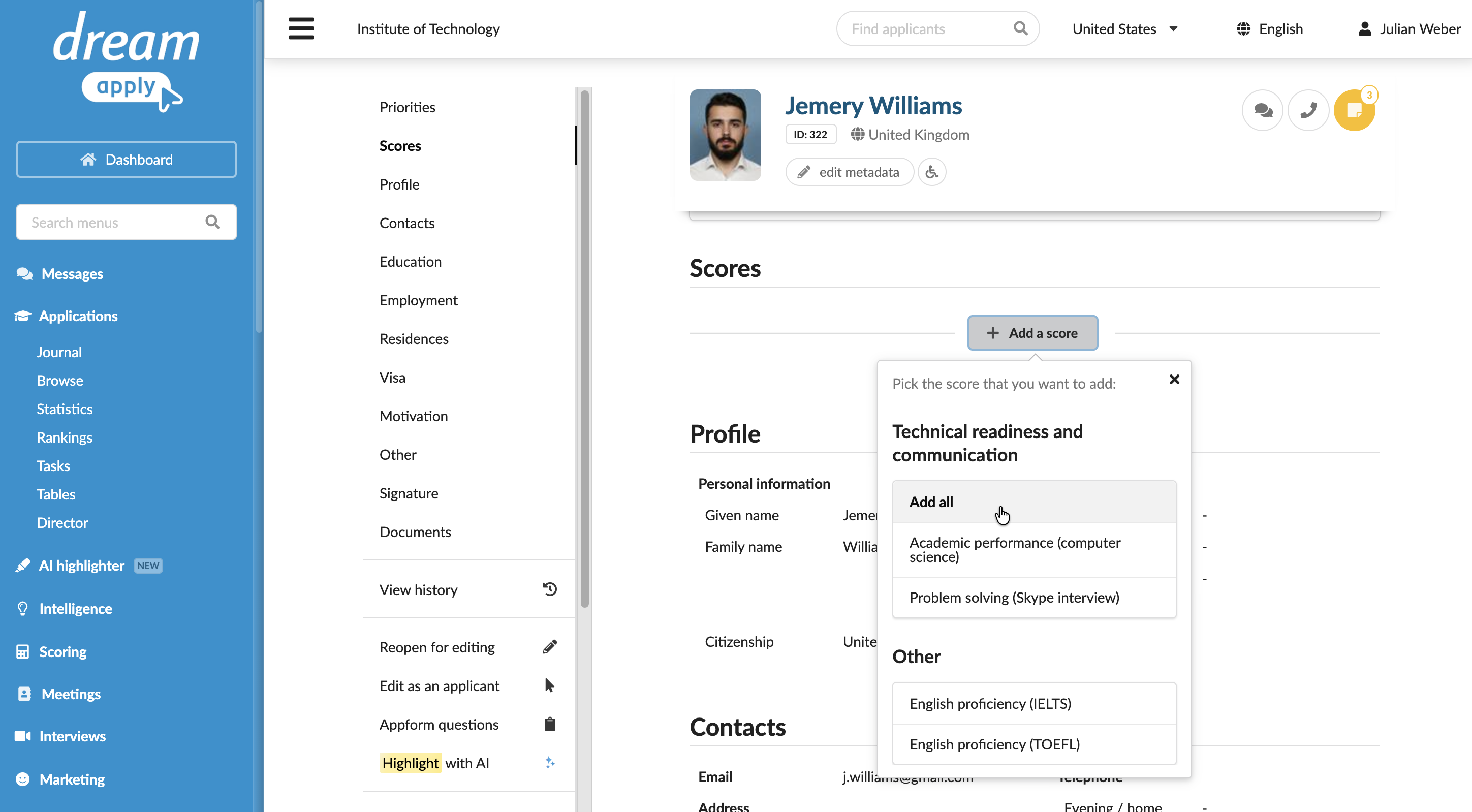
- In the Scores section, select Add a score and choose the scoresheet to which the application must be added. To add a group of scoresheets, select Add all.
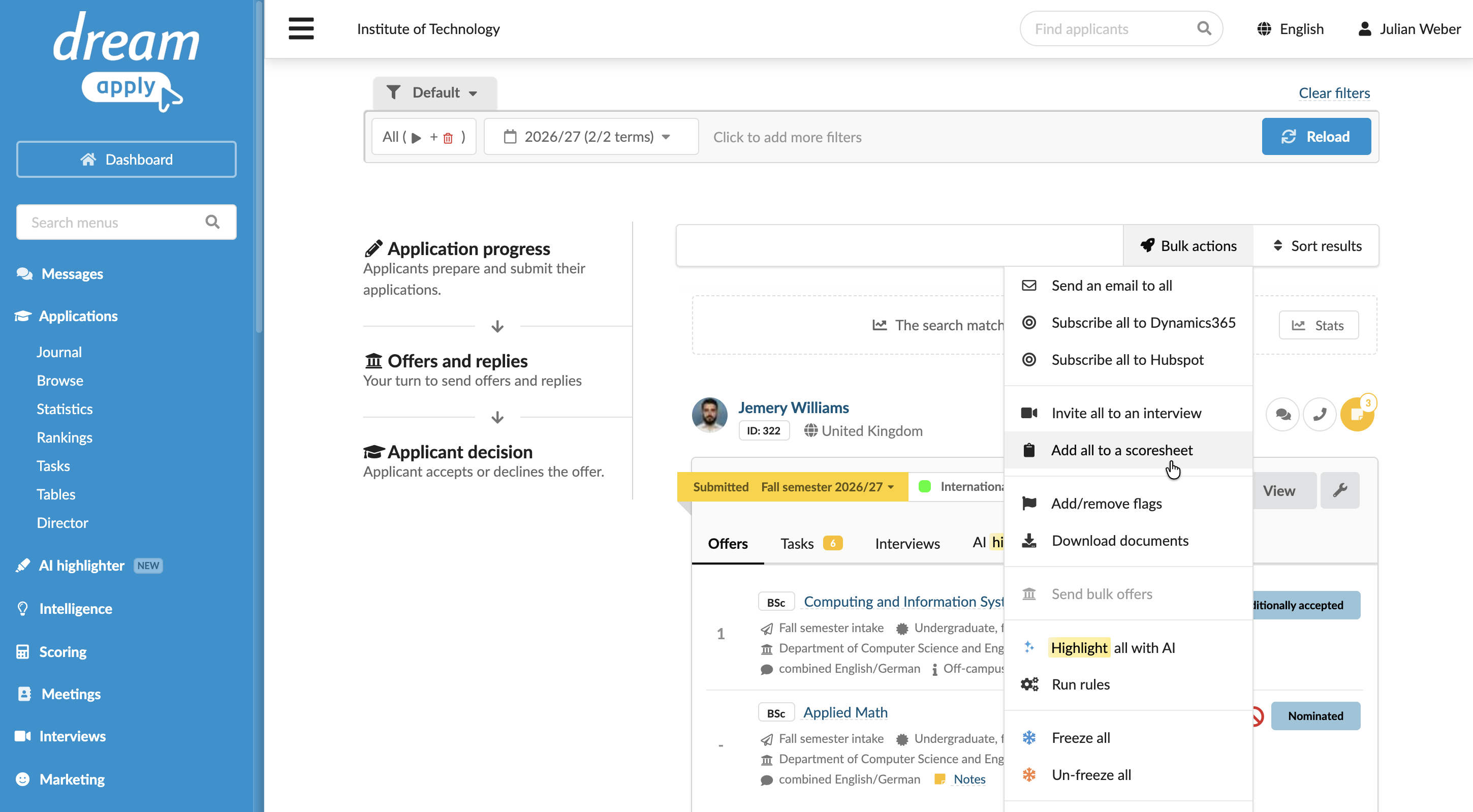
Administrators can also select a group of applications and add them to a scoresheet in bulk.
- In the main menu, under Applications, select Browse.
- Use filters to select the group of applications you want to update.
- From the Bulk actions list, select Add all to a scoresheet and select a scoresheet to which applications must be added.
Applicants
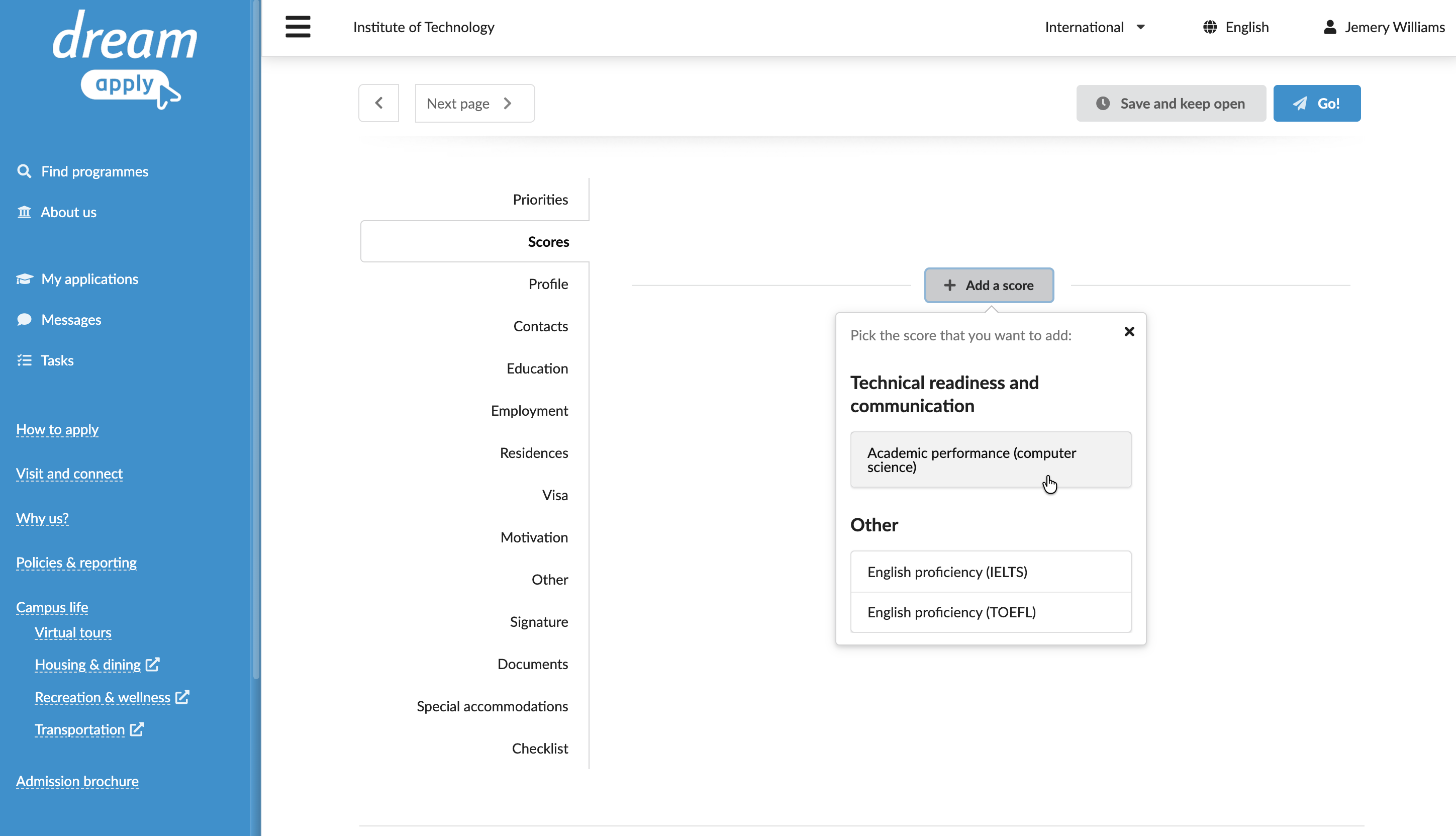
Applicants can add an application by selecting the Add a score option in the Scores section of the application edit page.