Create scoresheets
Roles
These roles reflect the default DreamApply setup.
You can define custom roles based on your
institution's needs. Learn more →:
You can define custom roles based on your
institution's needs. Learn more →
To start evaluating applicants, you need to create scoresheets in DreamApply. Each scoresheet focuses on a single assessment area, for example, language proficiency or academic performance.
Before you begin
To create scoresheets, your account must have the Superuser role or the scorers permission with access to all scoresheets.
Add scoresheets
To add scoresheets:
In the main menu, under Scoring, select Scoresheets.
At the bottom of the list, click New scoresheet.
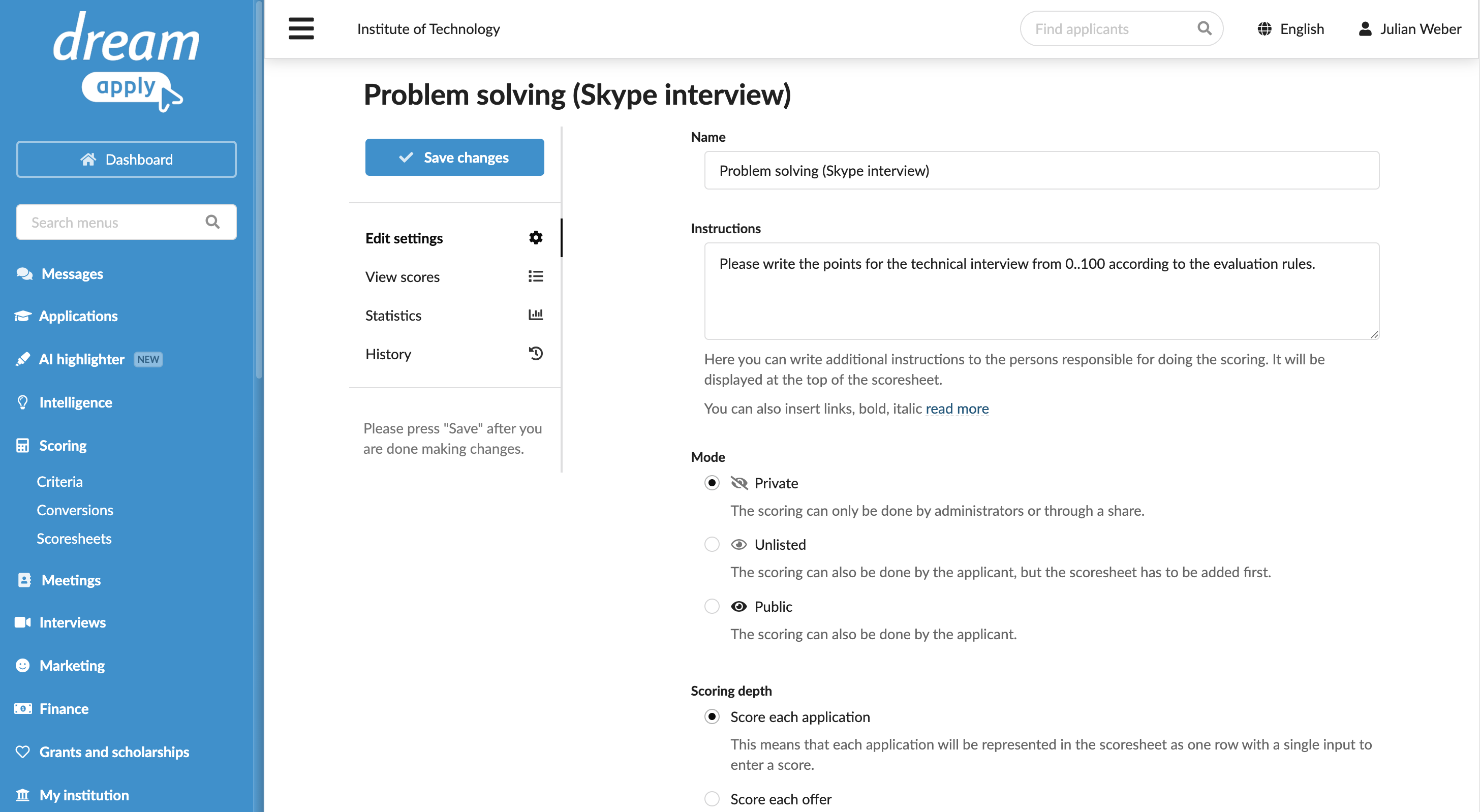
Define evaluation settings:
Specify the scoresheet name and instructions. Depending on the scoresheet type, these instructions will be visible to evaluators (on shared scoresheets), Administrators (in the Scores section of the application) or applicants (in the Scores section of the application edit page).
Select the scoresheet mode and scoring depth. Private scoresheets support both application-level and offer-level scoring. Public and unlisted scoresheets only support application-level scoring.
Choose the score type and specify the score range and scale.
If necessary, allow evaluators and applicants to specify the score date, reference number, subject and language used.
For easier management, assign the scoresheet to a group. When adding applications to scoresheets, Administrators will be able to add an entire group at once rather than separate scoresheets.
At the top of the form, click Save changes.