Manage access to scoresheets
Roles
These roles reflect the default DreamApply setup.
You can define custom roles based on your
institution's needs. Learn more →:
You can define custom roles based on your
institution's needs. Learn more →
You must assign roles and permissions to Administrators and grant them access to specific scoresheets.
Before you begin
To manage access to scoresheets, your account must have the Superuser role or the administrators permission.
Assign roles and permissions
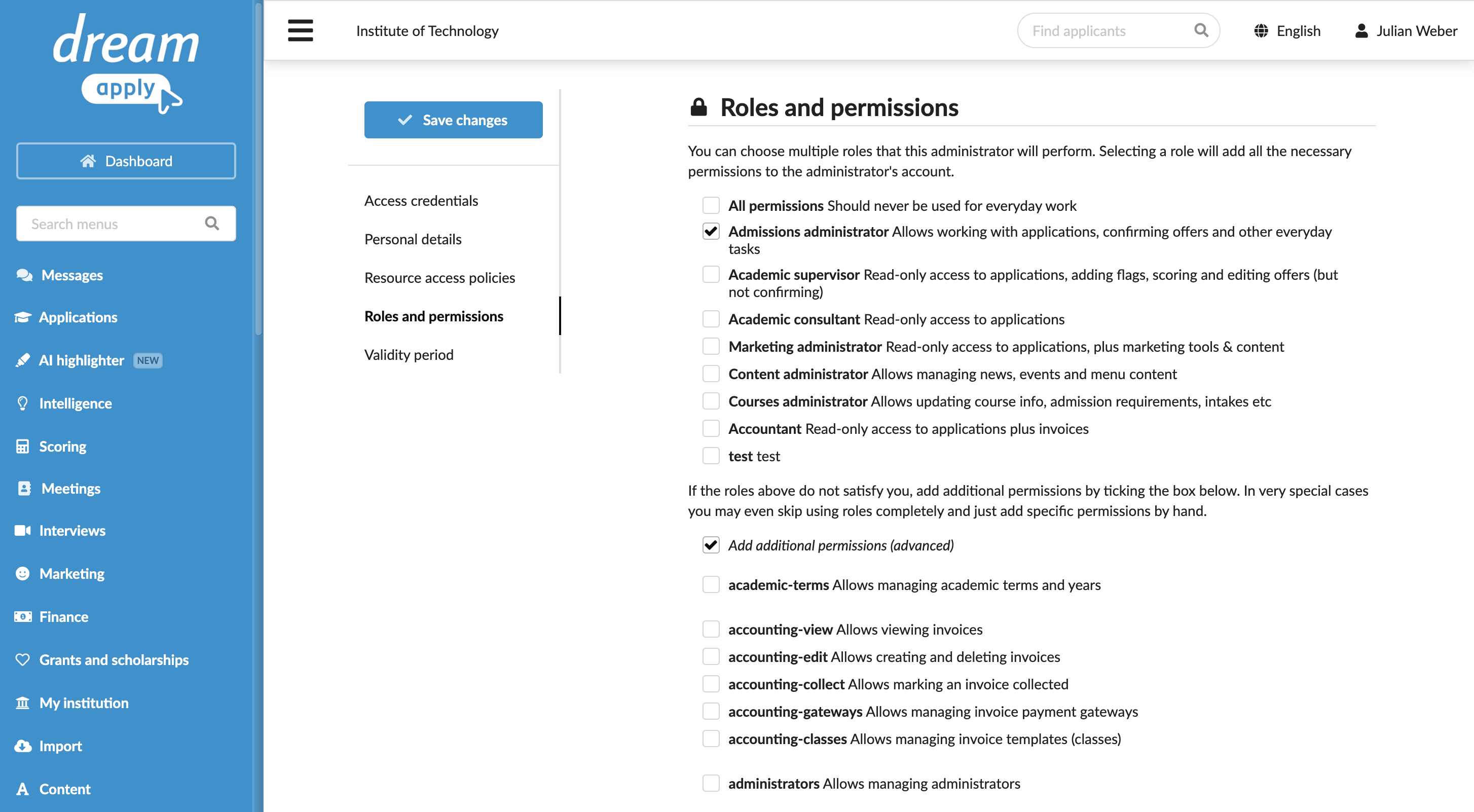
Administrators require the Admissions administrator role to view and enter scores in applications. We recommend that you grant this role to all Administrators involved in the evaluation process.
To assign additional scoring tasks to Administrators, you can use the following permissions:
scorers: Allows Administrators to manage scorers and scoresheetsimport-scores: Allows Administrators to import scoresheets from external filesapplications-score: Allows Administrators to view and enter scores in applications added to scoresheets
To assign roles and permissions to Administrators:
- In the main menu, under System, select Administrators.
- Create a new Administrator account or select to edit an existing account.
- In the Roles and permissions section, choose the role that must be granted to the Administrator.
- If necessary, select the Add additional permissions check box and choose the permissions that must be granted to the Administrator.
- At the top of the form, click Save changes.
You can grant permissions individually or create new roles with required permissions and assign them to Administrators. For details, see Create Administrator roles.
Grant access to scoresheets
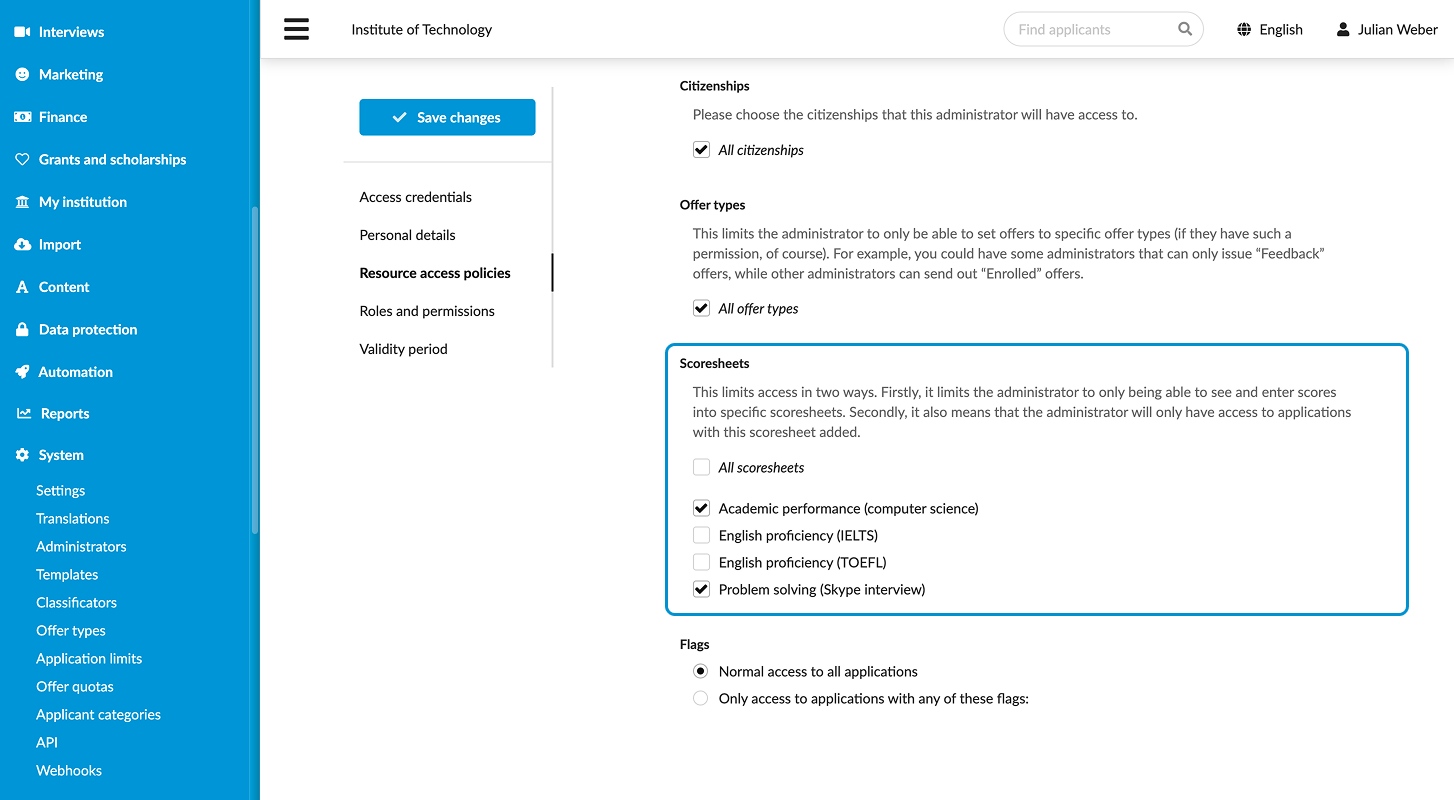
By default, Administrators have access to all scoresheets created in DreamApply. However, their access can be restricted to specific scoresheets as needed. In this case:
- Administrators will be able to view and enter scores in accessible scoresheets
- Administrators will be able to access only those applications that are added to accessible scoresheets
To restrict access to scoresheets:
- In the main menu, under System, select Administrators.
- Create a new Administrator account or select to edit an existing account.
- In the Resource access policies section, clear the All scoresheets check box and select scoresheets to which the Administrator must have access.
- At the top of the form, click Save changes.