Enter scores
Roles
These roles reflect the default DreamApply setup.
You can define custom roles based on your
institution's needs. Learn more →:
You can define custom roles based on your
institution's needs. Learn more →
DreamApply offers several ways to collect and record scores depending on the scoresheet type and the required level of expertise:
Applicant self-scoring: For public and unlisted scoresheets, applicants can enter their own scores by using the Scores section on the application edit page. DreamApply automatically saves this data and makes it available to evaluators for subsequent review.
Expert evaluation: For scoresheets that require professional judgment, institutions can manage the scoring process in the following ways:
Direct entry: Administrators can enter scores through the DreamApply portal.
Collaborative assessment: Administrators can share scoresheets with evaluators to allow them to contribute to the assessment.
External processing: Administrators can export scoresheets for evaluators to complete outside of DreamApply. The populated sheets can then be re-imported to consolidate the results.
DreamApply allows both applicants and evaluators to revise initial scores. You can define how the system must handle multiple entries using evaluation criteria.
Before you begin
- To share scoresheets, your account must have the
Superuserrole or thescorerspermission. - To import scoresheets, your account must have the
Superuserrole or theimport-scorespermission. - To subscribe to journal events, your account must have the
SuperuserorAdmissions administratorrole or thejournal-viewandjournal-editpermissions.
Enter scores (Administrators)
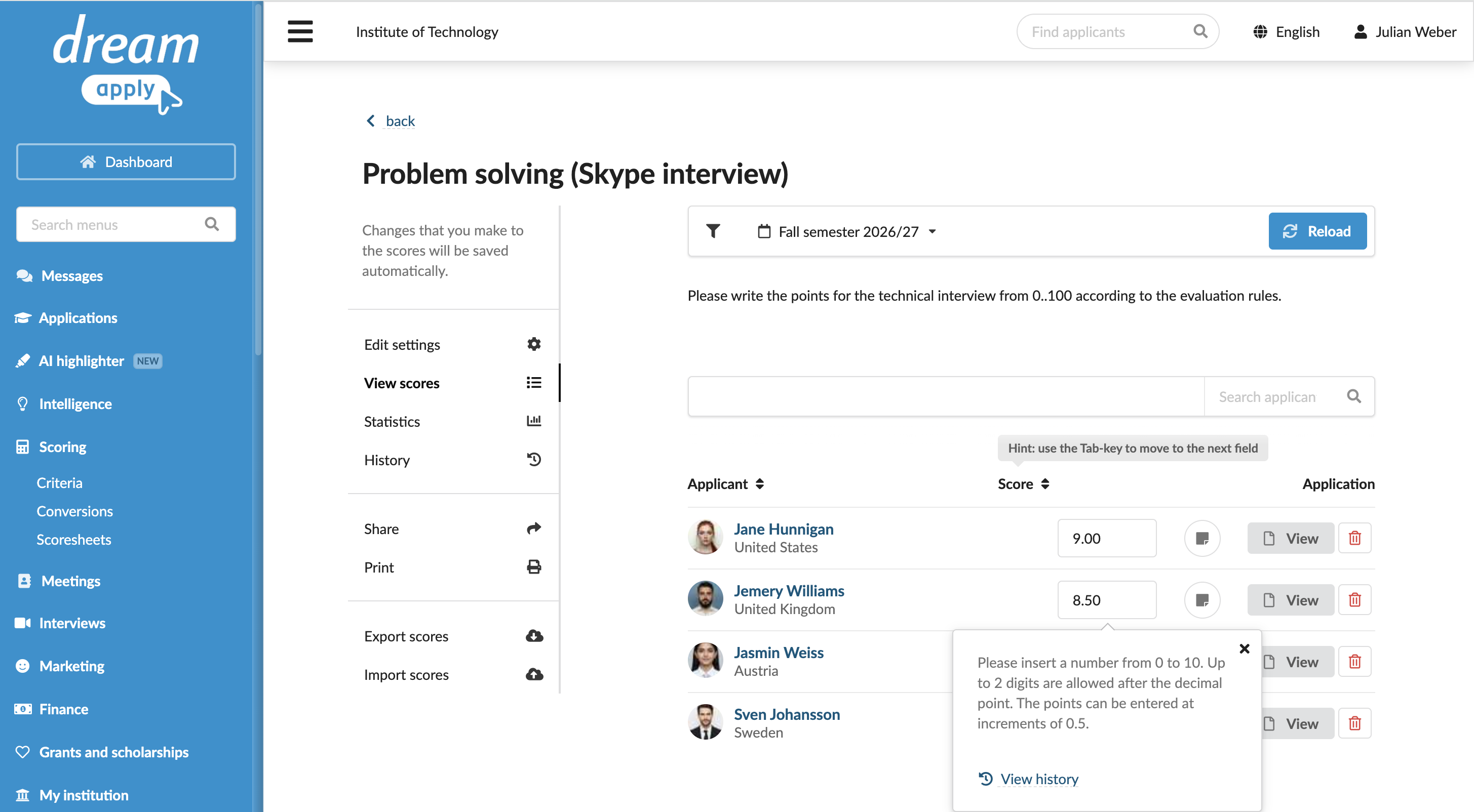
Administrators can use the DreamApply portal to enter scores, for example, while reviewing applications.
To enter scores for several applicants at once:
- In the main menu, under Scoring, select Scoresheets.
- Select the necessary scoresheet in the list.
- On the left, click View scores, enter scores and leave comments if needed.
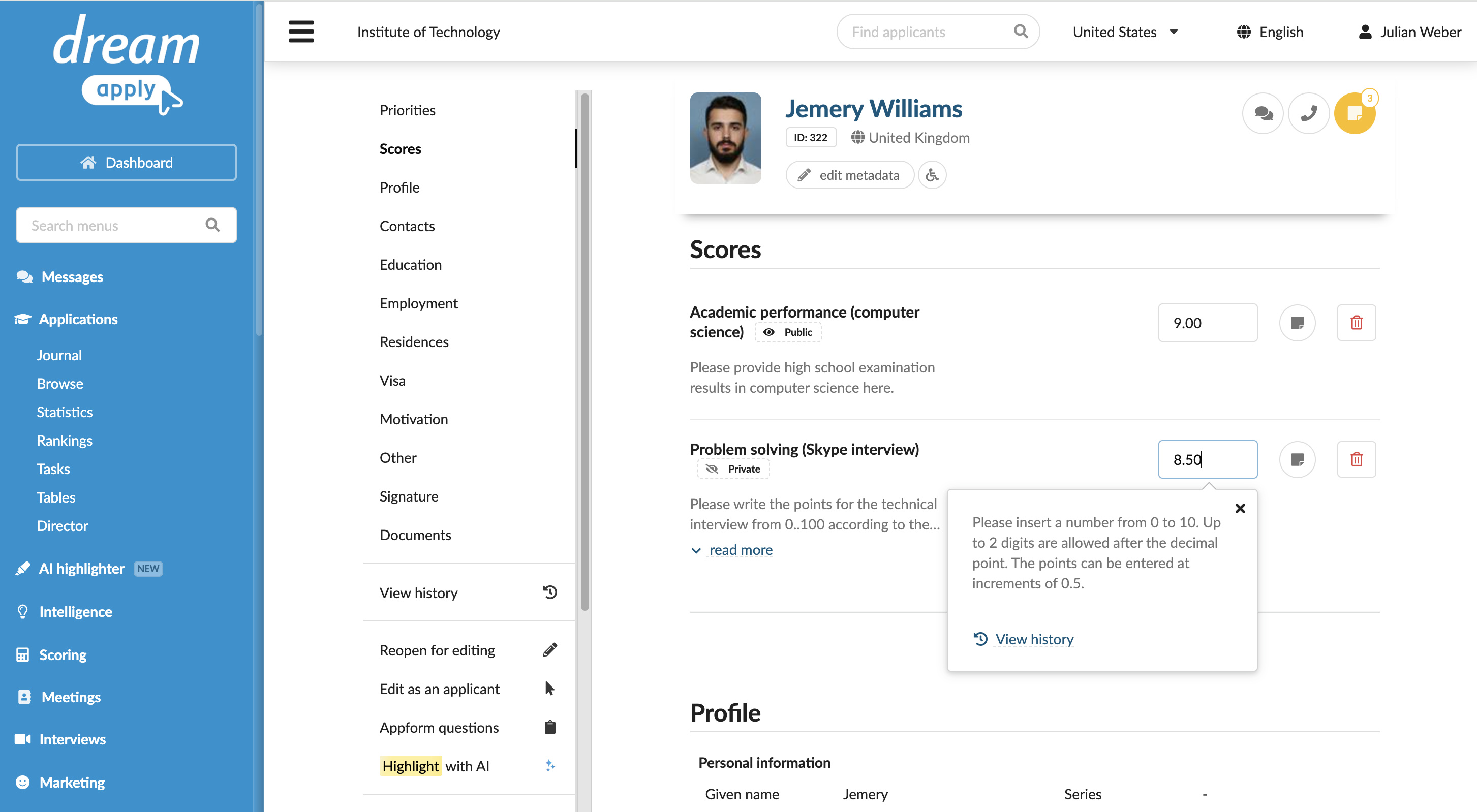
To enter scores for a specific application:
- In the main menu, under Applications, select Browse.
- In the application card, click View.
- In the Scores section, enter scores and leave comments if needed.
Share scoresheets
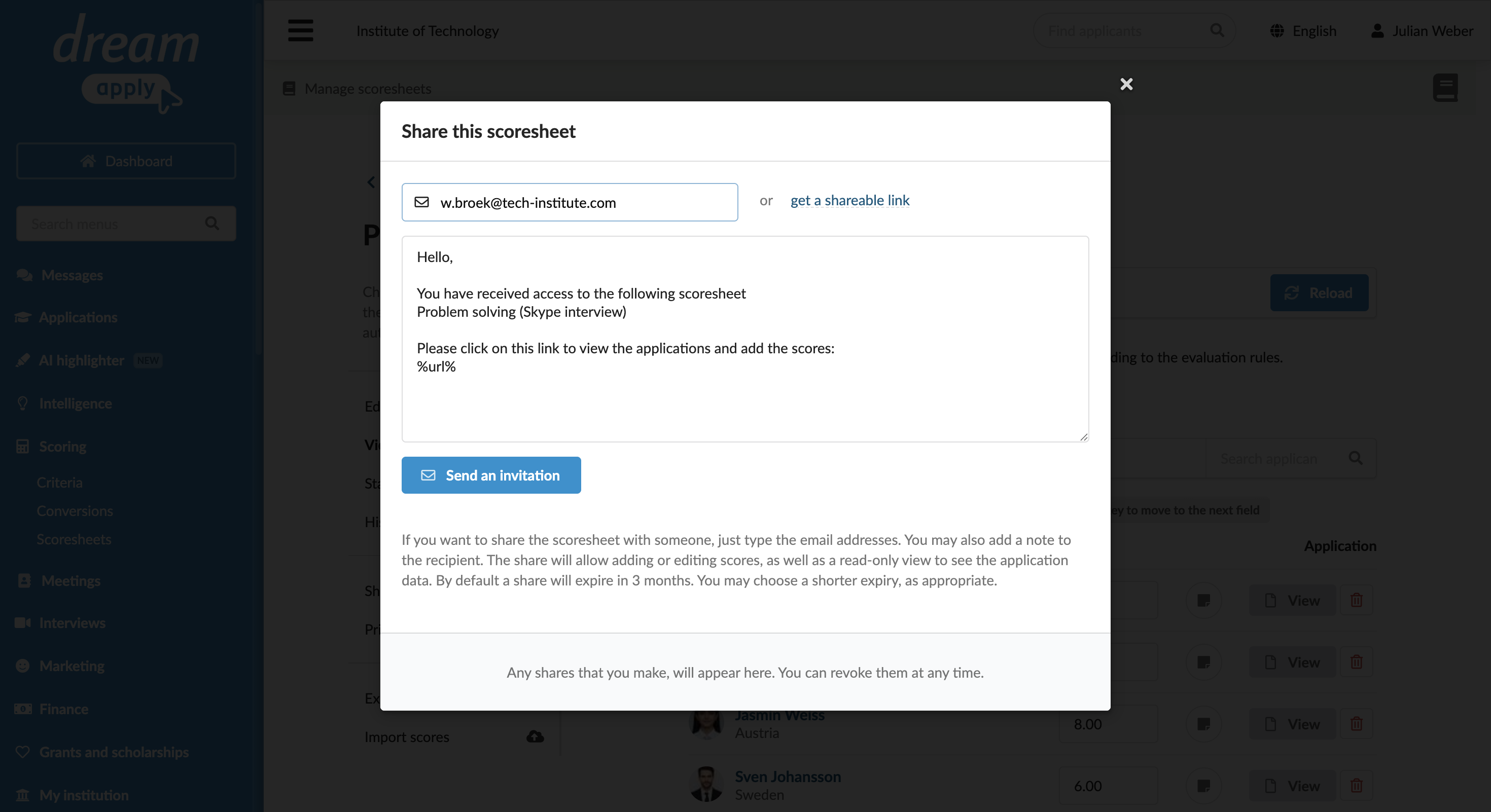
To share a scoresheet with an expert:
- In the main menu, under Scoring, select Scoresheets.
- Click the scoresheet you want to share and in the left menu, select View scores and Share.
- Specify the evaluator’s email address and click Send an invitation or get a link to the scoresheet to share it externally.
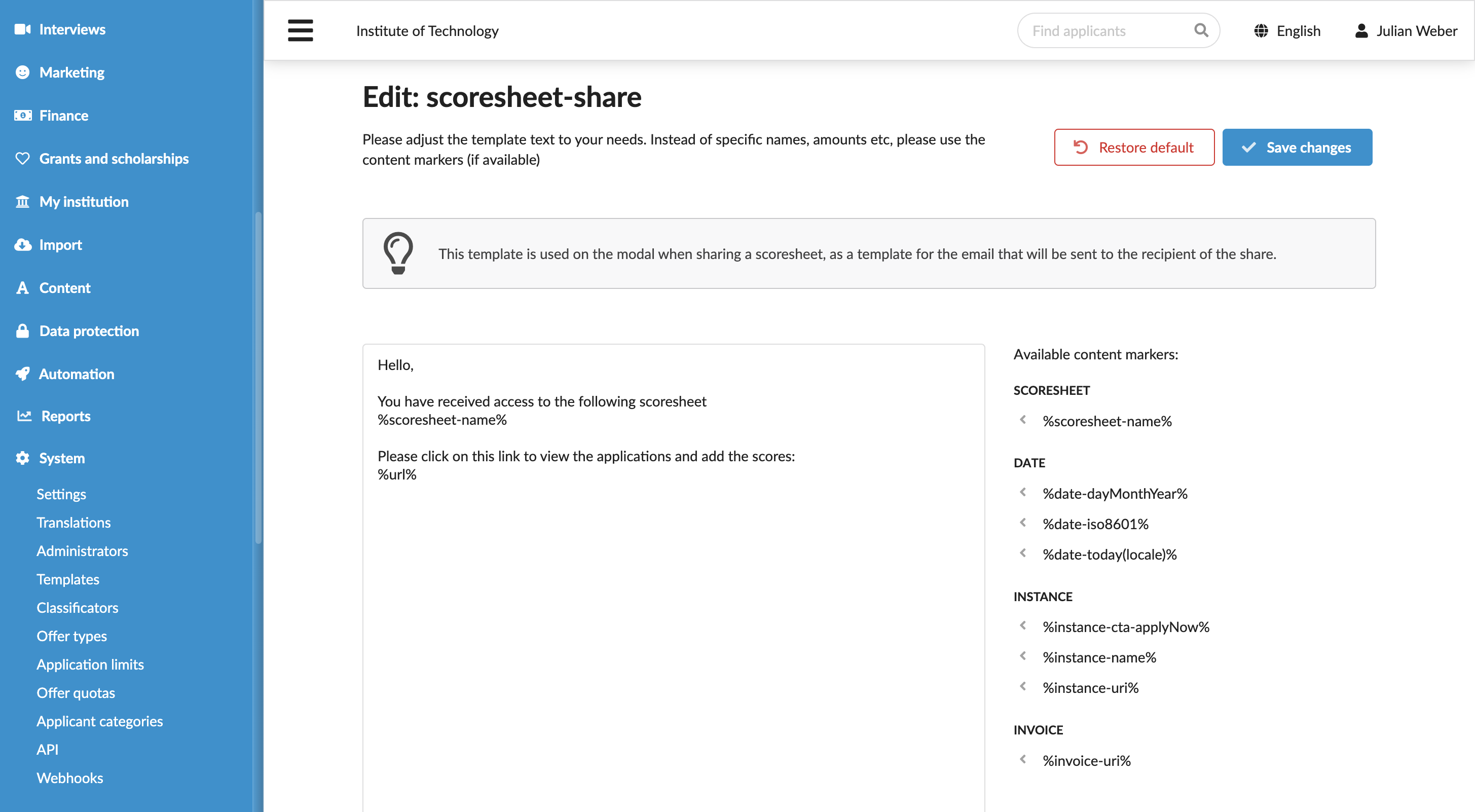
You can customize the text in the email sent to evaluators:
- In the main menu, under System, select Templates.
- In the templates list, select to edit the scoresheet-share template.
- Adjust the template content as needed. You can use content markers to personalize the message and the Textile markup to format and structure the text.
Export and import scoresheets
DreamApply allows evaluations to be done externally, for example, in the offline environments. Once completed, you can re-import scoresheets back to DreamApply to consolidate results.
To export scoresheets:
- In the main menu, under Scoring, select Scoresheets.
- Click the scoresheet you want to share and in the left menu, select View scores > Export scores and select the export file format. To get a printed copy of the scoresheet, select Print.
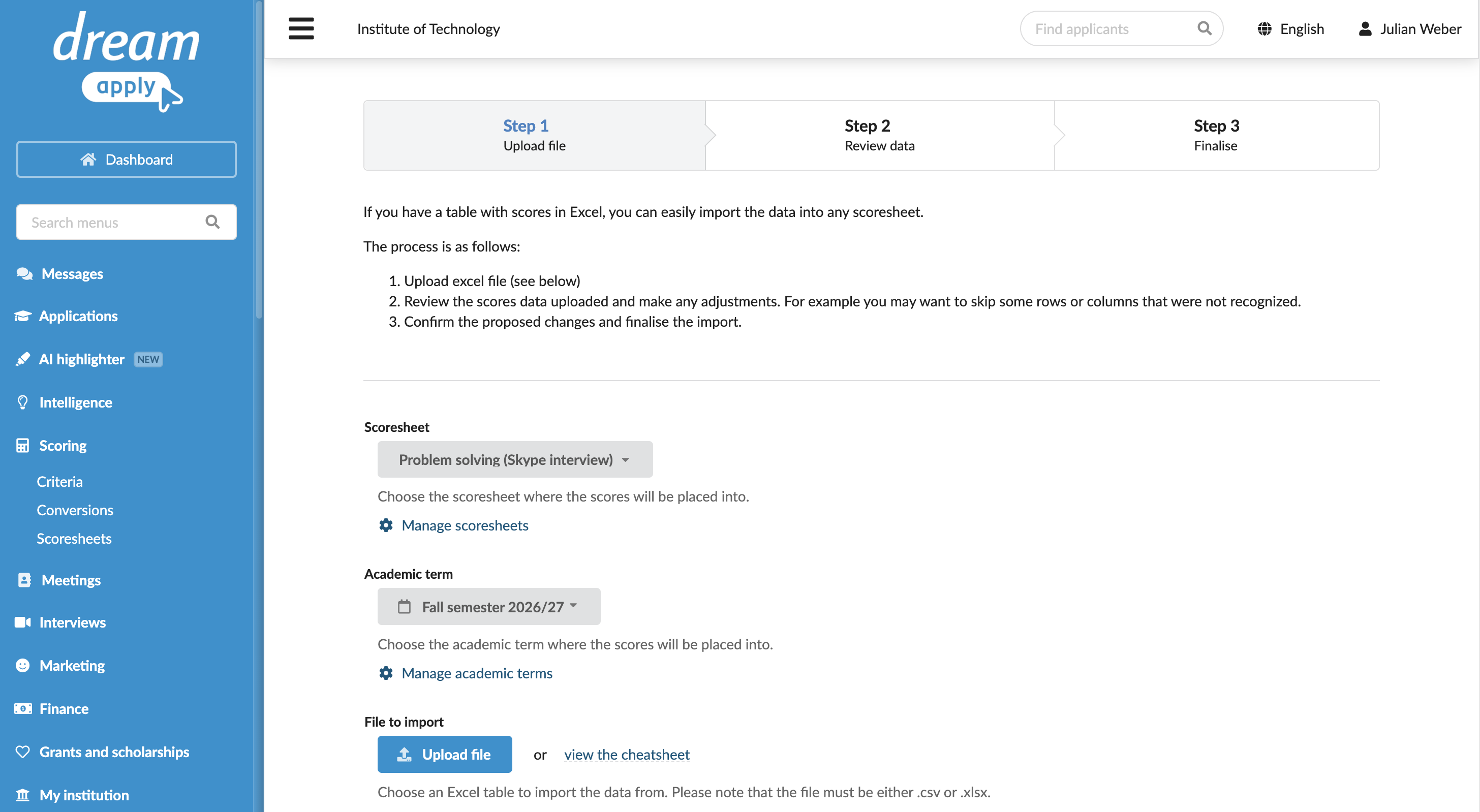
- To import the scoresheet back, select Import scores and follow the import data wizard.
Use the Journal events
DreamApply records the following events in the journal when scores are managed:
- Score was added
- Score was edited
- Score was removed
To track these events, subscribe to them using the Scores event group.