Frequently Asked Questions
Applicant accounts
How can I help an applicant log in?
You may need to help an applicant log in to the DreamApply portal if they:
- Do not remember the login process
- Have forgotten or lost their username and password
- Are not sure if their account is still active
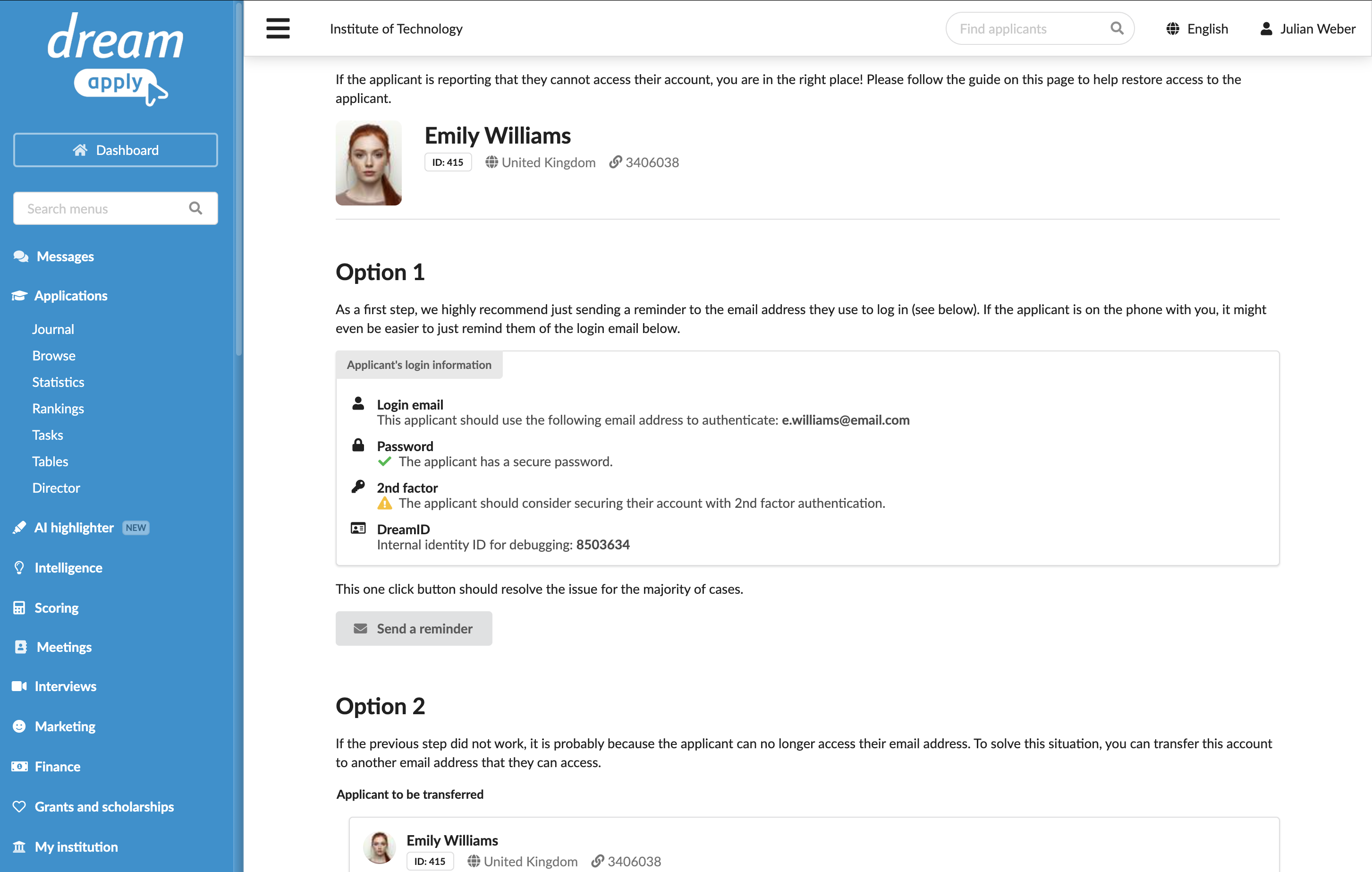
To resend the DreamApply joining instructions to an applicant:
- In the main menu, under Applications, select Browse.
- Click the applicant's name to open the applicant card.
- In the top right corner, click the wrench icon and select Restore applicant access.
- Under Option 1, click Send a reminder.
DreamApply will send a notification to the email address the applicant used to register.
How can I update the applicant's contact email address?
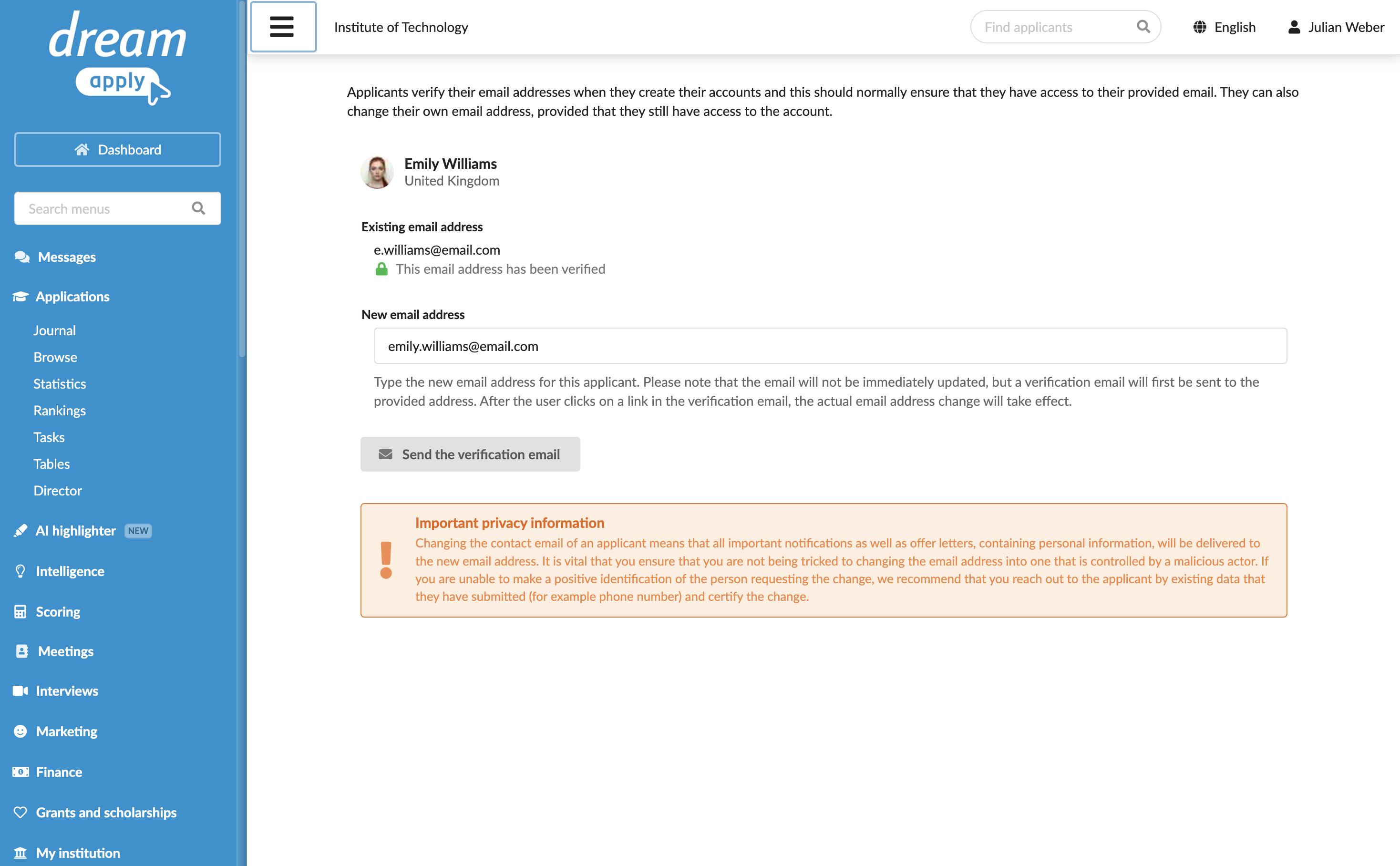
An applicant may ask you to update their contact email address so they can receive messages at a different account.
The contact email address is used for notifications and reminders from your institution and the DreamApply system. It is different from the email address an applicant uses to log in to the portal. To restore the applicant log in email address, see How can I help an applicant restore access to their account?
To update the contact email address for an applicant:
- In the main menu, under Applications, select Browse.
- Click the applicant's name to open the applicant card.
- In the top right corner, click the wrench icon and select Change contact email.
- In the New email address field, specify the email address to which DreamApply must send notifications.
DreamApply will send a verification email to this new address. Once the applicant verifies the change, the address will be updated on their account.
How can I secure an applicant compromised account?
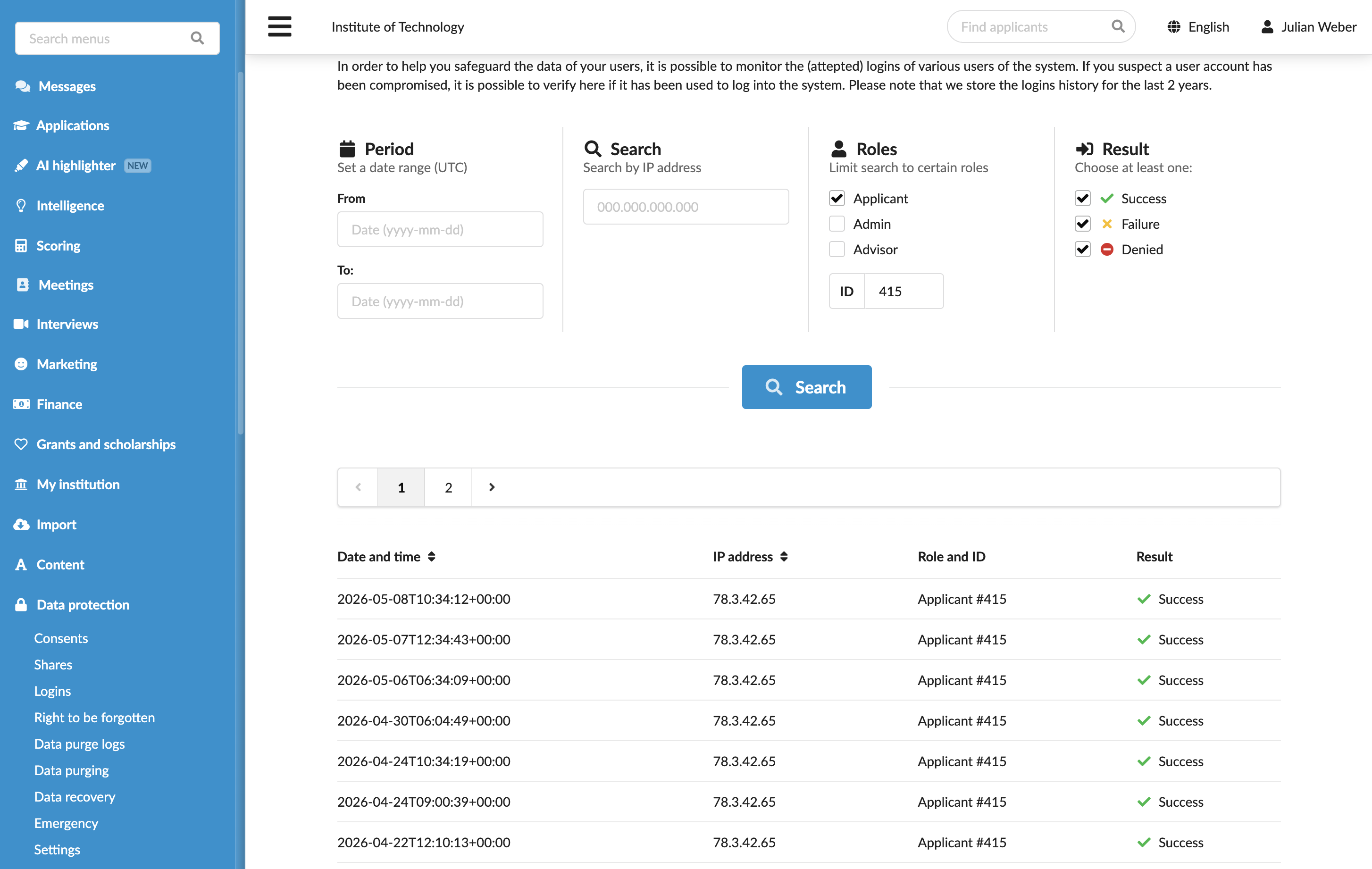
You can review an applicant's login history using the DreamApply logs.
- In the main menu, under Data protection, select Logins.
- Use the applicant ID to filter the list and review login activities.
If the applicant's account appears to be compromised, you can transfer the account to another email address to secure it.
How can I help an applicant restore access to their account?
You can help an applicant restore access to their account. This can happen in the following cases:
- Accidental deletion: The applicant requested to delete their DreamID by mistake and needs to restore their account and data.
- Lost access: The applicant no longer has access to their registered email address.
- Security compromise: Their registered email address has been stolen or compromised.
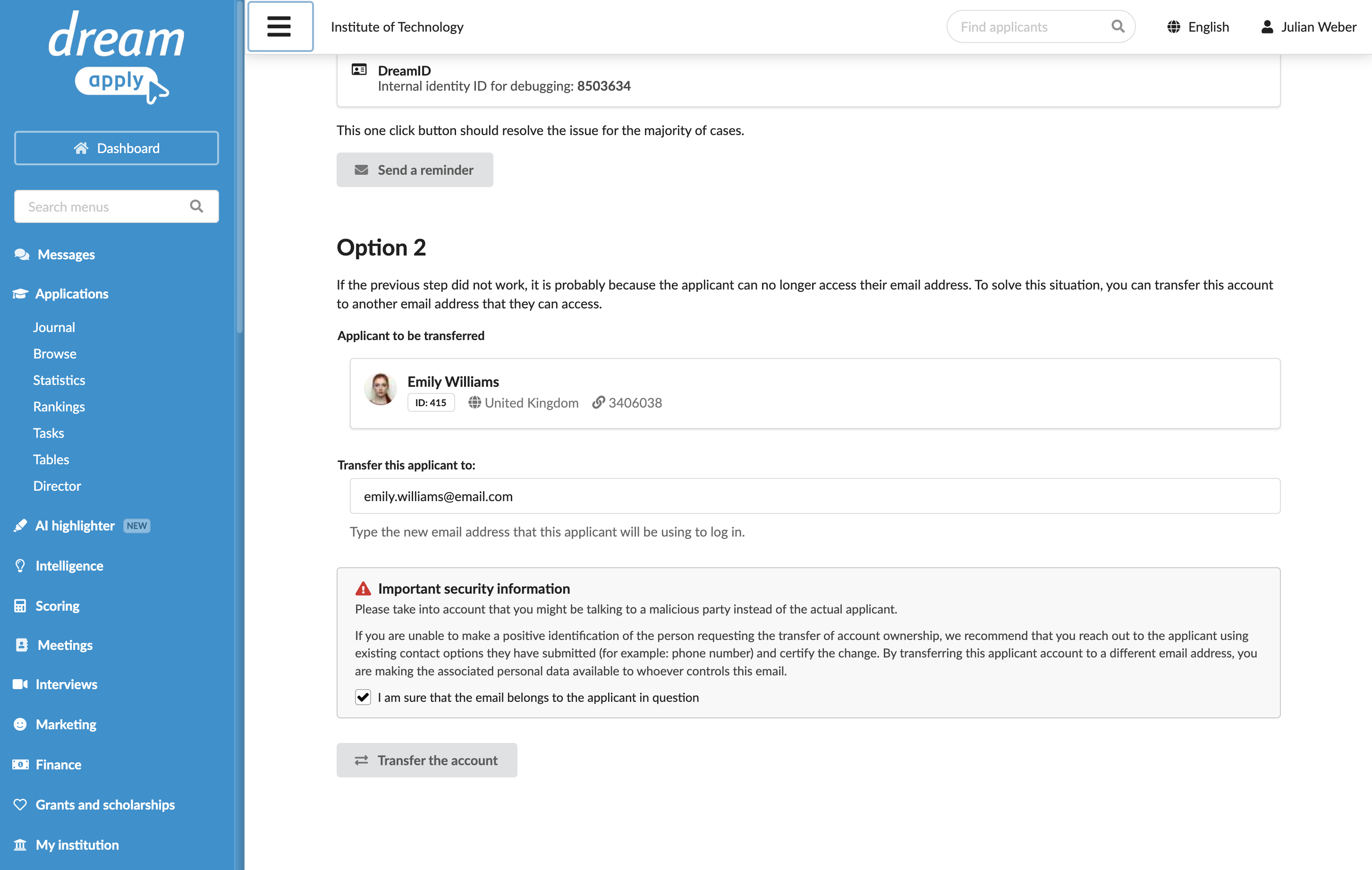
You can restore the account to the original email address or transfer it to a new one.
- In the main menu, under Applications, select Browse.
- Click the applicant's name to open the applicant card.
- In the top right corner, click the wrench icon and select Restore applicant access.
- Under Option 2, enter the original or new email for the applicant account, select the I am sure that the email belongs to the applicant in question check box and click Transfer the account.
Administrator accounts
How can I resend Administrator login instructions?
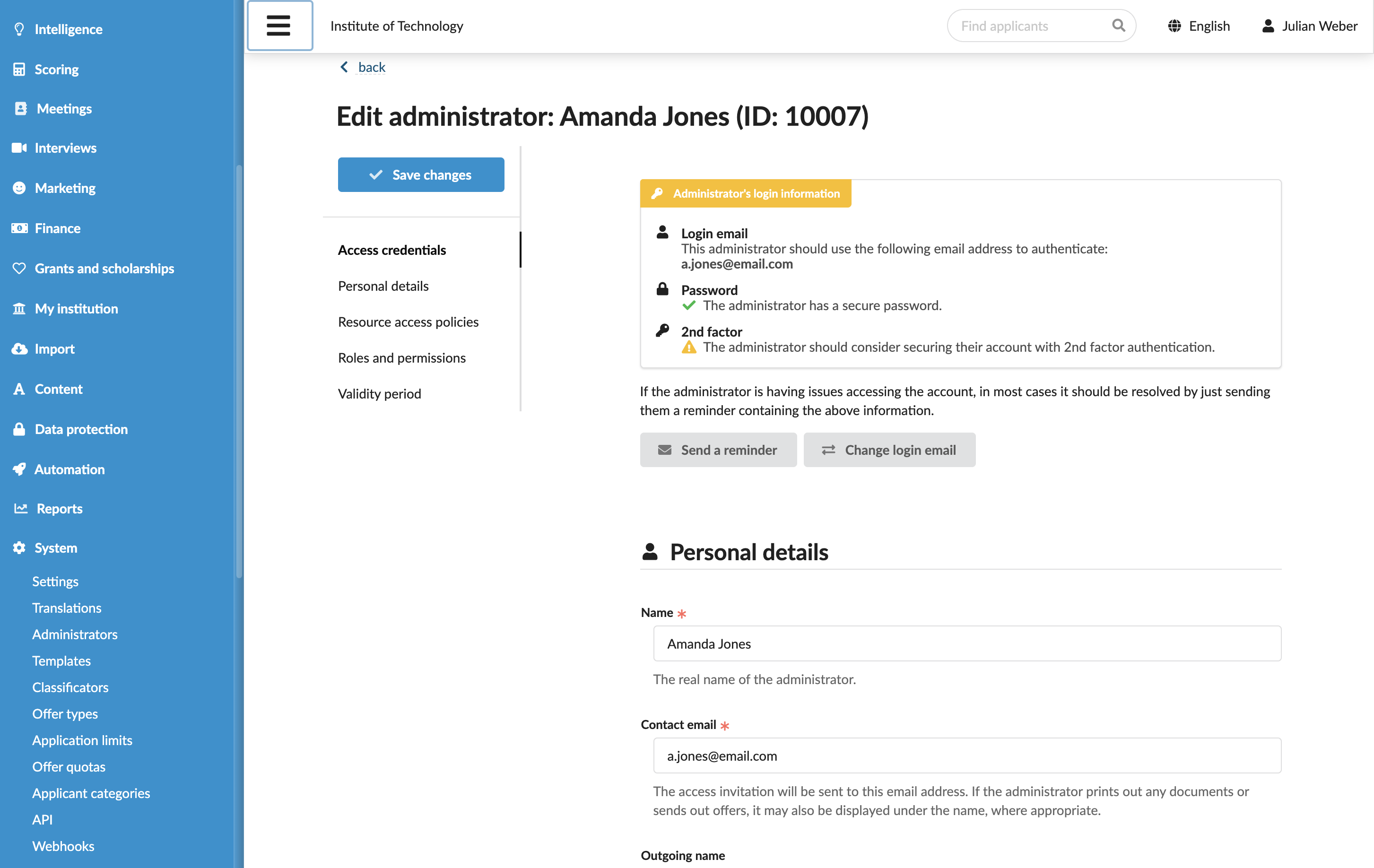
If an Administrator needs a reminder of their login details, you can resend the joining instructions to the email address that was used to register their DreamApply account.
- In the main menu, under System, select Administrators.
- Click the Administrator account.
- Under Administrator's login information, click Send a reminder.
How can I secure an Administrator's login?
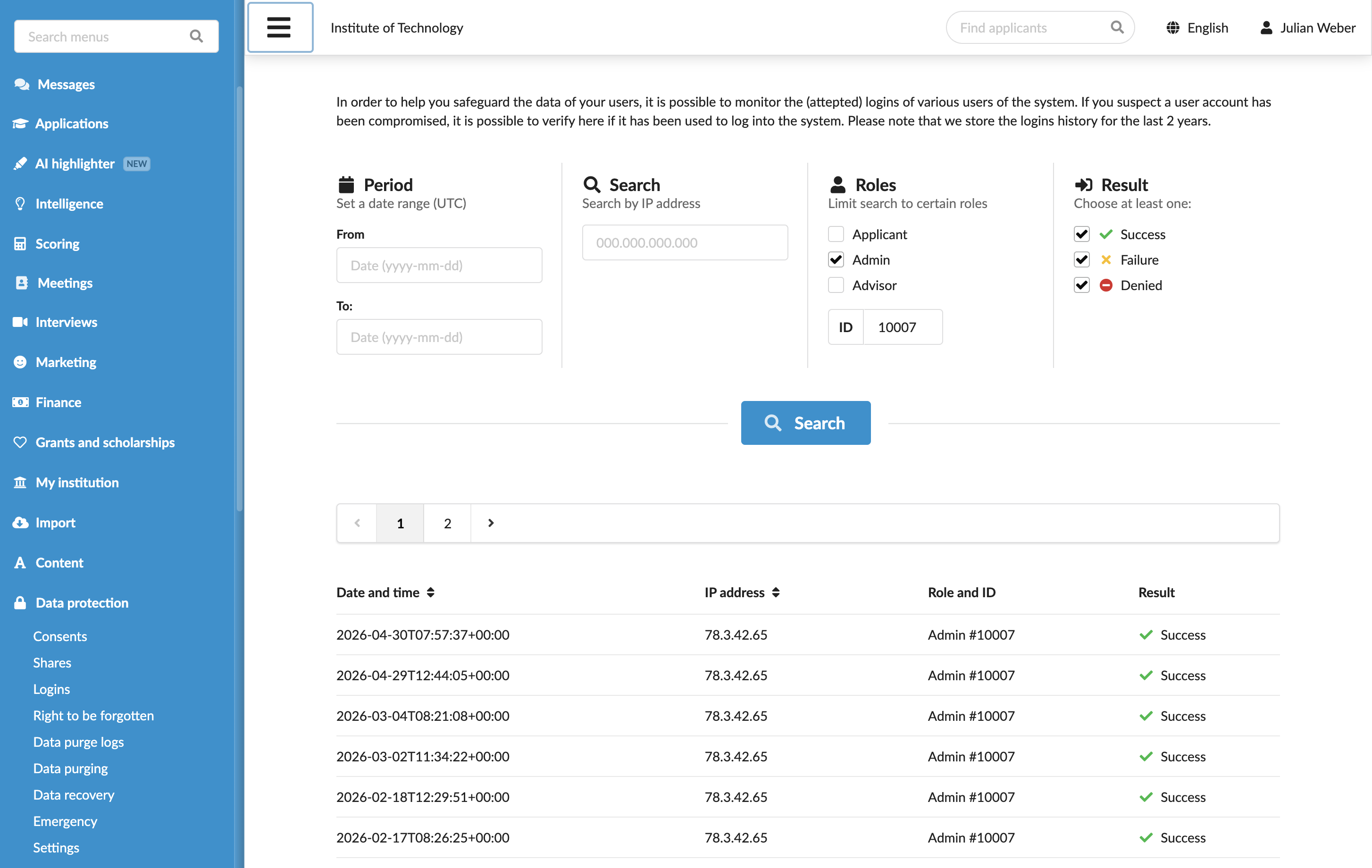
You can verify the Administartor's login activities using the DreamApply logs.
- In the main menu, under System, select Administrator.
- Click the Administrator account and make note of their ID.
- In the main menu, under Data protection, select Logins.
- Use the Administrator ID to filter the list and review login activities.
If the Administrator account appears to be compromised, you can update a login email for the Administrator.
How can I help an Administrator restore access to their account?
You may need to update an Administrator's login email address on the DreamApply portal in the following cases:
- Lost access: The Administrator no longer has access to their registered email address.
- Security compromise: Their registered email address has been stolen or compromised.
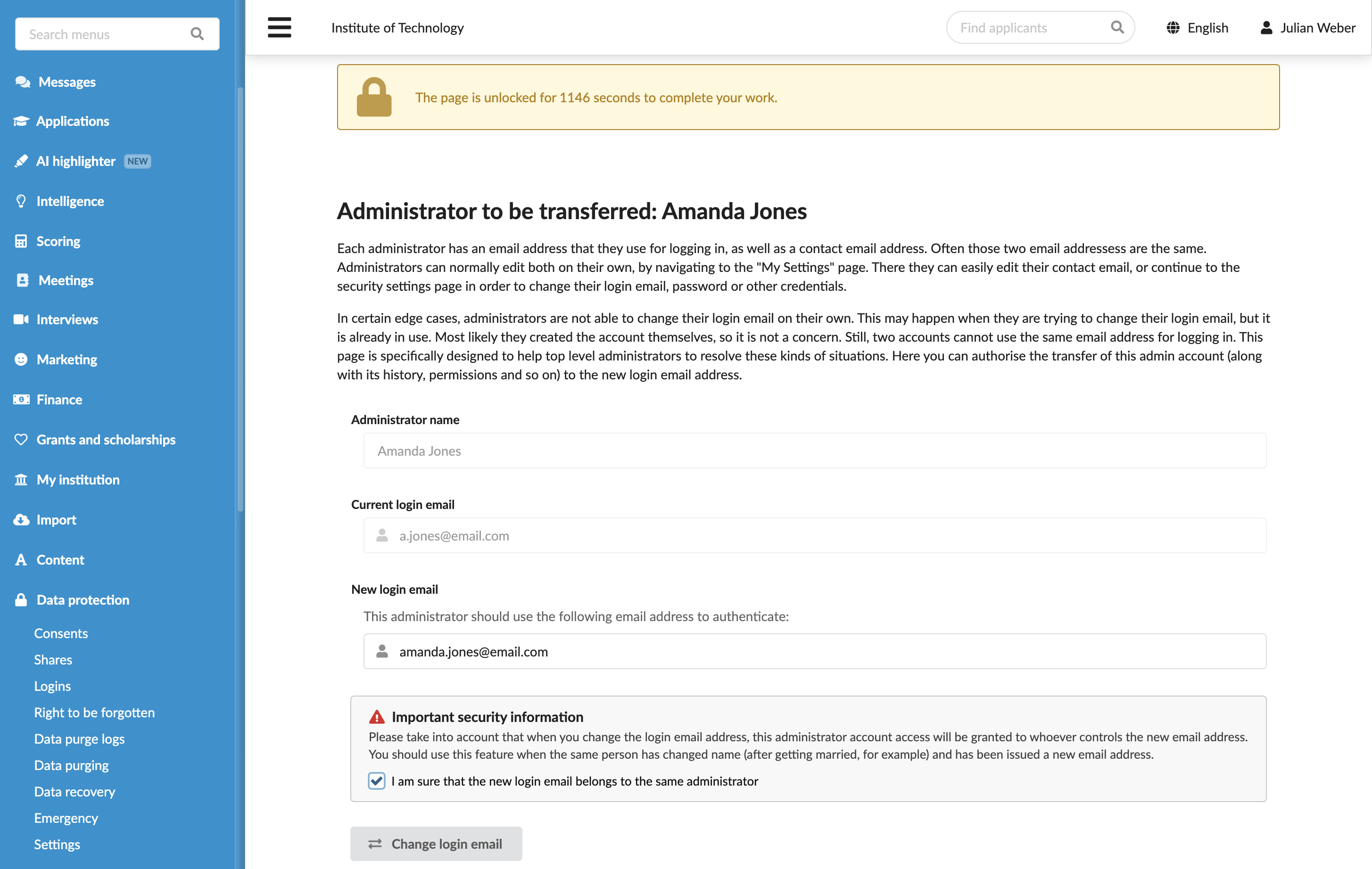
To update a login email address for an Administrator:
- In the main menu, under System, select Administrators.
- Click the Administrator account.
- Under Administrator's login information, click Change login email.
- At the top of the page, click Unlock page and enter your password or use a one-time link to re-authenticate in the system.
- In the New login email field, enter the new email address, select the I am sure that the new login email belongs to the same administrator check box and click Change login email.
DreamApply will send a notification to the previously used email address and provide new joining instructions to the Administrator.
Data protection
How can I revoke leaked link shares?
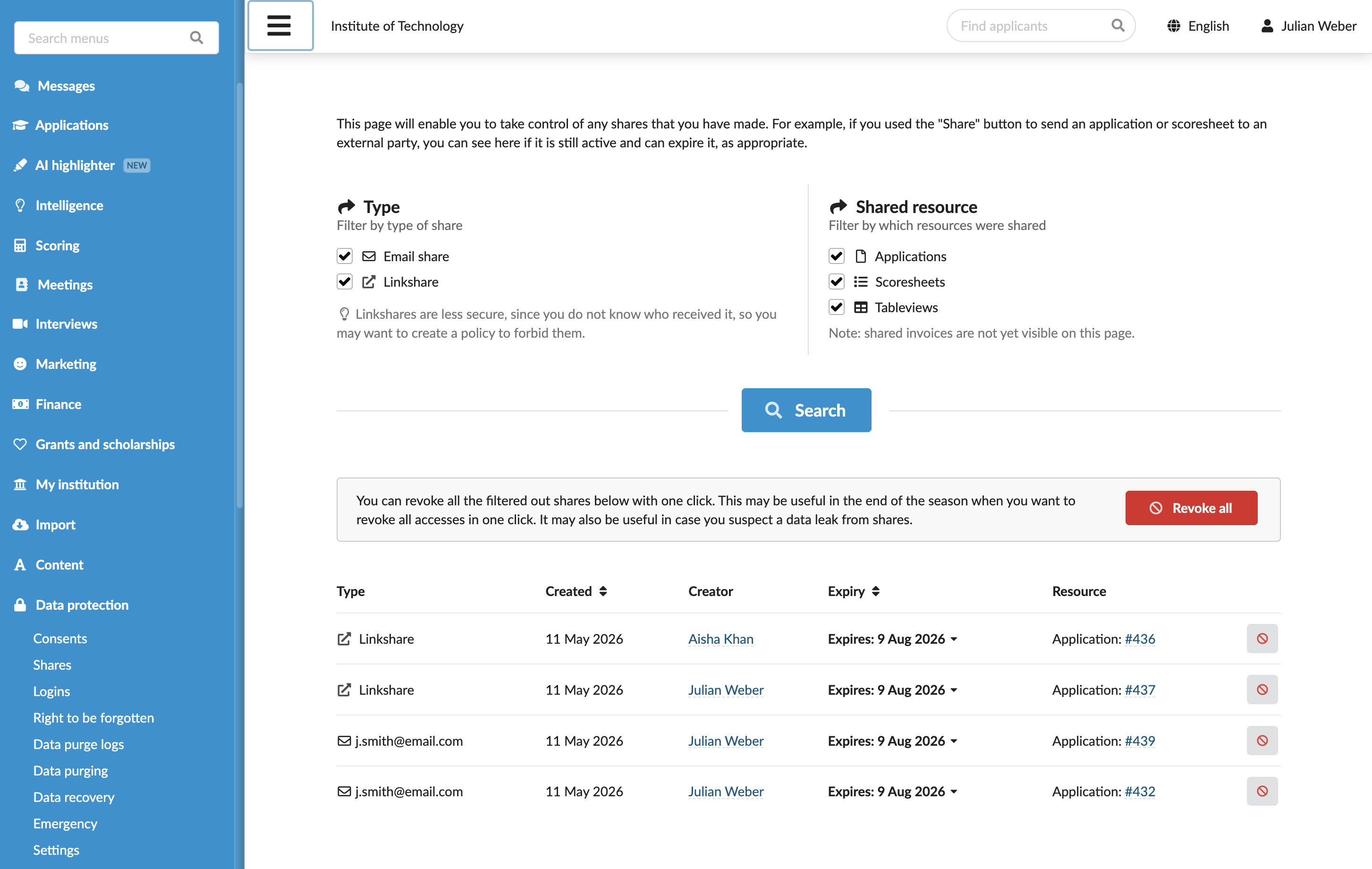
You can revoke a shared link if you believe it has been leaked or accessed by an unauthorized user.
To revoke a shared link:
- In the main menu, under Data protection, select Shares.
- To the right of the link share, click the Revoke share icon or use the Revoke all button to immediately revoke all currently shared resources.
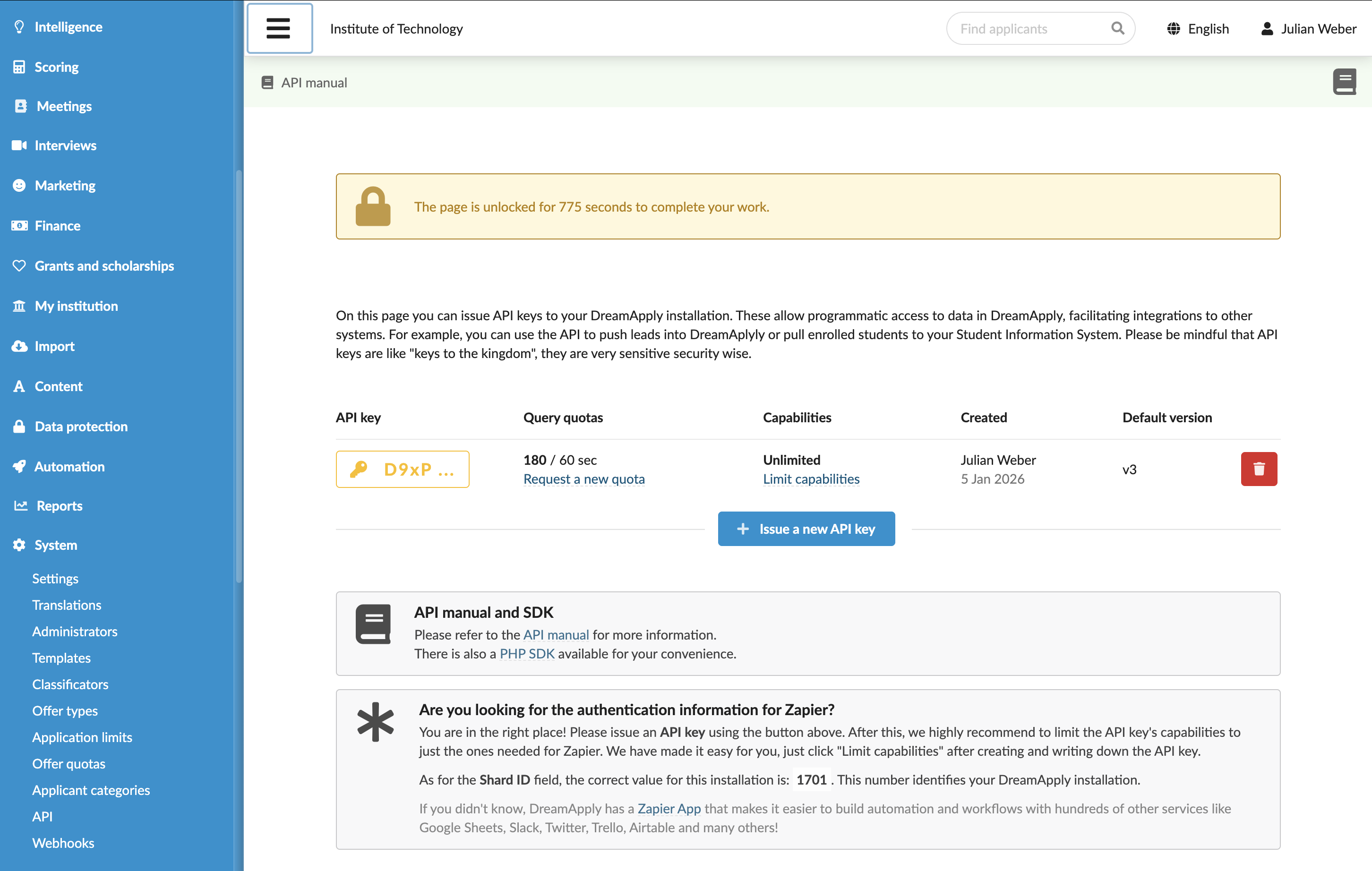
How can I revoke a leaked API key?
If you suspect an API key has been exposed or misused, you should revoke it to prevent unauthorized access.
To revoke a shared link:
- In the main menu, under System, select API.
- To the right of the API key, click Revoke.
How can I place the DreamApply instance in emergency lockdown?
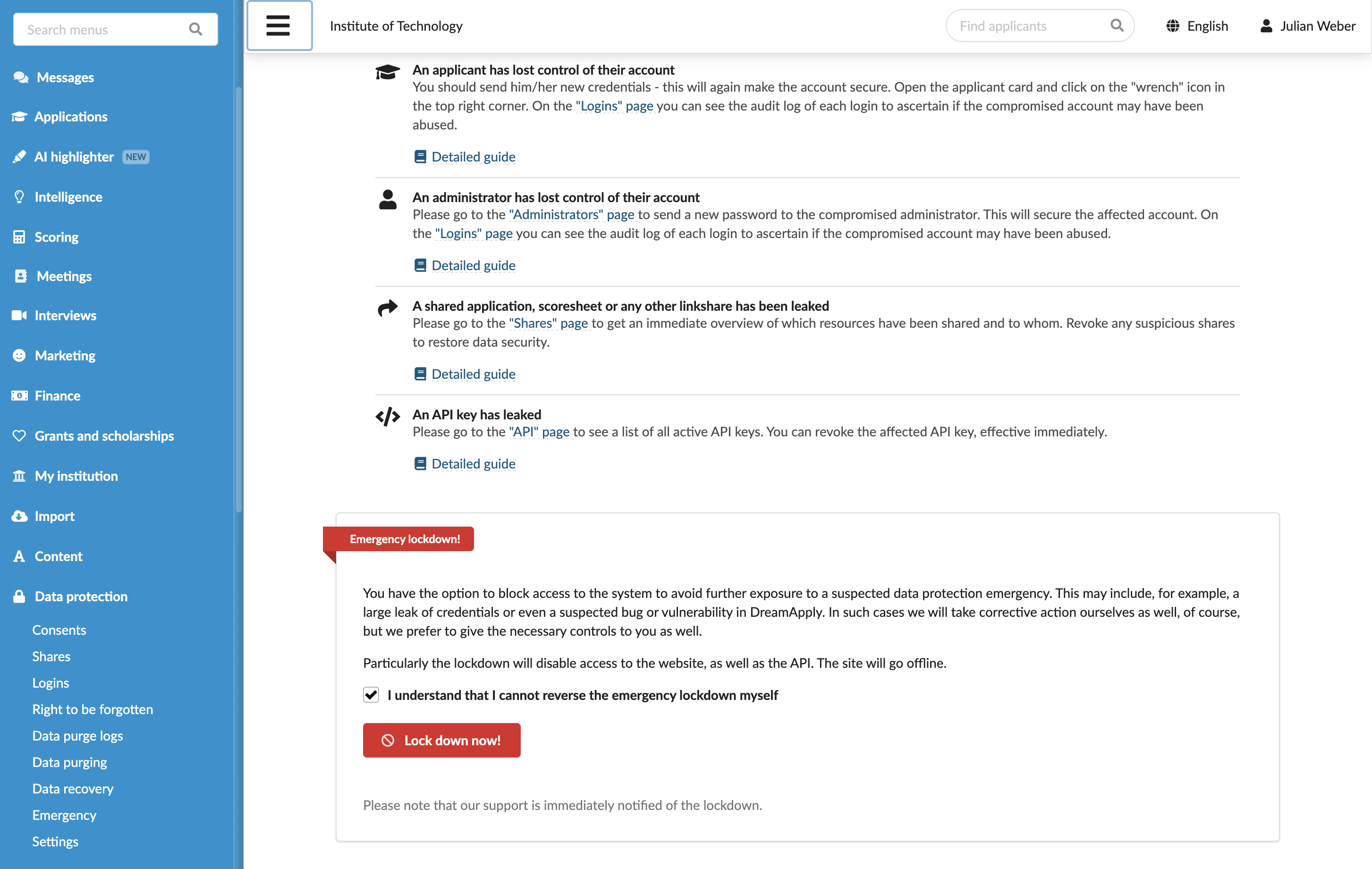
If your DreamApply instance is exposed to a severe data protection risk, you can place it in lockdown mode.
Lockdown mode is intended for critical emergencies such as:
- A large amount of applicant information has leaked
- A critical security vulnerability is suspected in the DreamApply portal
- You notice unexpected behavior or an issue that indicates data protection is at risk
When you activate this feature, DreamApply immediately takes your instance and portal offline and automatically notifies the DreamApply support team. The support team will contact you to restore the instance after the vulnerability or issue has been removed.
To place the instance in lockdown mode:
- In the main menu, under Data protection, select Emergency.
- In the Emergency lockdown section, select the I understand that I cannot reverse the emergency lockdown myself check box and click Lock down now!
Emails and communication
Can I use a custom From domain for emails sent from DreamApply?
No. DreamApply does not support using a custom From domain for outgoing emails.
All emails sent from DreamApply use a system-generated sender email address. This setup guarantees reliable email delivery, improves security and supports email authentication standards.
For details, see Automated email notifications.
Tables
Why don't I see offer data in the table?
DreamApply creates an offer only after an applicant submits their application. If an application has not yet been submitted — for example, if it is in Blank, Draft or Inactive status — no offer is generated. As a result, offer-related columns remain empty, and no offer data appears in the table.
For details, see Application statuses and Offer workflows.
Can I edit data in table cells?
Most data displayed in tables is read-only and automatically updated by DreamApply. You cannot directly edit core application data within the table view.
However, you can manage specific information using the following options:
- Custom columns: Add editable columns to store notes, labels or other supplemental information. These entries are manual and do not affect the system application data. For details, see Add custom columns.
- Offer types: You can change the offer type directly from the table view.. For details, see How can I set the offer type in the table?
How can I set the offer type in the table?
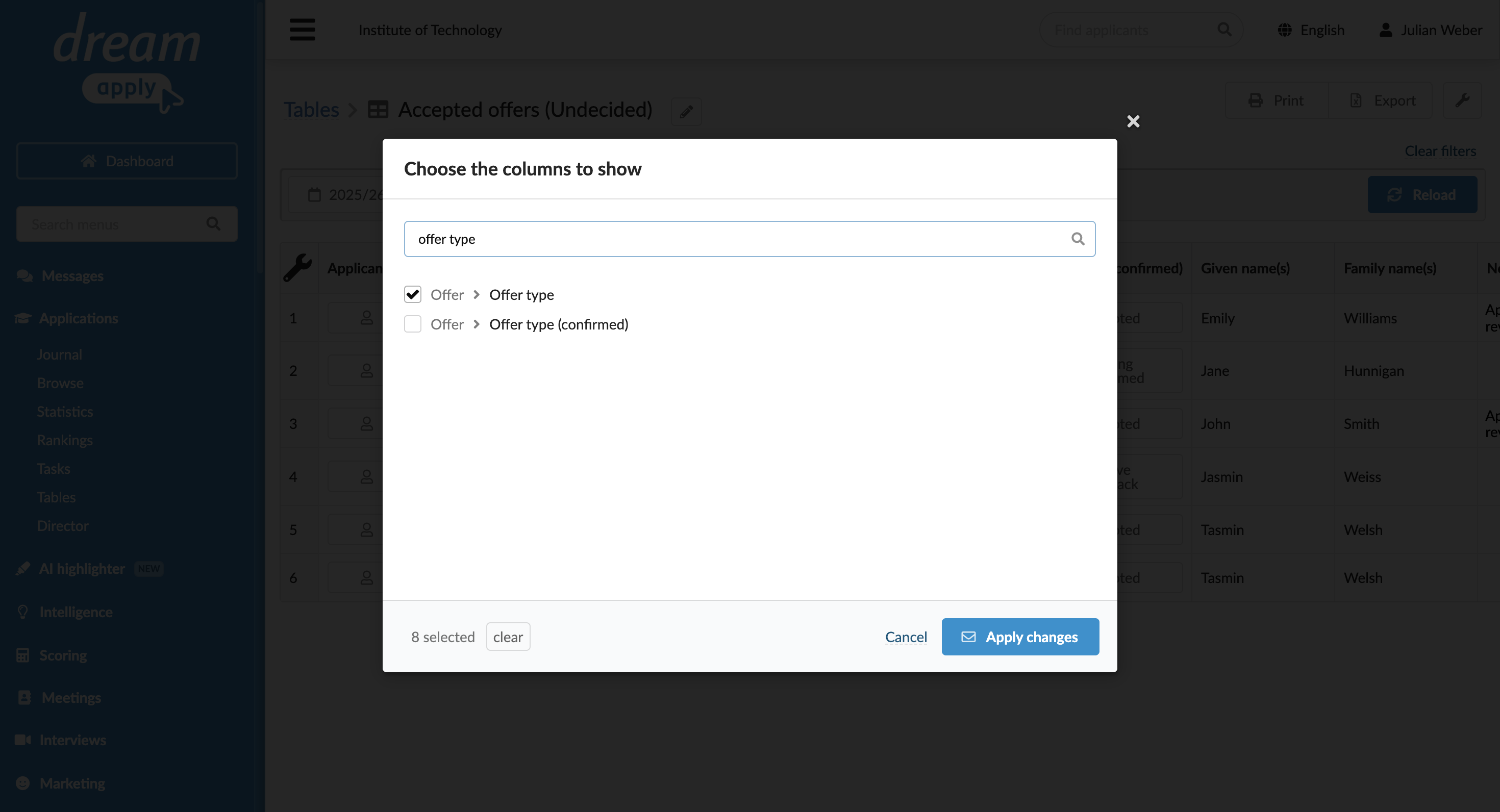
You can change the offer type directly in the table view. This method can be helpful if you need to manage and categorize a large number of offers.
To change offer types using tables, your account must have the Superuser or Admissions administrator role or the offers-view, offers-edit and offers-confirm permissions.
To change the offer type in the table view:
- In the main menu, under Applications, select Tables.
- In the table list, create a new table or select to edit an existing one.
- In the top left corner of the table, click the wrench icon and select to display the Offer type or Offer type (confirmed) column.
- Click the cell in the offer type column and select the desired type.
Is it safe to export tables with links to applications?
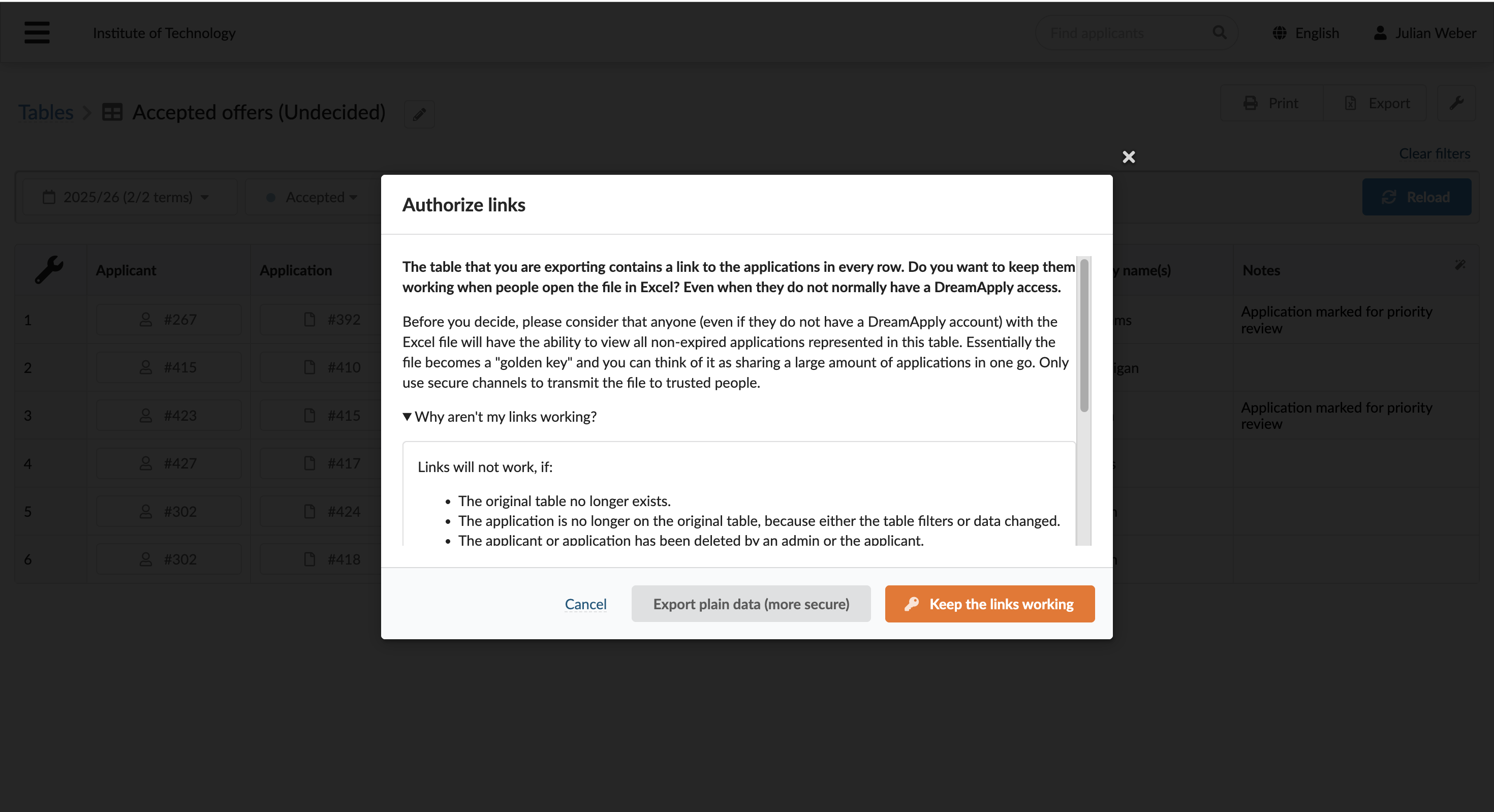
When you export a table that includes the Application column, DreamApply prompts you to choose the export format. You can export application IDs as plain text or as active links.
If you select to export application IDs as links, DreamApply generates a link share token and embeds it in the URLs for application IDs. This token acts as a secure, time-limited access key. It allows users to view applications even if they do not have a DreamApply account.
You can revoke these access keys at any time using the Shares view. For details, see Share-based access.
Why are exported application links not working?
After you export a table with applicant IDs as links, links in it may not work for the following reasons:
- The original table no longer exists.
- The application is no longer on the original table, because either the table filters or data changed.
- The applicant or application has been deleted by an Administrator or the applicant.
- The link share token of the given table has expired or been revoked.
- The Administrator who created the link share no longer has access to the table.
- The application's term has expired.
The links to application IDs remain working even after the application was closed.