Issue invoices
Roles
These roles reflect the default DreamApply setup.
You can define custom roles based on your
institution's needs. Learn more →:
You can define custom roles based on your
institution's needs. Learn more →
To provide applicants with official financial documents whenever they are required to pay fees or purchase additional services, institutions can generate invoices with DreamApply.
DreamApply supports two methods for issuing invoices:
Before you begin
To automate invoice generation and issue invoices manually, your account must have the Superuser or Accountant role or the accounting-view and accounting-edit permissions.
Automate invoice issuing
DreamApply can be set up to automatically generate invoices when predefined events occur, for example, an applicant makes an admission decision or purchases an additional service. This type of invoicing is recommended for standard, routine payments when immediate invoicing is needed without staff intervention.
Automated invoices are used for the following types of payments:
Fee payments: Automatic invoicing can be applied to fees. In this case, invoice generation is triggered by specific events in the admission process. The generated invoice is sent to an applicant and becomes available in the Finances view of the portal.
Additional service purchases: When an applicant purchases additional services from the inventory, the system automatically generates a consolidated receipt for all items added to the cart. The receipt is sent to an applicant and becomes available in the Finances view of the portal.
To automatically issue invoices for fees:
In the main menu, under Finance, click Fees.
Create a new fee or choose to edit an existing one.
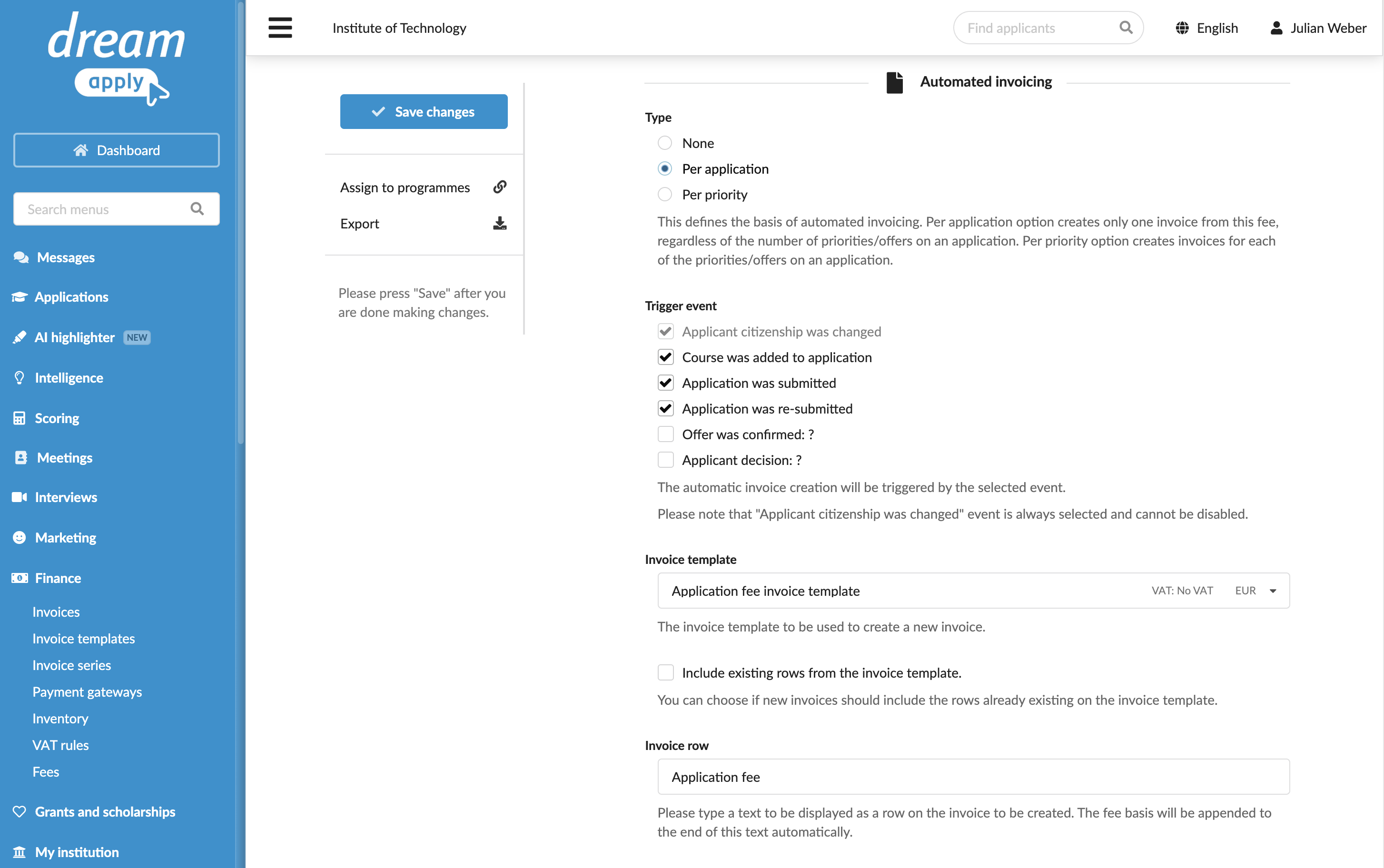
In the Automated invoicing section, specify the invoicing settings:
- Select how to generate an invoice: per application or per priority added to the application.
- Select the trigger events for invoice generation.
- Add the invoice row, select the invoice template and define how rows must be managed. If the Include existing rows from the invoice template option is enabled, the row defined for the fee is appended to the rows defined in the invoice template.
- Enable email notifications and specify tracker options if needed.
At the top of the form, click Save changes.
Manually issue invoices
Administrators can issue invoices manually as needed. This method is useful when payment amounts and details differ based on the situation, or when an Administrator needs to review charges before generating an invoice.
Administrators can manually issue invoices in the following scenarios:
- Customized invoices: Administrators can issue invoices when they need to tailor fees or other financial details to particular circumstances or applicant needs.
- Proforma invoices: Administrators can generate preliminary invoices, known as proforma invoices, to provide an estimated cost before the actual payment is processed.
To manually issue an invoice:
- In the main menu, under Applications, select Browse.
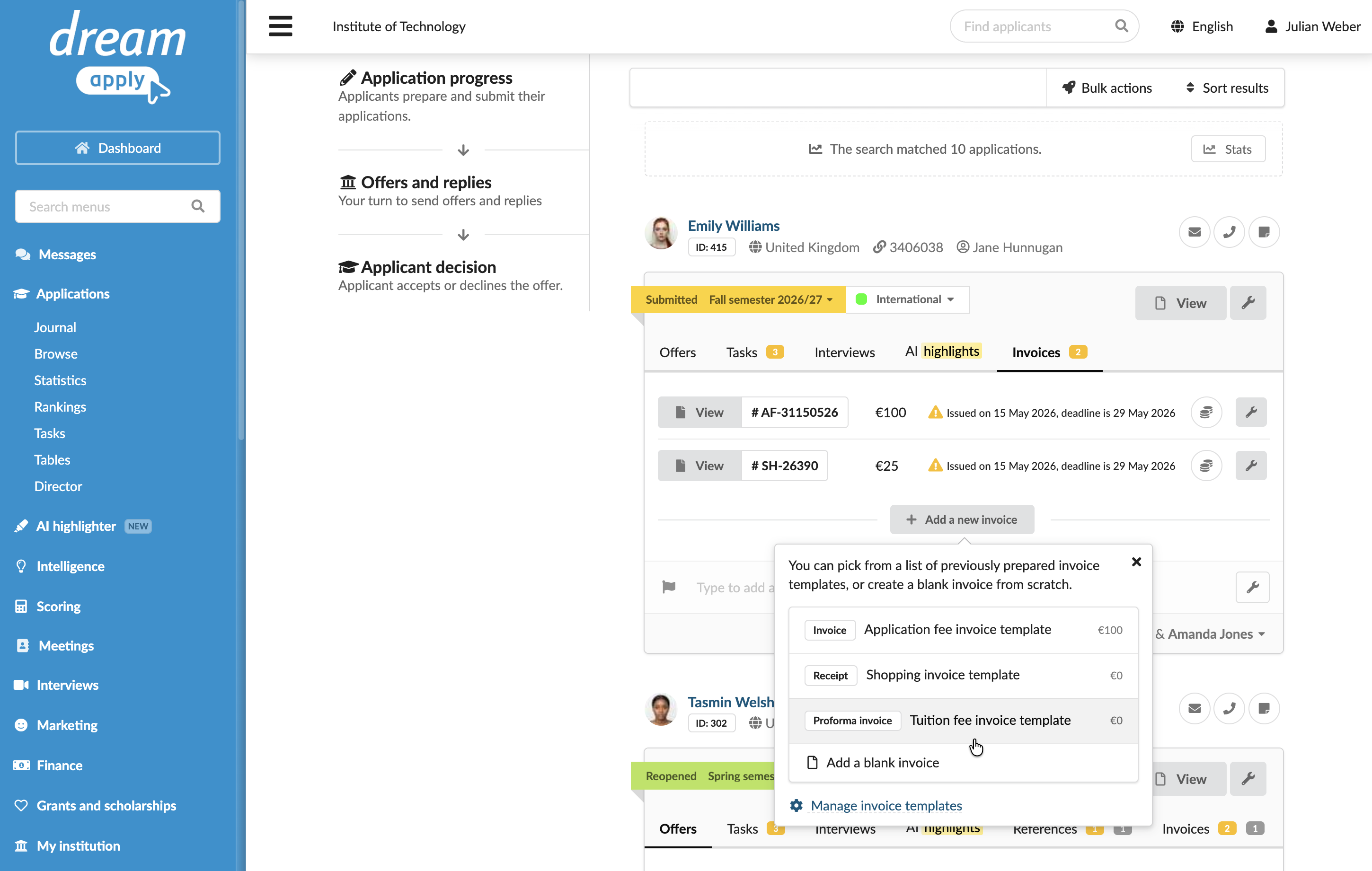
- In the application card, click the Invoices tab, click Add a new invoice and select a template to be used. To handle ad-hoc payments and issue an invoice without any pre-filled details or charges, select Add a blank invoice.
- Edit the invoice details and click Issue and send out.