Mark invoices as lapsed
Roles
These roles reflect the default DreamApply setup.
You can define custom roles based on your
institution's needs. Learn more →:
You can define custom roles based on your
institution's needs. Learn more →
In some cases, an issued invoice is no longer needed and should be removed from the active admission process. This typically occurs when:
- An application is moved to a later term.
- An applicant withdraws their application.
- An invoice needs to be corrected and reissued.
To manage invoices that should no longer be considered for payment, you can mark invoices as lapsed. When an invoice is marked as lapsed:
DreamApply excludes the invoice from processing and payment tracking. The system can automatically generate a new invoice for the application if a fee trigger event occurs, for example, a new course is added to the application or the application is re-submitted.
DreamApply removes the payment buttons from the invoice.
Administrators cannot collect the invoice.
The invoice is visually marked as inactive (grayed out).
The Lapse invoice option only applies to invoices issued automatically through fees. You cannot mark manually issued invoices as lapsed.
Invoices can be marked as lapsed in two ways:
Before you begin
- To view and manage invoices, your account must have the
SuperuserorAccountantrole or theaccounting-viewandaccounting-editpermissions. - To subscribe to journal events, your account must have the
SuperuserorAdmissions administratorrole or thejournal-viewandjournal-editpermissions.
Automatic lapse of invoices
When an application is migrated to a later term, DreamApply automatically lapses linked invoices that were issued automatically through fees.
For details, see Manage fees and Automate invoice issuing.
Mark invoices as lapsed
Administrators can manually lapse invoices if they should no longer remain active.
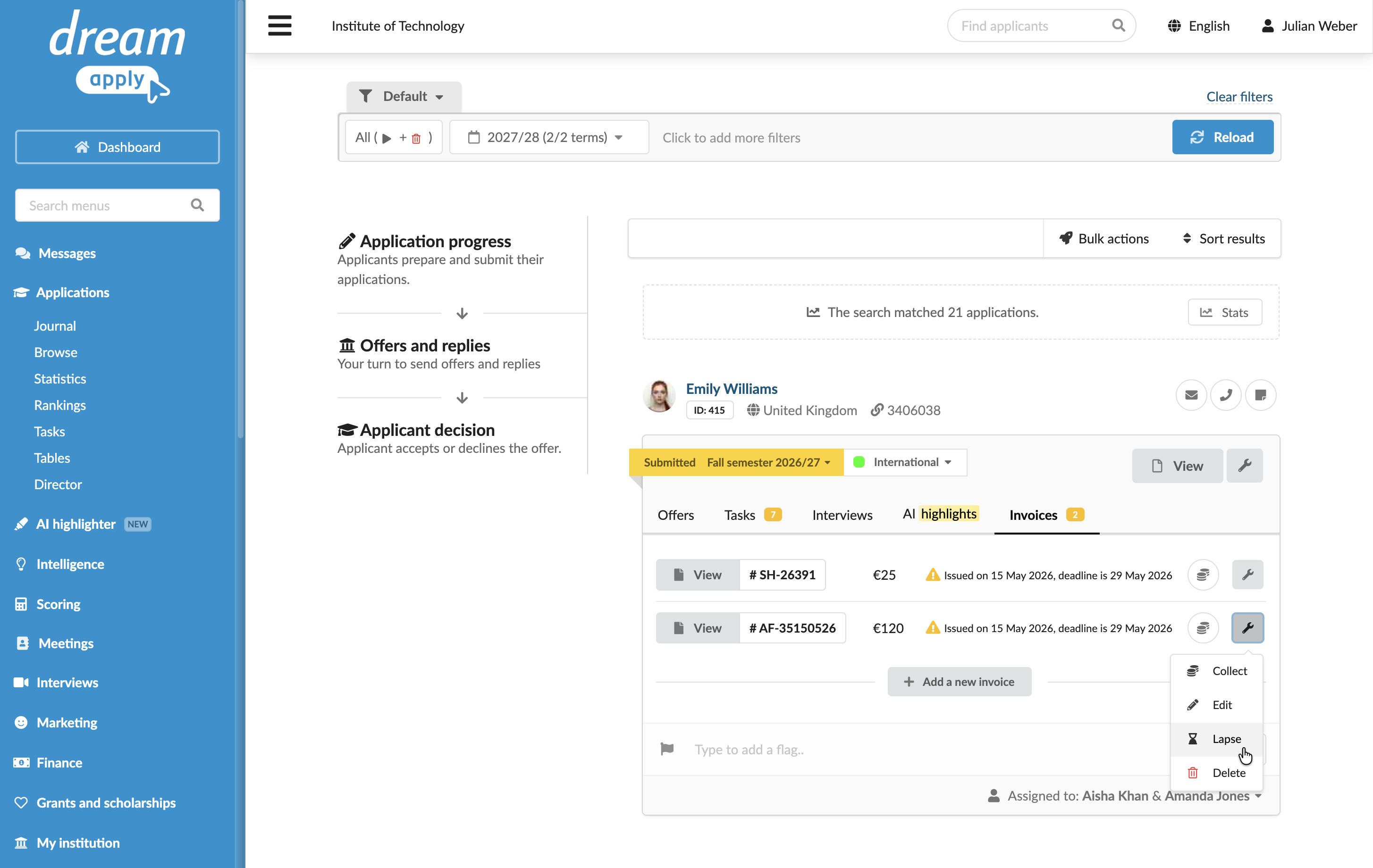
To mark an invoice as lapsed:
In the main menu, under Applications, select Browse.
In the application card, click the Invoices tab.
To the right of the invoice, click the wrench icon and select Lapse.
To revert this action, click the wrench icon and select Un-lapse.
Use the Journal events
DreamApply records the following events in the journal when an invoice is lapsed:
- Invoice was lapsed
- Invoice was un-lapsed
To track these events, subscribe to them using the Invoices event groups.