Process payments
Roles
These roles reflect the default DreamApply setup.
You can define custom roles based on your
institution's needs. Learn more →:
You can define custom roles based on your
institution's needs. Learn more →
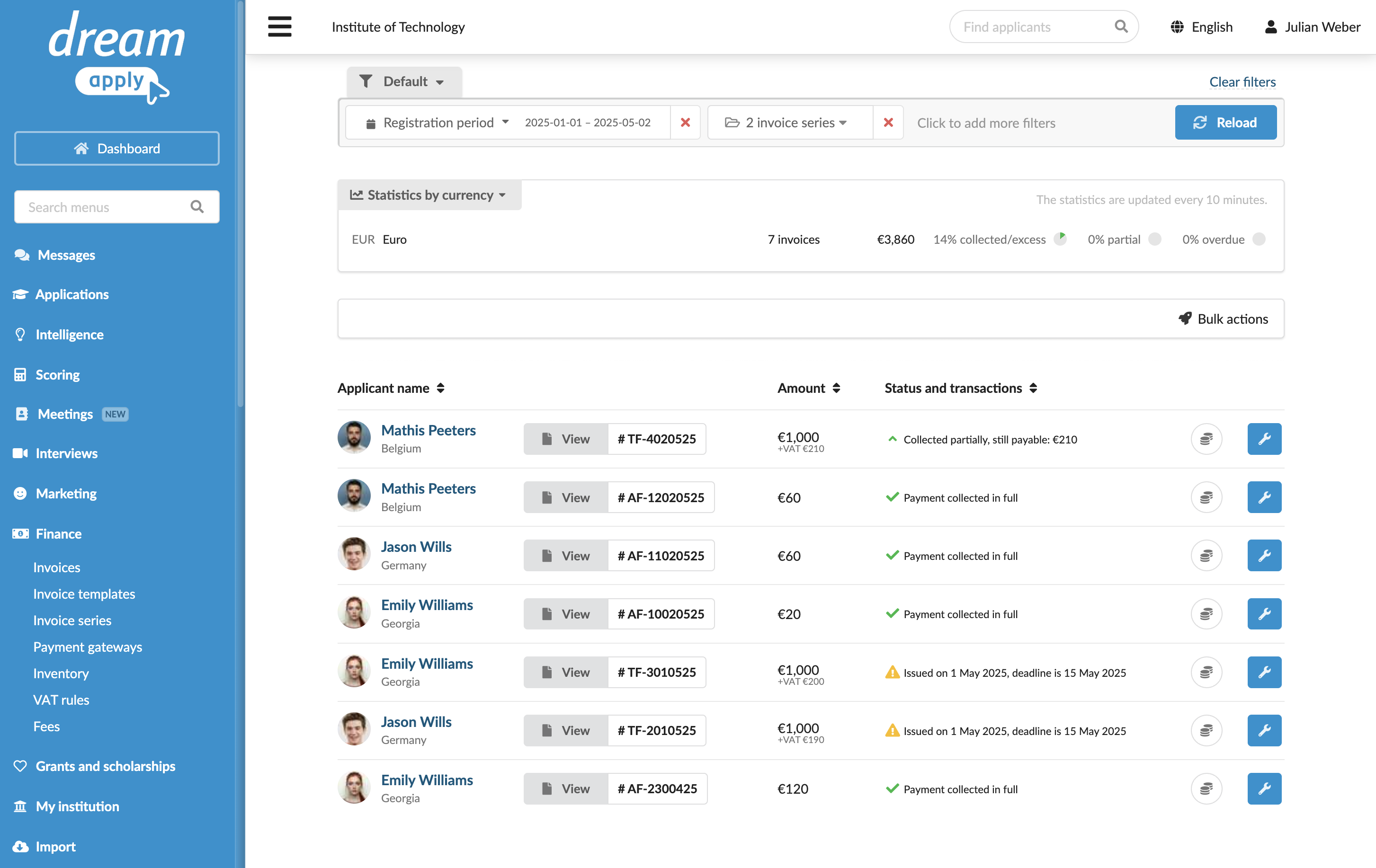
DreamApply lists all issued invoices in the Invoices view under Finance. You can use this view to track the status of each invoice, monitor payments and keep financial records organized.
Before you begin
- To view and manage invoices, your account must have the
SuperuserorAccountantrole or theaccounting-viewandaccounting-editpermissions. - To subscribe to journal events, your account must have the
SuperuserorAdmissions administratorrole or thejournal-viewandjournal-editpermissions.
Track invoices
Using the Invoices view, you can check invoices statuses and see whether they are fully paid, partially paid or still pending.
To create a focused view of invoice data based on specific criteria such as applicant citizenship, registration period or invoice series, use the filters at the top of the view.
To get aggregated payment information by a specific criterion, use the Statistics pane at the top of the view.
Collect payments
To make it easier for applicants to complete their payments, DreamApply supports several payment options. Applicants can choose to:
Pay online through integrated payment gateways. In this scenario, DreamApply tracks all online transactions and automatically updates the corresponding invoice statuses.
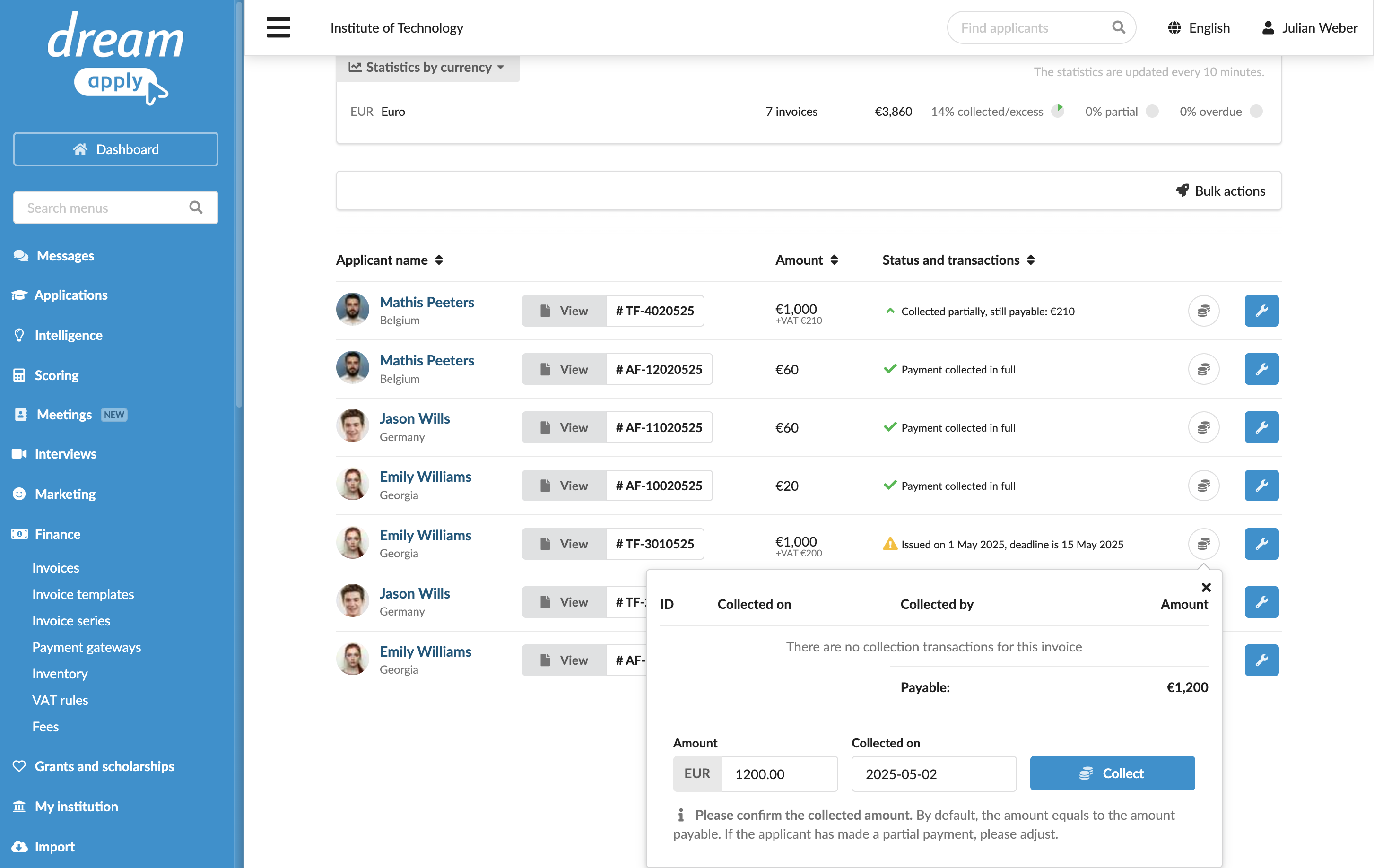
Make offline payments such as bank transfers or in-person payments. In this scenario, Administrators need to manually keep record of such transactions. As part of this process, Administrators can confirm a receipt of payment and collect an invoice — mark the invoice as fully or partially paid in DreamApply. As a result, the payment status will be accurately reflected in the system.
To collect an invoice:
- In the main menu, under Finance, select Invoices.
- To the right of the invoice, click the wrench icon and select Collect.
- Specify the paid amount, collection date and click Collect.
Perform mixed payments
DreamApply supports mixed payments where applicants use both online and offline payment methods. For example, an applicant can pay a part of the fee in person and then pay the remaining amount online. In this case:
- An Administrator must mark the offline payment in the system using the Collect option.
- DreamApply will automatically update the invoice issued to the applicant to reflect the paid amount.
- When an applicant clicks the payment button on the invoice, they will see and need to pay only the remaining amount in the payment gateway portal.
Use the Journal events
DreamApply records the following invoicing events in the journal:
- Invoice was issued
- Invoice was reminded
- Invoice was collected
- Payment collected in full
- Invoice was edited
- Invoice was deleted
To track these events, subscribe to them using the Invoices event groups.