Retain or delete invoices
Roles
These roles reflect the default DreamApply setup.
You can define custom roles based on your
institution's needs. Learn more →:
You can define custom roles based on your
institution's needs. Learn more →
In some situations, institutions may need to delete applicants and their data from DreamApply — either when applicants execute their right to be forgotten or due to an administrative decision. DreamApply offers two options for handling invoices issued to these applicants:
Preserve invoices
Typically, institutions need to keep invoices for financial reporting and auditing, even after an applicant record linked to these invoices is deleted.
To support this behavior, DreamApply offers the Preserve invoice if applicant or application is deleted option at the invoice series level. When you enable this option, DreamApply does not remove invoices linked to deleted applicants. Instead, these invoices become detached — they are kept in the system but are no longer directly linked to an active applicant.
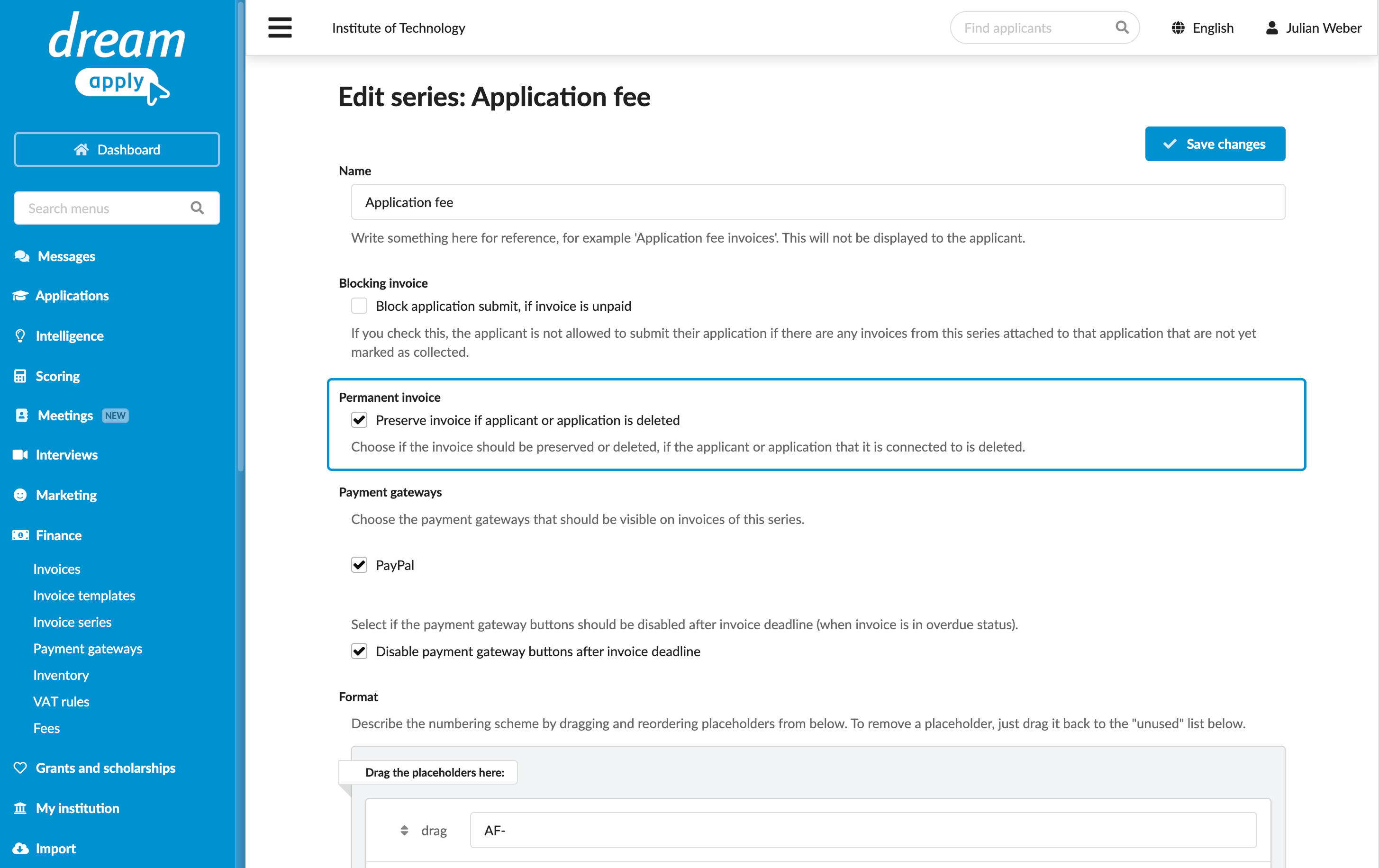
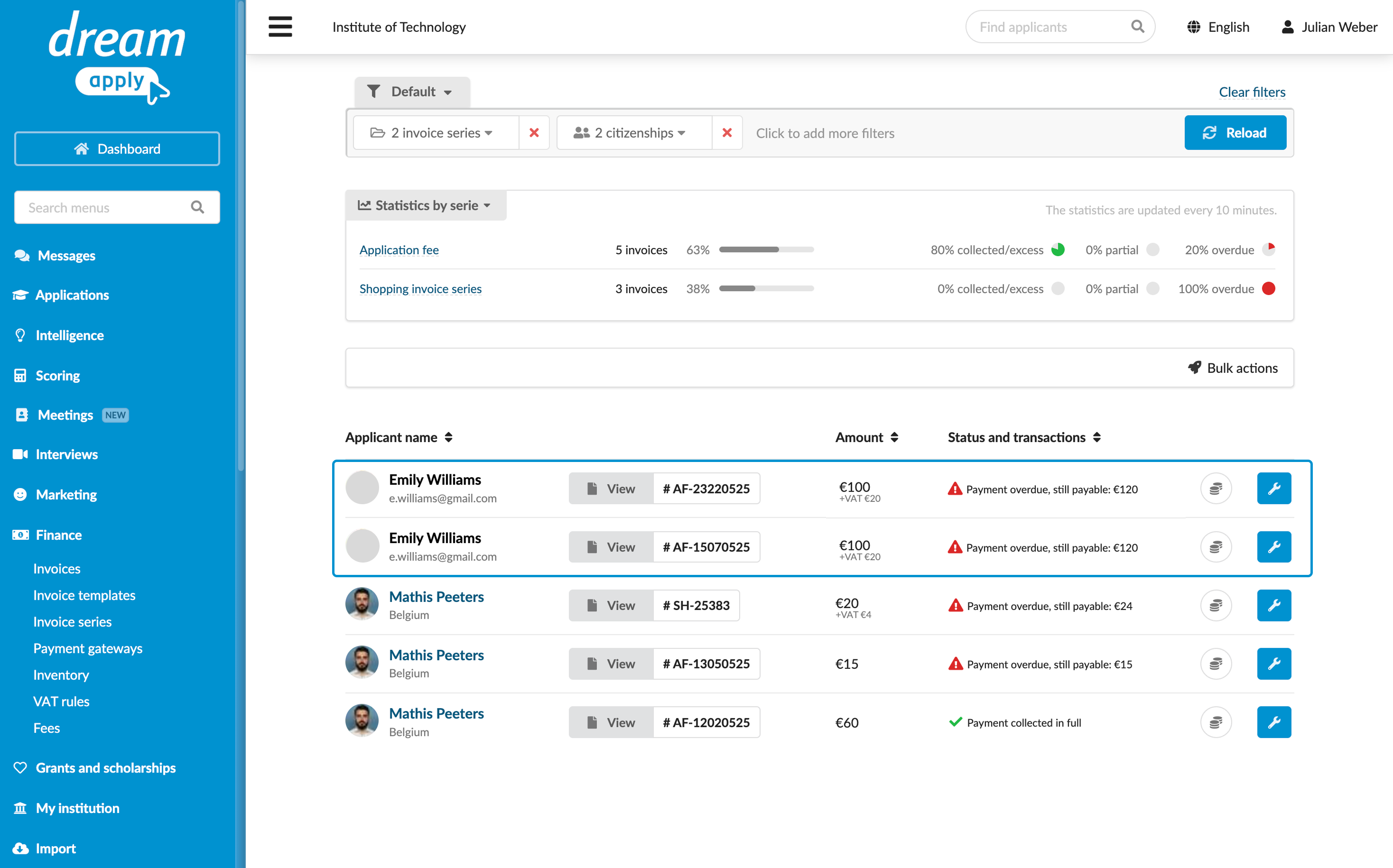
Detached invoices are no longer accessible through applicant cards because the corresponding applicant records have been removed from the system. However, you can still access detached invoices using the Invoices section. In these cases, DreamApply displays the applicant’s name as plain text (not clickable link).
Delete invoices
To let DreamApply delete invoices together with other applicant data, leave the Preserve invoice if applicant or application is deleted option not enabled in the invoice series. When an applicant is deleted, DreamApply will mark any unpaid invoices linked to this applicant for removal. These invoices will be then permanently deleted during a scheduled overnight cleanup process.
If an Administrator reverses the applicant data deletion before the overnight cleanup takes place, DreamApply will fully restore the applicant record and their linked invoices.
Use the Journal events
DreamApply records the Invoice was deleted event in the journal. To track this event, subscribe to it using the Invoices event groups.