Set up invoice templates
Roles
These roles reflect the default DreamApply setup.
You can define custom roles based on your
institution's needs. Learn more →:
You can define custom roles based on your
institution's needs. Learn more →
To ensure all invoices follow a consistent format and include accurate financial details, you need to set up invoice templates. Well-prepared invoice templates streamline the invoicing process and help institutions maintain its branding guidelines.
Before you begin
To set up invoice templates, your account must have the Superuser or Accountant role or the accounting-view and accounting-edit permissions.
Define document types
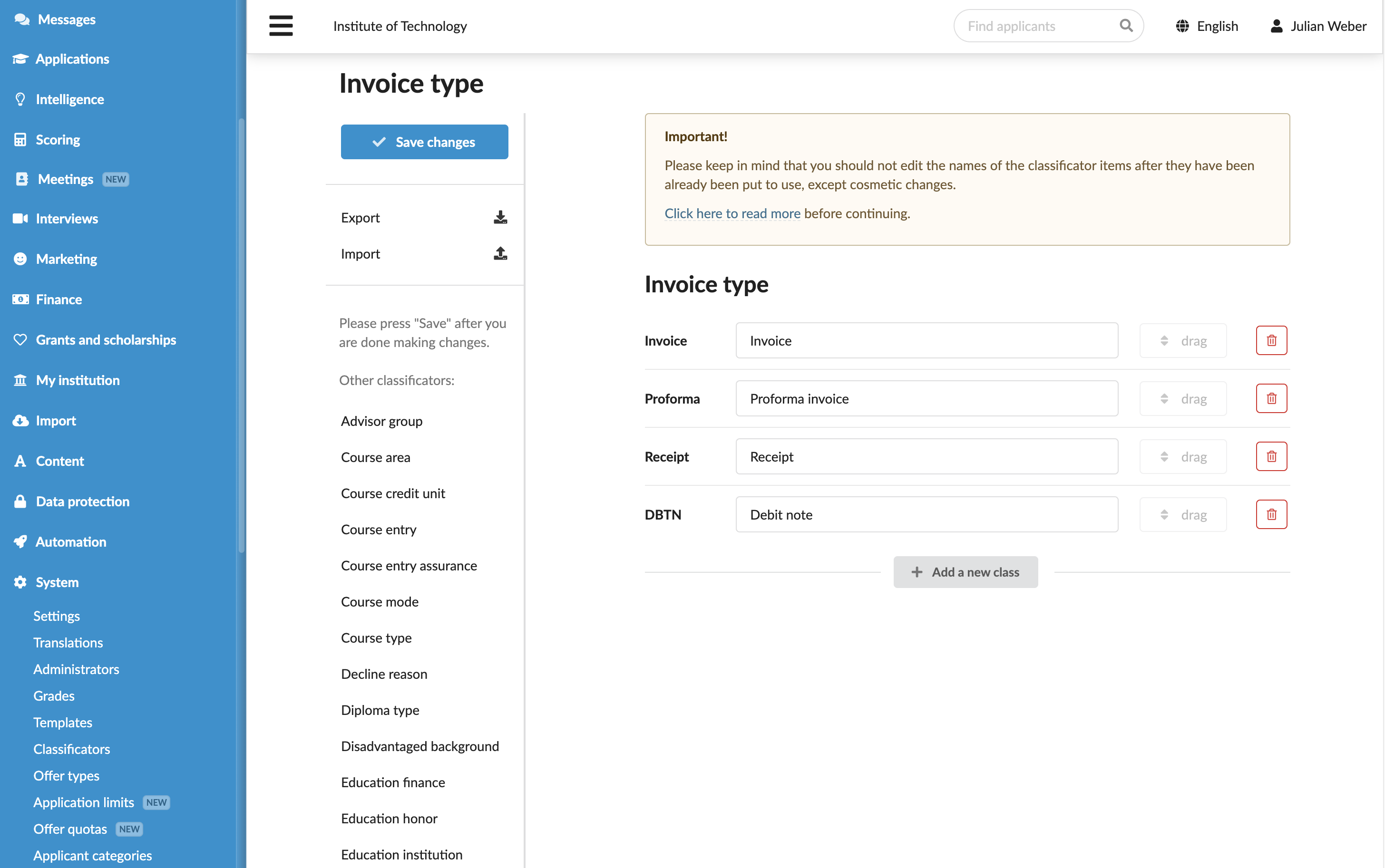
You can define what types of financial documents your institution will use to support the invoicing process. Document types are specified in invoice templates, allowing institutions to accurately manage financial transactions. Common document types include invoices, proforma invoices, receipts and so on.
To define document types:
- In the main menu, under System, select Classificators.
- In the left pane, select Invoice type.
- To add a custom type, click Edit, specify the document abbreviation and name.
- At the top of the form, click Save changes.
Create invoice templates
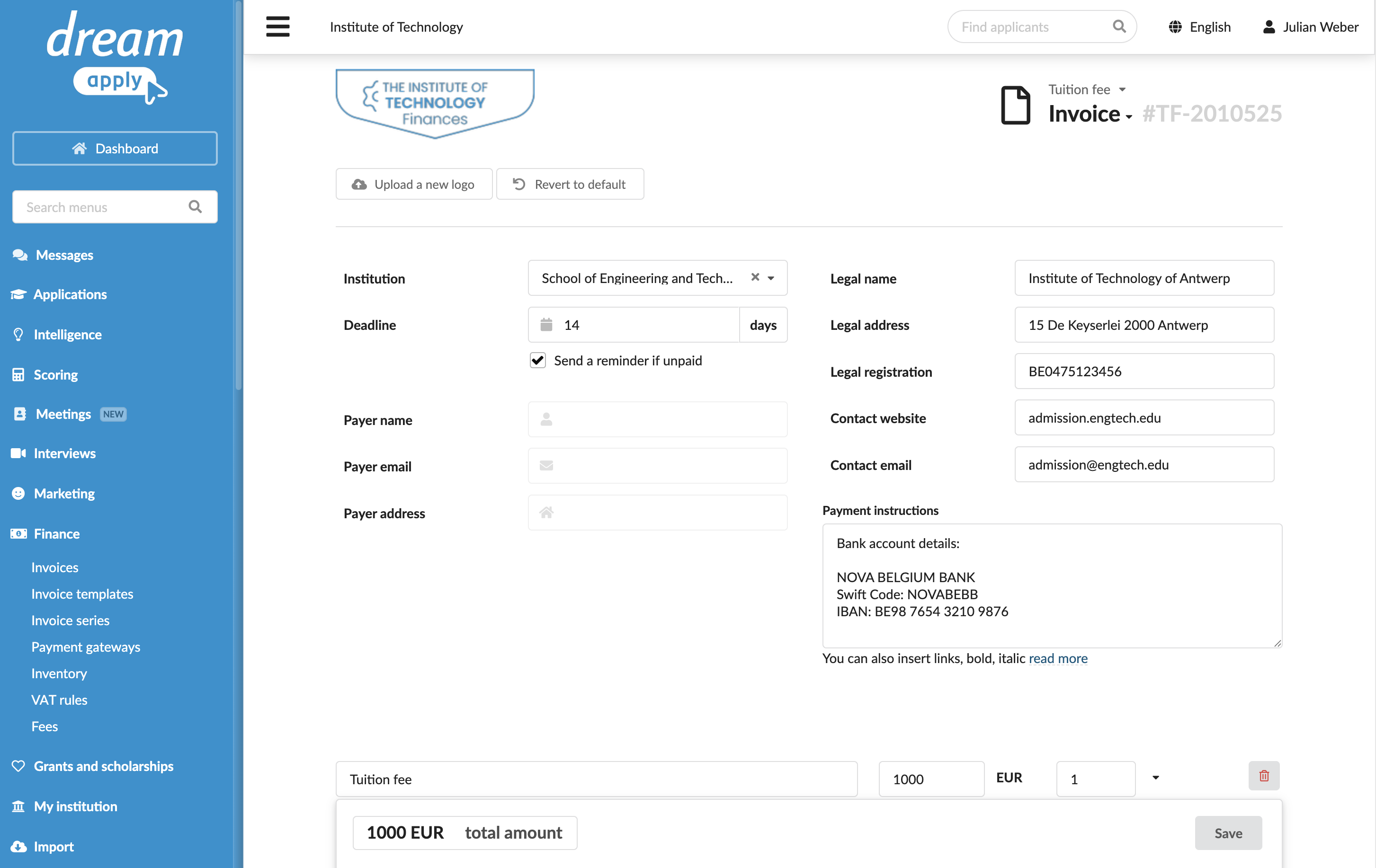
To create an invoice template:
- In the main menu, under Finance, select Invoice templates.
- By default, DreamApply uses the default institution logo specified in the institution details. If necessary, in the top left corner, upload a custom logo to be placed on invoices.
- In the top right corner, specify the document type and select the invoice series to be used.
- Institution details are copied from the institution details. You can edit the details as needed.
- Specify other invoice information such as fee, currency, default or custom VAT rule to be applied and configure email notification settings.
- At the bottom of the form, click Save changes.
Invoice details specified in the template can be customized at the moment an invoice is issued manually. If DreamApply issues invoices automatically, the template details remain unchanged and are applied as defined.