Offer additional services
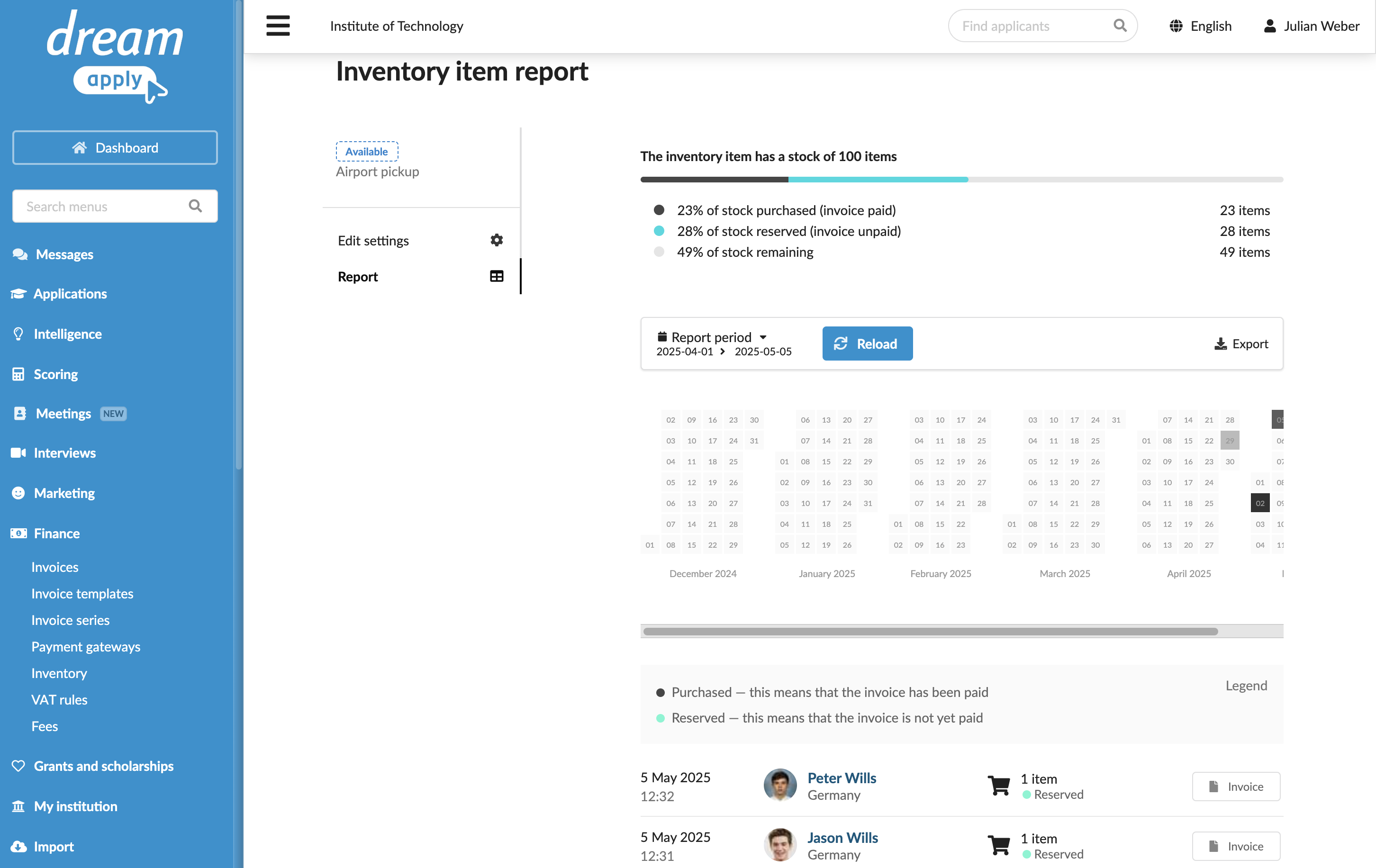
You can set up an inventory of additional services and items in DreamApply. Inventory items represent institution-specific offerings that applicants can choose to purchase during the admission process.
DreamApply allows setting up two types of inventory items:
- Visible items shown to applicants directly in the DreamApply portal
- Hidden items not publicly visible but accessible through a private link
Applicants get access to a full list of visible inventory items after they submit their applications. To purchase an item, they can add it to the shopping cart and complete the checkout process within the system.
A list of inventory items is associated with a specific application. If multiple applications are submitted, each will have its own list of items. This allows applicants to return later and add the necessary items to the cart by clicking the View items to purchase button for the application.
For each purchased item, the system automatically generates a receipt (an invoice), which applicants can then view in the Finance view of their portal.
Before you begin
To set up an inventory of additional services, your account must have the Superuser or Accountant role or the accounting-view and accounting-edit permissions.
Create inventory items
To add new service or item to the inventory:
In the main menu, under Finance, select Inventory.
At the bottom of the item list, click Add a new inventory item.
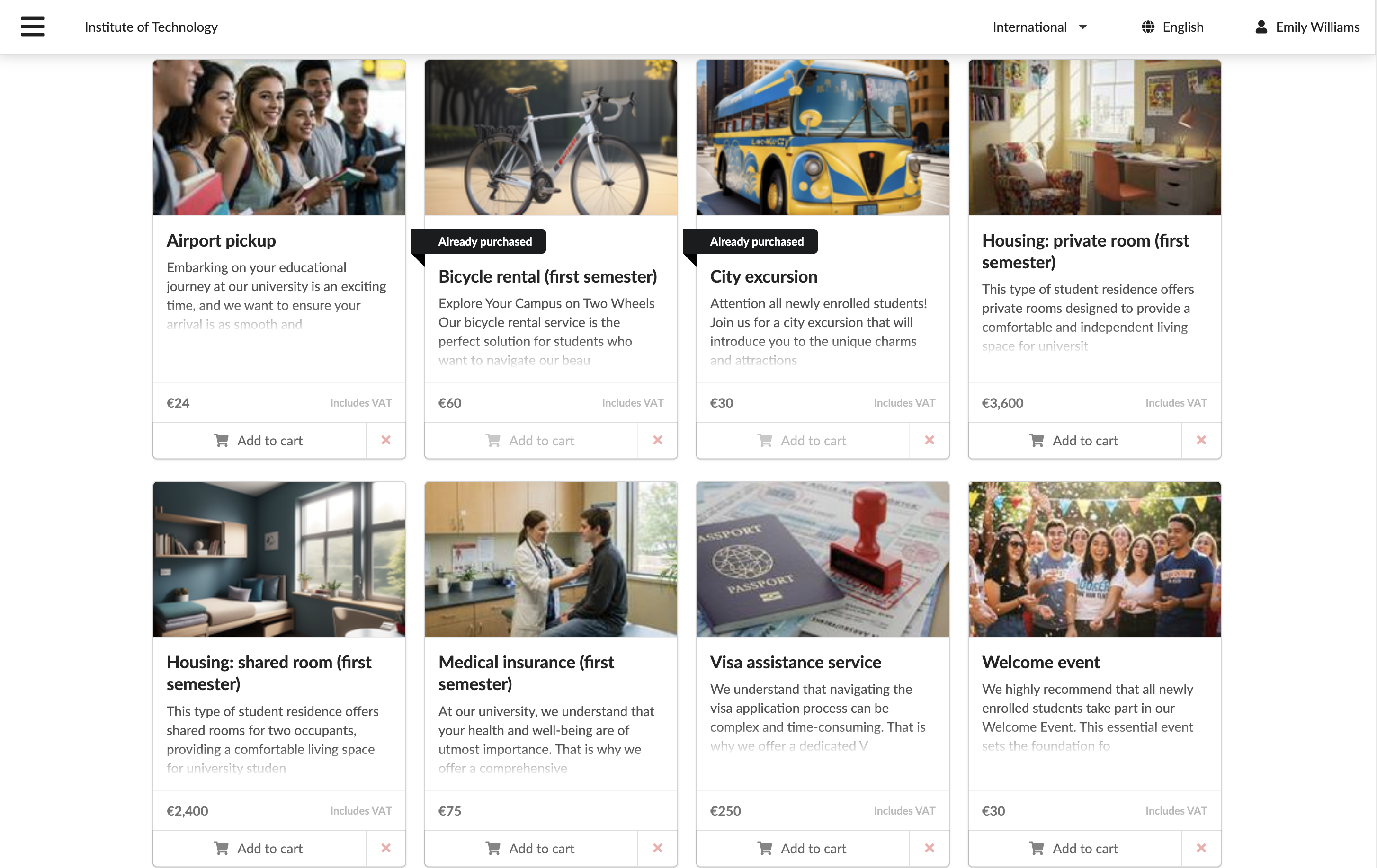
Fill in the Name, Description and Photo fields with the item details. This information will be presented to applicants on the item tile in the portal.
In the Stock section, specify the number of items available. Once the stock reaches zero, an Out of stock label will appear on the item tile in the portal.
The total number of items available in stock is defined across all academic terms. If applicants apply for different academic terms and choose to purchase items as part of their applications, DreamApply will deduct these purchased items from the overall stock count.
Define the item price, default or custom VAT rule to be applied and invoicing settings.
At the top of the form, set the item visibility mode and click Save changes.
Report on additional services
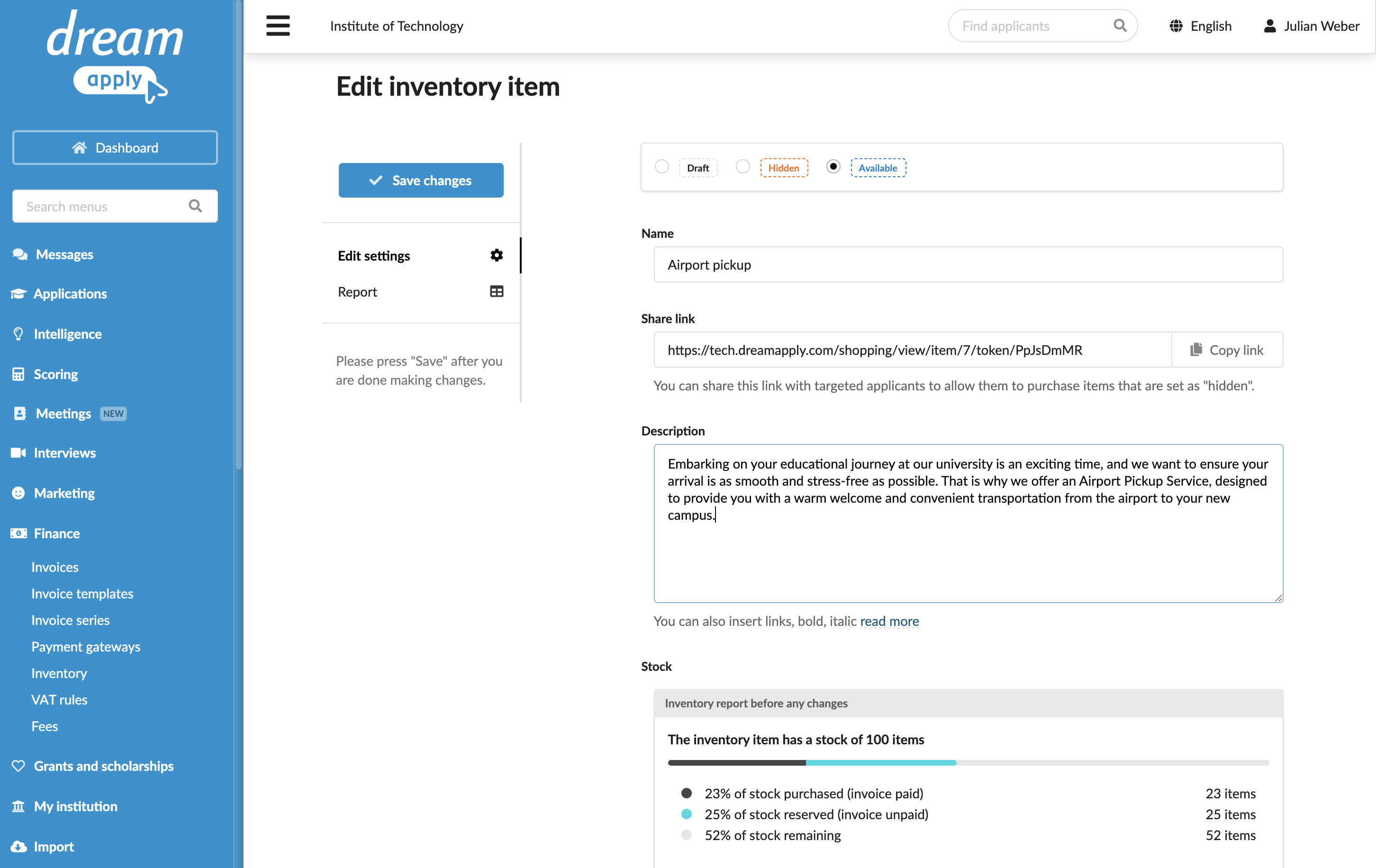
To track and monitor service uptake, you can view a report for each item in the inventory. The report includes:
- The total number of items sold or reserved
- The current stock levels
- A heatmap showing a daily volume of reservations and purchases
- A list of all applicants who have purchased or reserved the item along with the payment status and invoice details
To view a report for an additional service:
- From the main menu, under Finance, select Inventory.
- To the right of the inventory item, click Report.