Assign grants and scholarships
Roles
These roles reflect the default DreamApply setup.
You can define custom roles based on your
institution's needs. Learn more →:
You can define custom roles based on your
institution's needs. Learn more →
When you assign financial aid in DreamApply, you mark a candidate as eligible for a specific grant or scholarship. While DreamApply does not process actual payments or disbursements, it can help model different scenarios, identify the most qualified candidates and visualize how funds could be distributed.
You can identify candidates and assign grants and scholarships in two ways:
- Manually: This type of assignment provides full control and allows you to select candidates individually.
- Automatically through bulk assign: You can use the Bulk award wizard to streamline the allocation process.
Before you begin
- To manually assign grants and scholarships, your account must have the
Superuserrole or thegrants,offers-viewandoffers-editpermissions. - To assign grants and scholarships in bulk, your account must have the
Superuserrole or thegrantspermission. - To subscribe to journal events, your account must have the
SuperuserorAdmissions administratorrole or thejournal-viewandjournal-editpermissions.
Manually assign grants and scholarships
To manually assign a grant or scholarship:
- In the main menu, under Applications, select Browse.
- In the application card, click the offer button for the necessary priority.
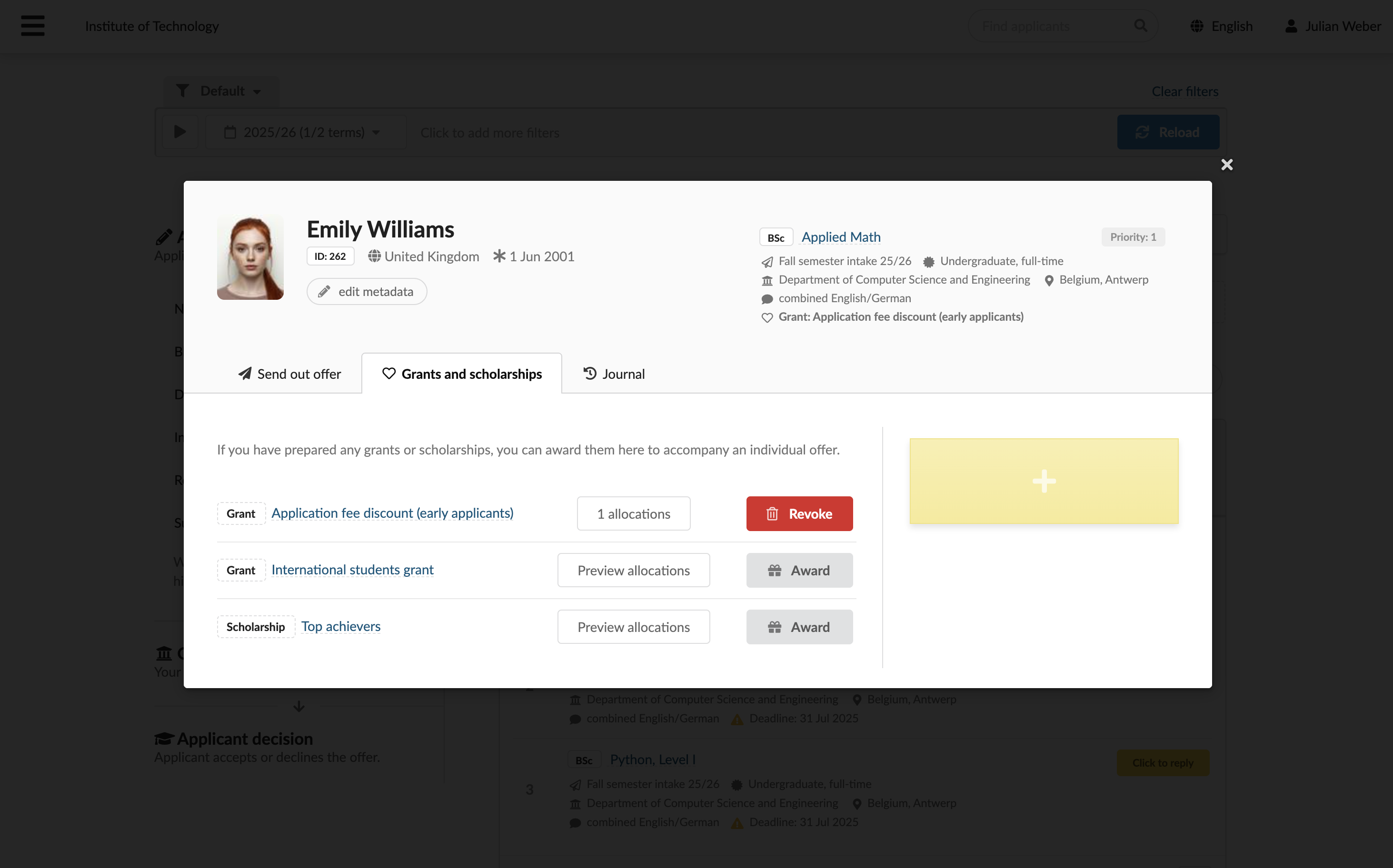
- On the Grants and scholarships tab, click Award or Revoke to manage the assignment.
Assign grants and scholarships in bulk
To assign a grant or scholarship to multiple candidates in bulk:
- In the main menu, under Grants and scholarships, select Grants and scholarships.
- To the right of the grant or scholarship, click Bulk award.
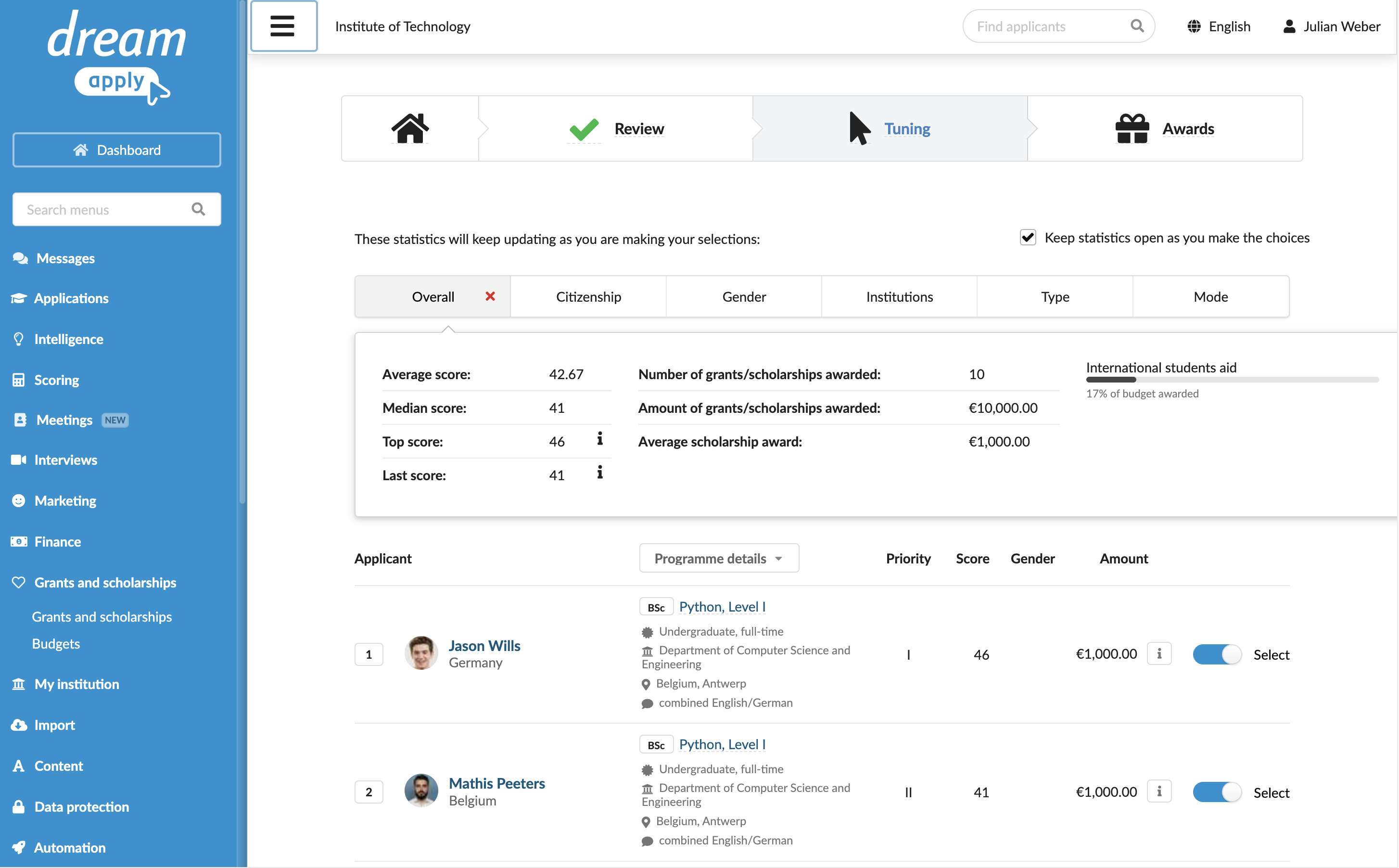
- Specify the assignment criteria: academic term, offer type and flags if needed. Then follow the wizard steps to review the forecast, select candidates and assign the grant or scholarship to them.
To help with candidate selection, the wizard displays statistics at the top of the screen. To let DreamApply dynamically update the statistics as new candidates are selected, select the Keep statistics open as you make the choices check box.
Use the Journal events
DreamApply records the following grant and scholarship events in the journal:
- Grant/scholarship was awarded
- Grant/scholarship was revoked
To track these events, subscribe to them using the Grants/scholarships event groups.