Define budgets
Roles
These roles reflect the default DreamApply setup.
You can define custom roles based on your
institution's needs. Learn more →:
You can define custom roles based on your
institution's needs. Learn more →
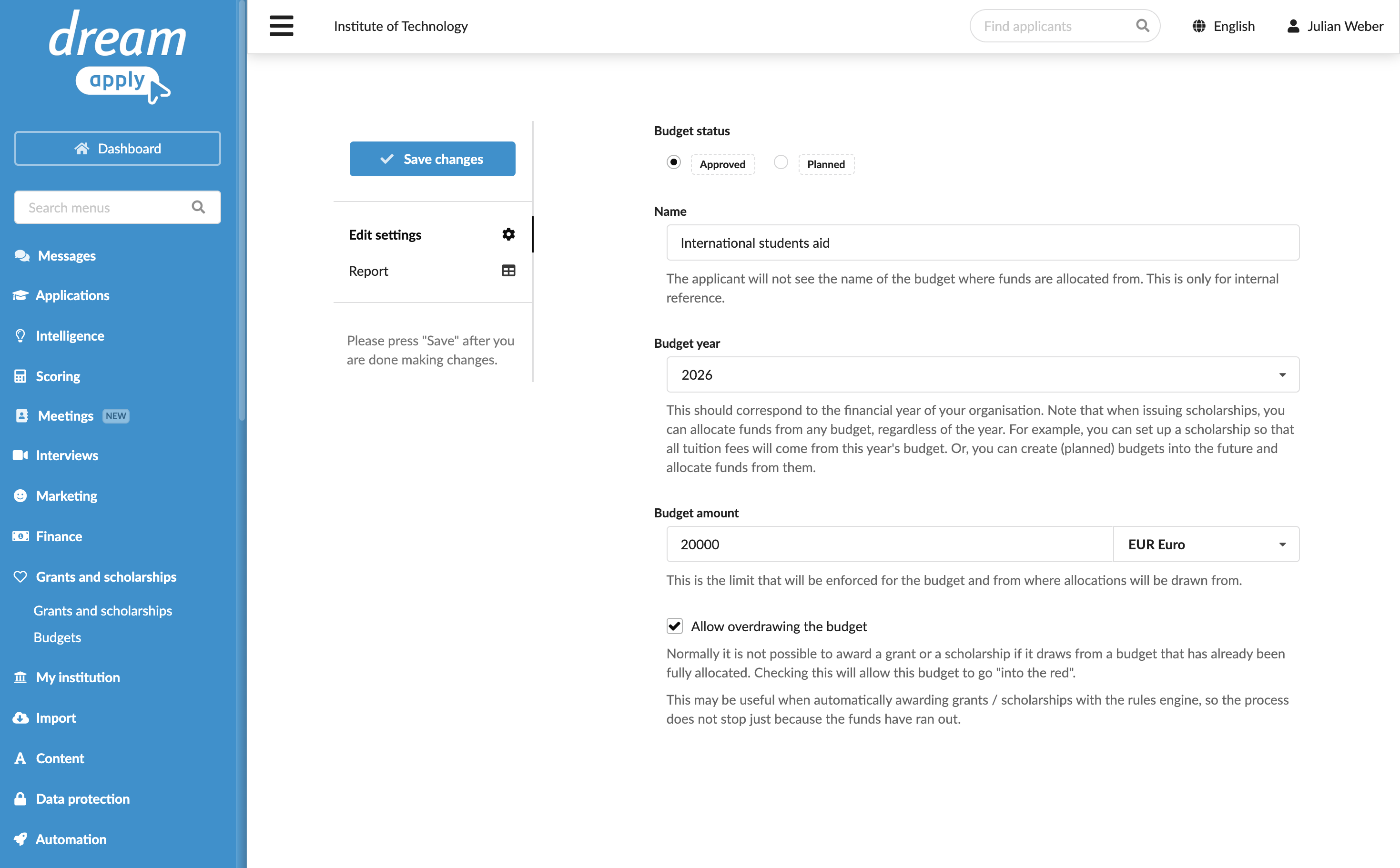
Depending how your institution plans to allocate funds, you can define one or more budgets for each financial year. For example, you can use a single consolidated budget to manage all grants and scholarships of the year. Alternalivery, you can set up separate budgets for different purposes.
Each budget reflects a specific amount of institutional funds and can be linked to one or more grants or scholarships. When you assign grants and scholarships to candidates, the allocated amounts are drawn from the corresponding linked budget.
In DreamApply, budgets can be marked as Planned or Approved. This distinction mainly serves for categorization and does not affect how budgets function in the system.
Before you begin
To define budgets, your account must have the Superuser role or the grants permission.
Add budgets
To add a budget:
- In the main menu, under Grants and scholarships, select Budgets.
- At the bottom of the budget list, click Add a new budget.
- Specify the budget details: type, name, budget amount and currency and whether budget overdrawing is allowed.
- At the top of the form, click Save changes.