Manage allocations
Roles
These roles reflect the default DreamApply setup.
You can define custom roles based on your
institution's needs. Learn more →:
You can define custom roles based on your
institution's needs. Learn more →
DreamApply displays information about allocated grants and scholarships in several places in the system:
Before you begin
- To view the ranking list and work with offers, your account must have the
Superuser,Admissions administratororAcademic supervisorrole or theoffers-scoringpermission. - To view and assign grants and scholarships, your account must have the
Superuserrole or thegrants,offers-viewandoffers-editpermissions.
View the ranking list
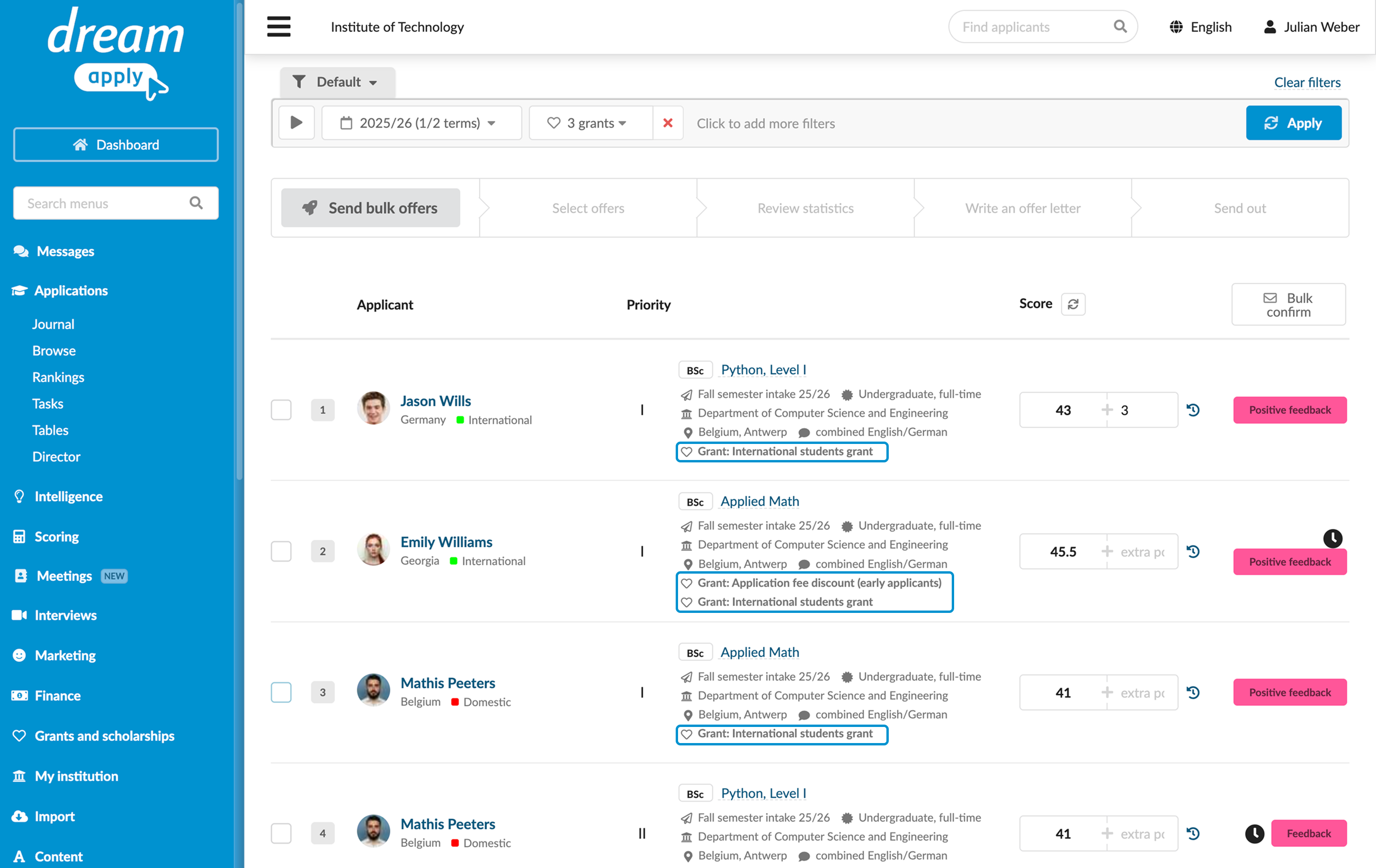
To view awarded applicants in the ranking list, in the main menu, under Applications, select Rankings. DreamApply marks such applicants with the heart icon and specifies the type of financial aid they have received.
View applicant offers
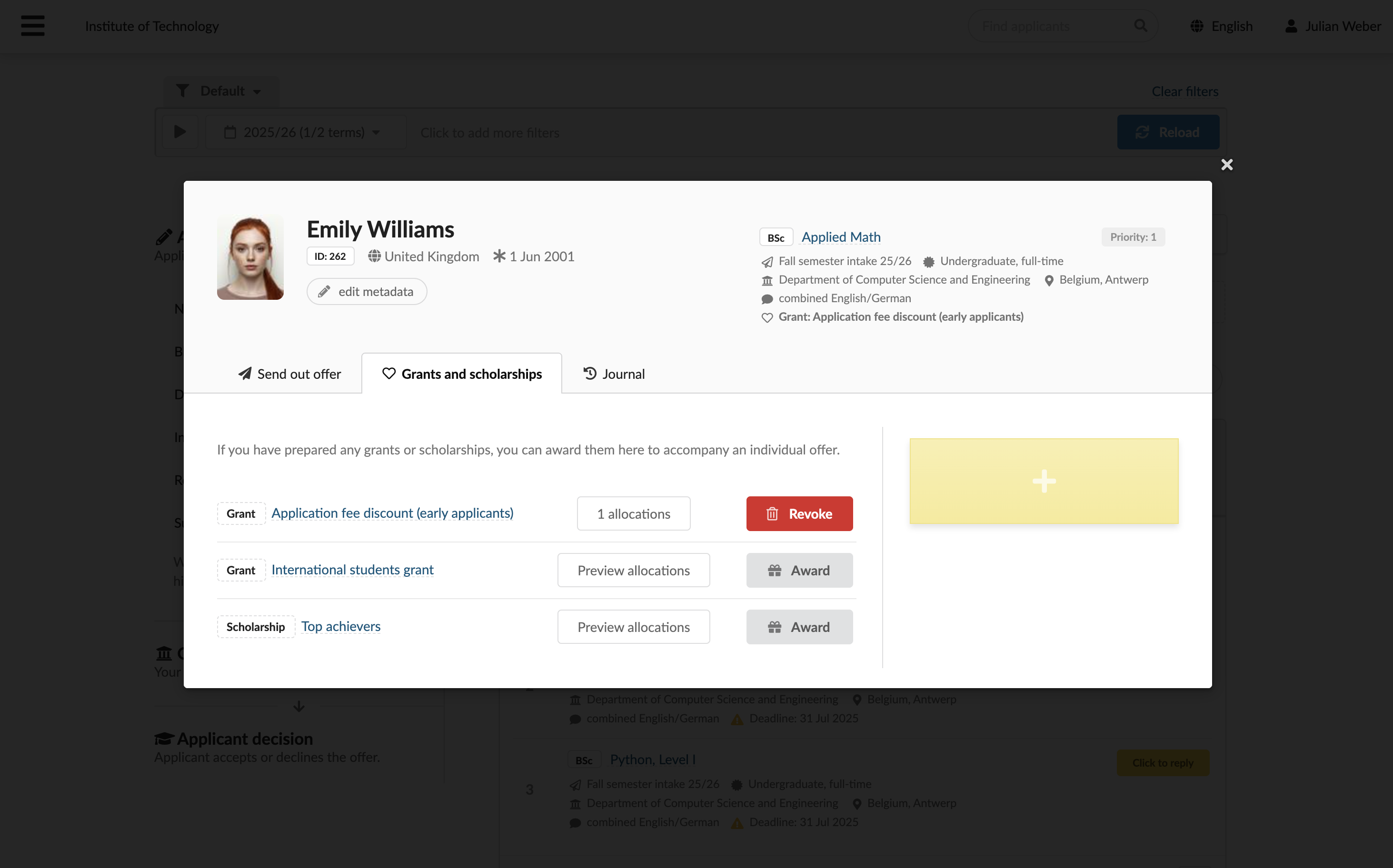
You can view and manage all grants and scholarships directly through the offer cards for each applicant. To access information about financial aid:
- In the main menu, under Applications, select Browse.
- In the application card, click the offer button for the necessary priority.
- On the Grants and scholarships tab, view the financial aid details and manage assignments if necessary.
View allocations reports
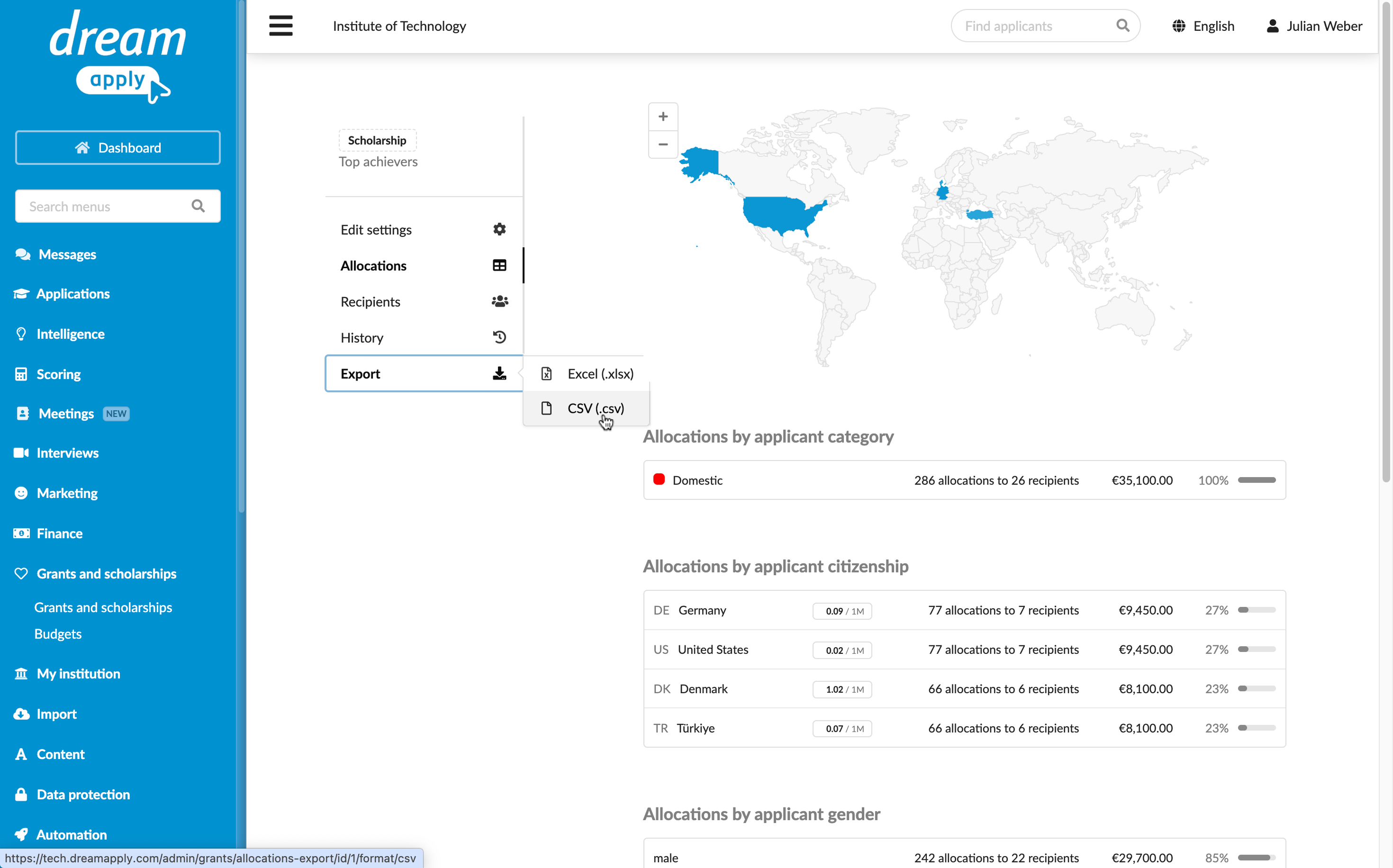
The Grants and scholarships view provides reporting and management options for each type of financial aid set up in the system. To view and manage allocations:
In the main menu, under Grants and scholarships, select Grants and scholarships.
To the right of the grant or scholarship, click Report.
In the left menu, select the necessary option:
- Allocations: Track allocations by category such as country, applicant citizenship and gender
- Recipients: View the recipient list and revoke allocations if needed
- History: View the allocation history
- Export: Export structured data on financial aid to be used in external payment or budgeting systems