Set up VAT rules
Roles
These roles reflect the default DreamApply setup.
You can define custom roles based on your
institution's needs. Learn more →:
You can define custom roles based on your
institution's needs. Learn more →
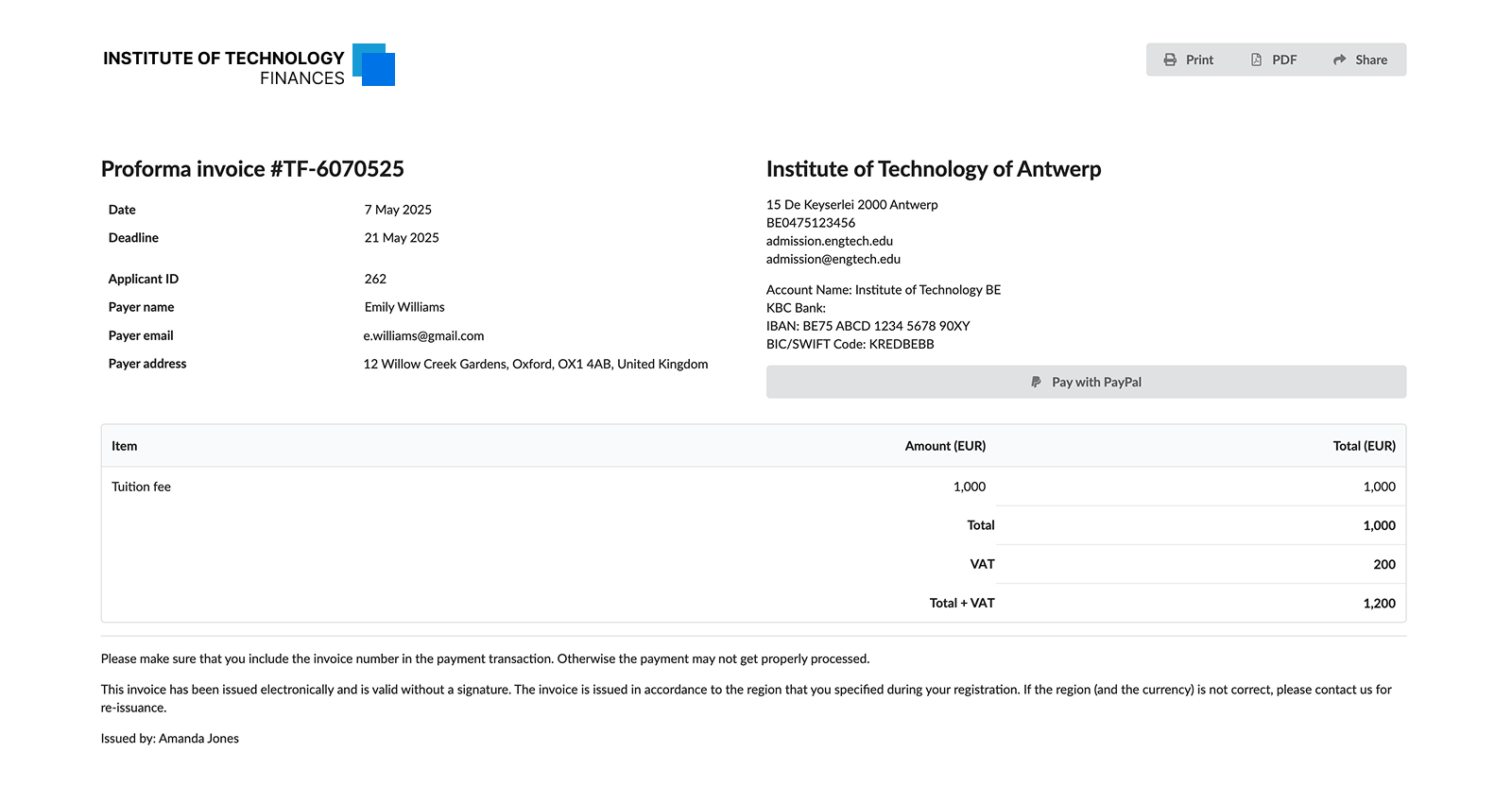
To follow local tax laws and correctly calculate the charges on invoices, you need to set up VAT (Value Added Tax) rules in DreamApply. When an invoice is created, DreamApply adds the VAT amount to the total fee and shows it as a separate line on all receipts and invoices generated by the system.
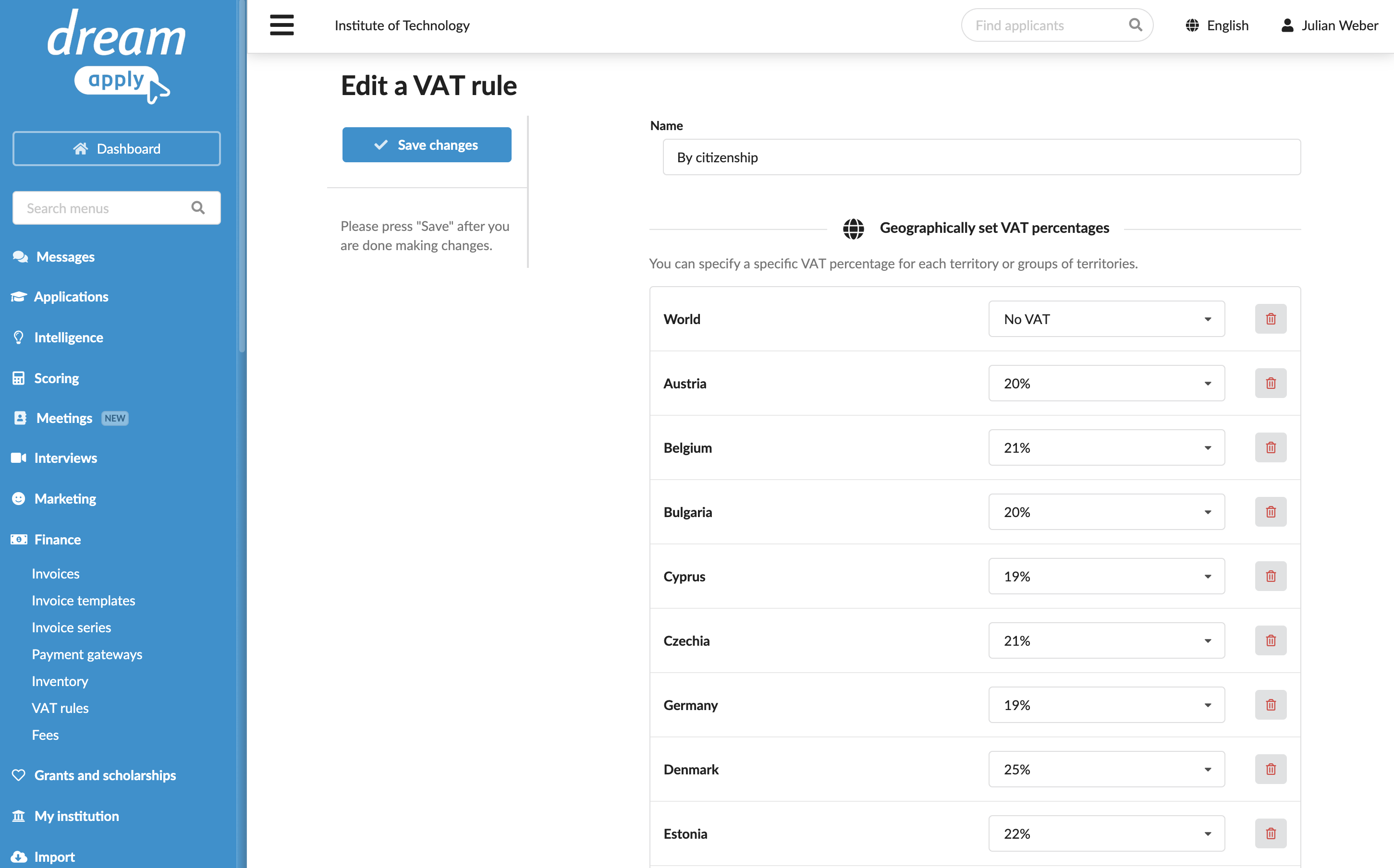
To define which VAT rate must be applied, DreamApply uses the territory hierarchy. It checks for a rate starting from the most specific territory and moves up to more general levels. For example:
- If a specific rate is set for a country, that rate will be applied for applicants whose citizenship is set to that country.
- If no rate is set for a country, the system checks the region to which the country belongs.
- If no regional rate is found, the system applies the global (World) rate.
Before you begin
To set up VAT rules, your account must have the Superuser or Accountant role or the accounting-view and accounting-edit permissions.
Add a VAT rule
To add a VAT rule:
- In the main menu, under Finance, click VAT rules.
- At the bottom of the VAT rule list, click New VAT rule.
- In the Name field, specify the rule name. This name will be used for internal reference only and will not be displayed to applicants.
- Specify VAT rates for each geographical region. If no VAT should be applied to the fee, select No VAT.
- At the top of the form, click Save changes.