Select the instance type
Roles
These roles reflect the default DreamApply setup.
You can define custom roles based on your
institution's needs. Learn more →:
You can define custom roles based on your
institution's needs. Learn more →
DreamApply supports two setup options for institutions:
Single-institution instance: This setup is recommended for organizations operating as a single entity, such as smaller schools, colleges or universities with a centralized structure. All departments and programmes are managed within one institution in DreamApply.
Multi-institution instance: This setup is designed for larger organizations or federations that comprise multiple institutions. Each institution maintains its own academic structure, departments, programmes and admission processes while operating within a single DreamApply instance.
By default, the setup type is set to a single institution. You can change the institution type to align with your administrative structure and admission processes.
Before you begin
To change the instance type and manage institutions, your account must have the Superuser role or the instance and institutions permissions.
Enable multiple institutions
To enable the multi-institution setup:
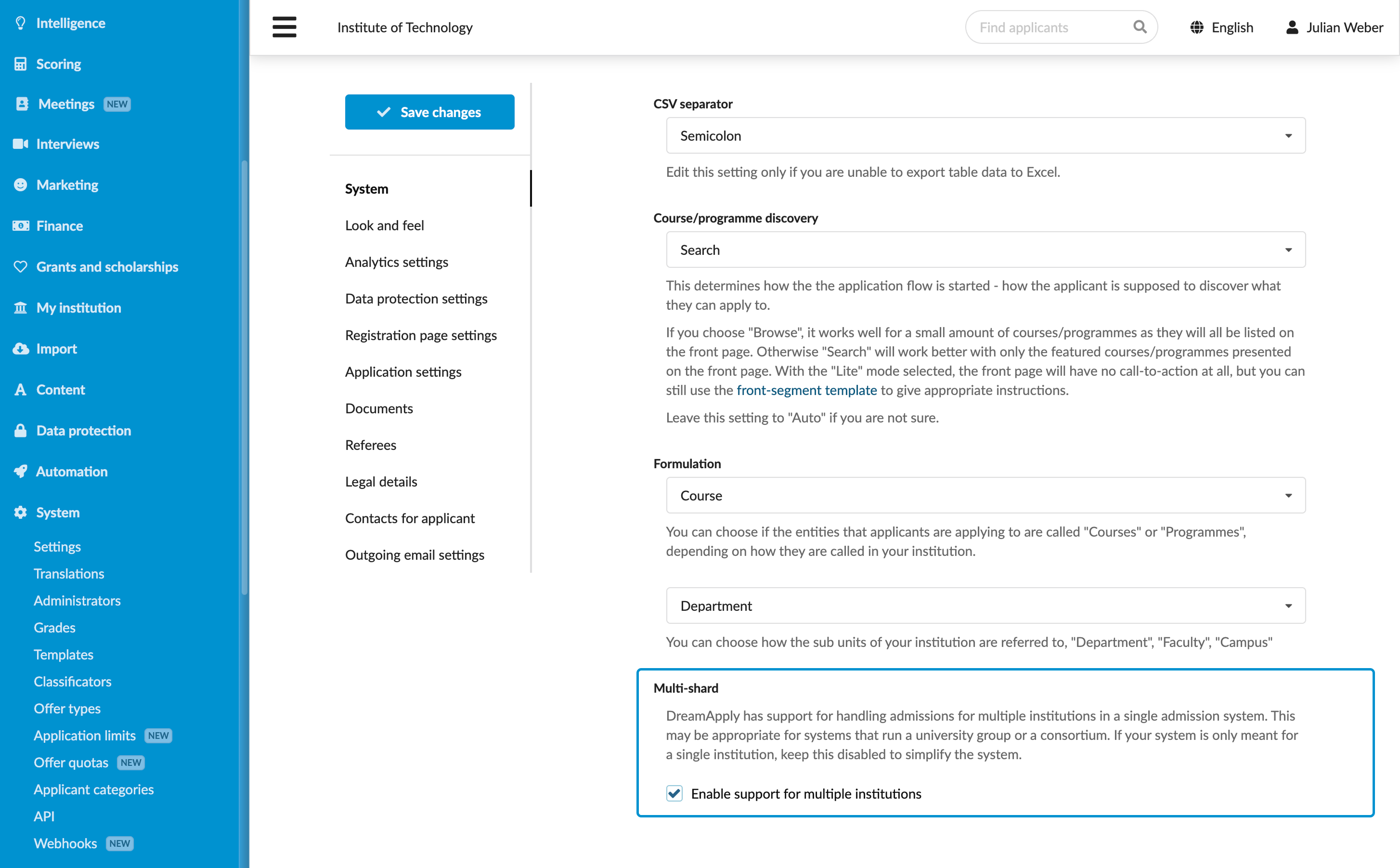
- In the main menu, under System, select Settings.
- In the System section, under Multi-shard, select the Enable support for multiple institutions check box.
- At the top of the form, click Save changes.
Add institutions
To add institutions to DreamApply:
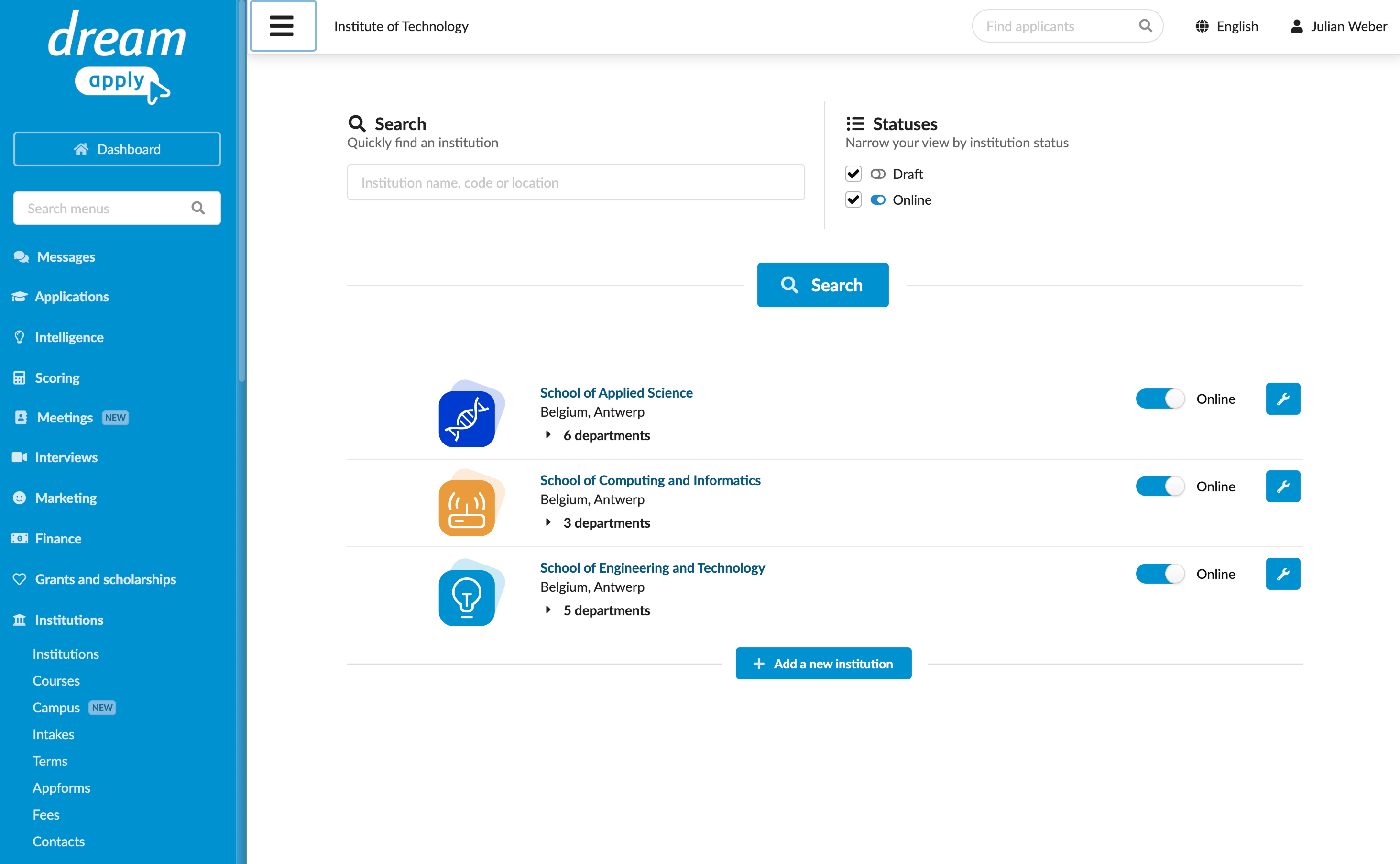
- In the main menu, under Institutions, select Institutions.
- In the main view, click Add a new institution and specify the institution details as required.
- At the top of the form, click Save changes.
- Repeat steps 1-3 for all institutions in your organization.
- To bring institutions online and display them in the DreamApply portal for applicants, to the right of institution names in the list, set the status to Online.
Understand the resource access scope
The selected instance type determines how DreamApply organizes access to applications and system resources.
Single-institution instance: In this setup, resources are organized by departments:
- Filters: Administrators can filter applications by department using the Programme > Department filter criterion
- Resource access policies: Administrator access can be limited to specific departments and programmes
Multi-institution instance: In this setup, resources are organized by institutions:
- Filters: Administrators can filter applications by institution using the Programme > Institution filter criterion
- Resource access policies: Administrator access can be limited to specific institutions