Exclude data from AI analysis
Roles
These roles reflect the default DreamApply setup.
You can define custom roles based on your
institution's needs. Learn more →:
You can define custom roles based on your
institution's needs. Learn more →
DreamApply allows you to control which application data and documents are shared with the LLM for AI processing. You can exclude data using:
Before you begin
- To manage appforms, your account must have the
SuperuserorCourses administratorrole or theappformspermission. - To set up rules, your account must have the
Superuserrole or therulespermissions. - To manage consents, your account must have the
Superuserrole or theconsentspermission.
Exclude appform sections
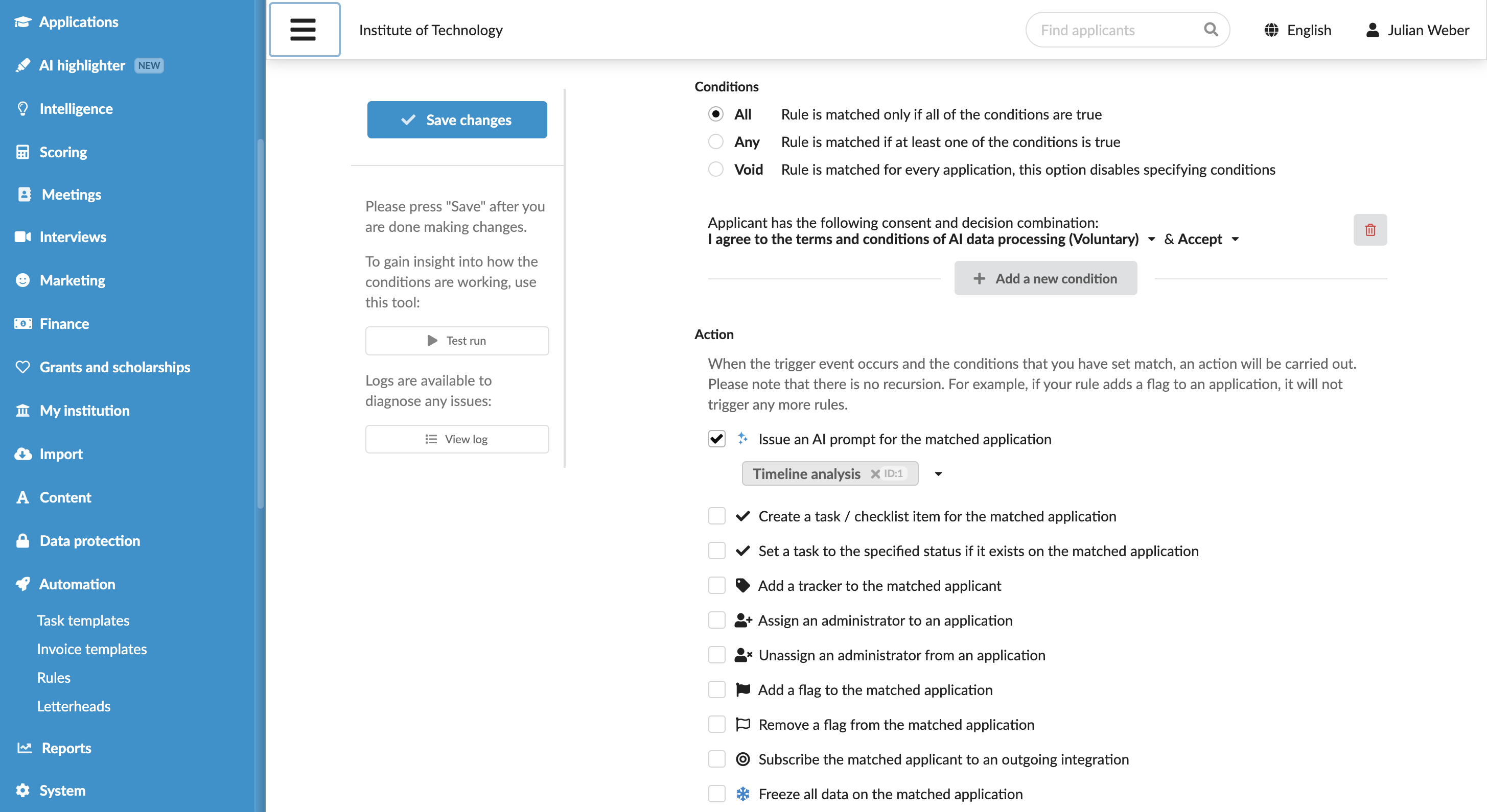
You can mark specific sections in appforms as containing sensitive data. In this case, DreamApply automatically excludes these sections from being sent to the LLM for all prompts across the system.
To exclude data at the appform level:
- In the main menu, under Institutions/My institution, select Appforms.
- At the top of the form, click Manage appform sections.
- Click the section in the list to edit it.
- In the Sensitive data section, select the This section contains sensitive data check box.
- At the top of the form, click Save changes.
Configure rules to exclude applicant data
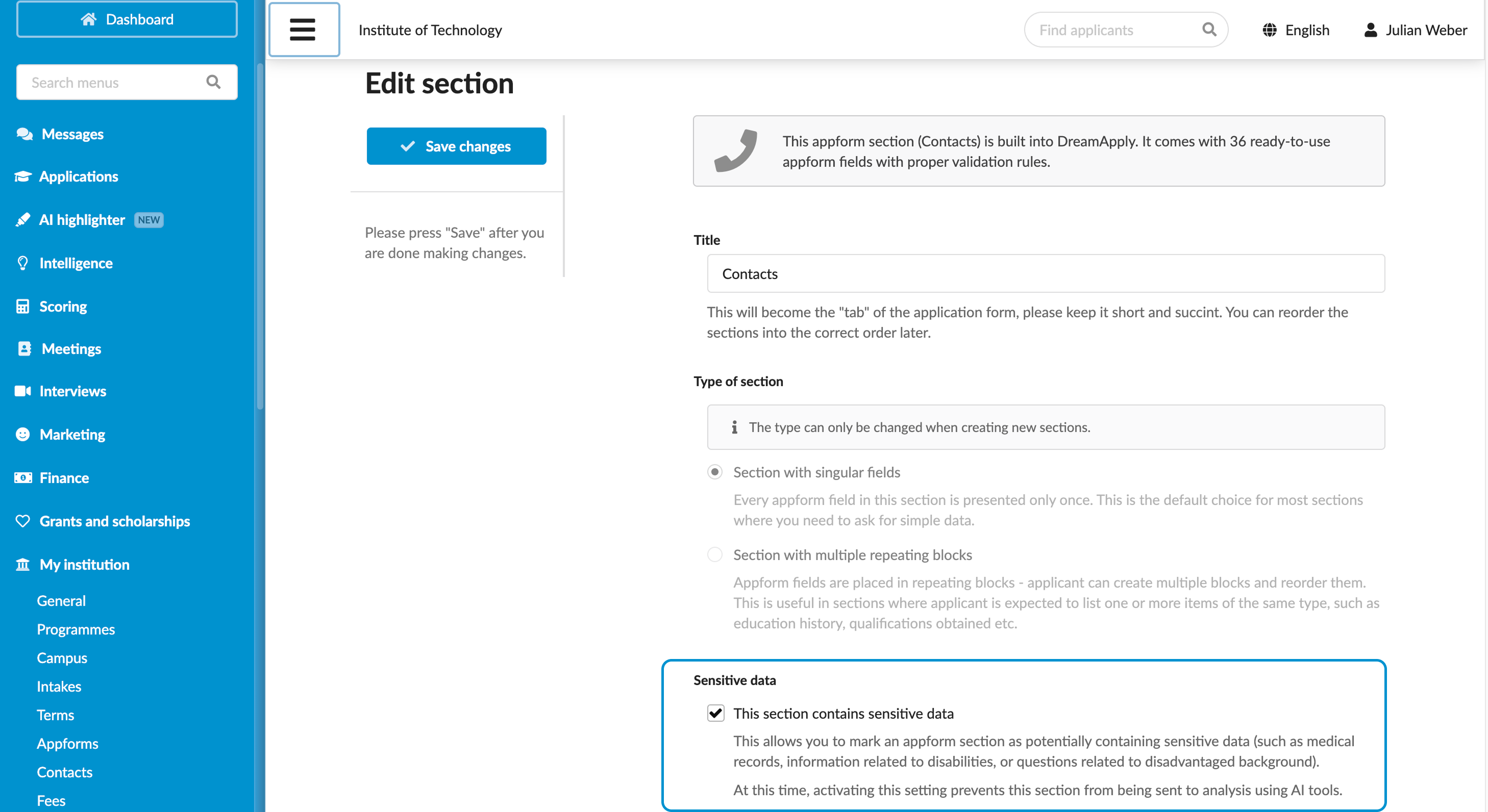
You can set up rules to prevent data transfer if an applicant has not given explicit consent for AI data processing.
This setting applies only to AI data processing triggered by rules.
To exclude data for specific applicants:
- Set up a consent for AI data processing. For details, see Define consents.
- In the main menu, under Automation, select Rules.
- Choose to create a new appform or edit an existing one.
- In the Conditions section, add a new condition and use the Applicant has the following consent and decision combination criterion.
- In the Action section, select Issue an AI prompt for the matched application and select one or more prompts to run.
- Configure other rule settings as required, save its settings and set it to active in the rule list.