Run AI analysis
Roles
These roles reflect the default DreamApply setup.
You can define custom roles based on your
institution's needs. Learn more →:
You can define custom roles based on your
institution's needs. Learn more →
To analyze application data, you can run prepared AI prompts for selected applications.
AI Highlighter analyzes application data on the per-application basis. You can run a prompt in the following ways:
Before you begin
- To analyze applications with AI, your account must have the
SuperuserorAdmissions administratorrole or theai-inrefence,applications-view,applications-editpermissions. - To set up automatic rules, your account must have the
Superuserrole or therulespermissions.
Analyze individual applications
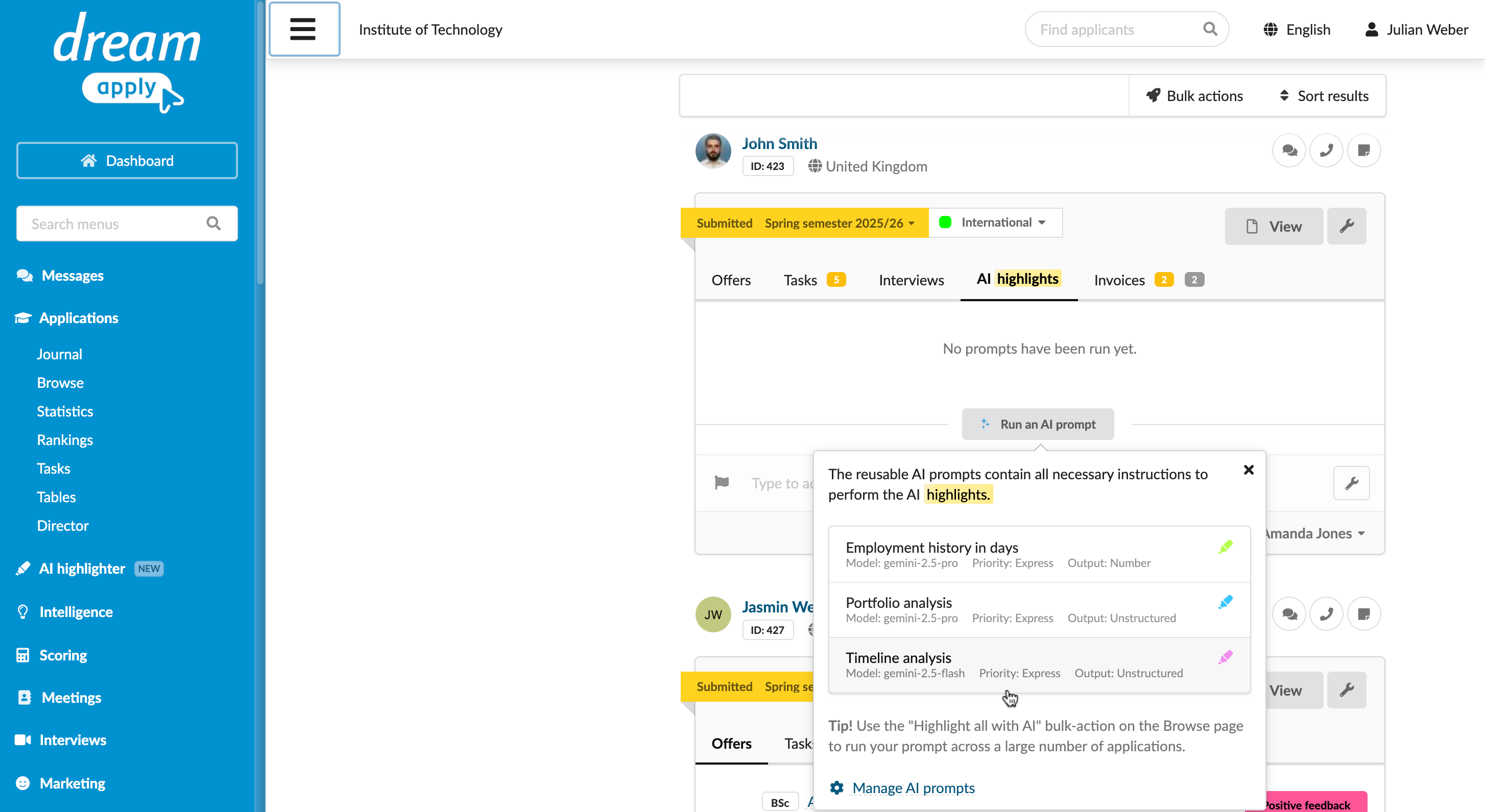
To analyze a single application:
- In the main menu, under Applications, select Browse.
- On the AI highlights tab, click Run an AI prompt and select a prompt to run. Alternatively, click View and in the left menu, select Highlight with AI.
Analyze applications in bulk
You can select several applications and run AI analysis for them at once.
AI Highlighter processes applications in batches of 30. For this reason, batch processing may take some time even if the prompt instructs AI Highlighter to process application data immediately.
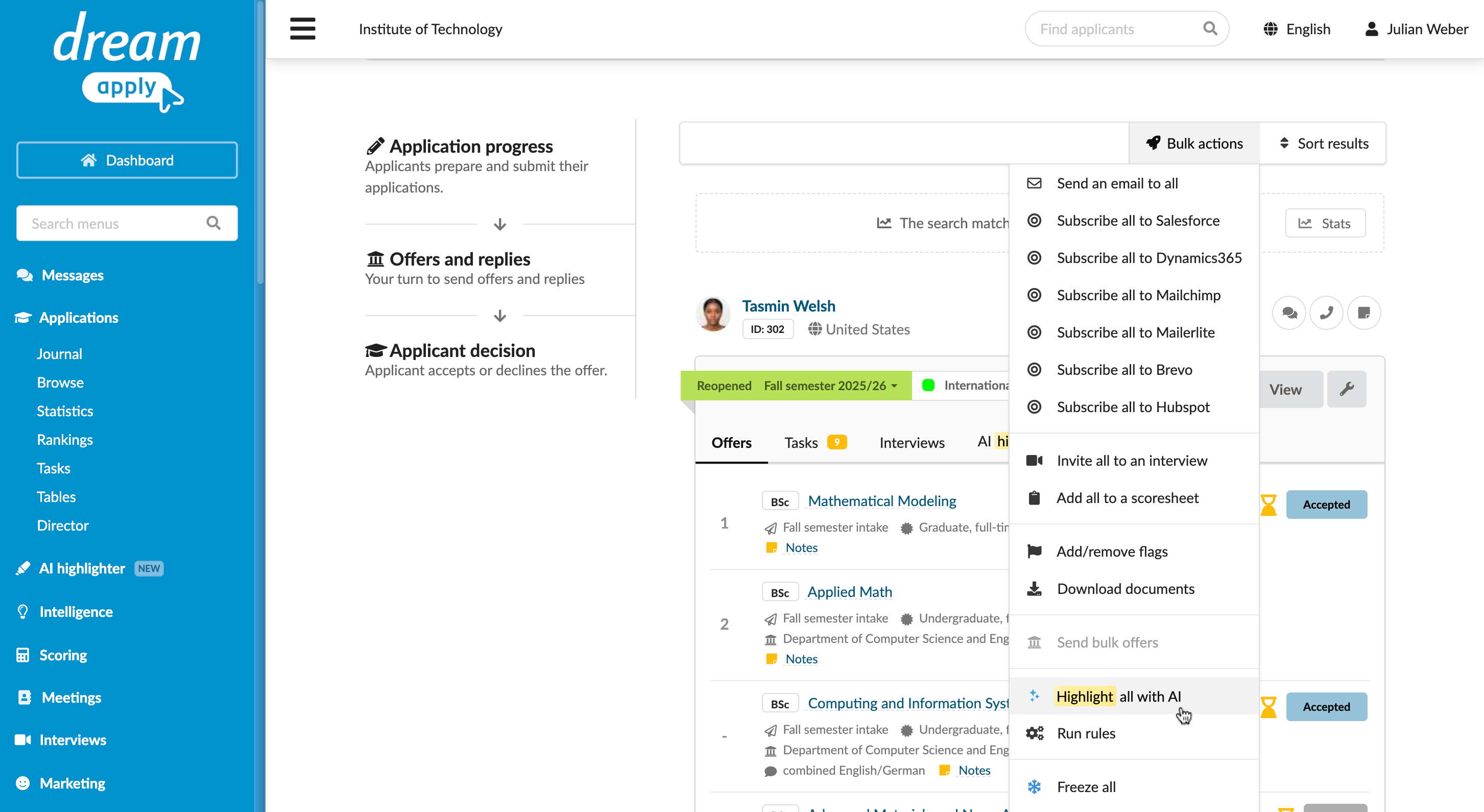
To analyze several applications:
- In the main menu, under Applications, select Browse.
- Use filters at the top to select a group of applications that match specific criteria.
- From the Bulk actions list, select Highlight all with AI, select a prompt to run and click Run AI prompts.
Set up a rule to analyze applications
You can set up rules to automatically analyze applications that match specific criteria.
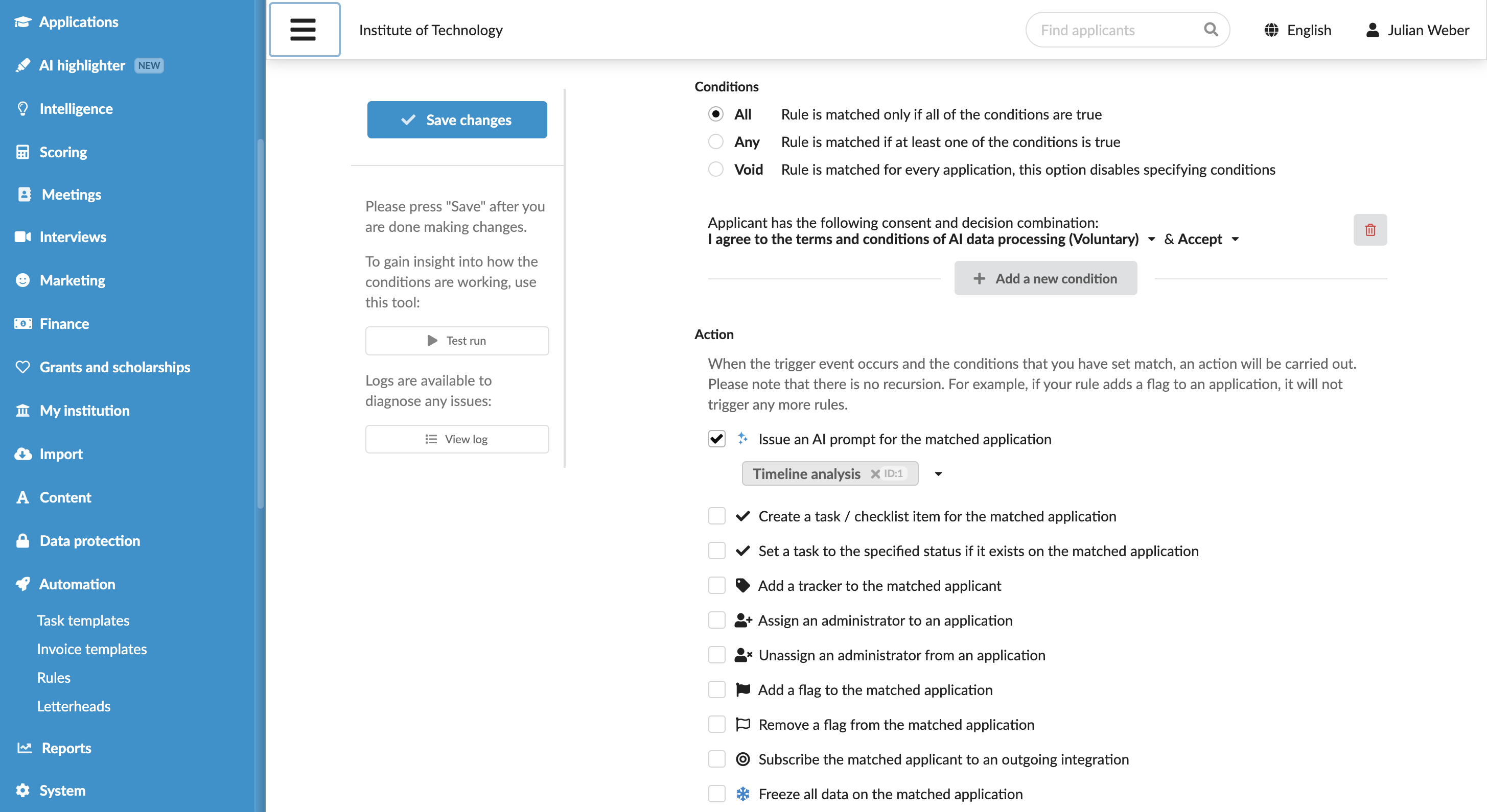
To configure a rule:
In the main menu, under Automation, select Rules.
At the bottom of the rule list, click New rule and specify the rule name.
In the Trigger events section, select events that must activate the rule. For example, you can choose to manage all newly created, submitted or re-opened applications.
In the Conditions section, specify granular conditions for the rule.
You can instruct DreamApply to automatically exclude data for those applicants who have not given explicit consent for AI data processing. For details, see Configure rules to exclude applicant data.
In the Action section, select Issue an AI prompt for the matched application and select one or more prompts to run.
Configure other rule settings as required, save its settings and set it to active in the rule list.
View AI responses
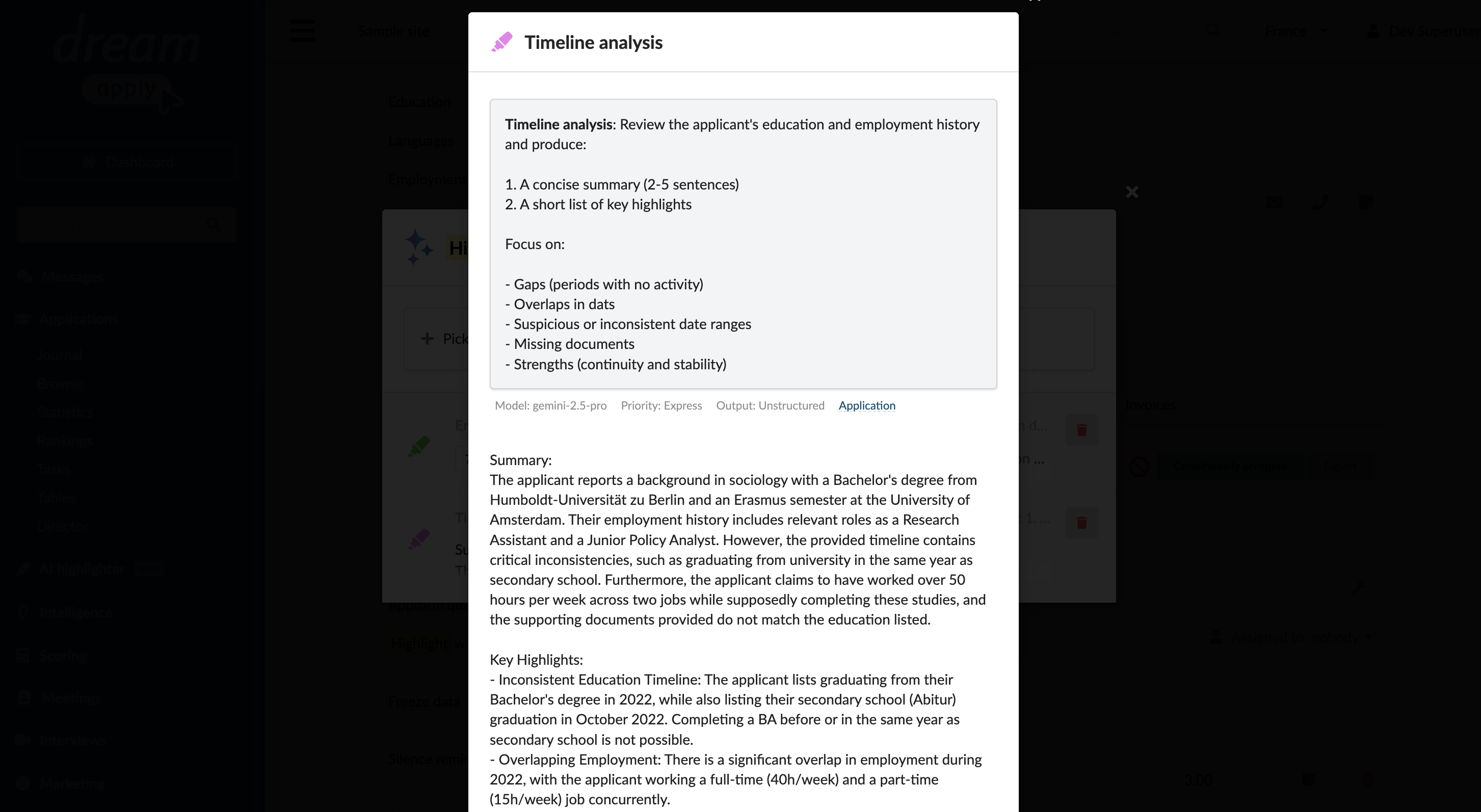
When an AI response is available for an application, DreamApply displays it on the AI highlights tab of the application card.
For each AI response, DreamApply displays the following information:
- Initial prompt instructions
- AI output itself as free-form text or a data field
- AI reasoning trail showing how AI Highlighter has arrived at its conclusions
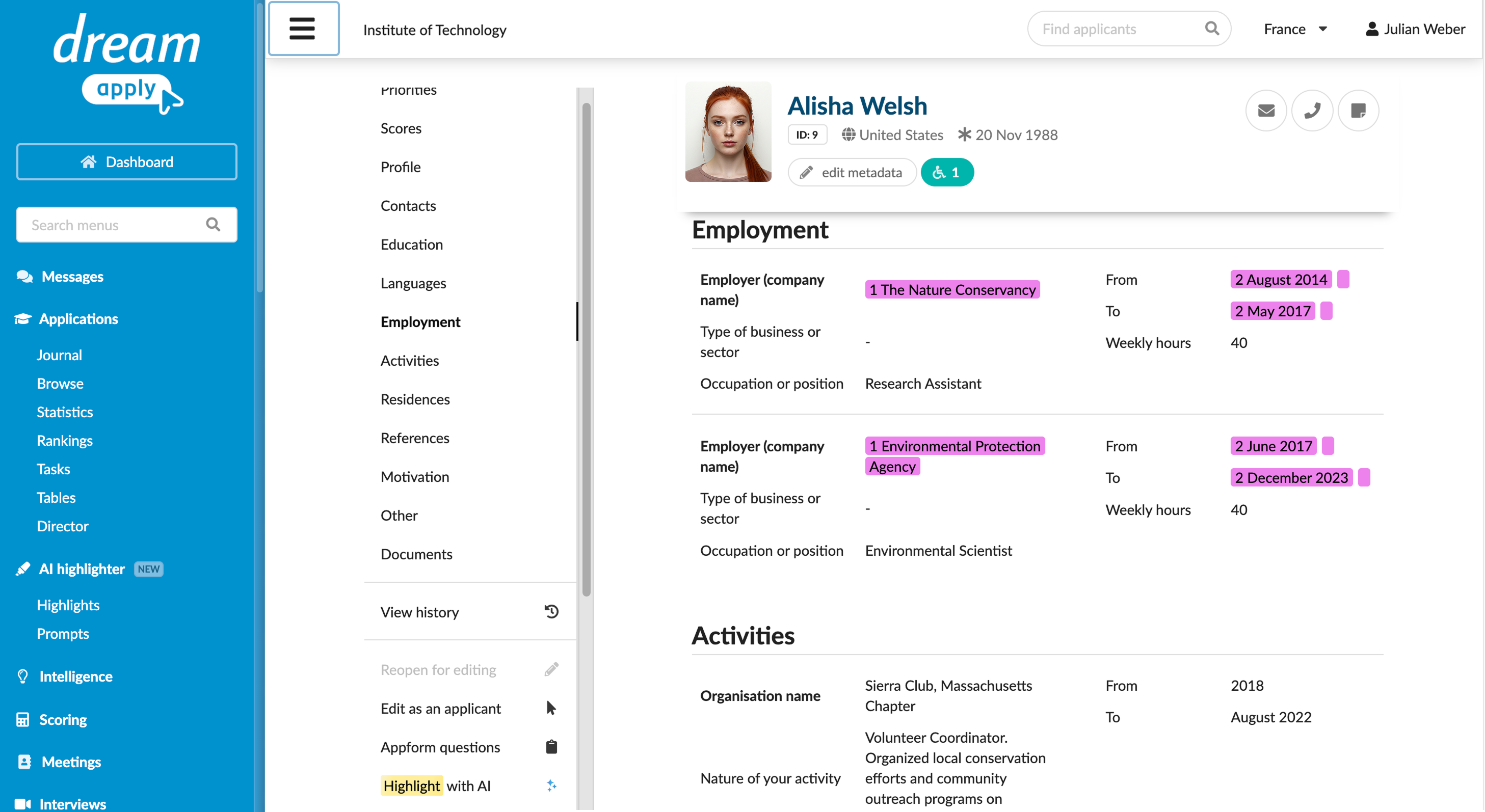
To trace the specific source fields and documents that AI Highlighter used for its analysis, open the application card in full preview mode. Each referenced field is highlighted using the colour defined in the prompt settings.
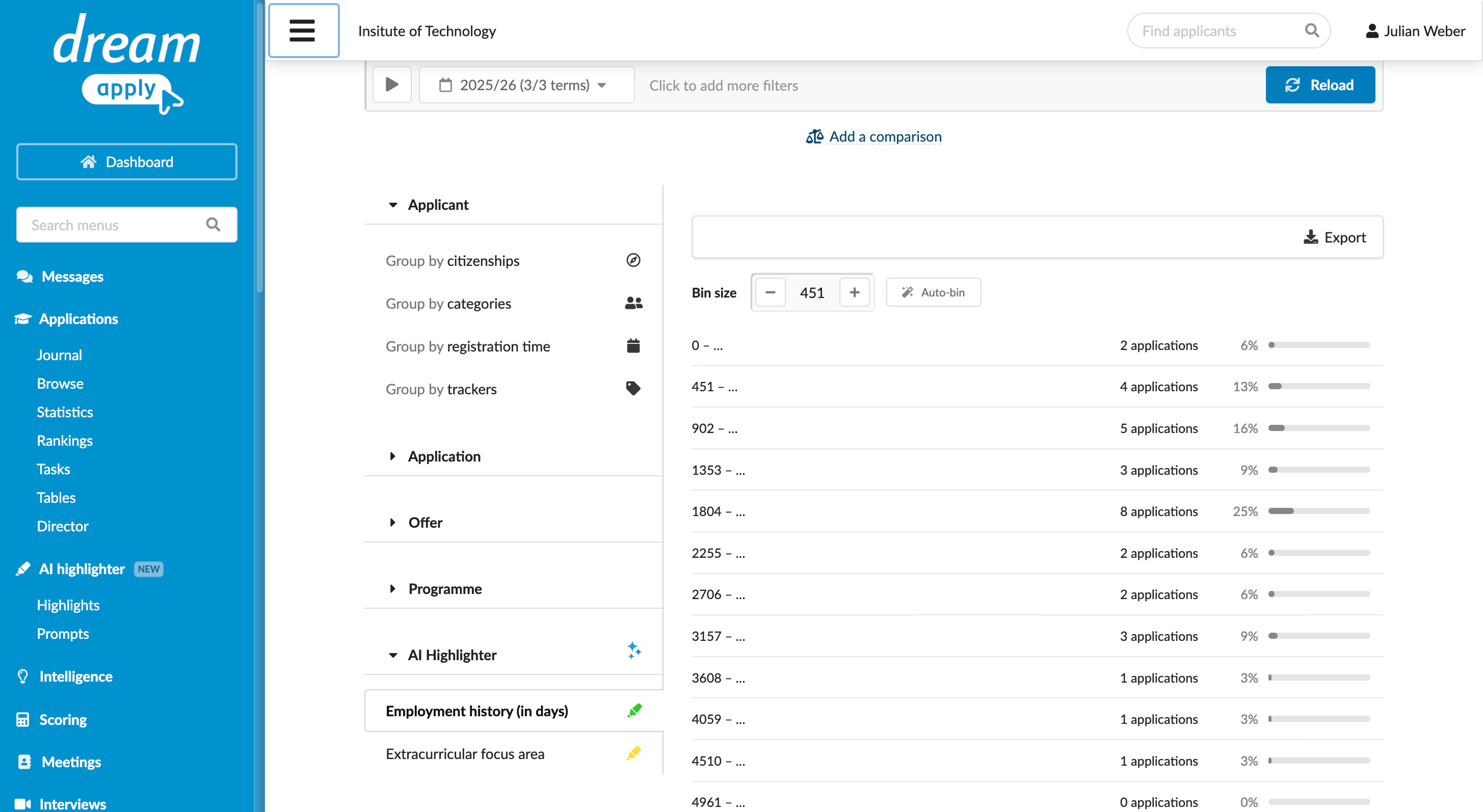
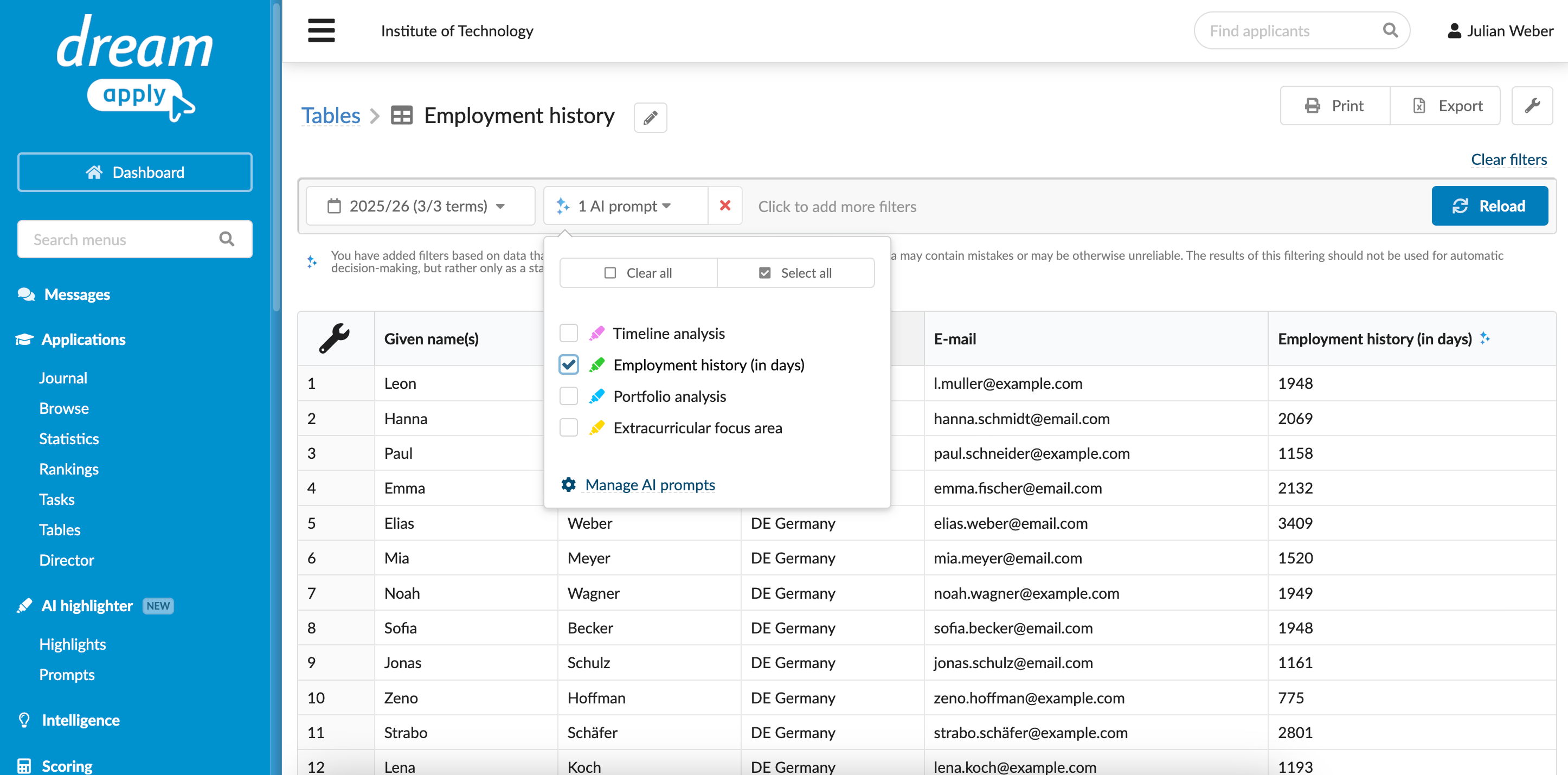
You can use filters and tables to work with AI outputs. These tools are especially useful when a prompt is configured to generate a structured field output, such as a label or score.
You can also use the Statistics view to view aggregated information about AI structured outputs. DreamApply displays statistics only for field values. Free-form text outputs cannot be analyzed using statistics.