Set up AI prompts
Roles
These roles reflect the default DreamApply setup.
You can define custom roles based on your
institution's needs. Learn more →:
You can define custom roles based on your
institution's needs. Learn more →
In DreamApply, prompts are set up centrally by Administrators with high-level privileges. Admissions administrators can only run approved prompts on selected applications; they cannot create or modify prompts themselves.
Centralized prompt creation ensures flexible AI support and minimizes the risk of accidental data exposure or misuse of the AI.
Before you begin
To create prompts, your account must have the Superuser role or the ai-prompts permission.
Create prompts
To create a prompt:
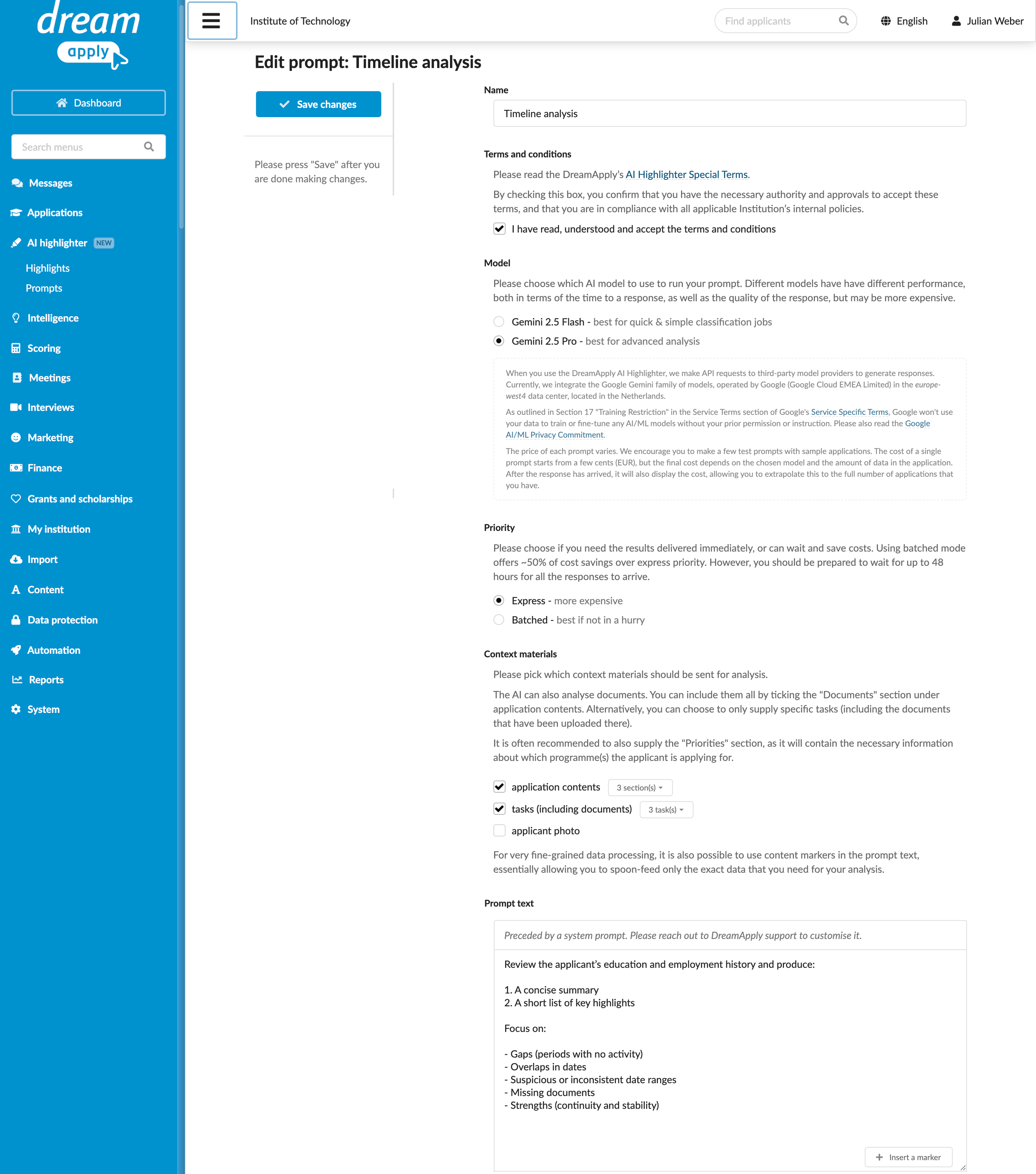
In the main menu, under AI highlighter, select Prompts.
At the bottom of the prompt list, click New prompt.
Specify the prompt name and choose an LLM to use.
In the Priority section, select how application data must be processed: immediately or with a delay.
In the Contextual materials section, select data and documents that must be sent to the LLM to perform the task.
In the Prompt text field, enter an instruction in natural language describing the task that the LLM must perform.
In the Output structure field, select the output format.
If you set the output structure to List, do not configure the list to contain more than 10 items. Lists that exceed this limit may result in incorrect AI outputs. If you require more than 10 items, specify the list values directly in the prompt text.
In the Highlighter colour section, select the colour to distinguish the prompt.
In the Thinking budget field, define the number of tokens for the LLM to use during the internal AI thinking and reasoning process. For details, see Control model thinking.
In the Temperature field, specify the creativity level for the LLM. For details, see Temperature.
At the top of the form, acknowledge and agree to the terms and conditions and click Save changes.