Track search terms with GTM
Roles
These roles reflect the default DreamApply setup.
You can define custom roles based on your
institution's needs. Learn more →:
You can define custom roles based on your
institution's needs. Learn more →
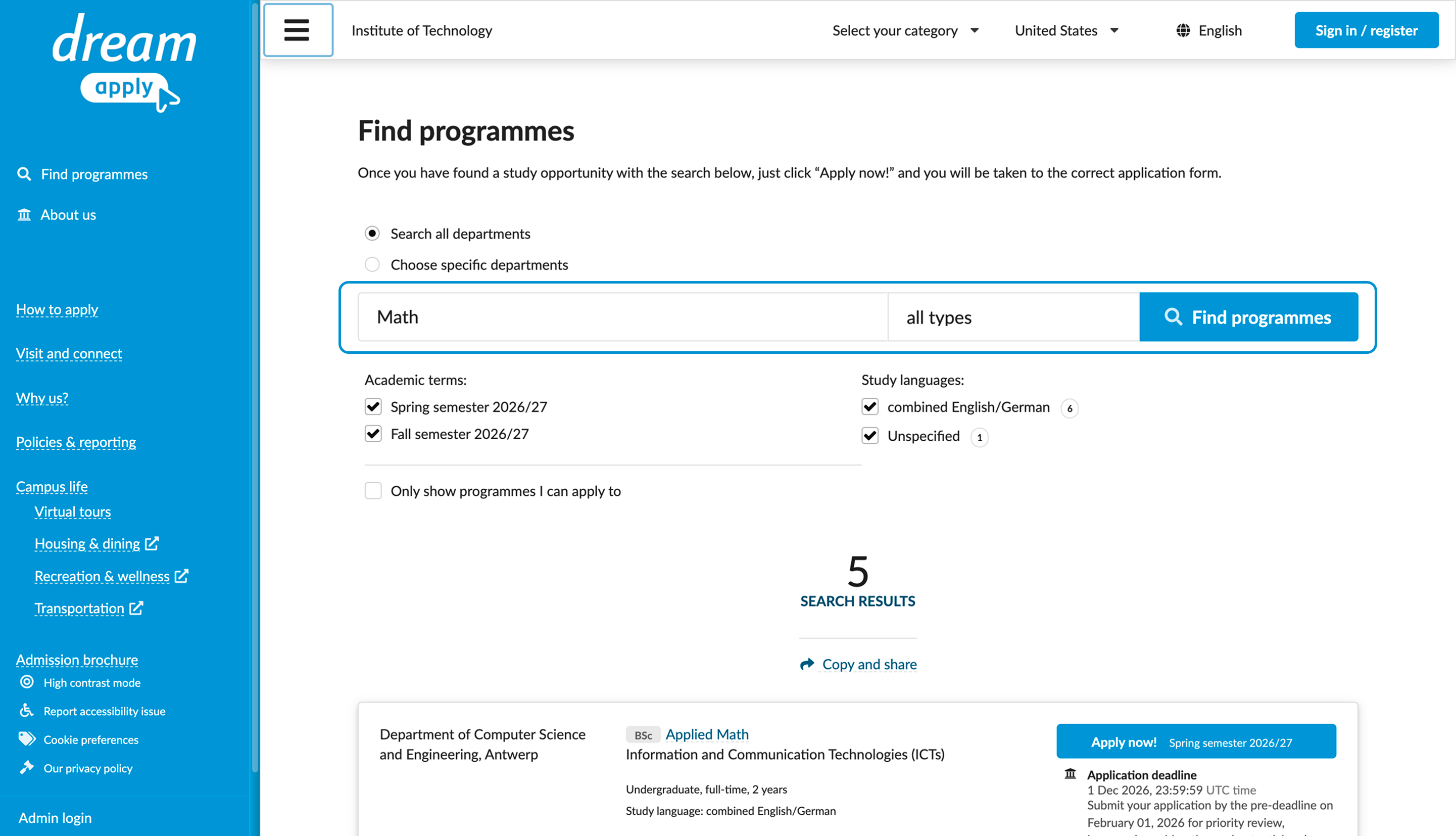
The Find programmes page in DreamApply includes a search box that allows applicants to search for programmes. You can track what users search for and analyze these terms in Google Analytics.
To do this, we will integrate DreamApply with Google Tag Manager, set up a tag to capture search terms from search interactions and send them to Google Analytics for reporting.
Before you begin
- Make sure your Administrator account in DreamApply has the
Superuserrole. - Make sure you have an account and container in Google Tag Manager. For details, see Create an account and container in the Google documentation.
- Make sure you have an account and a data stream in Google Analytics. For details, see Add a data stream in the Google documentation.
Step 1. Integrate with Google Tag Manager
First, we need to connect DreamApply to Google Tag Manager.
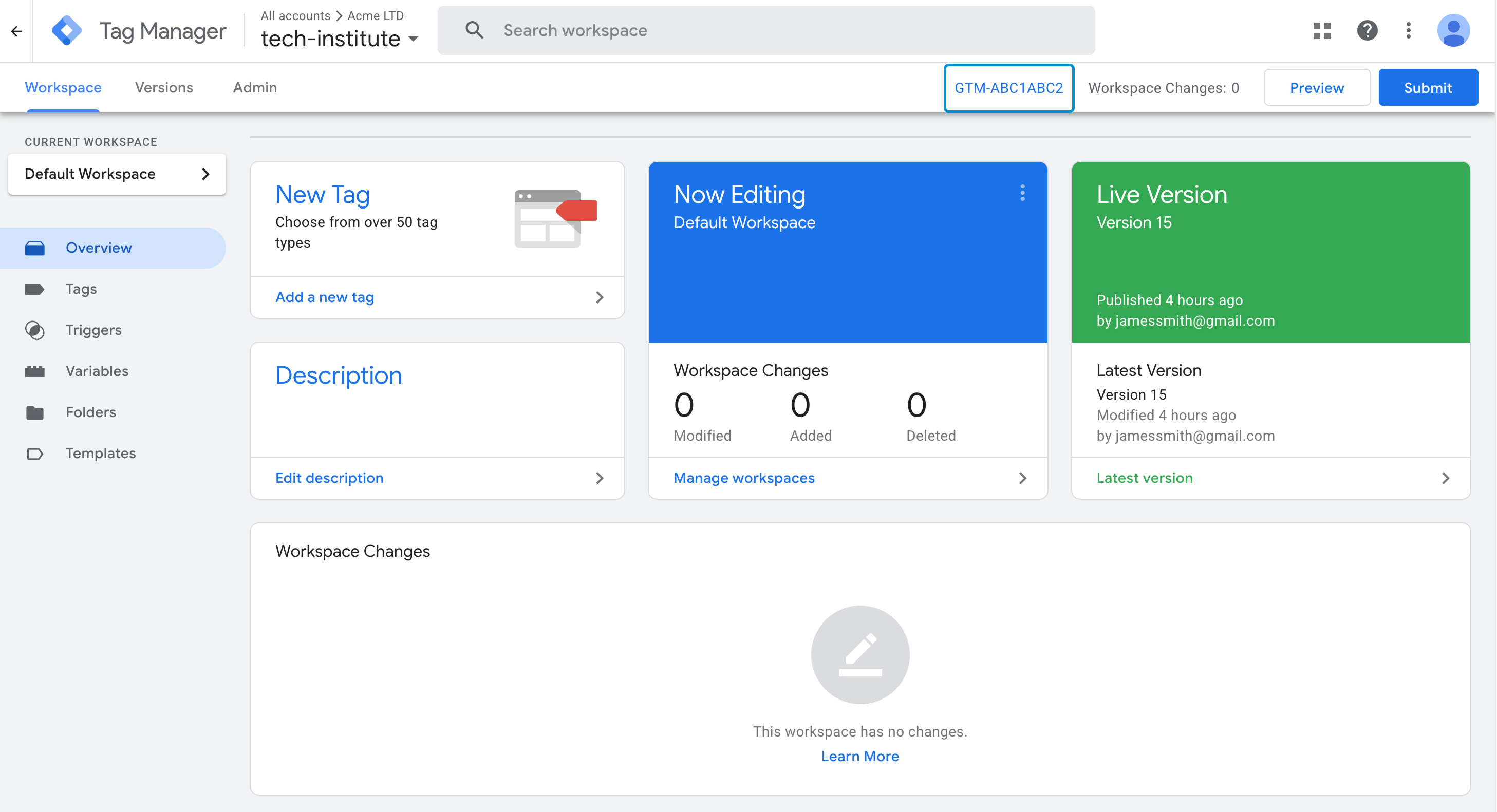
In Google Tag Manager, open your container.
At the top of the page, copy the container ID.
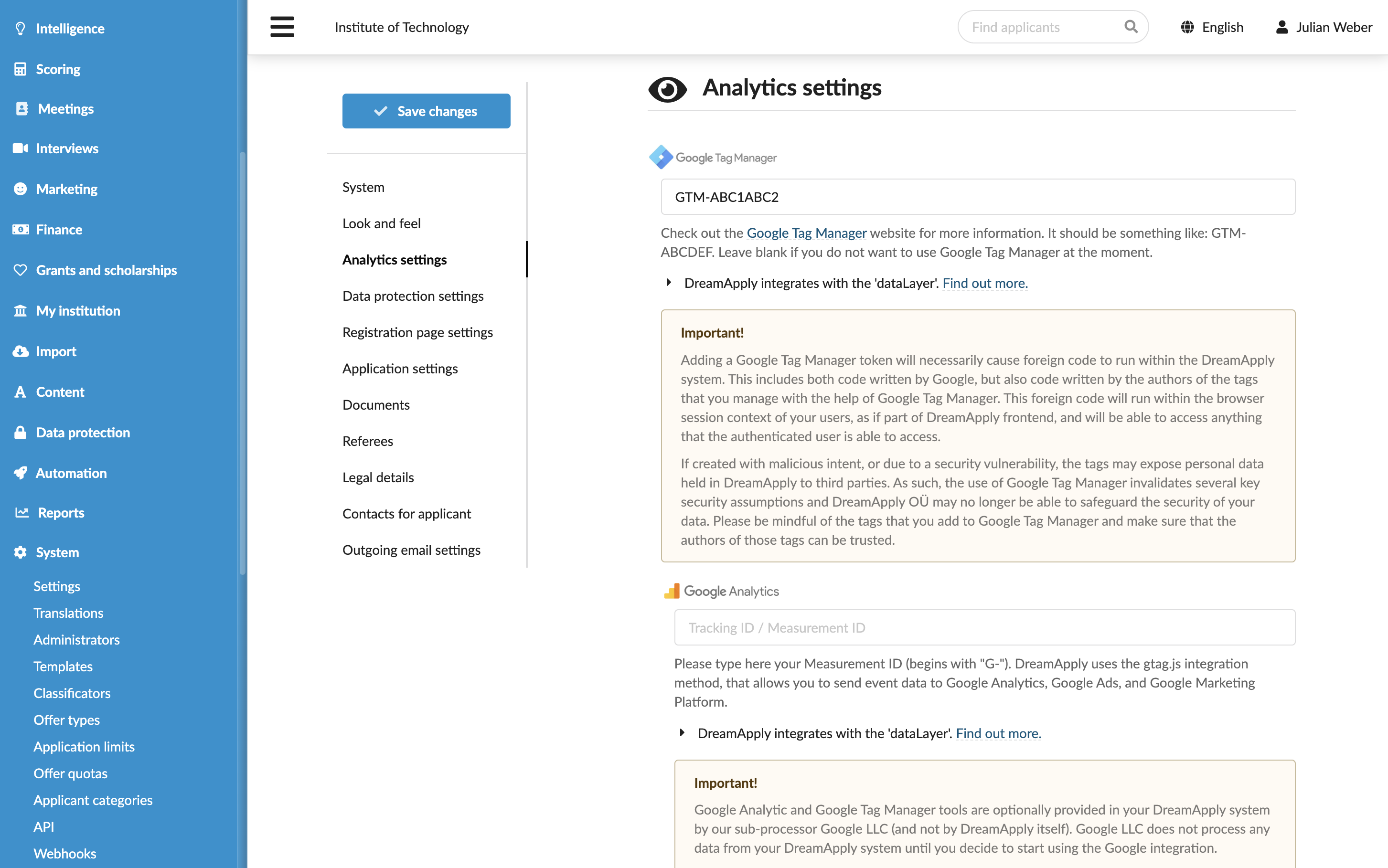
In DreamApply, in the main menu, under System, select Settings.
In the Analytics settings section, under Google Tag Manager, specify the ID for your container.
At the top of the form, click Save changes.
Step 2. Enable built-in variables
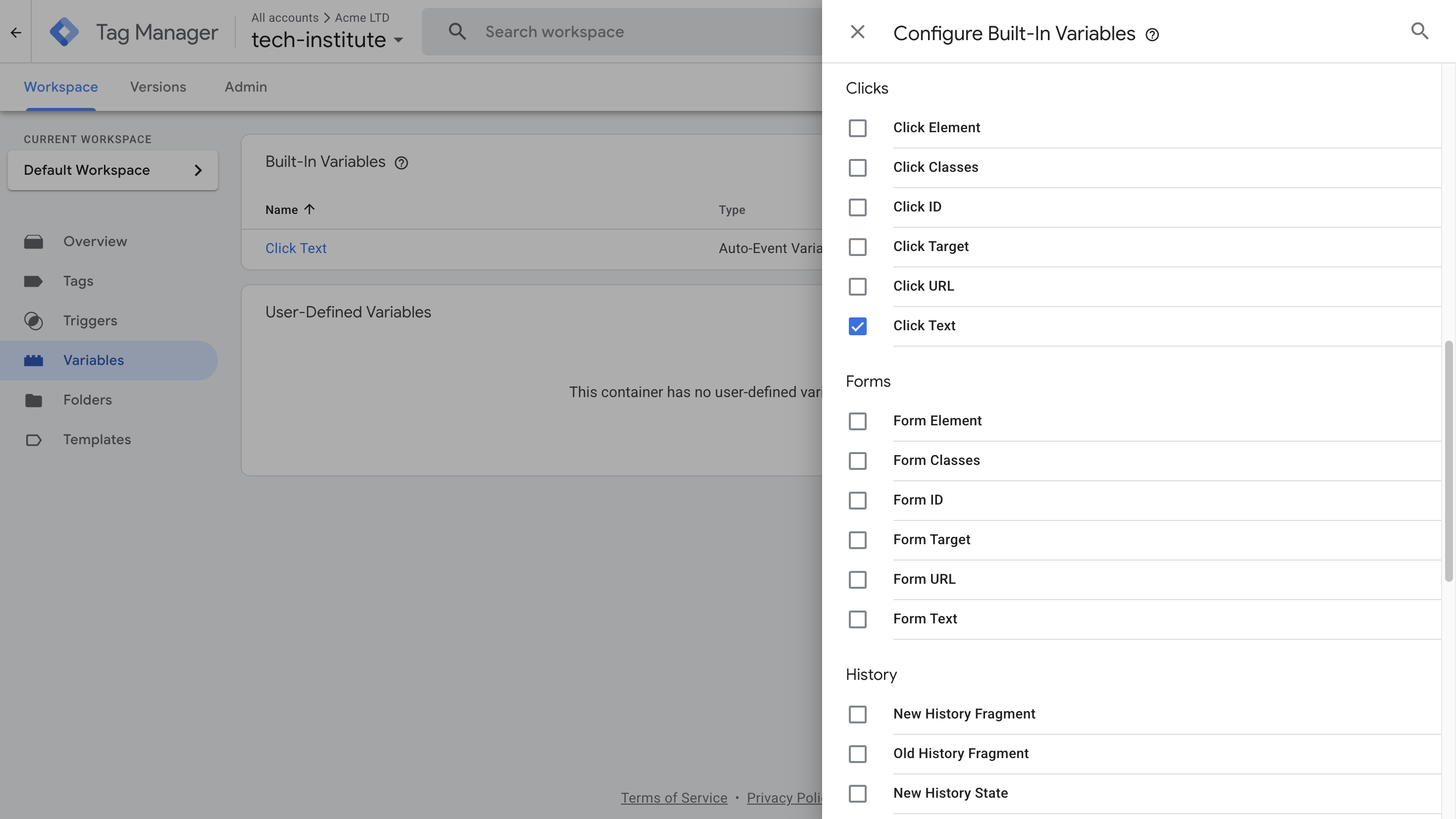
Next, we need to enable a built-in variable in Google Tag Manager. This variable is required to pass information about the click event from the Find programmes page.
- In Google Tag Manager, go to Variables.
- Under Built-In Variables, click Configure and under Clicks, select Click Text.
Step 3. Create a variable to capture search terms
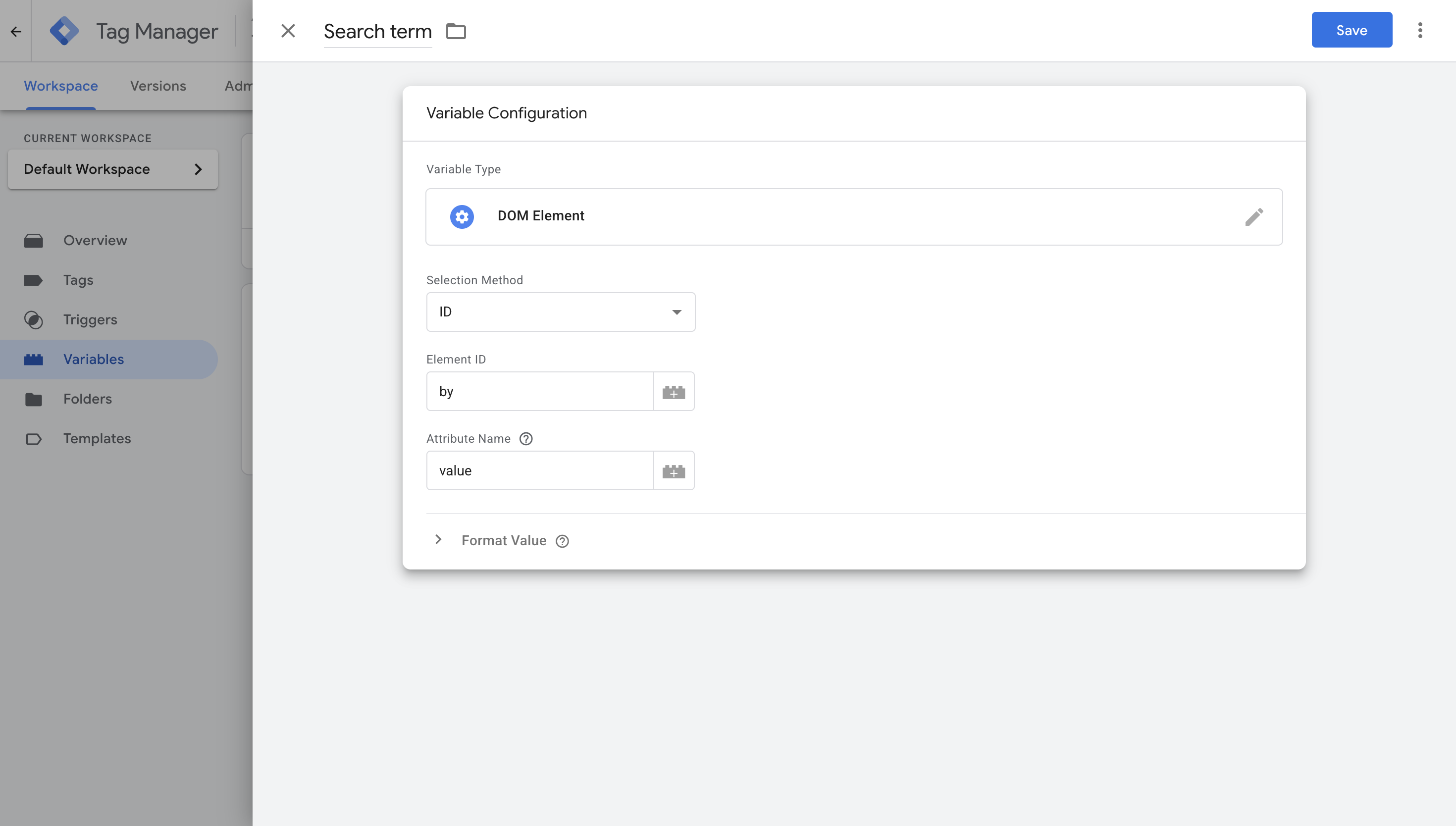
The search box on the Find programmes page uses the ID by. We will create a variable to capture the text entered into this box.
In Google Tag Manager, go to Variables.
Click New and create a variable with the following settings:
- Variable name: Search term
- Variable type: DOM element
- Selection method: ID
- Element ID:
by - Attribute name: value
Step 4. Create a click trigger
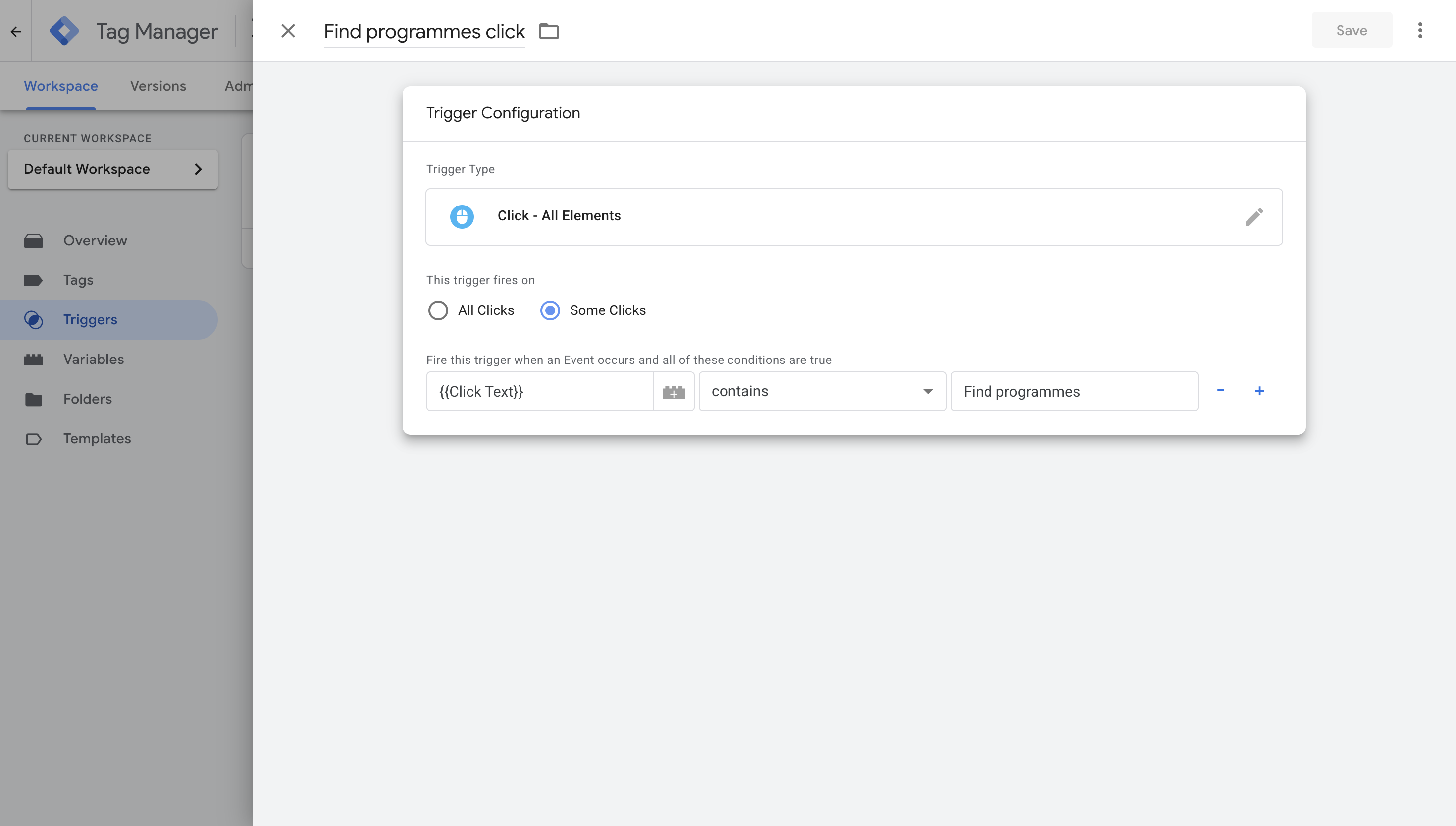
Next, we will create a trigger that fires when a user clicks the Find programmes button.
In Google Tag Manager, go to Triggers.
Click New and create a trigger with the following settings:
- Trigger name: Find programmes click
- Trigger type: Click - All Elements
- Trigger fires on: Some Clicks
- Condition:
{{Click Text}}containsFind programmes
In the top right corner, click Save.
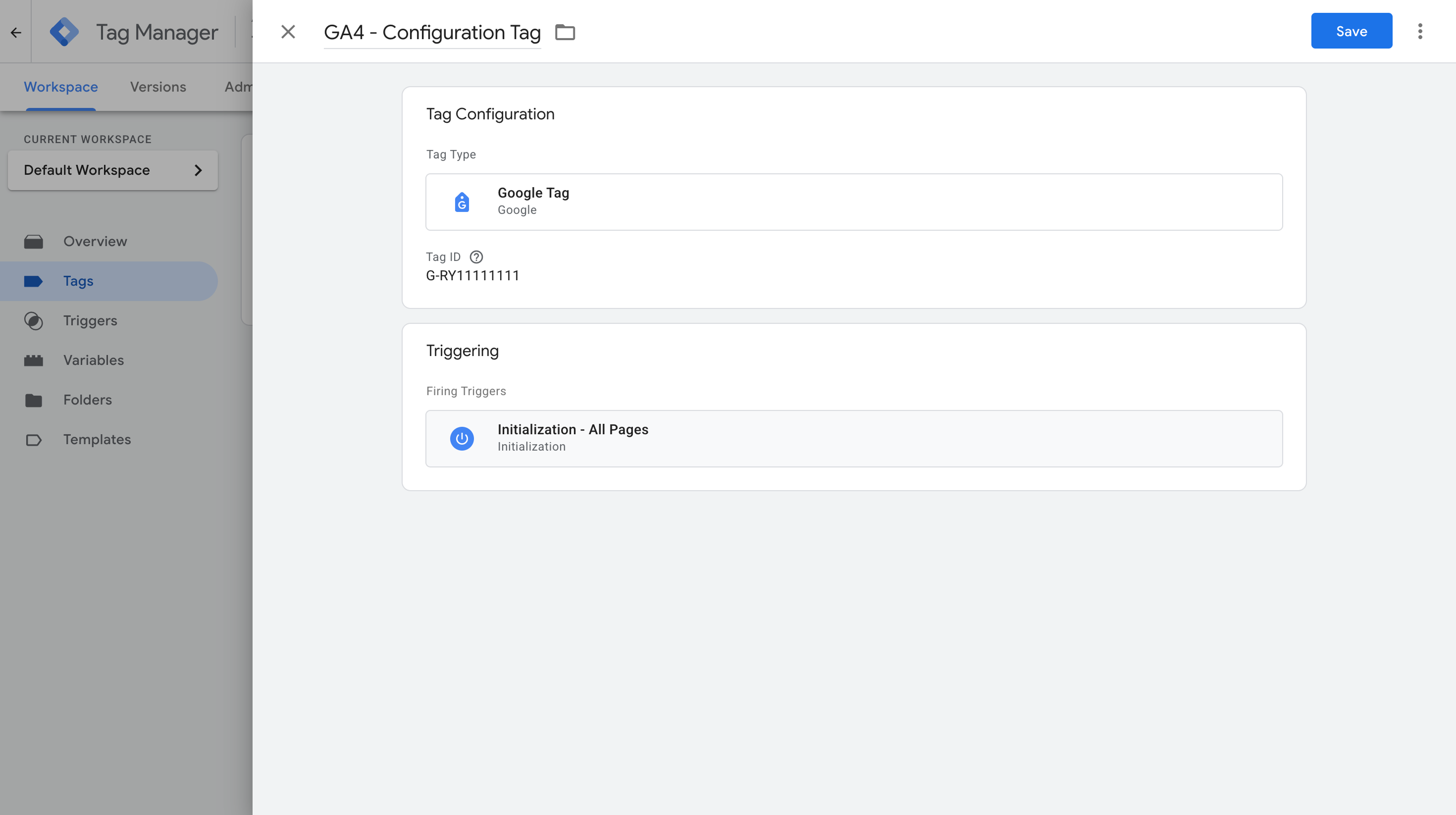
Step 5. Set up the GA4 configuration tag
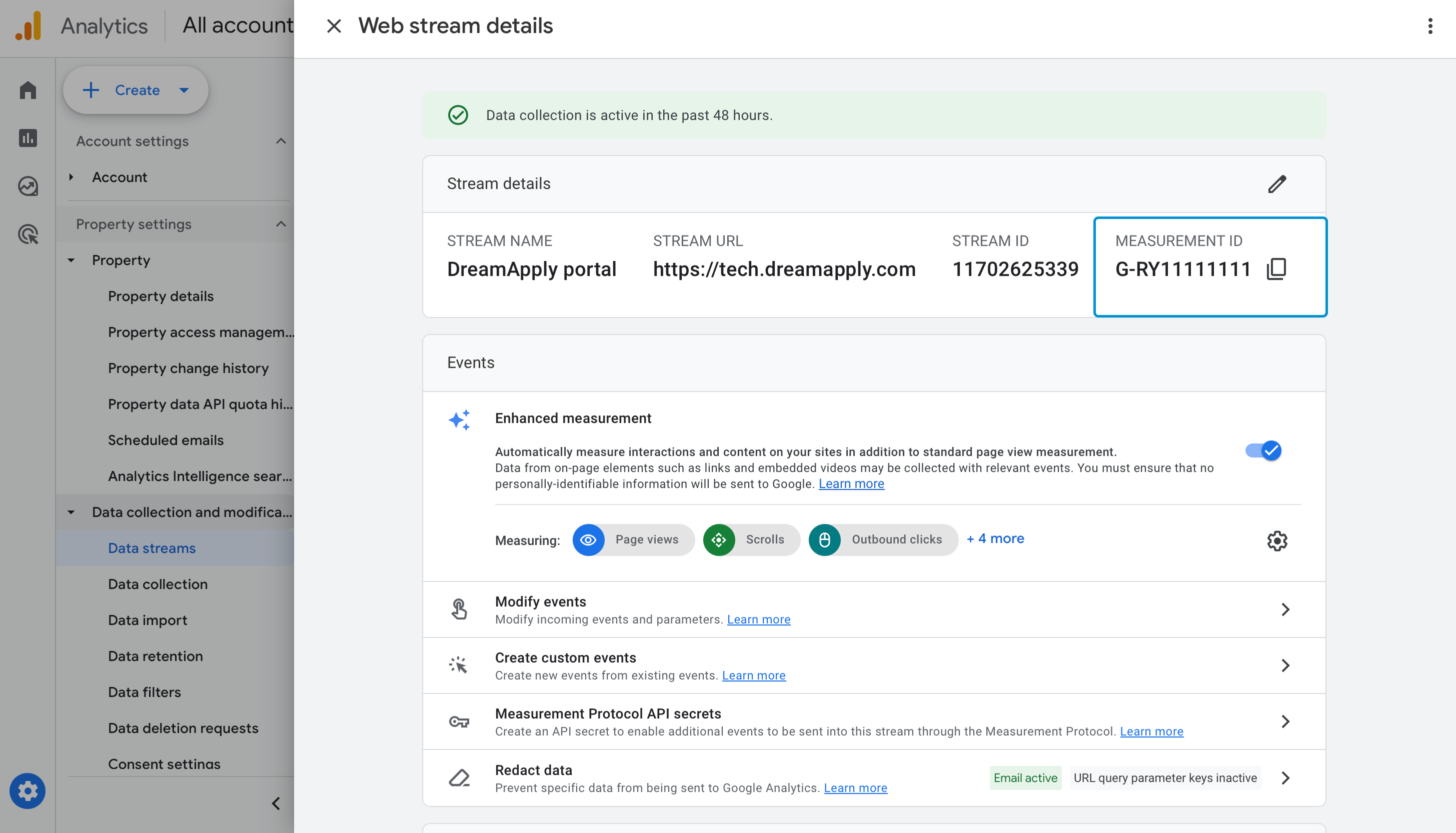
We need to connect Google Tag Manager to a GA4 property. This step is required to send the reporting data from Google Tag Manager to Google Analytics.
In Google Analytics, locate and copy the Measurement ID for your data stream. For details, see Measurement ID in the Google documentation.
In Google Tag Manager, go to Tags.
Click New and create a tag with the following settings:
- Tag name: GA4 - Configuration
- Tag type: Google Analytics > Google Tag (Load the Google tag associated with your Google Analytics stream)
- Tag ID: The Measurement ID of your data stream in Google Analytics
- Triggering: Initialization - All Pages
In the top right corner, click Save.
Step 6. Create a GA4 event tag
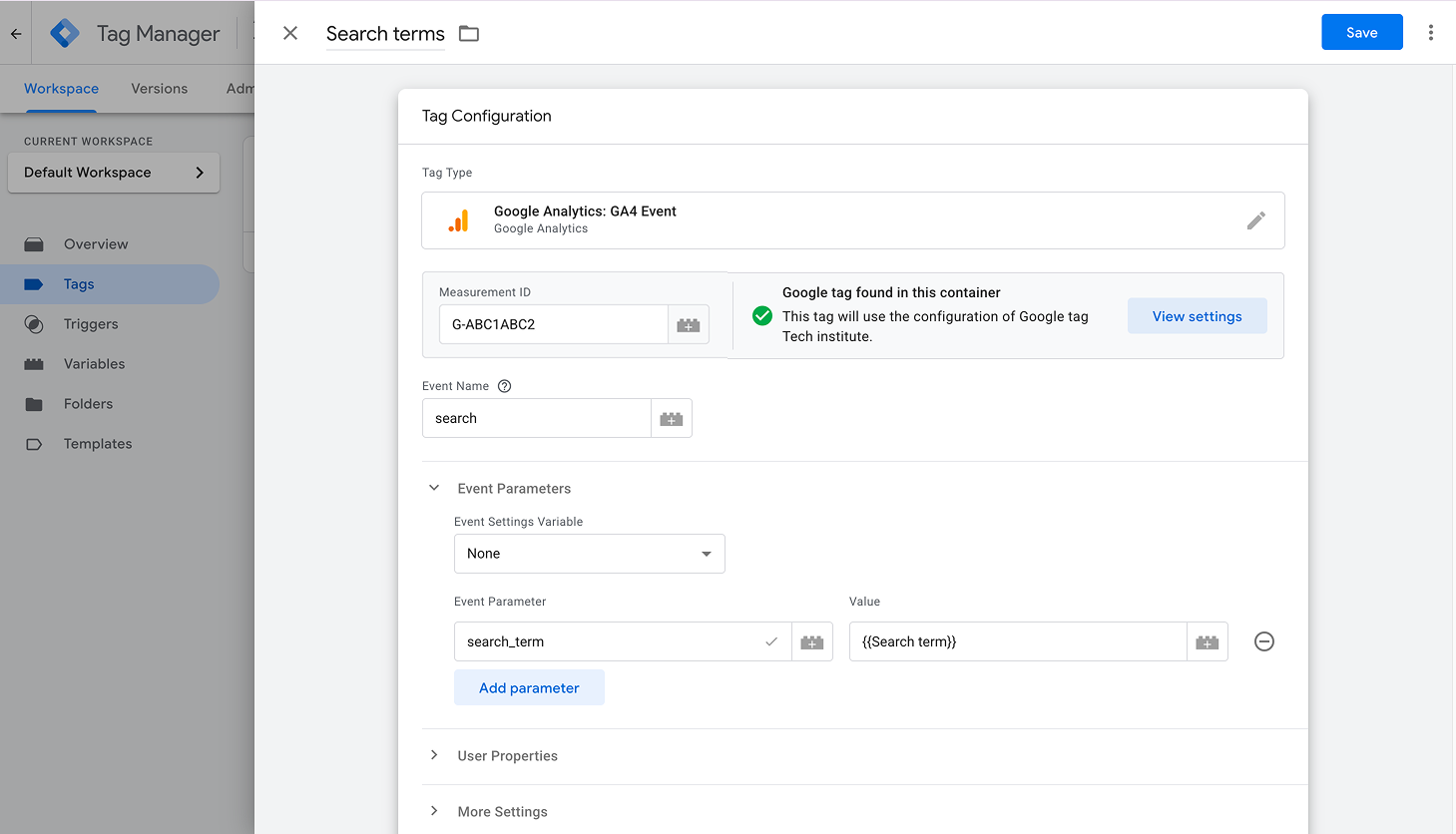
Finally, we need to create a GA4 tag that will send the search term to Google Analytics whenever the Find programmes button is clicked.
In Google Tag Manager, go to Tags.
Click New and create a tag with the following settings:
- Tag name: Search terms
- Tag type: Google Analytics > GA4 Event
- Measurement ID: The Measurement ID of your data stream in Google Analytics
- Event name:
search
Under Event parameters, add the following parameter:
- Parameter name:
search_term - Value:
{{Search term}}
- Parameter name:
Under Triggering, select the Find programmes click trigger created in step 4.
In the top right corner, click Save.
Step 7. Publish the GTM container
Once the tags are set up, we can publish the GTM container. In Google Tag Manager, click Submit, provide a version name and description and click Publish.
Step 8. Test and verify
Now, we can test the setup and verify the data is collected correctly.
- Open the DreamApply portal in a new browser window using Incognito mode.
- On the Find programmes page, enter search terms in the search box and click Find programmes.
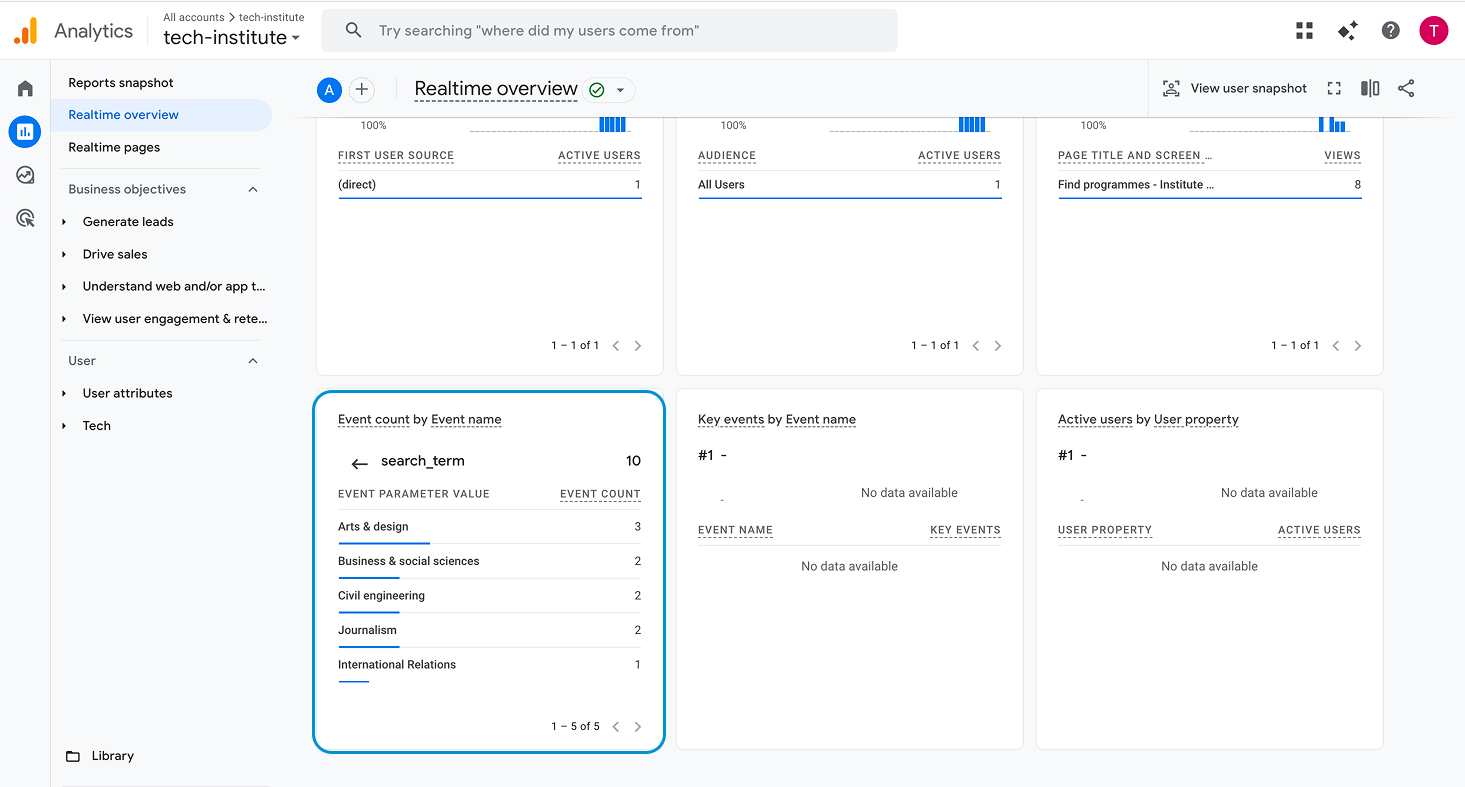
- In Google Analytics, open Realtime overview and check the Event count widget.
- Look for the event name
searchand verify that thesearch_termparameter contains the typed values.
Step 9. Register the search_term parameter
To use the search_term parameter in custom reports, you must register it as a custom dimension in Google Analytics.
In Google Analytics, in the bottom left corner, go to Admin.
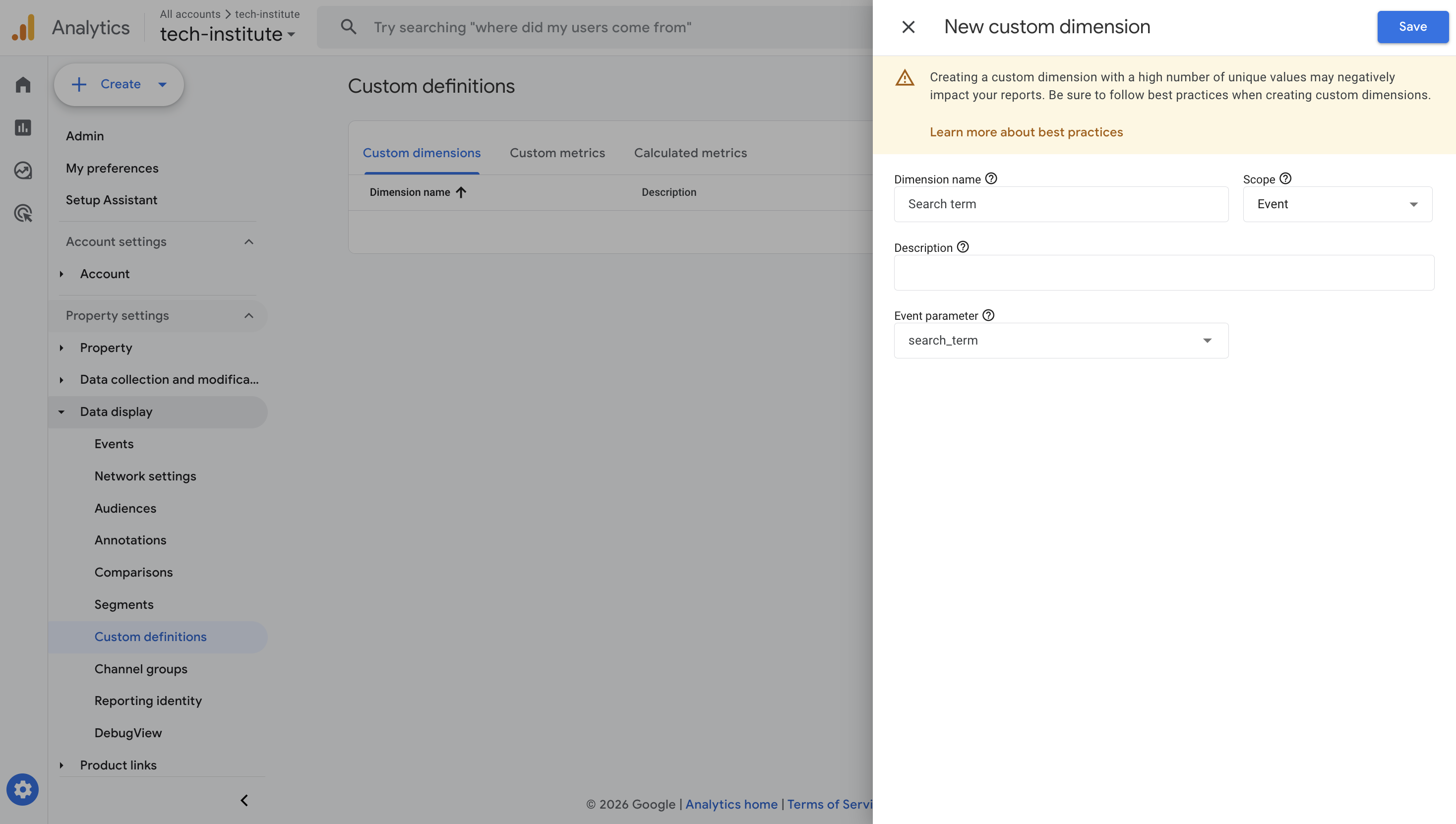
Under Data display, select Custom definitions and create a dimension with the following settings:
- Dimension name: Search term
- Scope: Event
- Event parameter:
search_term
In the top right corner, click Save.
Step 10. Create a custom report
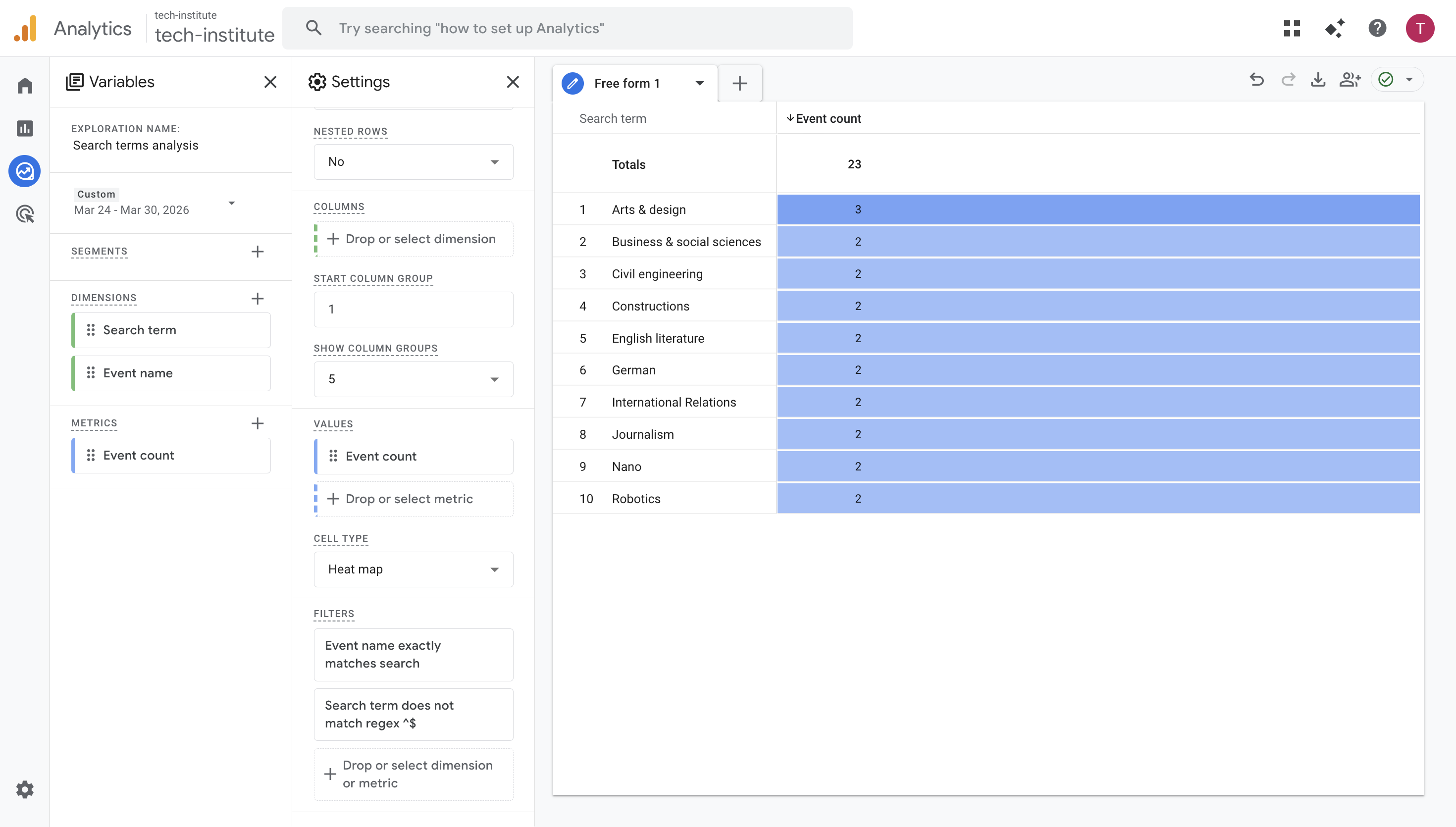
To analyze long-term data, we can set up a custom report in Google Analytics. The report will show a list of search terms and the number of times the terms were searched for.
Realtime reports in Google Analytics are available immediately. Standard reports may take up to 24-48 hours to begin displaying data after initial setup. For details, see Data freshness in the Google documentation.
In Google Analytics, go to Explore and select Blank.
In the left pane, under Variables > Dimensions, add:
- Event name
- Search term
Under Metrics, add Event count.
In the Settings tab (middle section), add:
- Rows: Search term
- Values: Event count
- Cell type: Heat map
- Filters: Event name exactly matches
search - (Optional) Filters: Search term does not match regex
^$(to exclude empty entries)