Integrate with Google Tag Manager
Roles
These roles reflect the default DreamApply setup.
You can define custom roles based on your
institution's needs. Learn more →:
You can define custom roles based on your
institution's needs. Learn more →
Google Tag Manager is a tag management system that allows marketing teams to add and update analytics, advertising and conversion tracking codes without modifying the monitored website.
To integrate with Google Tag Manager, perform the following tasks:
Before you begin
- Make sure you have a Google Tag Manager account.
- To integrate with DreamApply, your account must have the
Superuserrole or theinstancepermission.
Get the Container ID
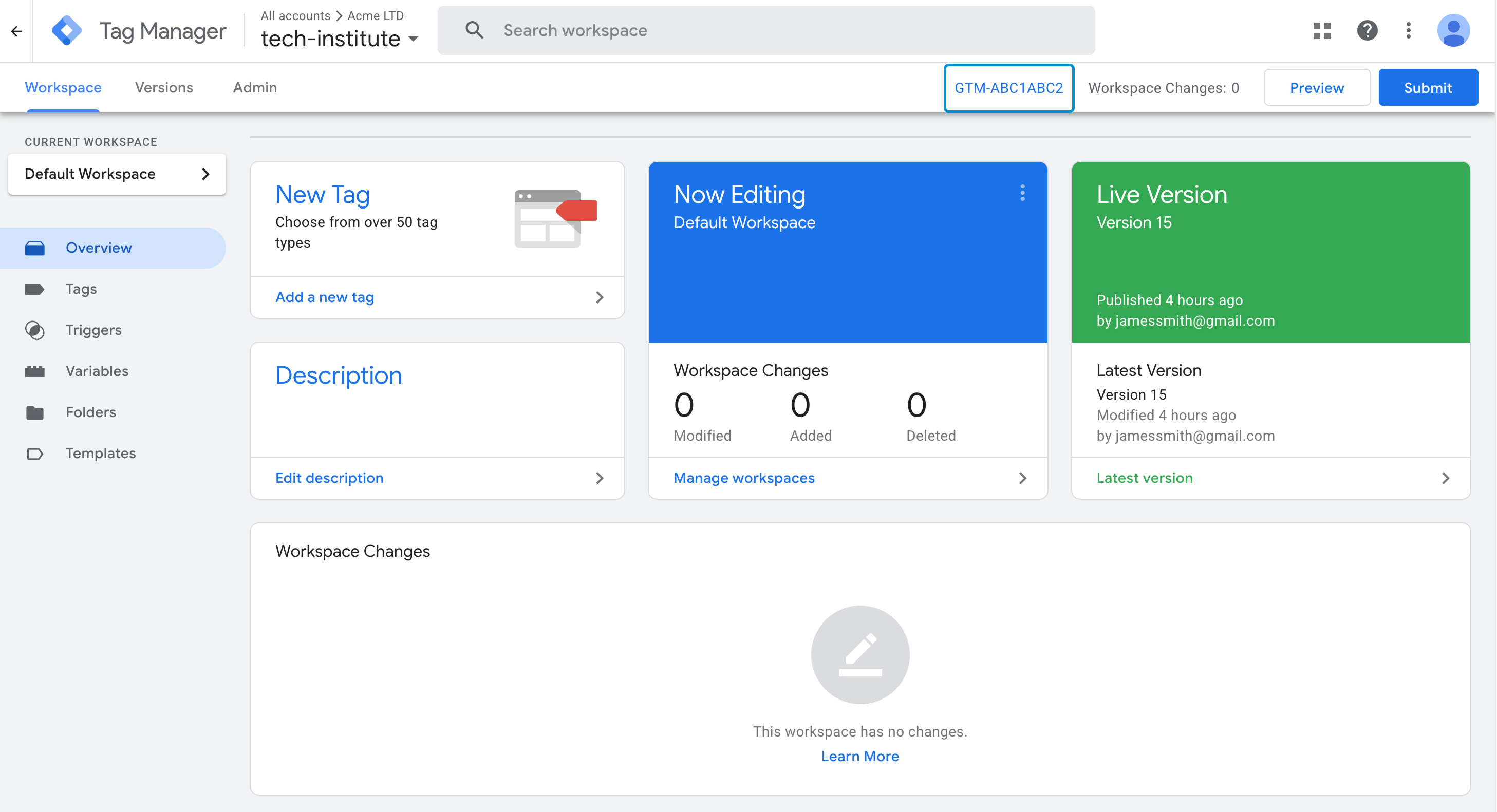
You need to create a container for your DreamApply portal in Google Tag Manager and get a Container ID for it.
The container ID is typically displayed at the top of the Google Tag Manager portal. For details, see Create an account and container in the Google documentation.
Configure integration settings
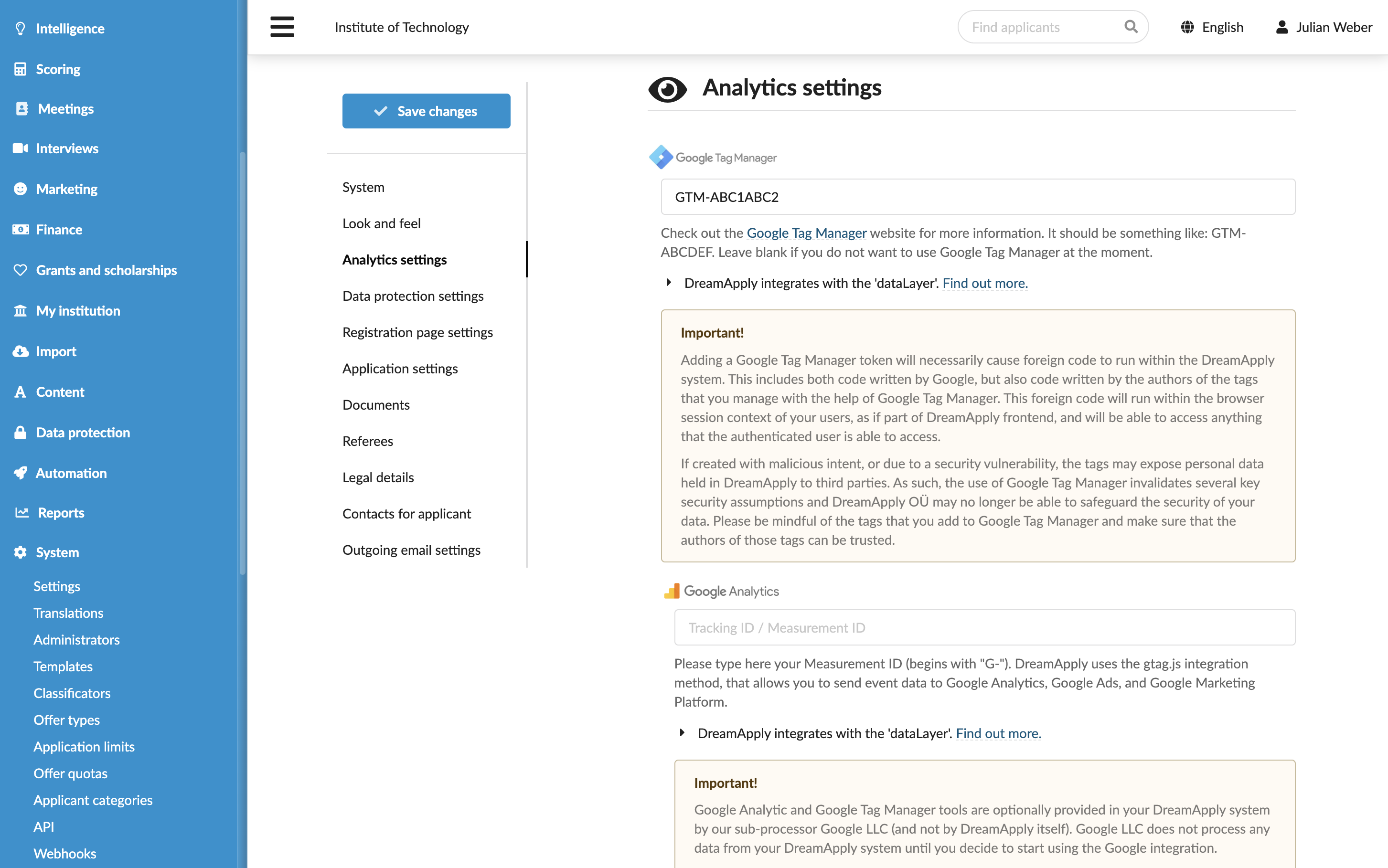
To connect DreamApply to Google Tag Manager:
- In the main menu, under System, select Settings.
- In the Analytics settings section, under Google Tag Manager, specify the ID for your container.
- At the top of the form, click Save changes.
Avoid mixed configurations. If you are using Google Tag Manager, do not specify your GA Measurement ID in the DreamApply system settings. Instead, deploy GA4 via a Google Tag within your GTM container. This centralized setup prevents duplicate tracking and ensures that your analytics remain clean and reliable. For details, see Set up Google Analytics in Tag Manager in Google documentation.
Configure consent settings
To configure consent settings for Google Tag Manager:
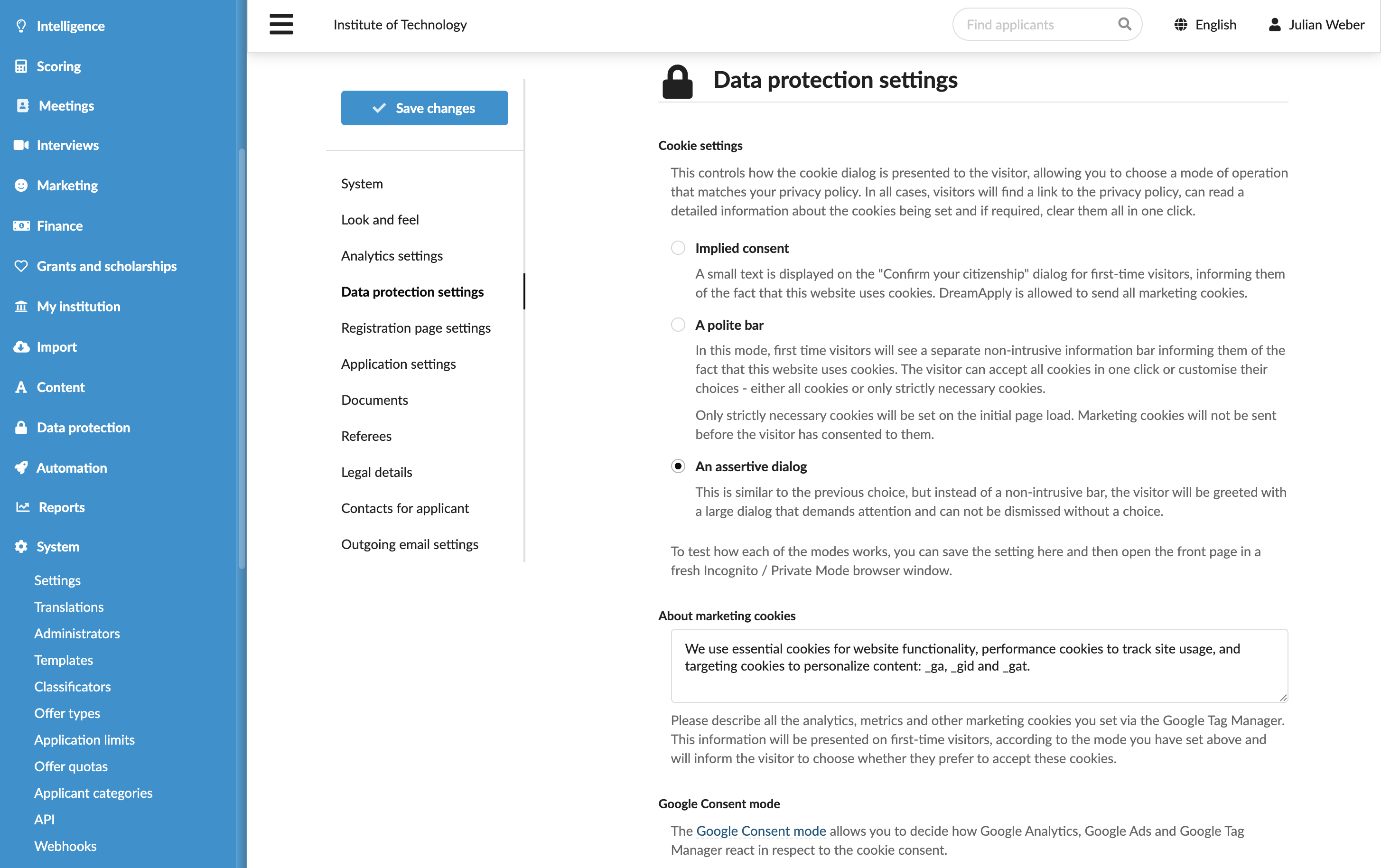
In the main menu, under System, select Settings.
In the Data protection section, select the consent mode for cookies. For details, see Manage cookies.
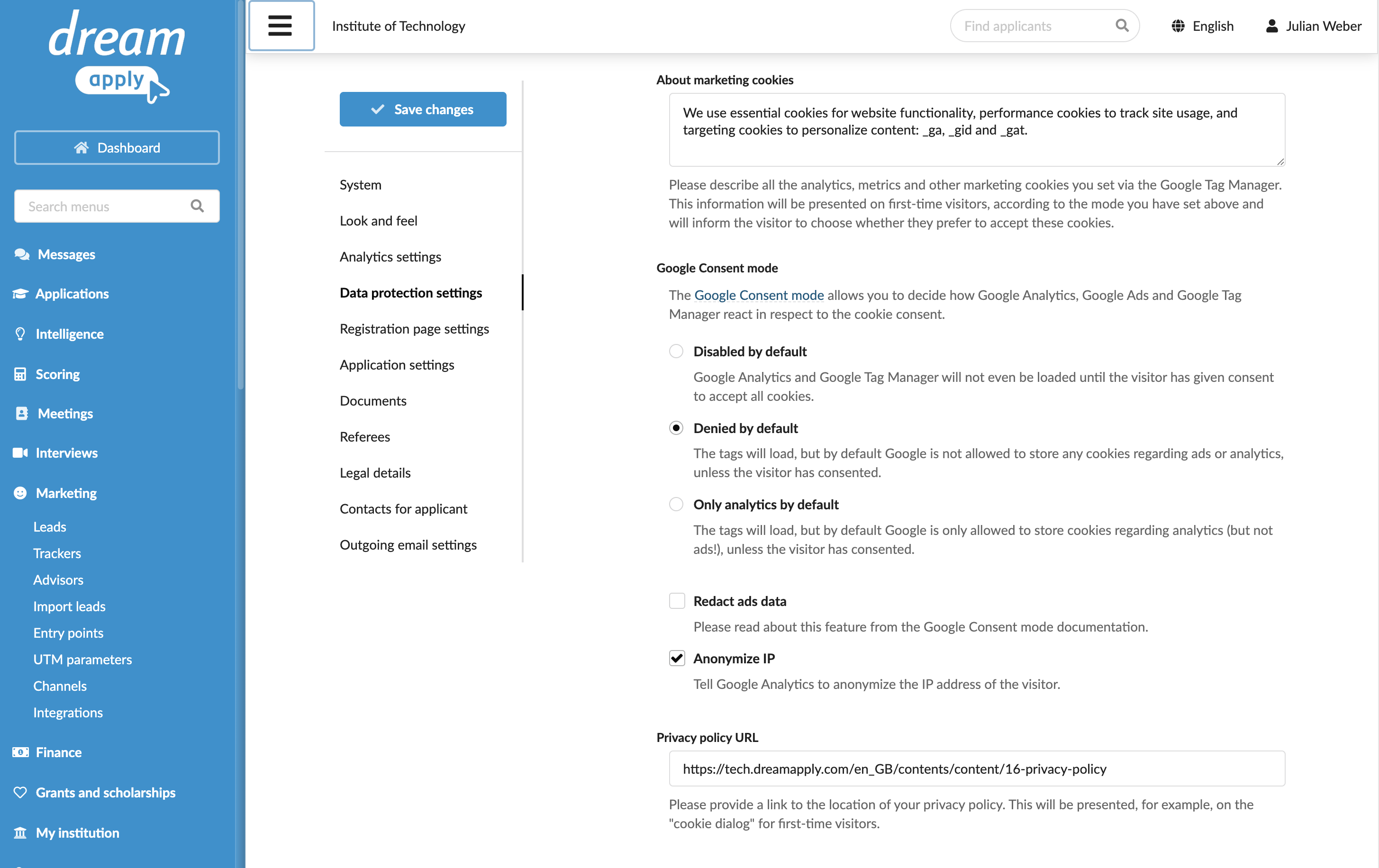
Under Google Consent mode, define how Google Analytics, Google Ads and Google Tag Manager must respond to the user consent choices. For details, see Consent mode overview.
To protect personally identifiable information (PII), select the Redact ads data and Anonymize IP check boxes. For details, see Best practices to avoid sending Personally Identifiable Information (PII) and IP masking.
At the top of the form, click Save changes.
What you do next
Once the integration is set up, you can begin setting up tags in Google Tag Manager to collect and send data to your connected analytics services such as Google Analytics.