Send activation requests
Roles
These roles reflect the default DreamApply setup.
You can define custom roles based on your
institution's needs. Learn more →:
You can define custom roles based on your
institution's needs. Learn more →
DreamApply offers two methods to send activation requests to ESSE3:
- Automatic: DreamApply automatically triggers activation requests when specific events occur.
- Manual: For more granular control, you can manually send activation requests for specific applications to ESSE3.
Send requests automatically
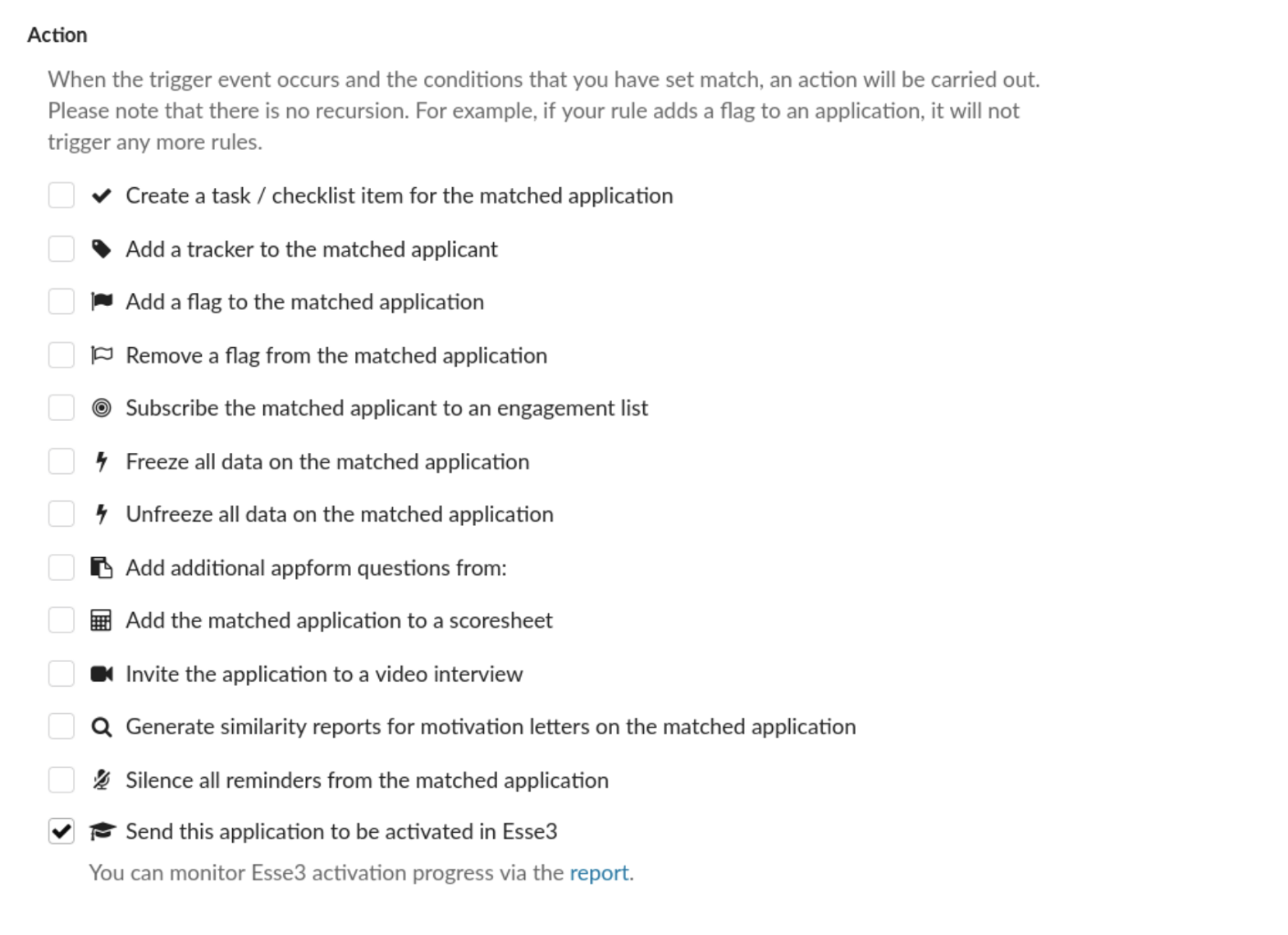
You can set up DreamApply to automatically send activation requests to ESSE when specific events occur in DreamApply.
- In the main menu, under Automation, select Rules.
- Below the rules list, click New rule and specify the rule name.
- In the Trigger events section, select check boxes next to events that must trigger activation requests.
- In the Action section, select the Send this application to be activated in Esse3 check box.
- At the top of the form, click Save changes.
Send requests manually
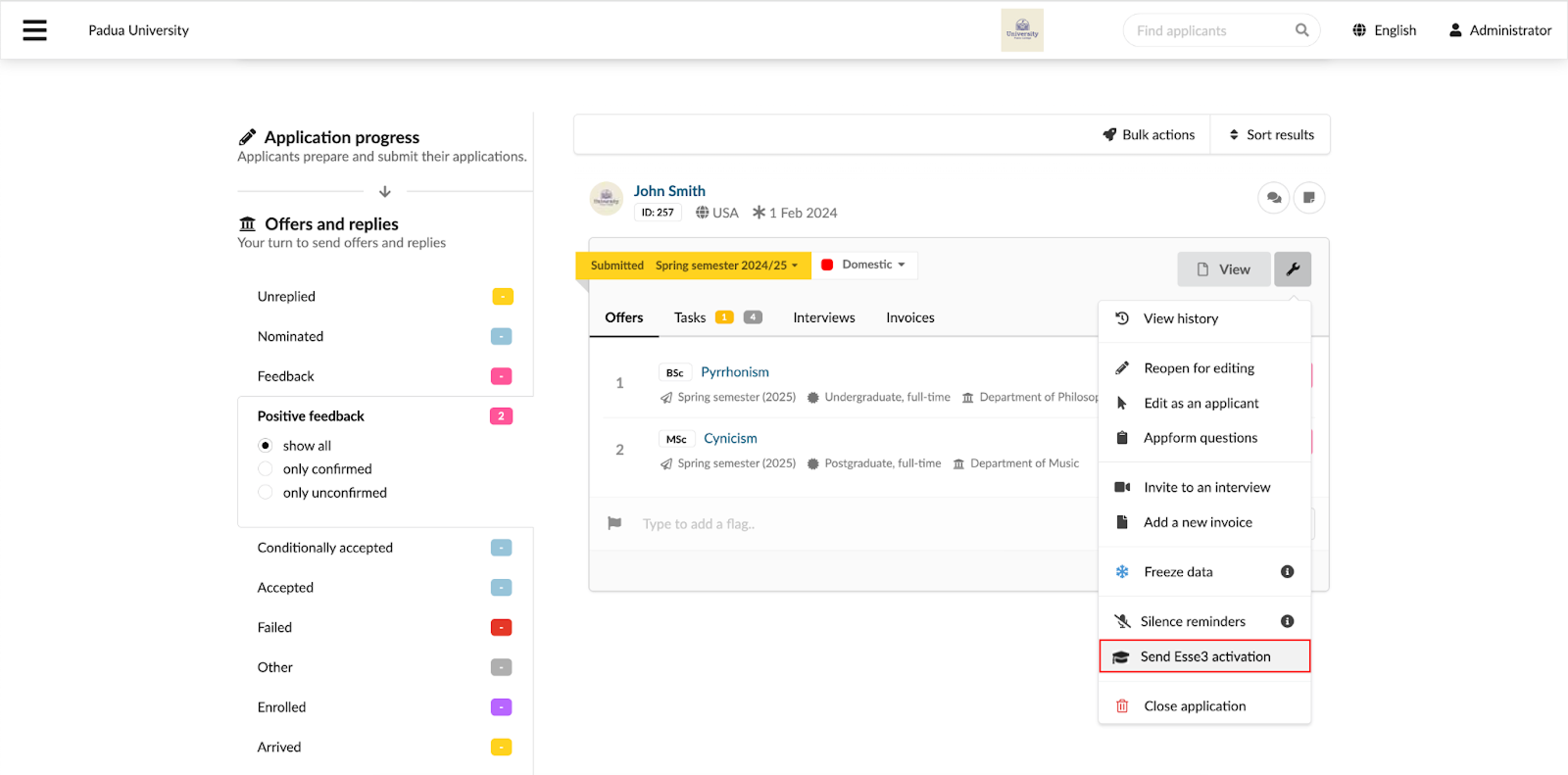
You can review applications in DreamApply and manually send activation requests to ESSE3.
- In the main menu, under Applications, select Browse.
- Use filters on the left and at the top to select applications matching specific criteria.
- In the top right corner of the application, click the edit icon and select Send Esse3 activation.
Monitor activation progress
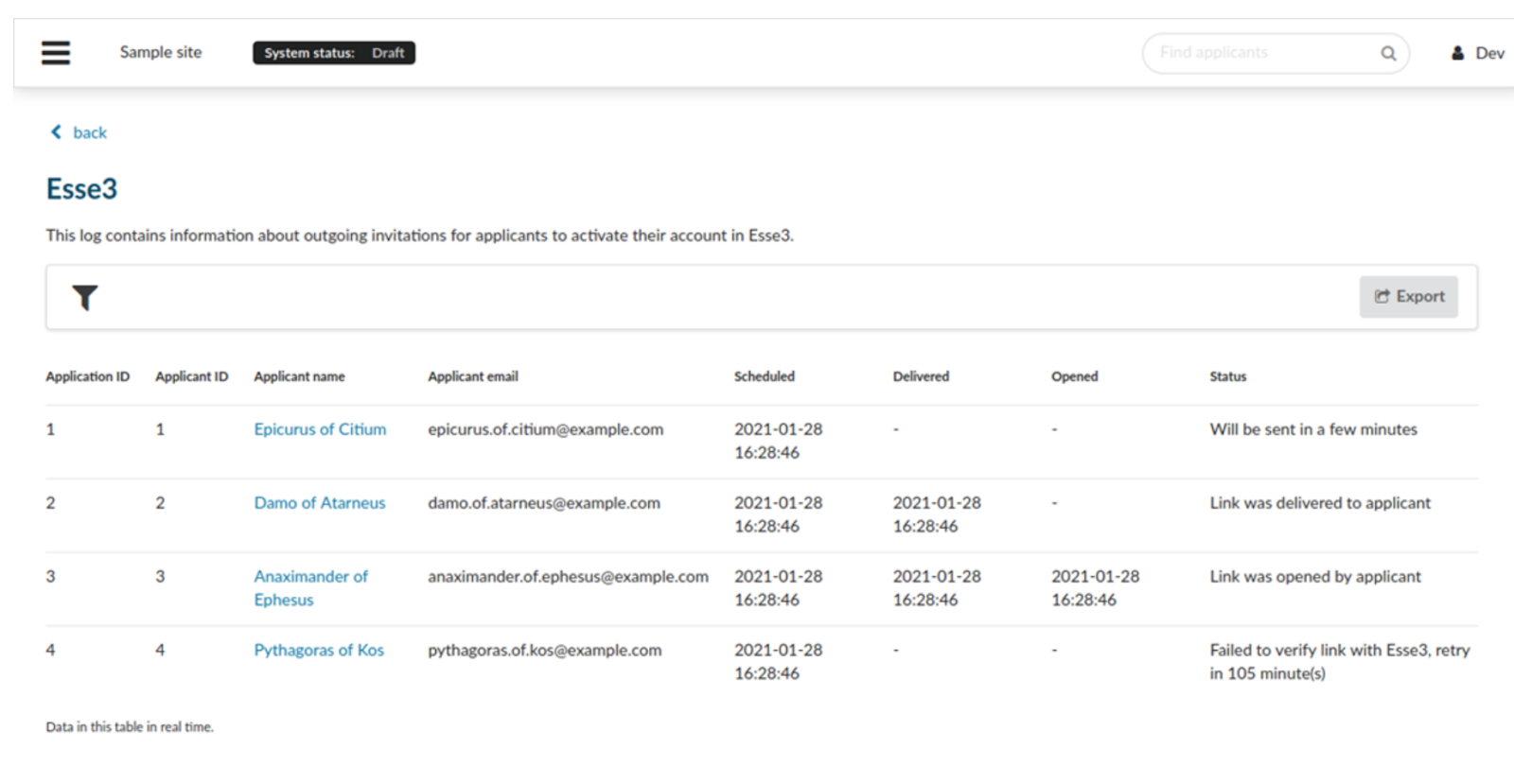
DreamApply offers a report to monitor the status of activation requests. You can track key metrics such as:
- Email delivery
- Email engagement
- Activation status and so on
To access the report, in the main menu, under Reports, select ESSE3.