Integrate with SmartHub
DreamApply integrates with SmartHub by Keystone Education Group, allowing you to import lead data from the platform.
During the import process, DreamApply pulls the following data:
- First name
- Last name
- Email address
- Phone number and other available fields
You can map each lead field to the corresponding fields in the applicant records in DreamApply.
To import lead data to DreamApply, perform the following tasks:
Before you begin
To integrate with DreamApply, your account must have the Superuser role or the integrations permission.
Obtain an API key
Keystone provides secure API access for institutions that want to connect to SmartHub.
To obtain an API key:
- Log in to your SmartHub administrator account.
- On the main menu, select Integrations > Setup.
- In the Rest API section, enable the Yes option and click Instructions.
- Make note of and copy the displayed API key.
If API access is not enabled for your account or you have trouble locating the API key, please contact the Keystone support team.
Configure integration settings
To connect to SmartHub in DreamApply:
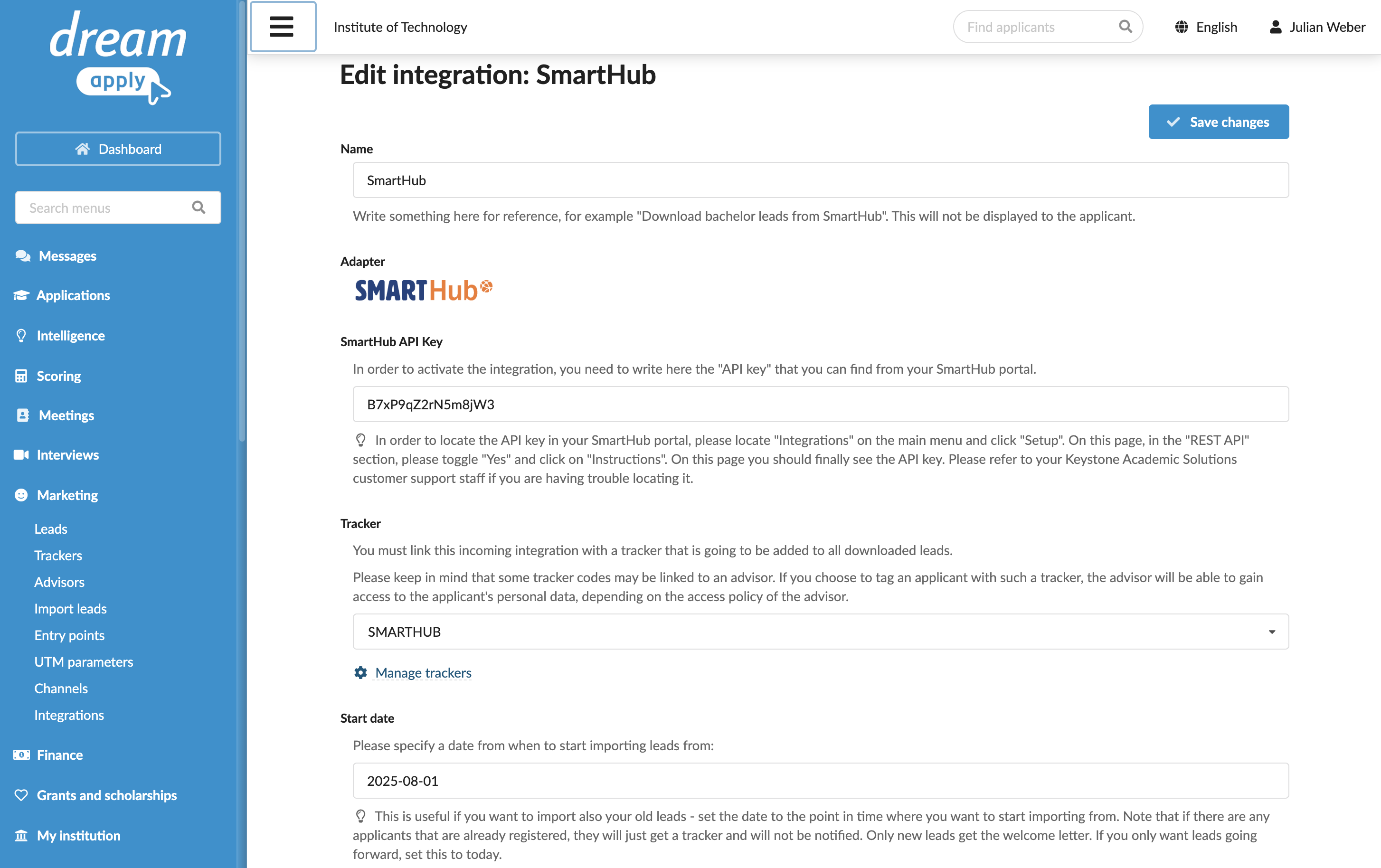
In the main menu, under Marketing, select Integrations.
Select Incoming integrations > SmartHub.
Specify the API key you obtained earlier.
From the Tracker list, select the tracker to assign to imported leads.
Set the start date for the lead import. DreamApply will only fetch records created on or after this date.
If necessary, edit the welcome email template.
In the Technical contact field, specify an email address for technical support. DreamApply will send error descriptions to this address if any integration issues occur.
At the top of the form, click Save changes.
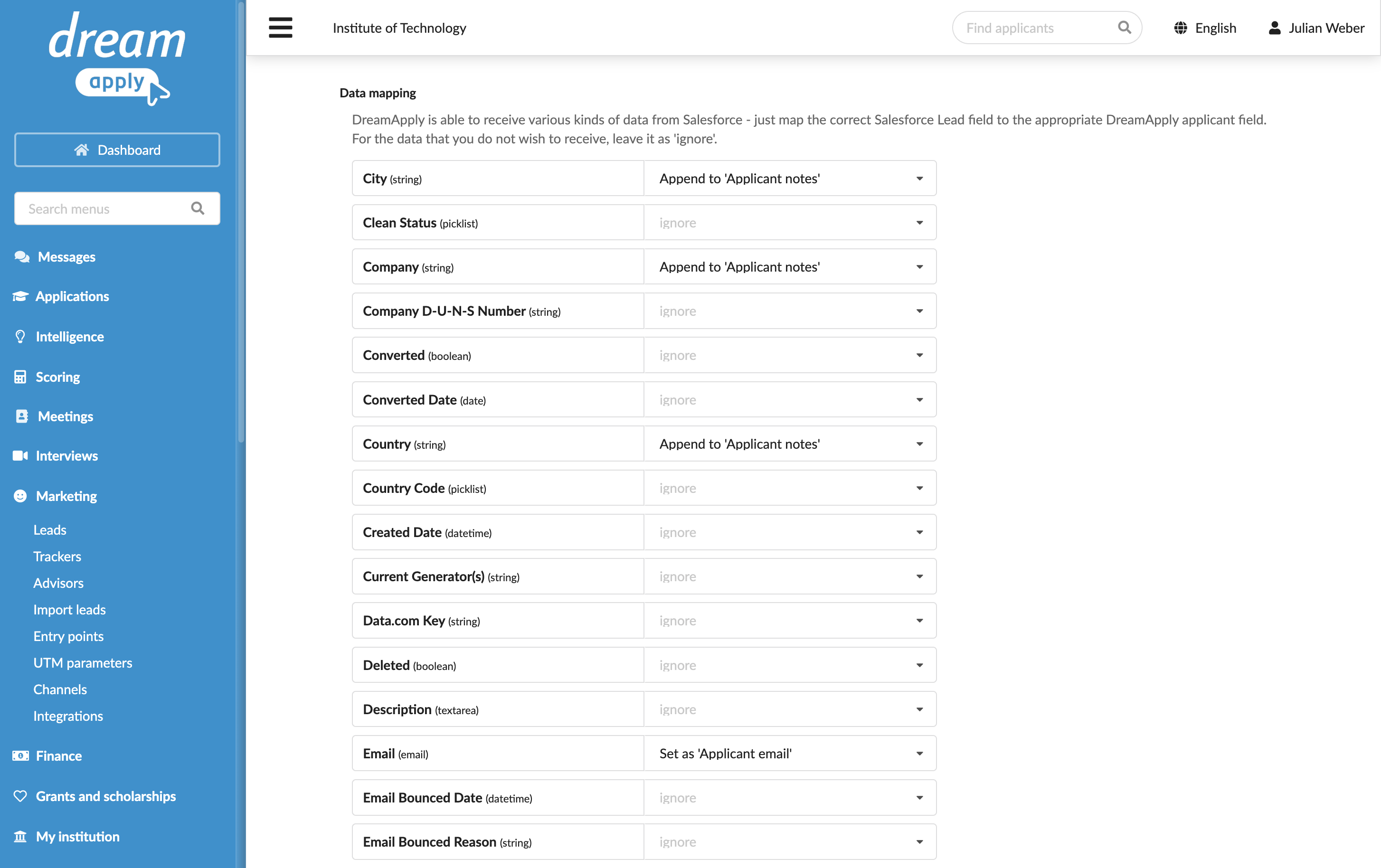
In the Data mapping section, specify how SmartHub lead fields must map to DreamApply applicant data. You can use a specific field, like a company name, as an additional tracker and append some lead data to notes.
At the top of the form, click Save changes.
View imported leads
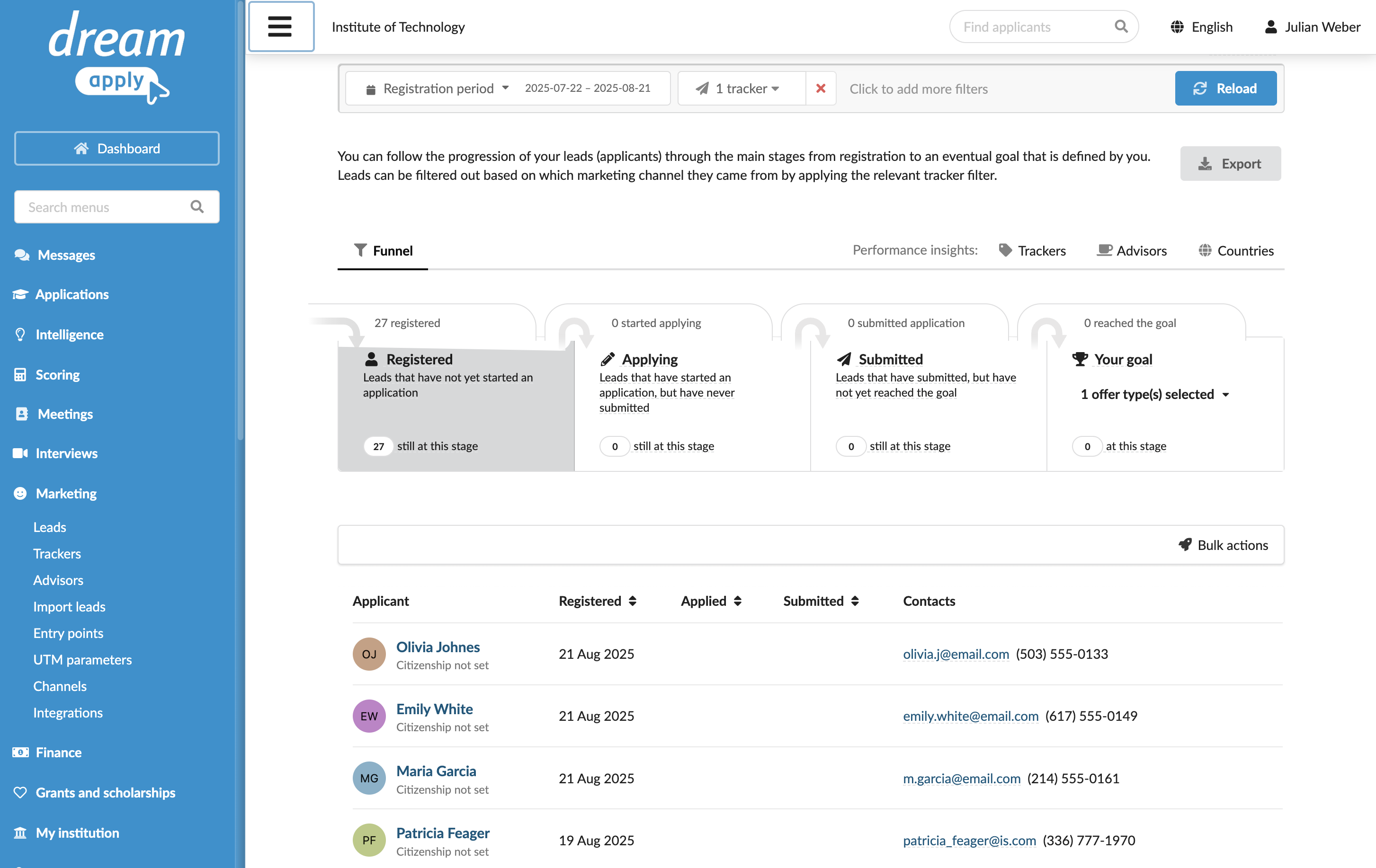
Once the integration is set up, DreamApply will begin fetching new and updated lead data. You can view all imported leads in the Leads view under Marketing.
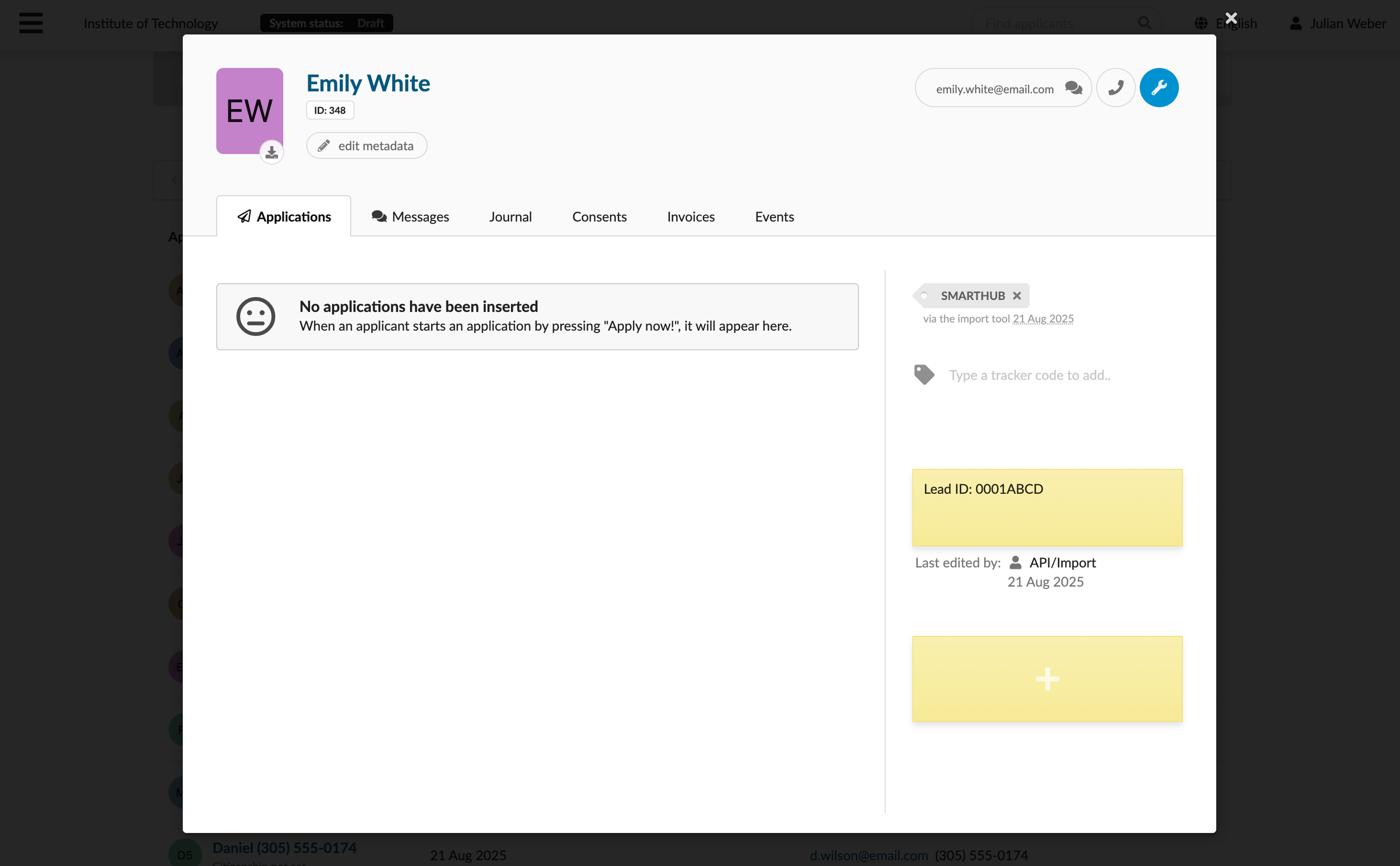
Each imported lead gets a tracker assigned to it at import.